To edit a PDF on Windows 11 or 10, open it in Microsoft Word for text changes, or in Microsoft Edge to add ink, highlights, notes and form entries without installing anything.
This hub covers opening, editing, combining, compressing, converting, printing to PDF and password-protecting PDF files with built-in Windows tools, free options and Adobe Acrobat.
How to edit PDF files
Word turns the PDF into an editable copy, so this is the fastest free route to change the actual text. The original PDF stays untouched.
- Open desktop Word and select File > Open.
- Pick the PDF and confirm when Word says it will convert the file.
- Edit the text, images and layout like any Word document.
- Select File > Save As or Save a Copy, then Browse.
- Choose PDF in the file type list and select Save.
Word works best on text-heavy files. Pages built mostly from charts or graphics may arrive as a single image you cannot edit.
Which method should you use to edit your PDF?
Every PDF job has a built-in route in Windows, Edge or Word, a free option and a paid option. Match your task to a row.
| Task | Built-in Windows, Edge or Word route | Free option | Paid option |
|---|---|---|---|
| Make all your changes to body text | Open the PDF in Word and save as PDF again | LibreOffice Draw or another of the free PDF editors | Acrobat Pro Edit PDF tool |
| Fix typos, fast | Word conversion | Adobe online editor adds text boxes but cannot change existing body text | Acrobat Pro |
| Highlight, ink, add notes, fill forms | Microsoft Edge PDF reader | Acrobat Reader | Acrobat Pro |
| Edit from anywhere (browser, phone, another PC) | OneDrive in a browser | Adobe Acrobat online tools | Acrobat Pro or Acrobat Studio plans |
| Combine PDF files | OneDrive or SharePoint Merge (eligible Microsoft 365 plans) | Adobe online Merge PDF, up to 100 files | Acrobat Pro, which also merges Word, Excel and image files |
| Compress a PDF | Word save as PDF re-exports a smaller file from text sources | Adobe online Compress PDF (High, Medium, Low) | Acrobat Pro for batch and unlimited compression |
| Convert JPG to PDF | Microsoft Print to PDF from the print dialog | Adobe online JPG to PDF | Acrobat Pro |
| Convert many files at once | Word save as PDF one file at a time | Free Office routes to batch convert files to PDF | Acrobat Pro batch actions |
| Scan paper to PDF | Windows Scan app, so you can scan documents to PDF | Scanner maker software | Acrobat Pro scan with OCR |
| Password protect a PDF | Word Encrypt the document with a password | LibreOffice export or Adobe online Protect PDF | Acrobat Pro with editing and printing restrictions |
| Do more with powerful tools (redact, OCR, e-sign tracking) | Not built in | Limited free online tools | Acrobat Pro or Acrobat Studio |
Edit a PDF using Microsoft Word
Word creates a converted copy and tries to match the original layout. For scanned files and OCR, you can convert PDF to Word with Acrobat instead.
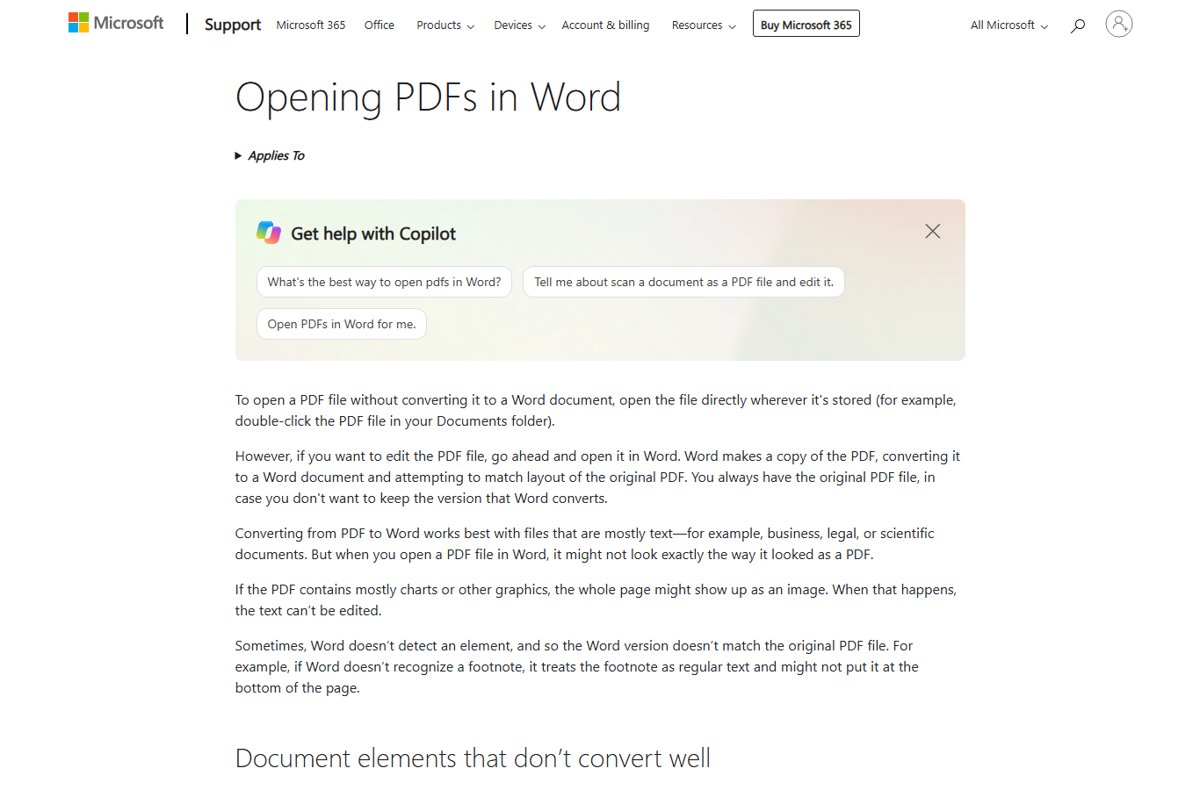
- In File Explorer, right-click the PDF and select Open with > Word, or open it from File > Open in Word.
- Confirm the conversion when Word says it will make an editable copy of the PDF.
- Check tables, footnotes and page borders, which often convert poorly.
- Make your edits.
- Select File > Save a Copy > Browse, choose PDF and select Save.
Elements that rarely survive conversion include tracked changes, frames, endnotes, bookmarks, comments, audio, video and font effects such as Glow or Shadow. If your PDF relies on them, annotate it in Edge instead.
Modify a PDF with Microsoft Edge
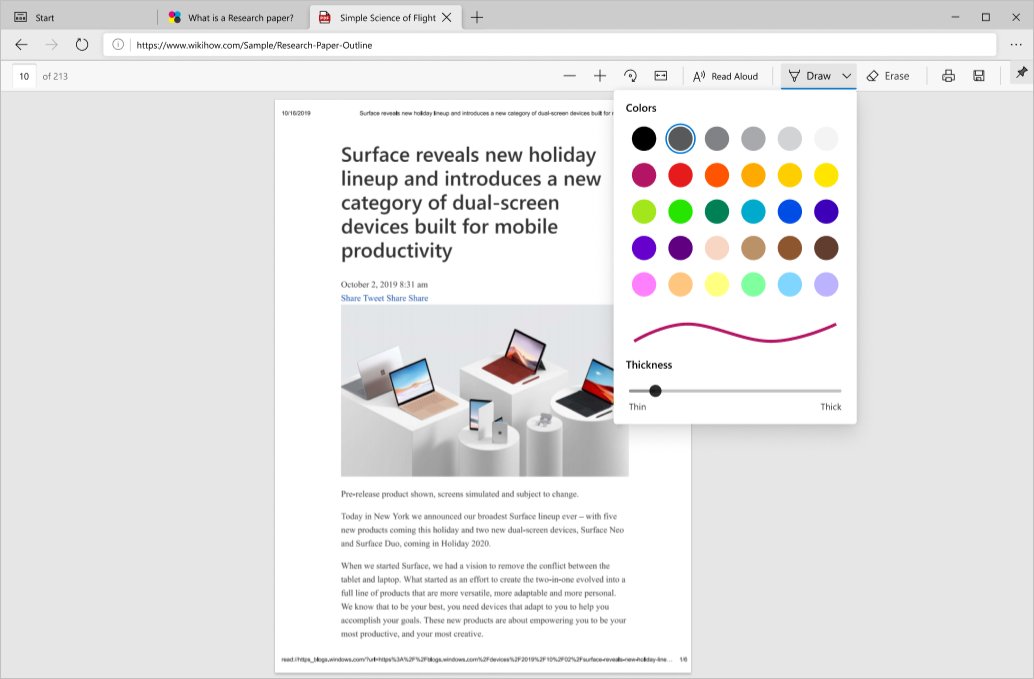
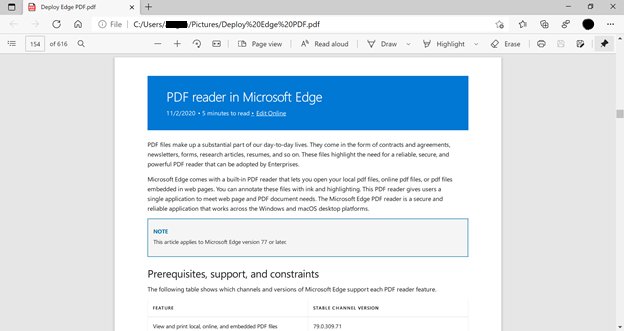
Edge is the built-in PDF reader on Windows 11 and 10. It cannot rewrite existing text, but it can ink, highlight, add text notes, fill basic forms and read the document aloud. The full feature tour is in this walkthrough of the Edge PDF reader.
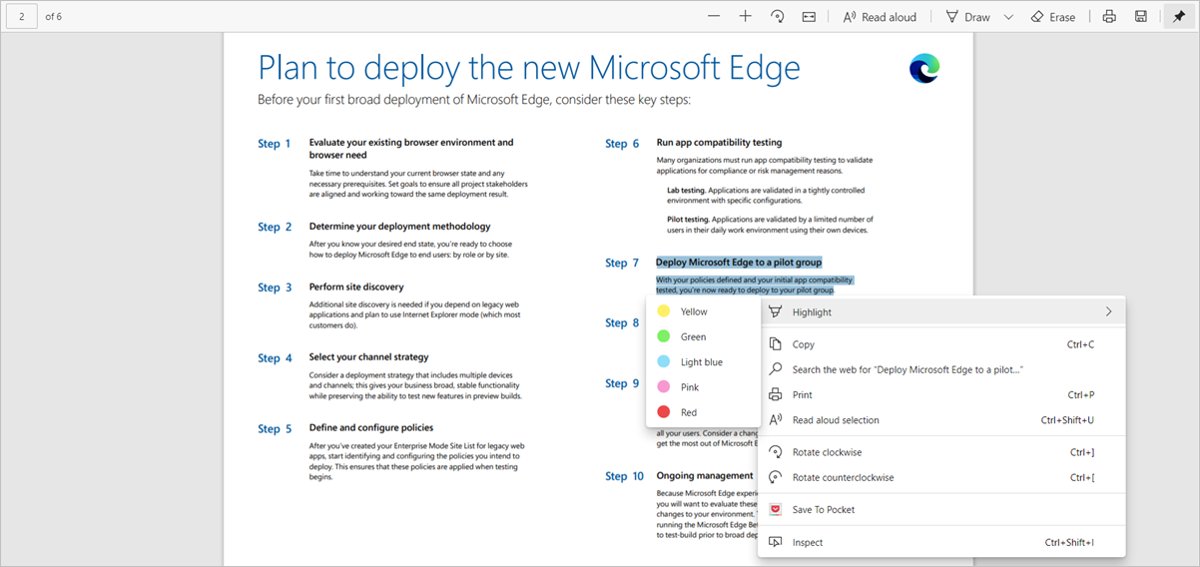
- Right-click the PDF and select Open with > Microsoft Edge.
- Use the inking tool on the PDF toolbar to draw, and pick a color and stroke width.
- Select text and right-click it to highlight it in a color.
- Select text, right-click it and choose Add Comment to attach a note, then select the check mark.
- Click inside form fields to type answers, then save the file.
Edge does not support JavaScript forms or the legacy XFA form format. Use Acrobat Reader for those.
Edit a PDF online
Adobe's free online editor annotates PDFs in any browser. It does not change existing body text, so fixing typos or fonts needs Acrobat Pro, which has a 7-day trial.
- Go to the Adobe Acrobat online Edit PDF page in Edge.
- Select Select a file and upload the PDF.
- Sign in with a free Adobe account when asked.
- Add text boxes, sticky notes, highlights, strikethroughs or drawings.
- Download the edited PDF.
Adobe deletes uploaded files after the session unless you sign in and save them. Avoid uploading confidential documents to any online editor.
How do you combine PDF files?
Windows has no built-in combine command. Adobe's free online Merge PDF handles up to 100 files and 1,500 pages without a sign-in.
- Open the Adobe Acrobat online Merge PDF page.
- Select Select files and choose the PDFs to combine.
- Drag the files into order. The top file becomes the first pages.
- Enter the password for any protected file, or it is left out.
- Select Merge files and download the combined PDF.
With an eligible Microsoft 365 plan, open a PDF in OneDrive or SharePoint, select More options (…) > Merge, pick the other files, select Next and save. The same menu has Extract to split pages out.
How to compress a PDF in Windows 11
- Open the Adobe Acrobat online Compress PDF page.
- Select Select a file and choose a PDF up to 2GB.
- Enter the password first if the PDF is protected.
- Choose High, Medium or Low compression.
- Download the smaller file and check the images still read clearly.
If you have the source file, re-exporting is often better. PowerPoint and Excel offer Minimum size (publishing online) in the save-as-PDF Options for cases where size matters more than print quality.
Converting JPG to PDF: Windows quick steps
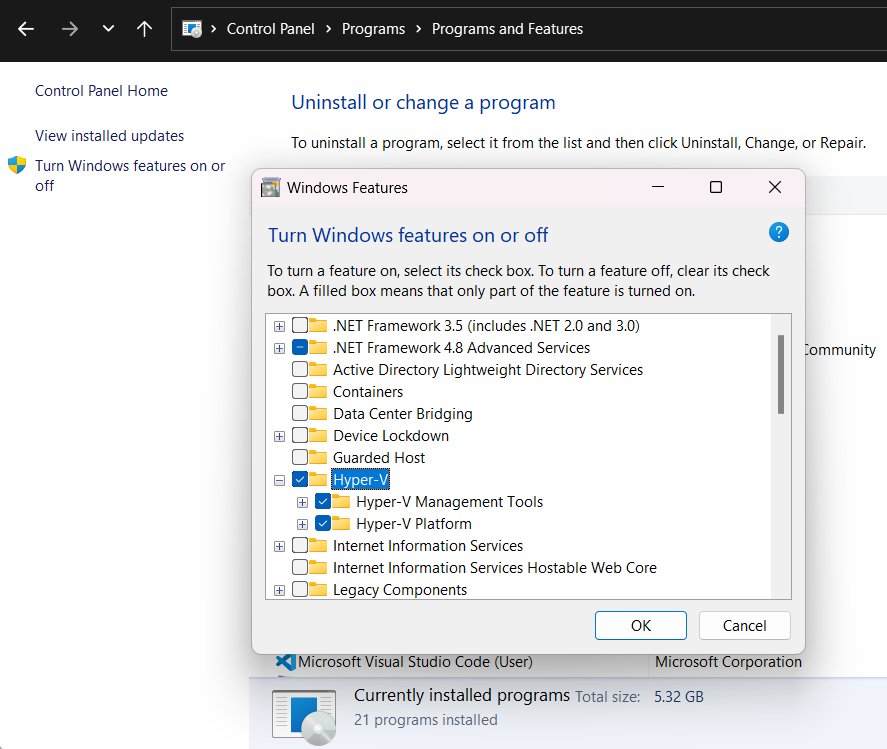
Windows can turn an image into a PDF through its virtual PDF printer. If the printer is missing, add Microsoft Print to PDF from Windows Features first.
- Open the JPG in Edge (drag it into a tab or use Open with > Microsoft Edge).
- Select Settings and more > Print to open the print dialog.
- Choose Microsoft Print to PDF as the printer.
- Select Print.
- Name the file, choose a folder and select Save.
Adobe's online JPG to PDF tool also accepts PNG, BMP, GIF and TIFF files up to 100MB on the free tier.
How to print to PDF in Windows 11
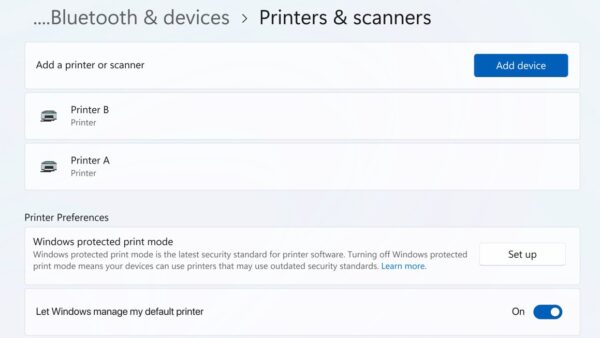
Any app with a Print command can save its output as a PDF. Printer setup, scanning and print errors are grouped in the Windows printer guide.
- Open the document, web page or email you want as a PDF.
- Press Ctrl + P, or in Edge select Settings and more > Print.
- Set Printer to Microsoft Print to PDF.
- Choose pages, layout and margins.
- Select Print, name the file and select Save.
Encrypt a PDF using Microsoft Word
Word can add an open password when it saves a PDF. Anyone without the password cannot open the file.
- Open the document or converted PDF in Word.
- Select File > Save a Copy > Browse and choose PDF.
- Select More Options, then Options.
- Tick Encrypt the document with a password and select OK.
- Type and re-enter the password in the Encrypt PDF Document box, select OK, then Save.
Add password-protection to a PDF using a free app
LibreOffice is free and sets both an open password and a permission password. It is one of the open-source PDF editors that runs on Windows.
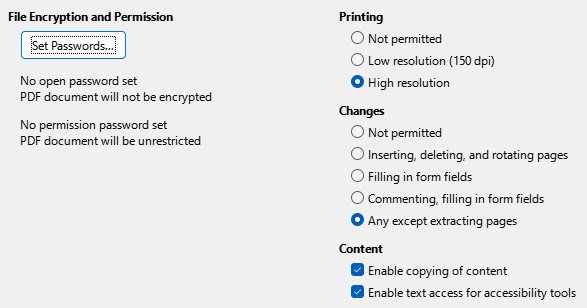
- Open the document in LibreOffice Writer or the PDF in LibreOffice Draw.
- Select File > Export As > Export as PDF.
- Open the Security tab and select Set passwords.
- Enter an open password, and optionally a permission password for editing and printing.
- Select OK, then Export, and save the file.
Printing and editing restrictions are enforced only by readers that comply with PDF 1.5 or later. The open password works everywhere.
Secure a PDF using an online tool
- Open the Adobe Acrobat online Protect PDF page.
- Select Select a file and upload the PDF.
- Enter a password and retype it to confirm.
- Select Set password.
- Download the protected file.
The online tool gives basic encryption without a sign-in. Restricting editing, printing or copying, or encrypting with certificates, needs Acrobat Pro.
How to open a password-protected PDF file
- Double-click the PDF to open it in your default PDF app.
- Type the password in the prompt and press Enter.
- Ask the sender for the password again if it is rejected; passwords are case-sensitive.
- For work files protected with Microsoft Purview labels, open them in Edge signed in with your work account.
Open PDF files in Windows 11: change the default PDF app
Double-clicking a PDF on a new PC opens it in Edge. The quick ways to open PDF files in Windows 11 include Open with for a one-off app choice. To change the default, open Settings > Apps > Default apps, type .pdf in the search box, select the result and pick the app. The steps are the same on Windows 10.
| Default PDF app | Cost | Can edit text? | Best for | How to make it default |
|---|---|---|---|---|
| Microsoft Edge | Built in | No; ink, highlight, notes, forms | Reading, quick markup, Read aloud | Default on most PCs; choose Edge for .pdf in Default apps |
| Adobe Acrobat Reader | Free | No; comment, fill, sign | Complex forms, signatures | Steps to open PDFs in Acrobat Reader instead of Edge |
| Adobe Acrobat Pro | Paid plan | Yes | Text edits, combine, protect, OCR | Choose Acrobat for .pdf in Default apps |
| Foxit PDF Reader | Free reader, paid editor | Reader no | A lighter Acrobat alternative | Install from the Foxit PDF Reader download, then set it for .pdf |
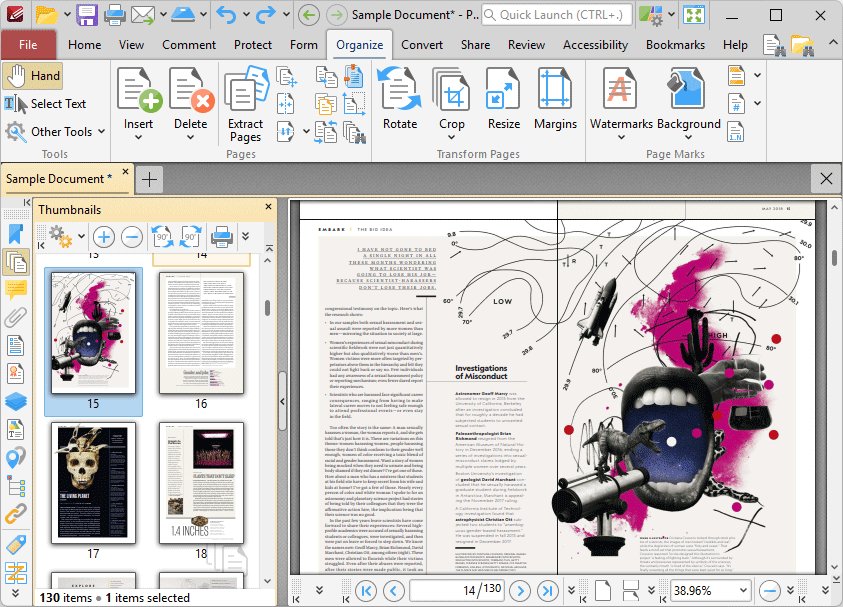
| PDF-XChange Editor | Free with paid features | Paid features | Markup-heavy work | Install from the PDF-XChange Editor download, then set it for .pdf |
| Firefox or LibreOffice | Free, open source | Limited | Open-source setups | Pick them among the open-source Acrobat alternatives |
How to check a PDF edit, merge or password worked
- Close the file, then reopen the saved PDF, not the Word copy.
- Scroll every page to confirm the edits, page order and images survived.
- Check the size in File Explorer Properties after compressing.
- Double-click a protected PDF; a password prompt should appear before any content shows.
- Search for a word with Ctrl + F; if nothing is found, the PDF is an image scan without text.
Best apps for combining PDF files
| App | Price | Combines | Limits |
|---|---|---|---|
| Adobe Acrobat online Merge PDF | Free | PDFs only | 100 files, 500 pages per file, 1,500 pages total |
| Adobe Acrobat Pro | Paid plan | PDFs plus Word, Excel, PowerPoint and images | Subscription |
| OneDrive or SharePoint Merge | Included in eligible Microsoft 365 plans | PDFs stored in OneDrive or SharePoint | Per-user, pay-as-you-go or SharePoint licence |
| Open-source desktop tools | Free | PDFs offline | Features vary by app |
Why you should learn how to merge PDF files: one file is easier to email, upload to a portal or print than a dozen separate scans or receipts.
Password protect a PDF: Adobe Acrobat Pro, PDFEncrypt, PDF24 and CleverPDF
| Option | Type | What to expect |
|---|---|---|
| Use Adobe Acrobat Pro | Paid desktop app | Open password plus restrictions on editing, printing and copying, and certificate encryption |
| Use PDFEncrypt | Free third-party Windows app | Adds an open password; confirm current options on the vendor's site before use |
| Use PDF24 | Free third-party PDF toolbox | Includes a protect tool among its PDF tools; check the vendor's privacy terms |
| Use CleverPDF | Third-party online and desktop tools | Uploads files for processing, so keep sensitive files offline |
| Microsoft Word | Built into Microsoft 365 | Open password when saving as PDF |
| LibreOffice | Free, open source | Open and permission passwords on export |
| Bonus: How to bulk-add password protection to PDF files | Acrobat Pro batch processing | Adobe's free online tools work one file at a time; batch protection needs a paid plan |
How to share an encryption password
Send the password through a different channel from the PDF, such as a text message or phone call when the file goes by email. If the email account is compromised, the attacker gets the file but not the key. Never put the password in the file name or the same message.
Things you should know about PDF tools on Windows
| Topic | Detail |
|---|---|
| Readers vs editors | Edge and Acrobat Reader view, mark up and fill forms; neither rewrites existing text |
| Office-made PDFs | Edit the original Word, Excel or PowerPoint file and save it as PDF again for the cleanest result |
| Scanned PDFs | Pages are images until OCR adds a text layer, so Word or Acrobat OCR is needed to edit them |
| Online privacy | Adobe deletes files after processing unless you sign in; skip online tools for confidential files |
| Tips | Keep the original PDF, work on a copy, and name versions clearly before you merge or compress |
| Warnings | A lost open password cannot be recovered by Word, Edge or Acrobat Reader; store it in a password manager |
PDF problems in Windows: symptom, cause and fix
| Symptom | Likely cause | Fix |
|---|---|---|
| PDF opens in the browser | Edge is the default PDF app | Change the .pdf default in Settings > Apps > Default apps |
| PDF icon changed to Chrome | Chrome was set as the .pdf default | Pick your reader again for .pdf in Default apps |
| PDF reader disappeared from Windows 11 | An app update or reset changed the default | Reinstall the reader or set Edge for .pdf |
| Cannot edit a PDF | Reader-only app, a scan, or a permission password | Use Word, Acrobat Pro or the permission password |
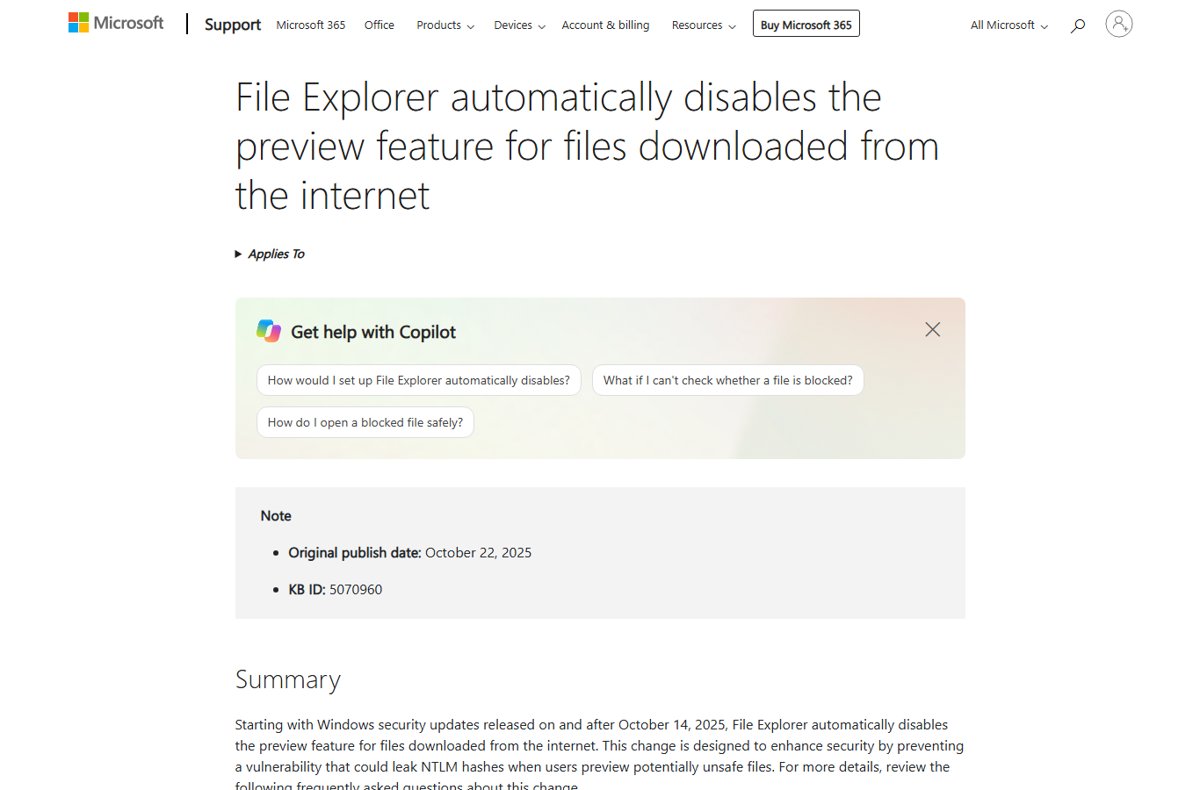
| No preview in File Explorer | Preview pane off or no PDF preview handler | Fix the PDF preview handler and turn on the preview pane |
| Merge leaves a file out | That file is password-protected | Enter its password in the merge tool |
| Microsoft Print to PDF missing | The Windows feature is turned off | Turn it on in Windows Features |
Why can't I edit a PDF? Fixes for common PDF problems
Why can't I edit a PDF in Adobe?
Acrobat Reader and the free online editor cannot change existing text.
- Check whether you are in Acrobat Reader or Acrobat Pro.
- Open the file in Word to edit the text for free.
- Or start the Acrobat Pro trial and use Edit PDF.
Why can't I edit my PDF file at all?
The PDF is a scan or has a permission password.
- Press Ctrl + F and search for a word; no hits means an image scan.
- Run OCR in Acrobat or convert the file in Word.
- Ask the owner for the permission password if editing is restricted.
Why did PDF open in browser?
Edge, Chrome or another browser is the default app for .pdf.
- Open Settings > Apps > Default apps.
- Type
.pdfin the search box and select the result. - Choose your PDF reader.
Why did PDF combine disappear?
The merge option depends on the app version or plan.
- In OneDrive, confirm your Microsoft 365 plan includes Merge.
- Use Adobe online Merge PDF as a free fallback.
- Reinstall or update Acrobat if its Combine tool is missing.
PDF tools for Windows FAQ
How do I edit a PDF file for free?
Open the PDF in desktop Word, edit the converted copy and save it as PDF again. For markup without text changes, use Microsoft Edge or Adobe's free online editor. Both are free on Windows 11 and 10.
How do I edit a PDF in Word?
Open Word, select File > Open and choose the PDF. Word converts it into an editable document and leaves the original PDF unchanged. Save your edits with File > Save a Copy and choose PDF as the file type.
Can I edit a PDF in Edge?
Partly. Microsoft Edge can ink, highlight, add text comments and fill basic forms in a PDF. It cannot change the existing text or images, so use Word or Acrobat Pro for real text edits.
How do I edit PDF text online?
Adobe's free online editor adds text boxes, notes, highlights and drawings, but it does not change existing body text. Changing the original text needs Acrobat Pro, which offers a 7-day free trial.
How do I edit a PDF on a laptop?
Windows laptops use the same tools as desktops. Open the PDF in Word to edit text, or in Edge to annotate it. Both ship with or install easily on Windows 11 and 10.
Where is Edit PDF in Adobe Acrobat?
Edit PDF is a tool in paid Acrobat Pro. Acrobat Reader does not include text and image editing, so the tool is unavailable there until you upgrade or start the trial.
Why did PDF reader disappear from Windows 11?
Windows 11 uses Microsoft Edge as its built-in PDF reader, so there is no separate Reader app. If PDFs open in another program, set Edge or your preferred reader for .pdf in Settings > Apps > Default apps.
Why did my PDF icon change to Chrome?
Chrome became the default app for .pdf files, often after you picked it in an Open with prompt. Choose your preferred reader for .pdf in Settings > Apps > Default apps to restore the icon.
Can I edit a PDF in Canva or Google Docs?
Both import PDFs, but they convert the file and the layout can shift. For Windows users, Word gives the same kind of conversion with desktop editing and direct save back to PDF.
Best free PDF tools for Windows 11 and 10
Use Edge to read and mark up, Word to edit text and password-protect, and Adobe's free online tools to merge, compress and convert JPG to PDF. That combination covers every common PDF job at no cost; Acrobat Pro is worth paying for only when you need in-place text editing, batch work or editing restrictions.