The Logitech Unifying Software download is a free 3.96 MB installer, version 2.52.33, published by Logitech for Windows 11 and Windows 10. It pairs a mouse, keyboard or number pad to a Unifying receiver.
One receiver holds up to six devices, and this app is where you add one, test it and remove it again.
Below: the exact file to take, pairing on Windows 11 and 10, the Mac route through Logi Options+, and the fixes for a device that never appears.
Which Logitech Unifying download do you need?
Logitech publishes one current installer and keeps two older listings alive beside it. Match your machine and your receiver to a row.
| Your situation | What to take | Where to get it |
|---|---|---|
| Windows 11 or Windows 10 | unifying252.exe, version 2.52.33, 3.96 MB | Unifying Software download page |
| Windows 7, Windows Vista or Windows XP | multi_connect.zip, the business build, 141 KB | Unifying Software for Business |
| A Mac on macOS 14 or later | logioptionsplus_installer.zip, 19.3 MB | Logi Options+ |
| Your receiver carries the Logi Bolt mark, not the Unifying star | Neither file pairs it; use the Bolt route | Bolt and Unifying compared |
Unifying uses a proprietary 2.4 GHz radio and Logi Bolt uses Bluetooth Low Energy, so neither pairs to the other’s receiver.
Download Logitech Unifying Software from the official Logitech links
Every link below resolves to support.logi.com or to download01.logi.com.
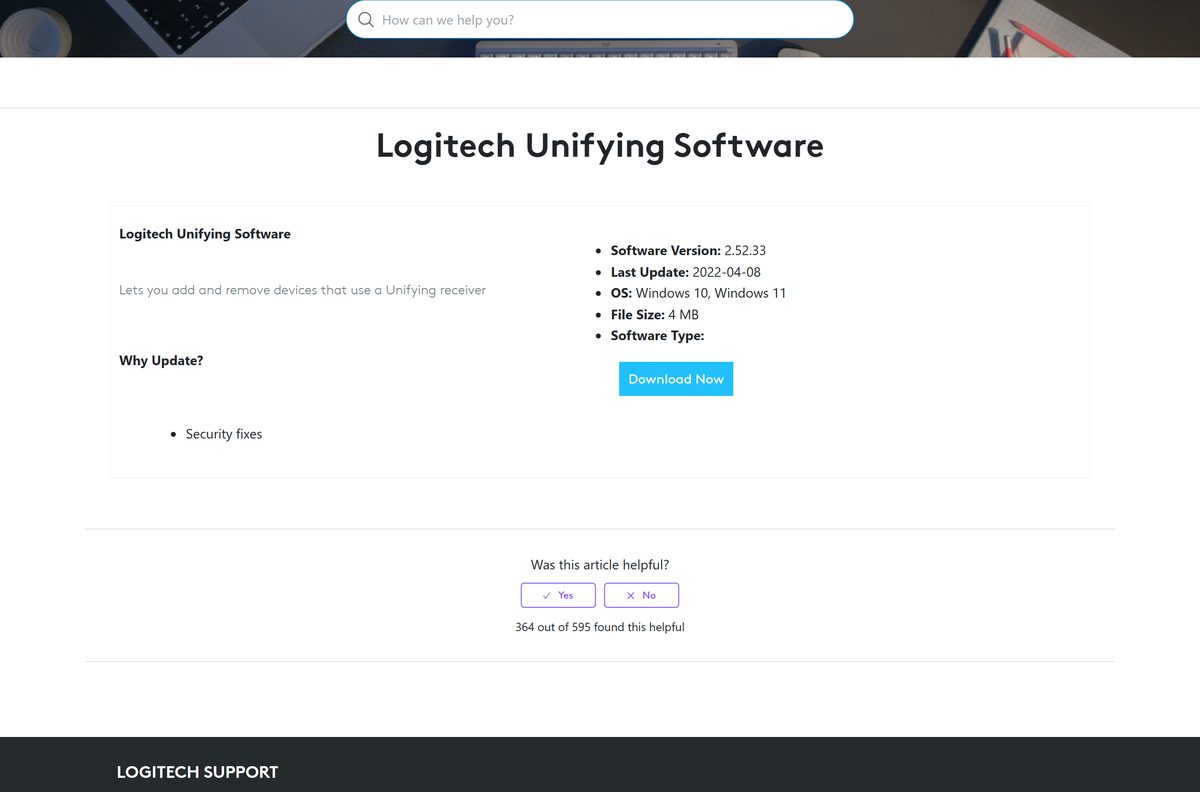
- Unifying Software download page — 3.96 MB · Windows 10 and 11, updated 8 April 2022
- unifying252.exe — 4,153,496 bytes · Behind the Download Now button
- Unifying Software for Business — 141 KB · Build 2.00.43 for Windows 7, Vista and XP
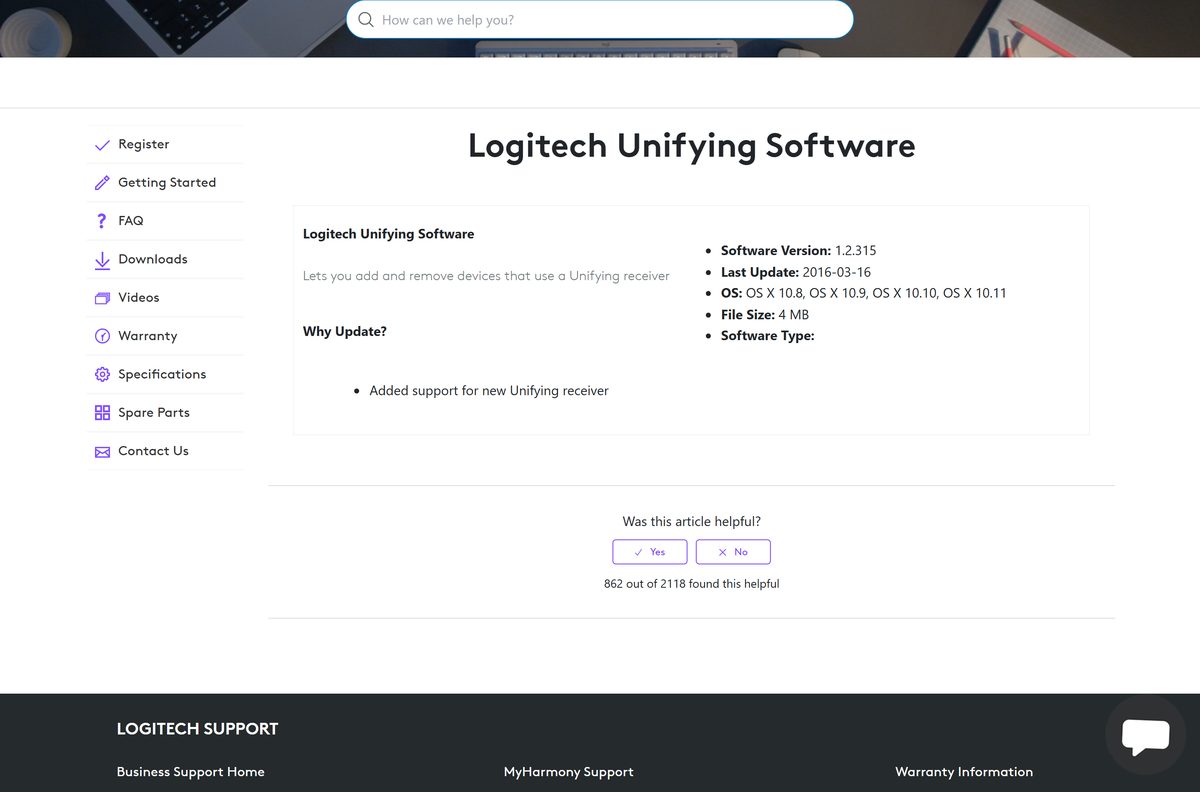
- The macOS listing — Build 1.2.315 from 2016, no file published
- Logi Options+ — The app Logitech names in its place
The page states 4 MB and the file is 4,153,496 bytes, so a saved copy of any other size did not come from that link.
How to install Logitech Unifying Software and pair your first device
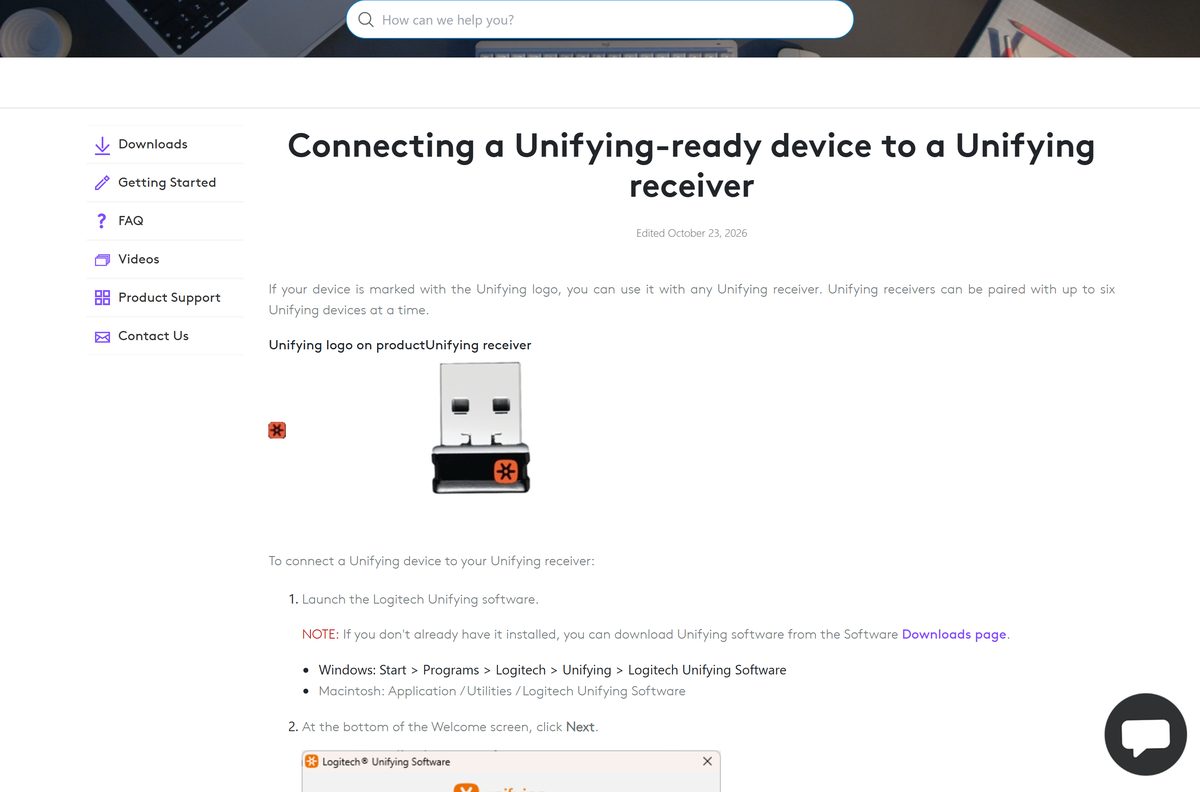
Setup and pairing run back to back. Plug the receiver in before you open the app.
- Open the Unifying Software download page and select Download Now.
- Run unifying252.exe from your Downloads folder.
- Select Yes at the User Account Control prompt.
- Accept the licence agreement and finish the setup wizard.
- Plug the Unifying receiver into a USB-A port on the computer itself rather than a hub.
- Open the app from Start > Programs > Logitech > Unifying > Logitech Unifying Software.
- Select Next at the bottom of the Welcome window.
- Switch the mouse or keyboard off and then back on when the app asks.
- Type a test message or move the mouse when the detection screen appears.
- Select Yes, then Next, then Finish.
Repeat the last four steps for each extra device, up to six on one receiver.
Run the installer on a PC with no internet connection
The download is a complete setup file, so a copy on a USB stick is enough.
- Save unifying252.exe on a PC that is online.
- Copy the 3.96 MB file to a USB stick.
- Plug the stick into the offline PC and run the file from it.
- Select Yes at the User Account Control prompt and finish the wizard.
- Plug in the Unifying receiver and pair the device from the Welcome window.
Logi Options+ works the other way round: its 47.6 MB Windows installer pulls the rest of the app during setup.
How to check the installer before you run it
Four checks take under a minute. Leave your antivirus running throughout.
- Start at support.logi.com and use its Download Now button rather than a search result.
- Confirm the file arrives from download01.logi.com and not from a mirror or a download manager.
- Right-click the saved file, select Properties, and check the size reads 4,153,496 bytes.
- Open the Digital Signatures tab and confirm Logitech signed it.
- Read the publisher name in the User Account Control prompt before you select Yes.
- Delete the file and take it again from the official page if any of those do not match.
Which Logitech Unifying download do you need for your Mac?
There is no current Mac build. Logitech moved Mac pairing into Logi Options+, which handles a Unifying receiver directly.
| Your Mac | What to install | Where |
|---|---|---|
| macOS 14, macOS 15 or macOS 26 | Logi Options+ 2.1.854977, a 19.3 MB zip | Download for macOS |
| OS X 10.8 through OS X 10.11 | The 1.2.315 listing, which carries no file | Retired macOS listing |
| Pairing a device once the app is installed | Open Add Devices > Unifying Receiver and follow the prompts | Receiver setup guide |
macOS blocks a new USB accessory until you allow it. Set Allow accessories to connect to Ask every time under Privacy & Security, replug the receiver and select Allow.
Is Logitech Unifying Software free?
Yes. The download is free, with no licence key, no trial clock and no account step. Logitech serves the installer from its own download host and lists no price on the download page. Logi Options+, the app Logitech names in its place, is free as well, and both work with hardware you already own.
No paid edition exists, so a site asking for a card number in exchange for it is not Logitech.
Should you install Logitech Unifying Software or Logi Options+?
Both pair a device to a Unifying receiver. The difference is which hardware each one recognises.
Install Logi Options+ when your mouse or keyboard appears on Logitech’s supported-devices list, and take the Unifying Software for anything older. Logitech’s notice on the download page states that the Unifying Software is no longer supported or maintained, and points to Logi Options+ instead. Options+ pairs Unifying hardware under Add Devices > Unifying Receiver, but covers only the devices Logitech lists for it. The older app still pairs anything carrying the Unifying star.
The last build dates from 8 April 2022 and was released for security fixes, so there is no newer version to wait for.
How to check your version and reinstall over it
The app carries no update checker. Compare what is installed against the version on Logitech’s page.
- Open Settings > Apps > Installed apps on Windows 11, or Settings > Apps > Apps & features on Windows 10.
- Find Logitech Unifying Software and read the version shown beside it.
- Compare it with the version on the Logitech download page.
- Download unifying252.exe again if the installed copy is older.
- Run it over the existing install and finish the wizard.
- Open the app, select Advanced, and confirm your paired devices still appear.
Reinstalling never costs a pairing, because the receiver stores its devices in its own memory.
Check the system requirements before you download it
A small Windows utility with no runtime prerequisite and no hardware beyond a free USB-A port.
| Field | Value |
|---|---|
| Software | Logitech Unifying Software |
| Developer | Logitech |
| Latest version | 2.52.33 |
| Publisher’s last update | 8 April 2022 |
| License | Free |
| File size | 3.96 MB (4,153,496 bytes) |
| Supported OS, as listed | Windows 10 and Windows 11 |
| Architecture | One installer, no separate 64-bit or ARM64 file |
| macOS | Listed only up to OS X 10.11, with no file published |
| Offline installer | Yes, the download is the complete setup |
| Devices per receiver | Up to six at a time |
| Hardware needed | A USB-A port and a device carrying the Unifying star |
| Wireless range | Up to 10 metres (33 feet) |
| Official download source | support.logi.com |
| Last verified | 2026-10-25 |
Which devices pair to a Unifying receiver
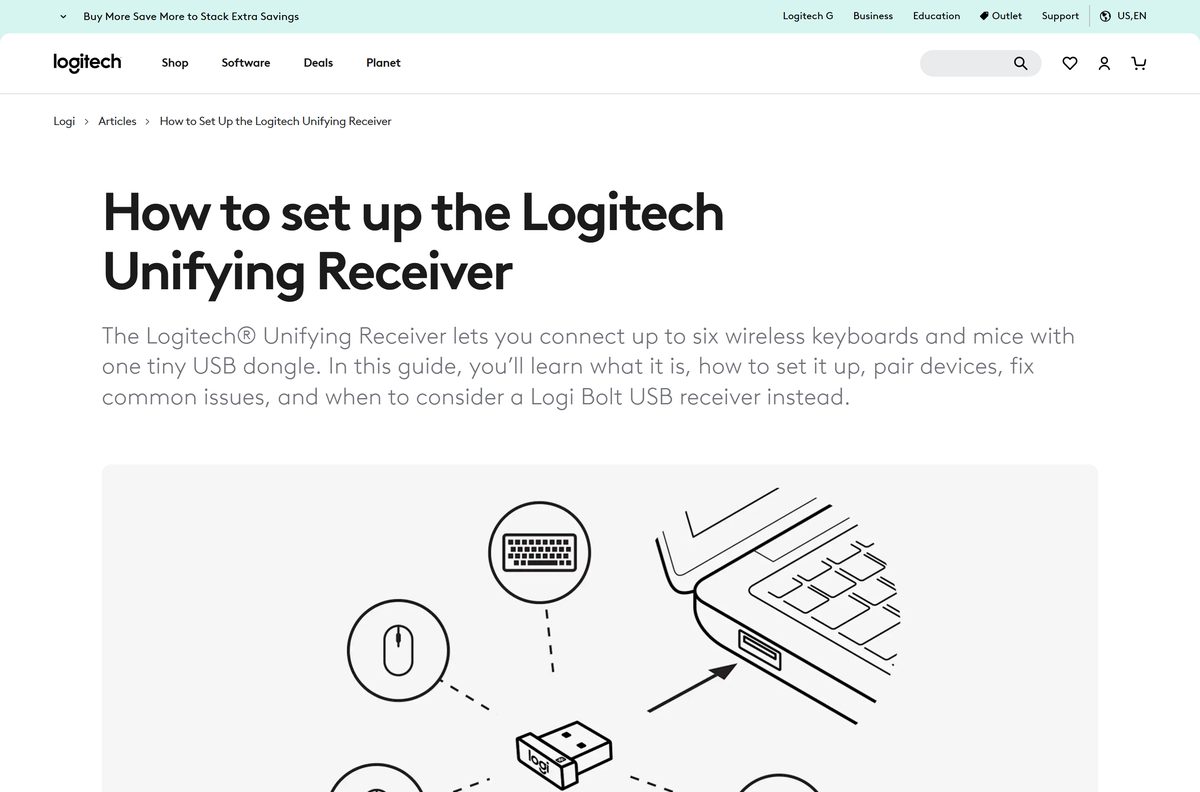
Logitech marks compatible hardware with an orange six-point star, printed on the device and on the box.
| Hardware | Pairs to a Unifying receiver | What to use |
|---|---|---|
| Mouse, keyboard or number pad carrying the Unifying star | Yes, up to six per receiver | Unifying Software |
| A device Logitech lists for Logi Options+ | Yes, through Add Devices | Supported devices |
| Logi Bolt hardware | No, Bolt uses Bluetooth Low Energy | Why they differ |
| A device supplied with a plain nano receiver | No, that receiver is not Unifying | Identify your receiver |
Fix Logitech Unifying Software not detecting your mouse or keyboard
The app opens but never finds the device
Detection can take several minutes, and a device already paired to the same PC over Bluetooth will not appear.
- Remove the device from Settings > Bluetooth & devices so only the receiver claims it.
- Leave the Welcome window open for several minutes before touching anything.
- Select Advanced in the bottom-left corner of the window.
- Select Pair a New Device, then switch the device off and back on.
Windows does not see the receiver at all
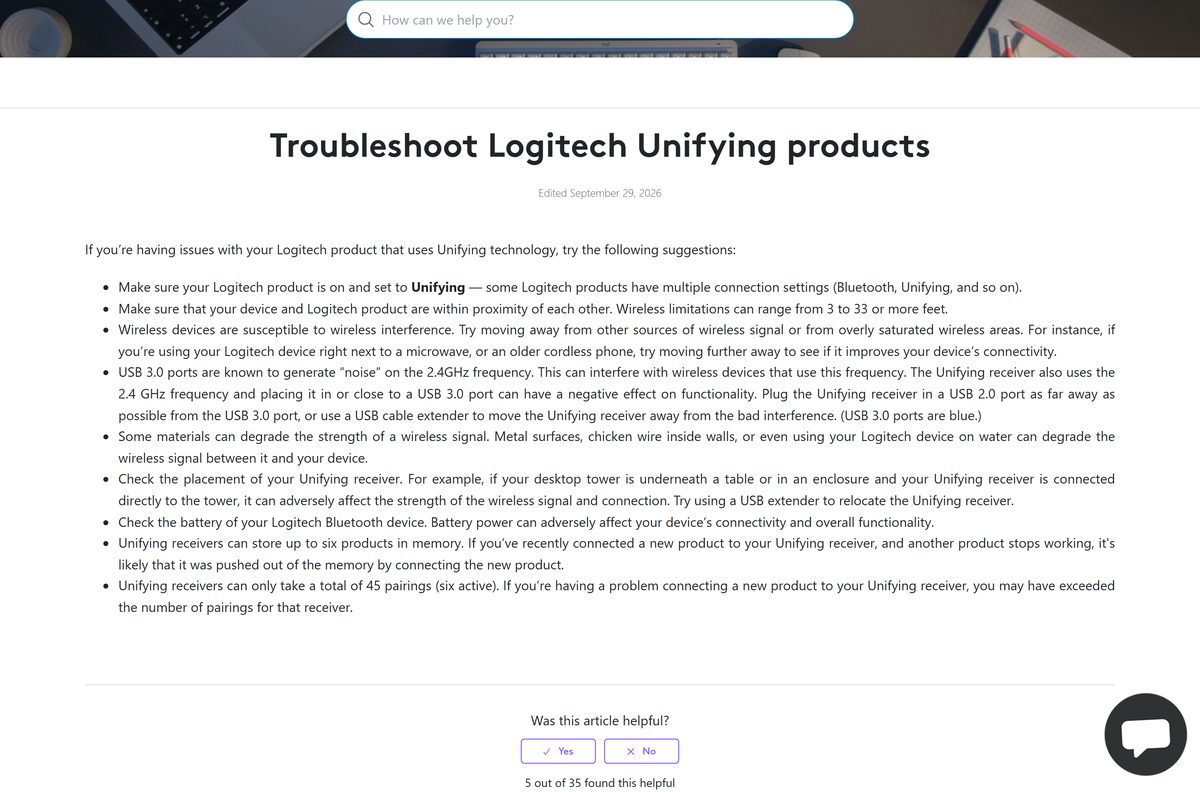
A hub, an extender or a front-panel port can leave the receiver unseen, and USB 3.0 ports add noise on the 2.4 GHz band.
- Check whether the receiver appears under Devices and Printers.
- Move it off any hub or extender onto a port on the motherboard itself.
- Swap a blue USB 3.0 port for a USB 2.0 port as far from the blue ones as you can get.
- Keep the device within 10 metres of the receiver and away from a microwave or an older cordless phone.
Pairing succeeds, then a device stops responding
A receiver stores six products in memory and accepts 45 pairings in total, so an unused entry can block a new one.
- Connect a wired mouse first, so you keep control if the pointer drops.
- Open the app and select Advanced.
- Select a device you no longer use in the left pane, then select Un-pair and Close.
- Pair the device you want again from the Welcome window.
How to uninstall Logitech Unifying Software
Removing the app leaves every pairing intact, because the receiver holds them.
- Open the app, select Advanced, pick each device you want gone and select Un-pair.
- Close the window and open Settings > Apps > Installed apps.
- Find Logitech Unifying Software in the list.
- Select the three-dot menu beside it, then select Uninstall.
- Select Yes at the User Account Control prompt and confirm the removal.
- Leave the receiver plugged in; devices still paired to it keep working.
Choose between the Unifying app, Logi Options+ and SetPoint
Only one of these is still maintained. The rest stay published for hardware the new app does not list.
| App | What it pairs | Status | Where |
|---|---|---|---|
| Unifying Software, final build | Any Unifying device, on Windows 10 and 11 | No longer maintained | support.logi.com |
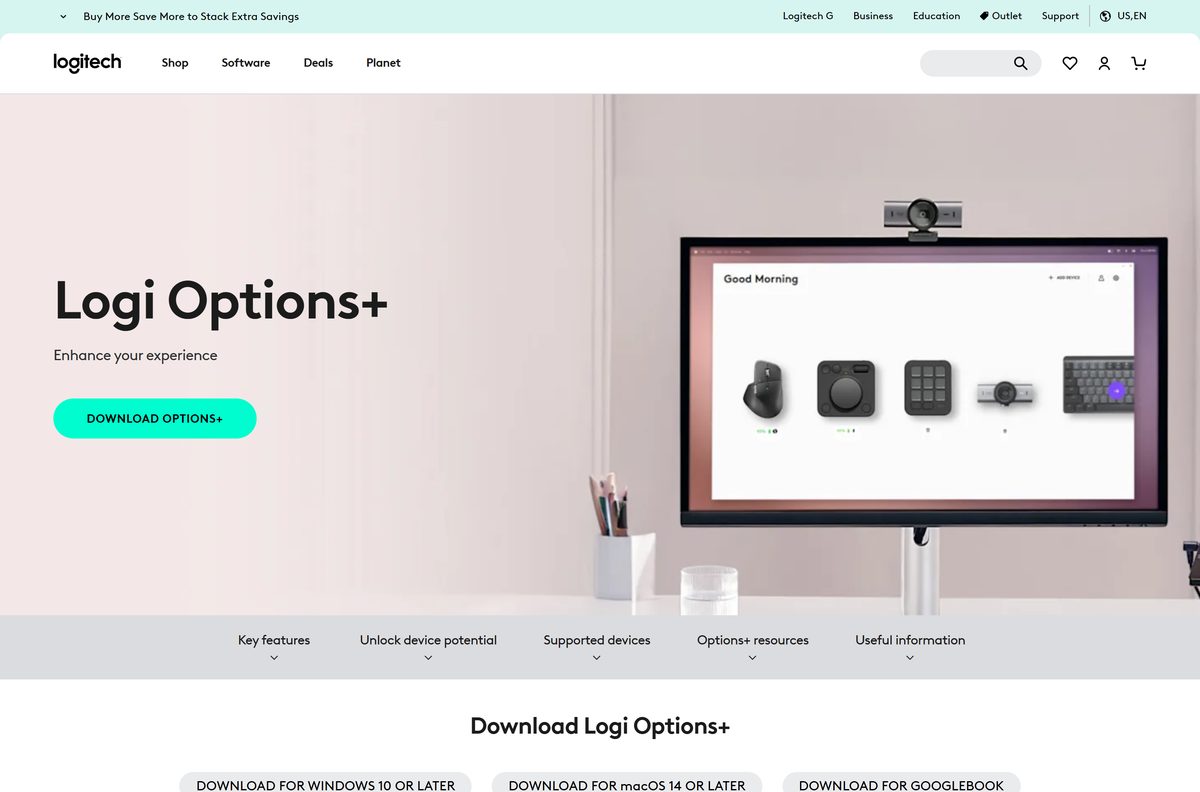
| Logi Options+ 2.0.840907 (Windows) | Supported mice and keyboards, including Unifying pairing | Current | support.logi.com |
| Logi Options+ 2.1.854977 (macOS) | The same, on macOS 14, 15 and 26 | Current | support.logi.com |
| Logitech Options 10.26.14 | Older mice and keyboards on Windows 10 and 11 | End of support | support.logi.com |
| SetPoint 6.90.66 | Legacy mice and keyboards, 4.6 MB | No longer maintained | support.logi.com |
Frequently asked questions
Is Logitech Unifying Software free?
Yes. Logitech serves the installer from its own download host with no purchase, registration or licence key, and the download page lists no price. Logi Options+ is free too.
Where is the official Logitech Unifying Software download page?
It is the Logitech Unifying Software article on support.logi.com, which carries the Download Now button, the version and the 4 MB size. The file itself comes from download01.logi.com.
Does Logitech Unifying Software work on Windows 11?
Yes. Logitech lists Windows 10 and Windows 11 against the current build, and the installer is the same file for both. No separate Windows 11 download exists.
How big is the Logitech Unifying Software download?
The page states 4 MB and the installer is exactly 4,153,496 bytes, or 3.96 MB. It fits on any USB stick and finishes in seconds.
Is there a Logitech Unifying Software offline installer?
Yes. The download is a complete setup file that fetches nothing during installation, so a copy on a USB stick installs on a PC with no internet connection.
Is Logitech Unifying Software available for Mac?
Not as a current release. The macOS listing stops at build 1.2.315 from 2016 and offers no file. On a Mac, install Logi Options+ and pair through Add Devices, then Unifying Receiver.
Does Logitech Unifying Software have a 64-bit or ARM64 download?
No. One installer covers Windows 10 and Windows 11, and the download page offers a single file. Logitech publishes no separate 64-bit, 32-bit or ARM64 build.
Is Logitech Unifying Software safe to download?
It is safe from Logitech’s own page, which serves it over HTTPS from download01.logi.com. Check the saved file reads 4,153,496 bytes and carries a Digital Signatures tab.
What is the latest version of Logitech Unifying Software?
The final build was released on 8 April 2022 for security fixes. Logitech states the app is no longer supported or maintained, and names Logi Options+ as the app to install instead.
Why won’t Logitech Unifying Software detect my device?
Detection can take several minutes, and a device also paired over Bluetooth will not show up. Remove the Bluetooth pairing, then select Advanced in the bottom-left corner and Pair a New Device.