An HP printer prints blank pages most often because a cartridge is empty, its protective tape is still on, or the printhead is clogged, so check ink or toner first and then clean the printhead.
This guide gives five fixes in order, from supplies to print settings, the Print Spooler and drivers, plus a test-page check that tells you whether the fault is in the printer or the PC. Blank pages are only one symptom; streaks, offline errors or jobs that never leave the queue send you to fixing printer problems in Windows.
Check ink or toner levels
Low or empty supplies are the most common cause of blank pages. Check levels in any of these places, then replace anything low or empty with a genuine HP cartridge.
- On the printer, tap the ink or toner icon, or open the Supplies menu on its control panel.
- Or open the HP Smart app and select your printer; estimated levels show on its main screen.
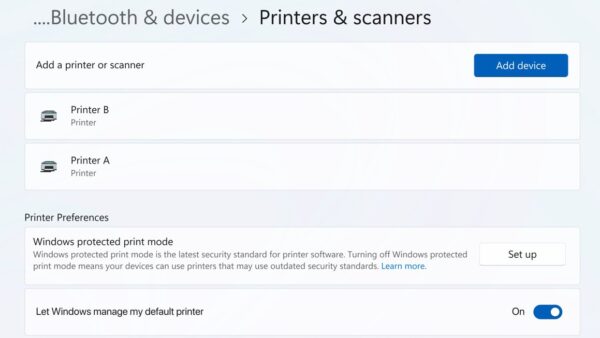
- Or, in Windows 11, open Settings > Bluetooth & devices > Printers & scanners, select the HP printer, open the print queue, then Printer > Properties and the Estimated Ink Levels or Supply Levels tab.
- On an HP Smart Tank, look at the tanks: ink should sit between the min and max lines.
- On an HP LaserJet Tank, check the front toner gauge; a blinking amber light means low toner.
- Replace empty cartridges, then print the page again.
The HP ink level checks differ slightly by model. If levels look fine but pages still come out blank, the ink may be dried, clogged or blocked by air bubbles, so move on to cleaning.
Try printing a test page
A printer test page tells you where the fault is. Print one from the printer's own control panel, then one from Windows under Settings > Printers & scanners > your printer > Print test page.
| Test page result | What it means | Go to |
|---|---|---|
| Printer-panel test page is blank | Supplies or hardware: ink, toner, printhead or drum | Check ink or toner, then clean the printhead |
| Printer-panel page prints, Windows test page is blank | Settings, driver or spooler on the PC | Printing preferences, Print Spooler, drivers |
| Both test pages print, your document is blank | The file or the app | Print the same text from Notepad |
| Notepad prints but one app does not | The app or the document | Check the document for blank or white text |
| Nothing prints from any app | The printer driver | Update or reinstall printer drivers |
Quick checks before you troubleshoot
Each check takes under a minute and rules out the causes that need no repair.
| Check | What to look for | How to fix it |
|---|---|---|
| Document content | A blank file, or white text on a white background | Print a different file or a test page |
| Cartridge tape | Protective tape still over the nozzles of a new cartridge | Peel off all tape without touching the nozzles and reinsert until it clicks |
| Laser toner seal | Shipping seal left on a new toner cartridge | Remove the seal and reinstall the cartridge |
| Paper | Curled, damp, wrong size or loaded the wrong way | Reload clean, flat paper in the right tray and direction |
| Print settings | Paper type or size mismatch, or Draft quality | Match paper type and size in File > Print > Properties |
If a Word file looks empty on screen too, the problem is the file, and the blank Word document fixes apply instead.
Run maintenance tools: Clean printheads (inkjet printers)
Dried ink, dust or long gaps between prints block the printhead nozzles even when cartridges are full. HP's built-in cleaning clears most clogs.
- Load plain paper in the main tray.
- Open the HP Smart app, select your printer, then Printer Settings > Maintenance/Tools > Clean Printhead.
- Or, on the printer's control panel, open Setup or Maintenance and select Clean Printhead.
- Run the Level 1 cleaning first, then print a diagnostic or test page.
- If output is still blank or faint, run Level 2 and test again.
- For a stubborn clog, turn off and unplug the printer and remove the cartridges or removable printhead.
- Wipe the nozzle plate and contacts gently with a lint-free cloth dampened with distilled water, not alcohol or tap water.
- Let the parts dry for 10 to 15 minutes, reinstall them and run the cleaning utility again.
Cleaning uses ink, so run it only when you see blank, faded or streaked output. Printing at least one page every one to two weeks keeps ink flowing and prevents new clogs.
Change the printing preferences
Draft, economy or toner-saver modes and a paper type that does not match the loaded paper can produce faint or empty pages.
- In Windows 11, open Start > Settings > Bluetooth & devices > Printers & scanners and select the HP printer.
- In Windows 10, open Start > Settings > Devices > Printers & scanners, select the printer and then Manage.
- Select Printing preferences.
- Set print quality or resolution to Normal or Best.
- Turn off Economy, Draft or Toner saver mode if your driver shows it.
- Set the paper type to match the paper in the tray.
- Select Apply, then print the page again.
Print without Print Spooler service errors: Clear the print queue
The Print Spooler holds jobs on the PC before sending them to the printer. A corrupt job stuck in its folder can leave the printer feeding empty pages, so stop the service, delete the spool files and start it again.
- Type services in the taskbar search box and open Services.
- Double-click Print Spooler, select Stop, then OK.
- Open File Explorer, paste
%WINDIR%\system32\spool\PRINTERSin the address bar and press Enter. - Delete every file in that folder; do not delete the folder.
- Back in Services, double-click Print Spooler, set Startup type to Automatic, and select Start, then OK.
- Print the document again.
The same routine fixes a stuck print job that will not cancel. Large jobs can also fail to spool when the system drive is nearly full, so free some space if only big documents come out blank.
Update or reinstall printer drivers
An outdated or corrupted driver sends data the printer cannot interpret, and the result is blank, incomplete or garbled output.
- In HP Smart, select the printer, then Printer Settings > Advanced Settings > Printer Update, and install any update offered.
- Run Windows Update and install available updates, including optional driver updates, then restart.
- If pages are still blank, disconnect the printer and remove it in Printers & scanners with Remove device.
- Uninstall all HP printer software from Settings > Apps > Installed apps, then restart the PC.
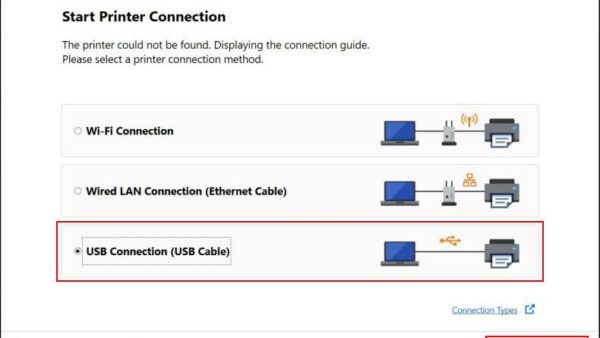
- Reconnect the printer by USB or Wi-Fi.
- Download the full driver package for your model from HP's driver page at support.hp.com, or set it up through HP Smart.
- Add the printer again from Printers & scanners with Add device.
Check and update firmware
Firmware is the software inside the printer that processes print jobs. Its updates fix bugs that a driver update alone does not reach.
| Where | Path | Needs |
|---|---|---|
| HP Smart app | Printer Settings > Printer Update > Check Now | Printer and PC on the same network |
| Printer control panel | Setup or Tools > Printer Update or Firmware > Check for Updates | The printer connected to the internet |
Install any update offered, let the printer restart, then print a test page.
Inkjet vs. laser: Different causes for blank pages
Inkjet blank pages are usually an ink-flow problem; laser blank pages usually trace to toner or imaging parts. Laser fixes mean replacing parts rather than cleaning them.
| Cause | HP inkjet printers | HP laser printers |
|---|---|---|
| Supplies | Empty or low ink; ink dried from infrequent use | Empty or low toner cartridge |
| Print mechanism | Clogged printhead nozzles | Worn drum unit that no longer holds a charge |
| Delivery | Air bubbles in the ink system | Transfer roller or belt not moving toner to paper |
| New cartridge | Protective tape left on | Shipping seal left in place |
| Main fix | Printhead cleaning or cartridge replacement | Toner, drum or roller replacement |
Confirm the HP printer prints normally again
- Print a test page from the printer's control panel and check that text and colour blocks are solid.
- Print the Windows test page from Printers & scanners.
- Open Notepad, type a line, press Ctrl + P and print it.
- Print the original document that came out blank.
If all four print, the fix held. If only the original document fails, the problem is that file or its app.
HP printer still printing blank pages: fixes by symptom
HP printer printing blank pages when it has ink
Dried ink, clogged nozzles, air bubbles or tape are blocking the ink.
- Check new cartridges for leftover tape.
- Run Clean Printhead Level 1, print a test page, then Level 2 if needed.
New HP printer printing blank pages
Protective tape or shipping seals are still on the cartridges.
- Remove each cartridge and peel off all tape without touching the nozzles.
- Reinsert each cartridge until it clicks.
- Run the printer's initial alignment or test page.
HP laser printer printing blank pages
Empty toner, a sealed cartridge, a worn drum or a transfer roller fault.
- Replace the toner cartridge first, removing every seal.
- If pages stay blank, have the drum and transfer roller checked or replaced.
Pages print blank or garbled from the PC only
A corrupted or wrong driver.
- Print from Notepad to confirm.
- Reinstall the full HP driver package for your model.
Offline status, paper jams and other common HP printing problems have their own fixes.
HP blank pages FAQ
Why is my HP printer printing blank pages when it has ink?
Dried ink, clogged printhead nozzles, air bubbles or protective tape can block ink even when levels look fine. Run Clean Printhead from the HP Smart app or the printer's control panel first.
How do I clean a clogged HP printhead?
In HP Smart, open Printer Settings > Maintenance/Tools > Clean Printhead and run Level 1, then Level 2 if needed. For stubborn clogs, wipe the nozzle plate with distilled water on a lint-free cloth.
Can a bad printer driver cause blank pages?
Yes. An outdated or corrupted driver sends data the printer cannot read. Update it through HP Smart or Windows Update, and reinstall the full HP driver package if blank pages continue.
Why is my HP laser printer printing blank pages?
The usual causes are empty toner, a shipping seal left on the cartridge, a worn drum or a transfer roller fault. Replace the toner first, then have the drum and roller checked.
Why is my new HP printer printing blank pages?
Protective tape or shipping seals left on the cartridges are the most common cause. Remove the cartridges, peel off all tape without touching the nozzles, reinsert them and run the printer's alignment page.
How often should I clean my HP printhead?
Only when you see blank, faded or streaked output, because cleaning uses ink. Printing at least one page every one to two weeks keeps the nozzles from drying out.
Do I need to replace my HP printer if it keeps printing blank pages?
Not usually. New cartridges, printhead cleaning or a driver update fix most cases. Consider replacing it when a repair quote exceeds about half the price of a comparable new printer.
When to contact support
Contact HP Support when blank pages continue after new cartridges, several cleaning cycles and a driver reinstall, or when the printer's own test page comes out blank. At that point the likely cause is hardware, such as a failed printhead, a worn fuser or transfer assembly, or an electronics fault. Most HP printers carry a one-year warranty, so repairs may be free; out of warranty, replacement usually makes more sense once a repair quote passes half the cost of a new model.
Flashing error lights, unusual noises and blank output immediately after fresh cartridges are other signs of a hardware fault.