Yes, a factory reset deactivates Find My iPhone, but only when you erase the iPhone from Settings and enter your Apple Account password during the reset.
A recovery mode restore or a remote erase from iCloud.com leaves Activation Lock on, so this guide shows which reset removes it, how to check, and how to fix a phone still linked to an account.
Does factory reset turn off Find My iPhone?
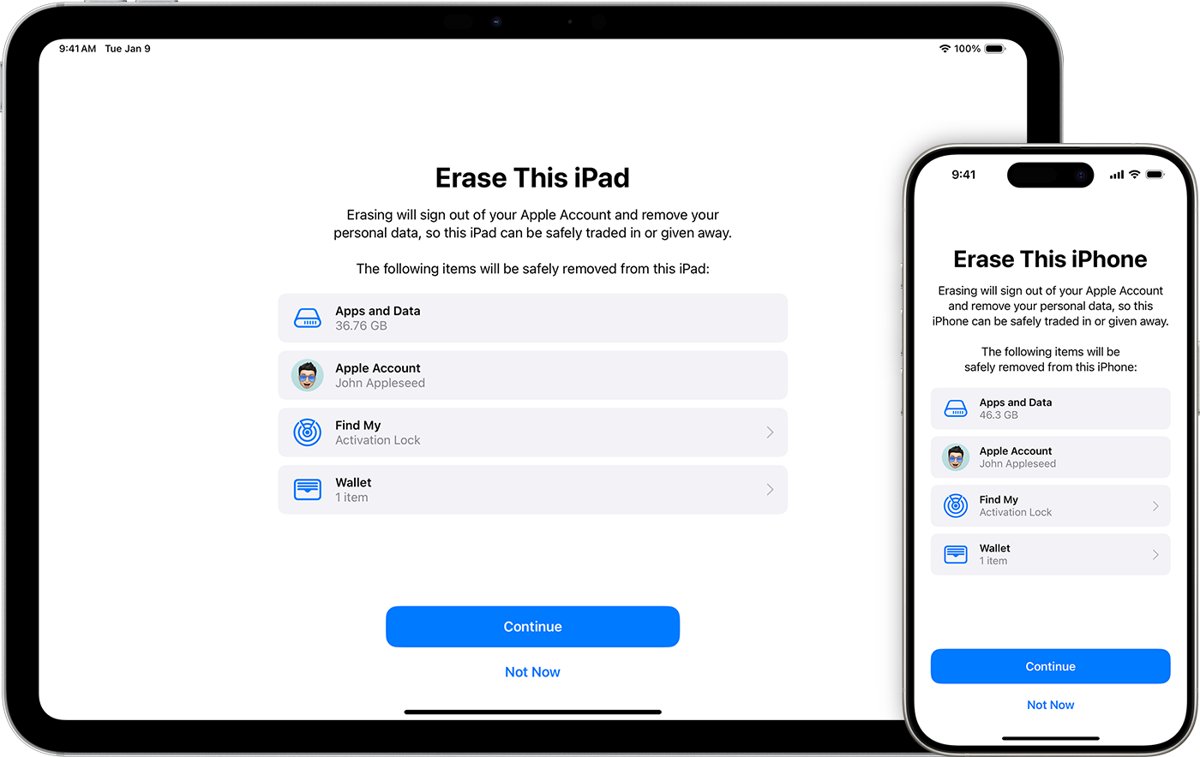
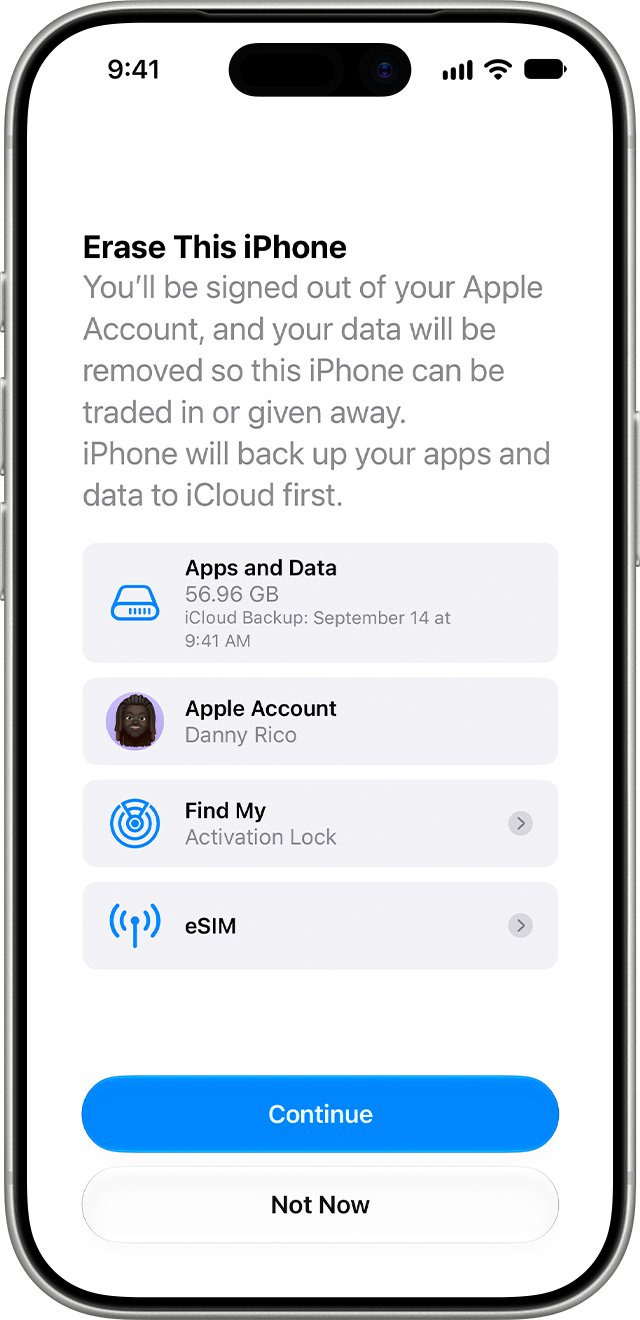
Apple states that when you erase your iPhone with Erase All Content and Settings, Find My and Activation Lock turn off.
The password prompt during the erase is the step that unlinks the phone from your account.
- Open the Settings app on the iPhone.
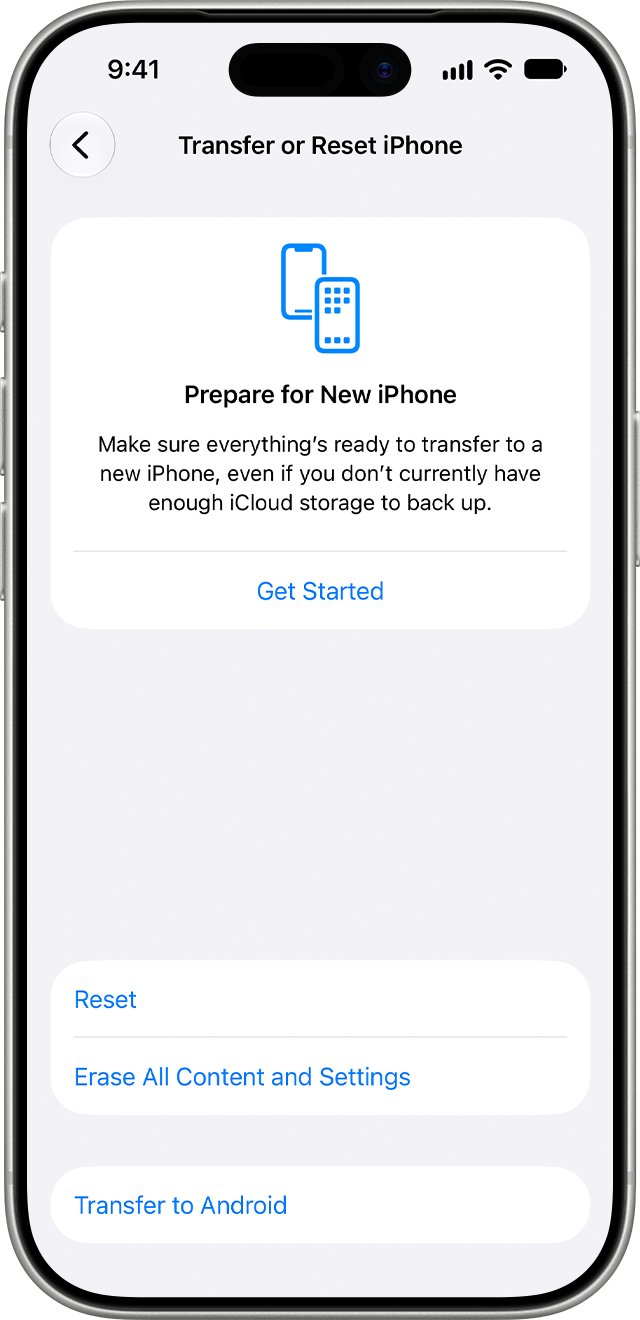
- Tap General, then tap Transfer or Reset iPhone.
- Tap Erase All Content and Settings, then tap Continue.
- Enter your device passcode when asked.
- Enter your Apple Account password when asked, then tap the done button on the keyboard.
- Wait for the Hello screen. Find My and Activation Lock are now off.
Which iPhone reset methods remove Find My and Activation Lock
Every time an iPhone is activated or recovered, it contacts Apple to check whether Activation Lock is on. That check is why the reset method matters.
| Reset method | Does Find My turn off? | When to use it |
|---|---|---|
| Erase All Content and Settings on the iPhone with your password | Yes, Find My and Activation Lock turn off | Selling, giving away or trading in a phone you still have |
| iOS 26 sign out, then Erase this iPhone | Yes, the sign out removes your Apple Account first | Same as above, from the account screen |
| Recovery mode restore in Finder or the Apple Devices app | No, Activation Lock stays on after the restore | A phone that will not start or update |
| Erase This Device in Find Devices on iCloud.com | No, Activation Lock remains on to protect the phone | A lost or stolen phone |
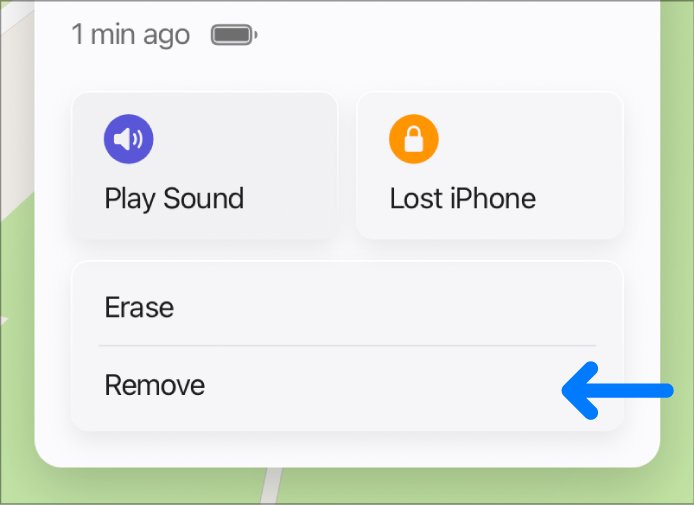
| Remote erase, then Remove This Device on iCloud.com | Yes, Activation Lock is removed immediately | A phone you sold or gave away without turning off Find My |
What you need before you factory reset an iPhone
| Item | Why you need it |
|---|---|
| Device passcode | The erase asks for it before it starts |
| Apple Account password | Required to turn off Find My, erase the phone or reactivate it |
| A recent backup | The erase removes photos, contacts, apps and Apple Pay cards from the phone |
| Paired Apple Watch unpaired | Apple tells you to unpair the watch before you erase the iPhone |
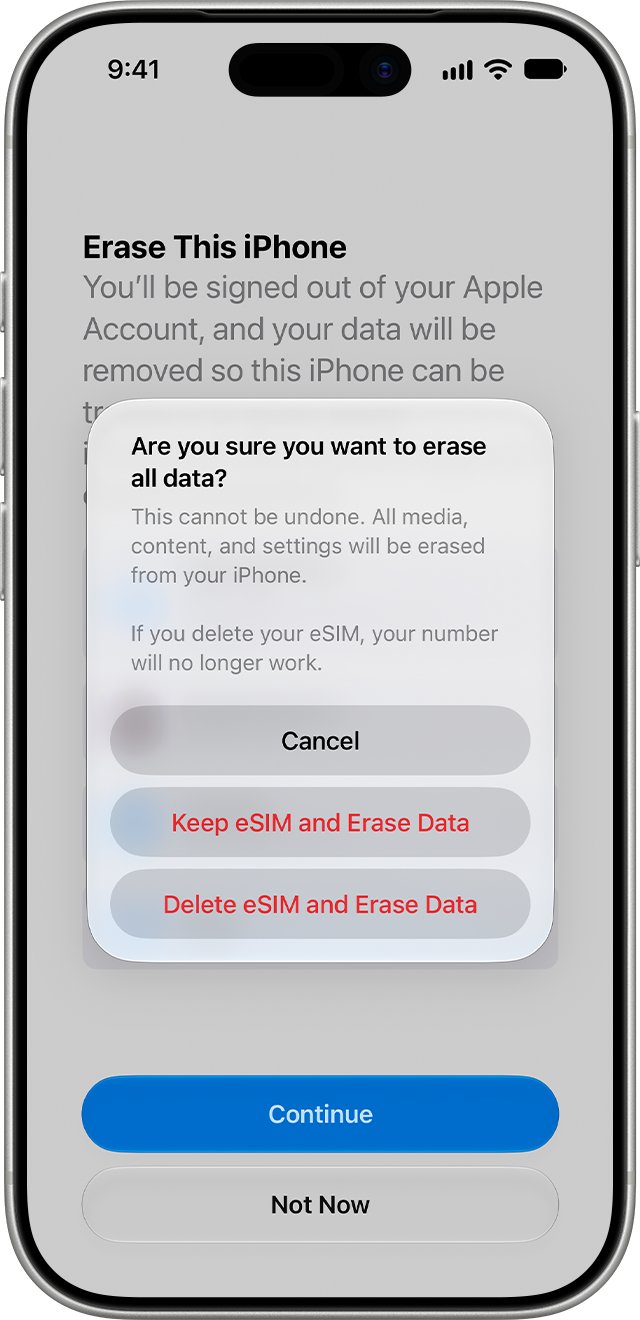
| eSIM decision | You choose to keep or delete the eSIM; deleting it means contacting your carrier to reactivate the plan |
If you forgot the Apple Account password, reset it first. Without it, you might be unable to use or reactivate the phone.
How to turn off Find My iPhone before a factory reset
Turning off Find My first is optional, because the erase asks for your password anyway. It is useful when you want to confirm the lock is gone before you hand the phone over.
- Open the Settings app.
- Tap your name at the top of the screen.
- Tap Find My, then tap Find My iPhone.
- Turn off Find My iPhone.
- Enter your Apple Account password to confirm.
How to sign out of iCloud and erase iPhone in iOS 26
On iOS 26 and later, the sign out screen offers to erase the phone in the same flow. Signing out removes the iPhone from Find My.
- Open the Settings app and tap your name.
- Scroll down and tap Sign Out.
- Choose Erase this iPhone to wipe it, or Sign Out But Don't Erase to keep the data on the phone.
- If asked which account to sign out of, tap Sign out of iCloud and Store.
- To finish a full wipe, go to Settings > General > Transfer or Reset iPhone > Erase All Content and Settings.
On iOS 18 or earlier, tap Sign Out, enter your Apple Account password and tap Turn Off instead.
Remove an iPhone from Find My on iCloud.com after a reset
Use this when you already sold or gave away the iPhone and forgot to turn off Find My. It works from any browser.
- Go to icloud.com/find and sign in to your Apple Account.
- Select the iPhone in the list of devices.
- If it still holds your data, select Erase This Device and leave the phone number and message blank, because the phone is not lost.
- When the erase finishes, select Remove This Device.
- Confirm. Activation Lock is removed and the new owner can activate the phone.
If the iPhone is offline, the erase starts the next time it connects, and Apple emails you when it is done. An offline phone removed without an erase reappears, with Activation Lock back on, if it comes online after 30 days while still signed in to your account.
Why a recovery mode restore does not remove Activation Lock
| What happens | Result |
|---|---|
| Find My is turned on | Apple stores your Apple Account on its activation servers and links it to the iPhone |
| The phone is restored in recovery mode | iOS is reinstalled and all data is erased |
| The phone is set up again | It contacts Apple, finds the link and asks for the original Apple Account |
| The phone is erased remotely while lost | Activation Lock stays on, and Lost Mode's custom message still displays |
Apple designed it this way so a thief cannot wipe a stolen iPhone and reuse it. If you need a recovery mode restore, have the Apple Account password ready for setup, and force restart the iPhone first in case that clears the problem without erasing anything.
How to check Find My and Activation Lock are off after a reset
- Turn on the iPhone and confirm the Hello screen appears, not the passcode Lock Screen or Home Screen.
- Begin the setup process.
- If you are asked for the previous owner's Apple Account, the phone is still linked; stop and remove it from that account.
- If you see an iPhone Locked to Owner screen on iOS 15 or later, Activation Lock is still on.
- On another device, sign in at icloud.com/find and confirm the iPhone is no longer listed under your devices.
A phone that reaches setup without asking for anyone's Apple Account is ready for its next owner.
Fix iPhone factory reset problems with Find My
iPhone asks for the previous owner's Apple Account after a factory reset
The phone was restored or erased without the owner signing out, so Activation Lock is still on.
- Hand the iPhone back to the seller and ask them to enter their password on the setup screen.
- If the seller is not present, ask them to sign in at icloud.com/find, select the iPhone and select Remove This Device.
- Restart the iPhone and begin setup again.
- If you own the phone and have proof of purchase, start an Activation Lock support request with Apple.
Factory reset not working because you forgot the Apple Account password
The erase cannot finish without the password when Find My is on.
- Try to sign in with an email address or phone number you use regularly with Apple services.
- Reset your Apple Account password from Apple's account page.
- Return to Settings > General > Transfer or Reset iPhone and run the erase again.
Factory reset failed and the iPhone will not start
The software is damaged, so the phone cannot reach Settings to erase itself.
- Connect the iPhone to a Mac with Finder or a PC with the Apple Devices app.
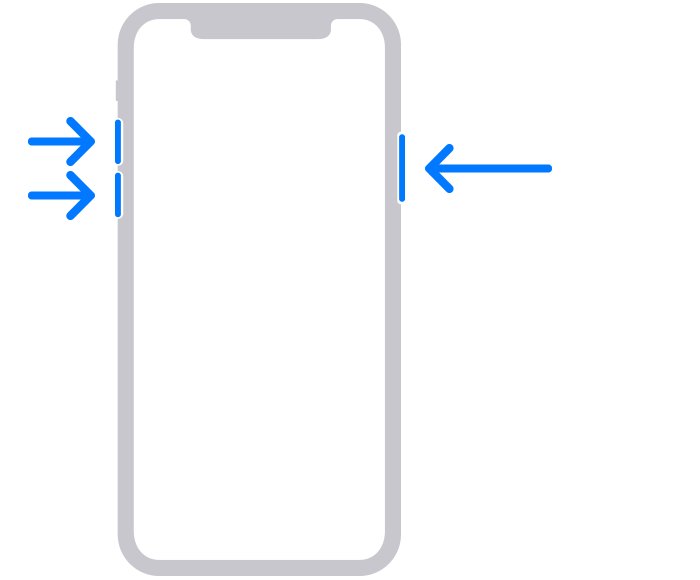
- On iPhone 8 or later, press and release Volume Up, press and release Volume Down, then hold the side button until the Connect to computer screen appears.
- Choose Restore when the Update or Restore options appear.
- Enter your Apple Account password during setup, because Activation Lock stays on after this restore.
Erased iPhone still shows in Find My
The phone was erased remotely or is offline, so it was never removed from the account.
- Sign in at icloud.com/find.
- Select the iPhone in the device list.
- Select Remove This Device and confirm.
- If the phone is online, select Continue to mark it Ready for Repair or Trade In for 30 days.
Find My iPhone factory reset FAQ
Does a factory reset delete everything on an iPhone?
Yes. Erase All Content and Settings removes photos, contacts, music, apps and Apple Pay cards from the iPhone, and turns off iCloud, iMessage and FaceTime. Content stored in iCloud is not deleted from Apple's servers by the erase.
Does a factory reset remove the iPhone from Find My device lists?
It does when you erase the phone from Settings and enter your Apple Account password. A recovery mode restore or a remote erase leaves the phone in your list until you select Remove This Device on icloud.com/find.
How do I recover data after a factory reset?
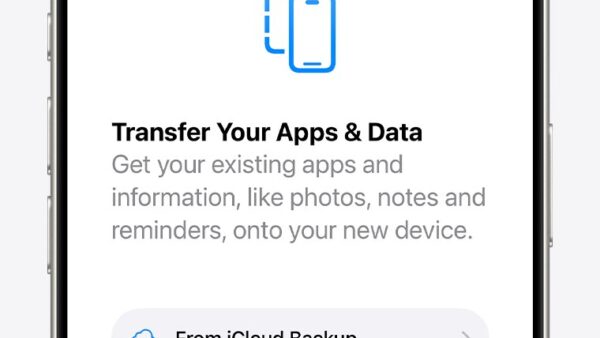
Restore from a backup during setup. On the Transfer Your Apps & Data screen, tap From iCloud Backup and choose the most recent backup, or connect to a computer and click Restore Backup in Finder or the Apple Devices app.
Can I factory reset an iPhone without losing data?
No, an erase always wipes the phone. Back it up to iCloud or a computer first, and export your iCloud contacts if you want a separate copy, then restore that backup during setup to get your apps, settings and photos back on the same or a new iPhone.
What happens when you factory reset an iPhone with Find My on?
The iPhone asks for your Apple Account password before it erases. Once you enter it, the phone is wiped, Find My and Activation Lock turn off, and it restarts to the Hello screen ready for a new owner.
Why is my iPhone factory reset not working?
The most common causes are a forgotten passcode or Apple Account password, or a phone that cannot start normally. Reset the Apple Account password, try a soft reset of the iPhone if Settings freezes, or use recovery mode with a computer if the phone will not reach Settings.
Where do I find factory reset on an iPhone?
Open Settings, tap General, then tap Transfer or Reset iPhone. The Erase All Content and Settings option is at the bottom of that screen. There is no hardware factory reset button on an iPhone.
Does erasing an iPhone from iCloud.com turn off Find My?
No. Erase This Device in Find Devices keeps Activation Lock on to protect a lost phone. To release it, select Remove This Device after the erase finishes; Activation Lock is then removed immediately.
Bottom line: does a factory reset remove Find My iPhone?
Erase the iPhone from Settings with your Apple Account password, or sign out first, before it leaves your hands. Only that route unlinks the phone from your account; a recovery mode restore or remote erase leaves Activation Lock on until you remove the phone at icloud.com/find. The same rule applies when you factory reset an iPad.