To disable a sound output device in Windows 11, open Settings > System > Sound, select the device under Output, and choose Don't allow next to Allow apps and Windows to use this device for audio.
This guide covers that route, the Sound control panel, Device Manager and PnPUtil, how to find a device you already disabled, and fixes when Windows says no speakers or headphones are plugged in.
Enable or disable sound output device in Windows 11/10
The Settings app is the quickest route for speakers, headphones, HDMI monitors and Bluetooth audio that Windows currently lists under Output.
- Select Start > Settings > System > Sound.
- Under Output, select the arrow next to the speaker, headphones or monitor you want to change to open its properties page.
- Next to Allow apps and Windows to use this device for audio, select Don't allow to disable the device.
- To turn it back on, open the same properties page and select Allow.
A disabled device drops out of the Output list, so the reliable way back to it is the Sound control panel method below.
Which way to disable a sound output device should you use?
| Your situation | Use this | What it turns off |
|---|---|---|
| You want one speaker or output gone from the list | Settings device properties | That audio endpoint only; the sound card keeps working for other outputs |
| The device you disabled no longer shows in Settings | Sound control panel with Show Disabled Devices | Shows and re-enables hidden endpoints |
| You want the whole sound card or HDMI audio chip off | Device Manager | The hardware device and every output it provides |
| You manage several PCs or prefer a command | PnPUtil in an elevated Command Prompt | The hardware device, the same as Device Manager |
| You only want silence, not a removed device | The taskbar volume slider | Nothing; the device is muted and stays available |
Microsoft's Core Audio documentation draws the same line: disabling in the Sound control panel hides the endpoint from apps, while disabling in Device Manager effectively removes the device from the system.
Method 2: Disable or enable an output in the Sound control panel
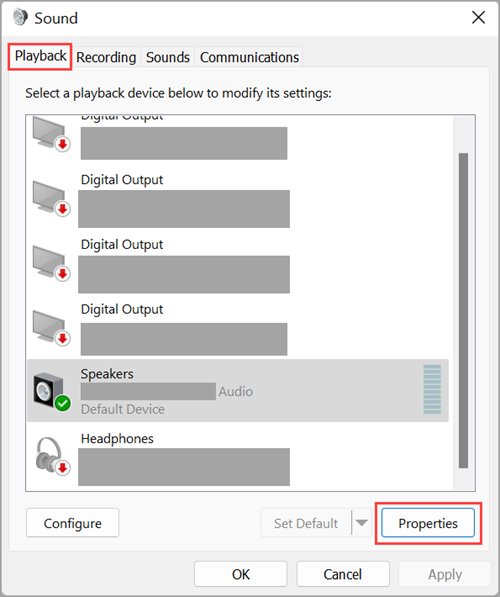
The classic Sound control panel, also called Playback Devices or the mmsys.cpl multimedia control panel, is the only place that lists disabled outputs alongside active ones.
- Press Win + R, type
control mmsys.cpl,,0and press Enter to open the Playback tab directly. - Right-click an empty area of the list and select Show Disabled Devices so hidden outputs appear.
- Select the speaker or headphones and select Properties.
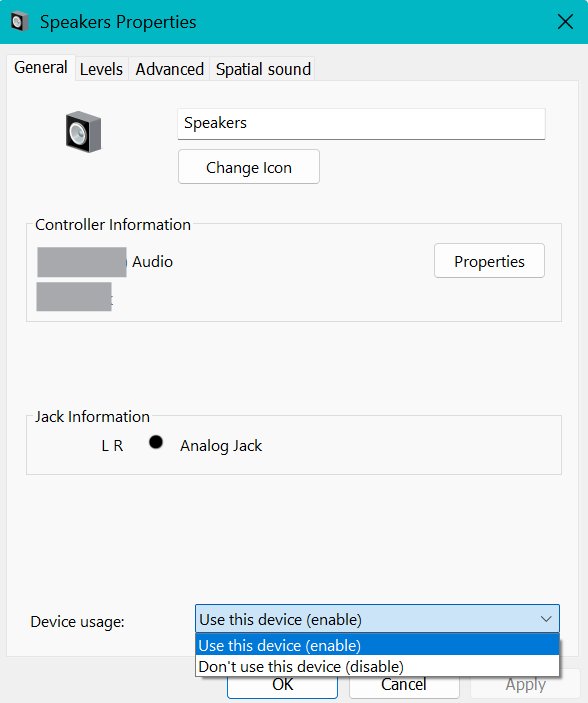
- On the General tab, open the Device usage list.
- Choose Don't use this device (disable) to disable the output, or Use this device (enable) to turn it back on.
- Select OK to apply the change.
You can also reach this window from Settings > System > Sound > More sound settings, and there are several more ways to open old Sound settings if Settings is unavailable.
Method 3: Open the Sound devices page in Settings
Windows 11 has a separate page that lists every sound device rather than only the current output choices.
- Press Win + R, type
ms-settings:sound-devicesand press Enter. - Select the output device you want to change in the list.
- Select Don't allow to disable it, or Allow to enable it again.
- Go back to System > Sound and confirm the device appears, or no longer appears, under Output.
Method 4: Disable or enable the audio device in Device Manager
Use Device Manager when you want the sound card, USB headset adapter or display audio chip switched off completely, not just one of its outputs.
- Select Start, type Device Manager, and select it from the results.
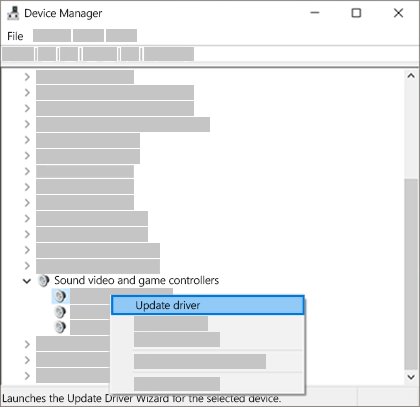
- Expand Sound, video and game controllers.
- Right-click the audio device and select Disable device, then confirm with Yes.
- To turn it back on, right-click the same entry and select Enable device.
- If the device is missing from the list, select View > Show hidden devices, then Action > Scan for hardware changes.
A device disabled here shows Code 22, "This device is disabled", in its Properties window until you enable it again.
Disable or enable a sound device with PnPUtil
PnPUtil's /disable-device and /enable-device commands work on Windows 10 version 2004 and later, including every Windows 11 release. Run them from Command Prompt opened with Run as administrator.
First list connected devices with pnputil /enum-devices /connected and copy the Instance ID of the audio device you want to change.
pnputil /disable-device "<instance ID>"Disables the device that matches the instance ID, exactly as Device Manager does. Replace /disable-device with /enable-device to turn it back on. Running pnputil /enum-devices /problem 22 lists the devices that are currently disabled.
You should see: PnPUtil reports that the device was disabled, and the device shows as disabled in Device Manager.
What are output devices and audio input devices?
| Type | What it does | Examples | Where Windows lists it |
|---|---|---|---|
| Output (playback) device | Plays sound from Windows and apps | Built-in speakers, wired or USB headphones, Bluetooth earbuds, HDMI monitor or TV audio | System > Sound > Output, and the Playback tab |
| Input (recording) device | Captures sound for calls, voice typing and recording | Built-in microphone, headset microphone, USB microphone | System > Sound > Input, and the Recording tab |
| Audio adapter | The hardware that provides one or more of the devices above | Realtek or other onboard audio, display audio on a graphics card | Device Manager > Sound, video and game controllers |
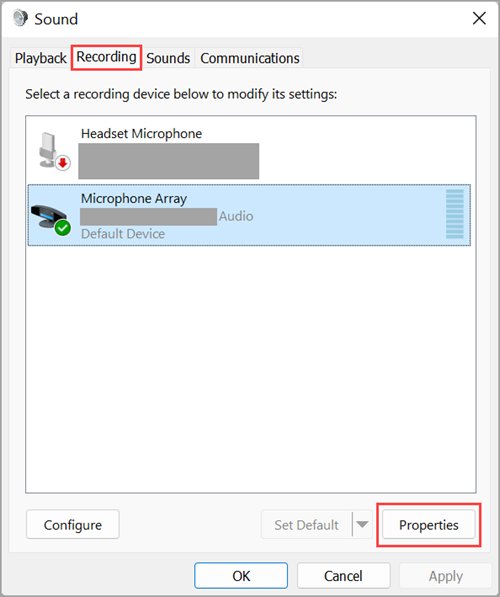
Disabling an input device follows the same steps from the Input section or the Recording tab, which opens directly with control mmsys.cpl,,1.
How to check a sound output device is enabled or disabled
- Select the Speakers icon on the taskbar.
- Select the arrow to the right of the volume slider (Select a sound output) to see the list of outputs.
- Confirm a disabled device is absent from that list and an enabled one is present.
- In the Playback tab with Show Disabled Devices turned on, a disabled output is still listed and marked as disabled.
- Play a sound on the enabled device to confirm it produces audio.
No speakers or headphones are plugged in on Windows 11: fixes
This message, and the related "No audio output device is installed", usually means every output is disabled, hidden or missing its driver. If none of the fixes below bring sound back, you can reset audio settings in Windows 11 to return every device to its defaults.
"No speakers or headphones are plugged in" after you disabled a device
The only output was disabled in Settings or the Sound control panel, so Windows has nothing to play to.
- Press Win + R, type
control mmsys.cpl,,0and press Enter. - Right-click an empty area and select Show Disabled Devices and Show Disconnected Devices.
- Select the speaker, select Properties, and set Device usage to Use this device (enable).
- Right-click the device and select Set as default.
Sound device disabled in Device Manager or missing from Settings
The audio adapter itself is disabled or not detected, so none of its outputs appear.
- Open Device Manager and expand Sound, video and game controllers.
- Right-click the audio device and select Enable device if it is offered.
- If nothing is listed, select View > Show hidden devices, then Action > Scan for hardware changes.
- Restart the PC from Start > Power > Restart and check Output again.
Device enabled but still no sound
The wrong output is selected, the volume is muted, or a cable is loose.
- Check that speaker and headphone cables are firmly plugged into the correct jack and that powered speakers are on.
- Open Settings > System > Sound and select the correct device under Output.
- Make sure the volume is not muted and the slider is turned up.
- Unplug headphones to test the speakers, because some speakers stay silent while headphones are connected.
Outputs vanished after an update or driver change
The audio driver is outdated, corrupted or no longer loading.
- Run the Audio troubleshooter from Settings > System > Troubleshoot > Other troubleshooters.
- In Device Manager, right-click the audio device, select Update driver, then Search automatically for drivers.
- If the problem started after an update, open the device's Properties, go to the Driver tab and select Roll Back Driver.
- Install the latest audio driver from the PC or sound card manufacturer's support site and restart.
Every device looks enabled but Windows plays nothing
The Windows audio services have stopped responding.
- Select Start, type services, and open Services.
- Right-click Windows Audio, select Restart, and confirm with Yes.
- Repeat for Windows Audio Endpoint Builder and Remote Procedure Call (RPC).
- Test sound again from the taskbar volume slider.
If the Realtek driver broke after a feature update, these Realtek audio driver fixes cover that case in more depth.
Sound output device enable and disable FAQ
How do I enable a sound device that was disabled?
Press Win + R, run control mmsys.cpl,,0, right-click the Playback list and select Show Disabled Devices. Open the device's Properties and set Device usage to Use this device (enable). A device disabled in Device Manager needs Enable device there instead.
How do I disable sound devices in Windows 11?
Open Settings > System > Sound, select the device under Output, and choose Don't allow next to Allow apps and Windows to use this device for audio. To switch off the whole sound card instead, use Disable device in Device Manager.
Why is my sound device disabled?
A sound device is usually disabled because someone turned it off in Settings, the Sound control panel or Device Manager. A missing or broken driver can also make the device disappear, which looks the same from the Output list.
How do I enable sound in Windows 11?
Select the Speakers icon on the taskbar, unmute it and raise the volume slider, then pick your speaker or headphones with the Select a sound output arrow. If the device is missing, enable it from the Playback tab or Device Manager.
How do I enable sound on a PC with no output device listed?
Check Device Manager under Sound, video and game controllers and select Enable device if it is offered. If nothing is listed, show hidden devices, scan for hardware changes, and install the audio driver from the PC maker's support site.
How do I disable sound on a computer without disabling the device?
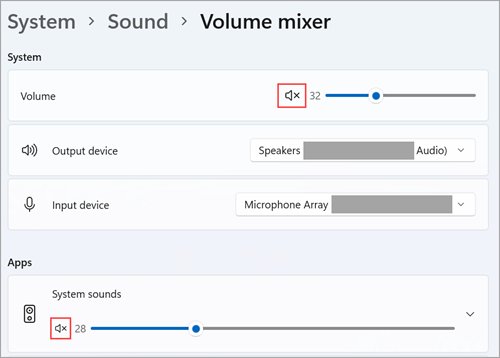
Mute it. Select the Speakers icon on the taskbar and select the speaker symbol next to the volume slider, or drag the slider to zero. The device stays enabled and selectable, so sound returns as soon as you unmute.
How do I disable sound enhancements in Windows 11?
Open Settings > System > Sound, select the output device under Output, scroll to Advanced settings, and set Audio enhancements to Off. Microsoft suggests this when enhancements cause distorted or missing audio.
Does disabling a sound device uninstall its driver?
No. Disabling in Settings or the Sound control panel only hides that endpoint, and Disable device in Device Manager stops the hardware but keeps the driver installed. Uninstall device in Device Manager is the option that removes it.
Bottom line: where to disable a sound output device in Windows 11
Use Settings to disable a single unwanted output, and use the Sound control panel with Show Disabled Devices to bring one back. Endpoint-level disabling keeps the sound card working for your other speakers and headphones, while Device Manager and PnPUtil turn off every output the hardware provides. Volume, spatial sound and input options sit on the same page, where you can manage sound settings on Windows 11 once your outputs are set.