To change the date and time format in Windows 11 or 10, open Settings > Time & language > Language & region, pick a Regional format, then open the classic Region dialog to set the short date, long date and 12-hour or 24-hour time.
This guide covers DD/MM/YYYY, MM/DD/YYYY and YYYY-MM-DD dates, the format codes Windows uses, custom separators and month names, and fixes for formats that will not change.
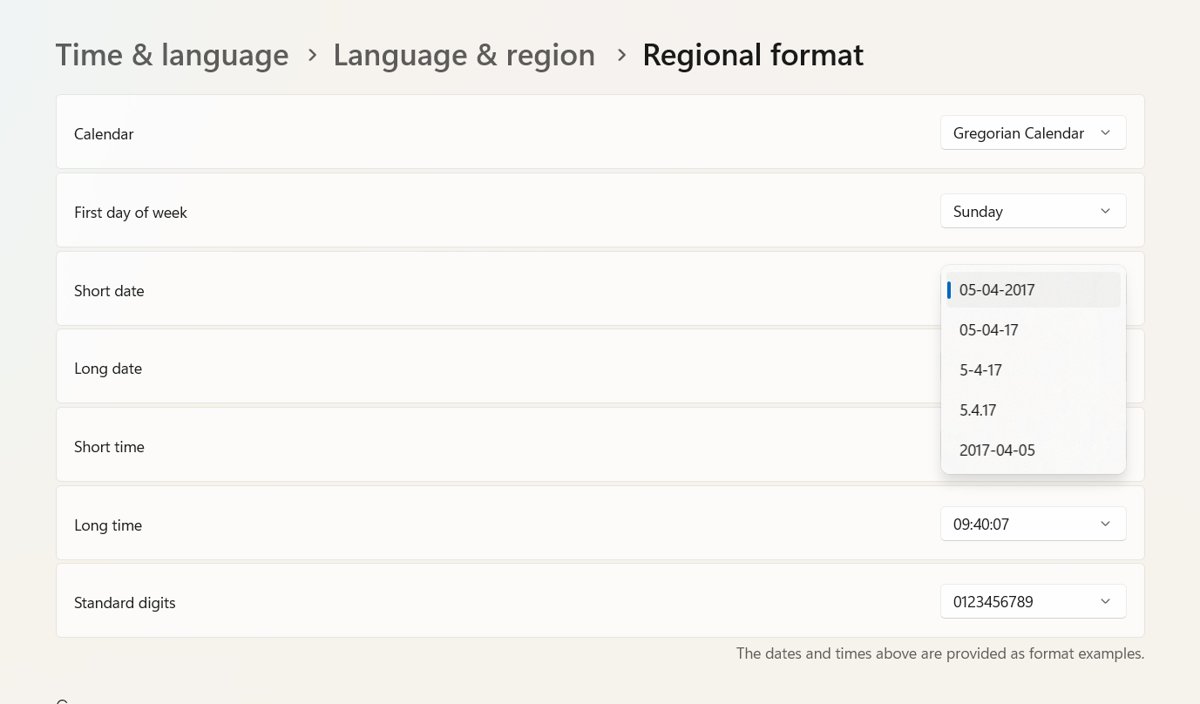
How to change date and time format in Windows 11
The regional format sets the defaults for dates, times, numbers and currency. The classic Region dialog then lets you override each date and time pattern on its own.
- Press Windows key + I to open Settings.
- Select Time & language, then select Language & region.
- Under Regional format, pick the country or region whose date and time style you want.
- Scroll to Related settings and select Administrative language settings.
- In the Region dialog, select the Formats tab.
- Choose a pattern from the Short date, Long date, Short time and Long time lists.
- Select Apply, then OK.
You can also open the same Region dialog directly: press Windows key + R, type intl.cpl and press Enter.
Settings, Control Panel or PowerShell: which date format method to use
| What you want | Use this | Why |
|---|---|---|
| Another country's full style (date, time, numbers, currency) | Settings > Regional format | One choice switches every format to that region's defaults |
| One pattern changed, such as DD/MM/YYYY or 24-hour time | Region dialog > Formats tab | Changes one list and leaves the rest alone |
| A pattern that is not in the lists, such as dd.MM.yyyy | Region dialog > Additional settings | The Customize Format dialog accepts your own format codes |
| The same regional format set from a script | PowerShell Set-Culture | Sets the culture for the current user without opening Settings |
| Clock time or time zone is wrong, not its layout | Settings > Date & time | That page sets the actual time, not how it looks |
How to change date and time format in Windows 10
Windows 10 names the page Region instead of Language & region, and the link to the classic dialog has a different label.
- Press Windows key + I to open Settings.
- Select Time & Language, then select Region.
- Under Regional format, pick the country or region you want.
- Under Related settings, select Additional date, time, & regional settings.
- Select Change date, time, or number formats.
- On the Formats tab, pick new entries in the Short date, Long date, Short time and Long time lists.
- Select Apply, then OK.
Microsoft ended support for Windows 10 on October 14, 2025, but these settings still work the same way on it.
Change date format using Control Panel
Control Panel opens the same Region dialog and works on both versions, and there are several ways to open Control Panel besides search. The category is called Clock and Region on Windows 11 and on recent Windows 10 builds, and Clock, Language, and Region on older ones.
- Type control panel in the taskbar search box and select Control Panel.
- Under Clock and Region, select Change date, time, or number formats.
- On the Formats tab, pick new entries in the Short date and Long date lists.
- To keep a region's other defaults, leave the Format list unchanged.
- Select Apply, then OK.
Picking a different entry in the Format list also changes how Windows shows the time, so check the time lists before you select OK.
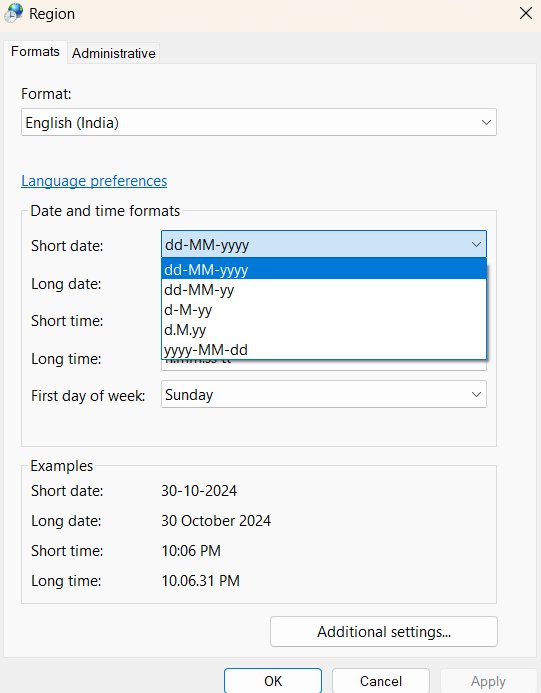
Change date format to DD/MM/YYYY, MM/DD/YYYY or YYYY-MM-DD
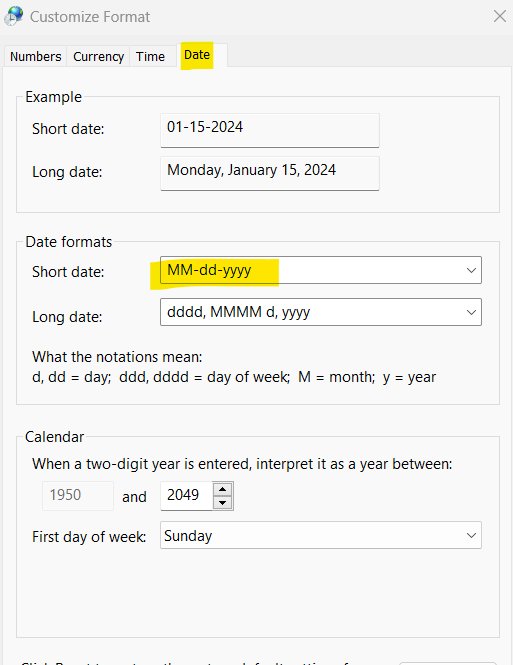
Each order is a short date pattern. Pick it from the Short date list when it is offered, or type it on the Date tab of the Customize Format dialog when it is not.
| Format you want | Short date pattern | Example for 7 March 2026 | Regions that use it by default |
|---|---|---|---|
| Change date format to DD/MM/YYYY | dd/MM/yyyy | 07/03/2026 | English (United Kingdom) and many others |
| Change date format to MM/DD/YYYY | M/d/yyyy or MM/dd/yyyy | 3/7/2026 or 03/07/2026 | English (United States) |
| Change date format to YYYY-MM-DD | yyyy-MM-dd | 2026-03-07 | Type it in Customize Format if your region does not list it |
| Day first with dots | dd.MM.yyyy | 07.03.2026 | Type it in Customize Format |
Write months with a capital M. A lowercase m means minutes, so dd/mm/yyyy shows the minute where the month should be.
How to change Windows 11 date format from MM/DD/YYYY to DD/MM/YYYY
Use this when you want a day-first date but want to keep English (United States) for everything else.
- Press Windows key + R, type
intl.cpland press Enter. - On the Formats tab, select Additional settings.
- In Customize Format, select the Date tab.
- In the Short date box, select or type
dd/MM/yyyy. - Select Apply, then OK in both dialogs.
The taskbar date switches to the new day-first order once the dialogs close.
Windows date format codes explained
Windows builds every date pattern from these codes. The letters d and y must be lowercase and M must be uppercase.
| Code | Shows | Example |
|---|---|---|
| d | Day of the month, no leading zero | 7 |
| dd | Day of the month with a leading zero | 07 |
| ddd | Abbreviated day name | Sat |
| dddd | Full day name | Saturday |
| M | Month number, no leading zero | 3 |
| MM | Month number with a leading zero | 03 |
| MMM | Abbreviated month name | Mar |
| MMMM | Full month name | March |
| yy | Last two digits of the year | 26 |
| yyyy | Full year | 2026 |
| 'text' | Characters shown exactly as typed inside single quotes | 'Week of' dd MMM |
For example, the pattern ddd',' MMM dd yy shows a date such as Sat, Mar 07 26.
How to change time format in Windows 11/10
The Time tab of Customize Format takes your own time pattern and the AM and PM symbols, which the Formats tab lists do not offer.
- Press Windows key + R, type
intl.cpland press Enter. - On the Formats tab, select Additional settings.
- Select the Time tab.
- In the Short time box, select or type a pattern such as
HH:mmorh:mm tt. - In the Long time box, select or type the same pattern with seconds, such as
HH:mm:ss. - Select Apply, then OK in both dialogs.
Change Windows to 24-hour time
- Open Control Panel, then under Clock and Region select Change date, time, or number formats.
- On the Formats tab, open the Short time list and select HH:mm.
- Open the Long time list and select HH:mm:ss.
- Select Apply, then OK.
The taskbar clock now shows times such as 14:05 with no AM or PM marker.
Change Windows to 12-hour time
- Open Control Panel, then under Clock and Region select Change date, time, or number formats.
- On the Formats tab, open the Short time list and select the h:mm tt entry.
- Open the Long time list and select the h:mm:ss tt entry.
- Select Apply, then OK.
Use hh instead of h in Customize Format if you want a leading zero, as in 02:05 PM.
Windows time format codes explained
A lowercase h means the 12-hour clock and an uppercase H means the 24-hour clock. The letters m, s and t must be lowercase.
| Code | Shows | Example at 2:05:09 PM |
|---|---|---|
| h | Hour, 12-hour clock, no leading zero | 2 |
| hh | Hour, 12-hour clock, leading zero | 02 |
| H | Hour, 24-hour clock, no leading zero | 14 |
| HH | Hour, 24-hour clock, leading zero | 14 |
| m / mm | Minutes without or with a leading zero | 5 / 05 |
| s / ss | Seconds without or with a leading zero | 9 / 09 |
| t | One-character AM/PM marker | P |
| tt | Full AM/PM marker | PM |
Microsoft advises against the single t marker for some languages, such as Japanese, because the first character of AM and PM can be the same.
How to change the date separator in Windows
The separator is part of the short date pattern, so you change it by typing a new pattern with the character you want between the codes.
- Press Windows key + R, type
intl.cpland press Enter. - On the Formats tab, select Additional settings, then the Date tab.
- In the Short date box, type the pattern with your separator, for example
dd.MM.yyyyordd-MM-yyyy. - Select Apply, then OK in both dialogs.
Since Windows Vista, the separator is no longer a separate setting for apps. They read the full short date pattern, which is why the pattern itself must carry the new character.
How to show month names instead of numbers
- Press Windows key + R, type
intl.cpland press Enter. - On the Formats tab, select Additional settings, then the Date tab.
- In the Short date box, type
dd-MMM-yyyyfor 07-Mar-2026, orMMM d, yyyyfor Mar 7, 2026. - In the Long date box, use
MMMMfor the full name, as indddd, MMMM d, yyyy. - Select Apply, then OK in both dialogs.
Month names follow the regional format's language, so a Spanish (Spain) format shows Noviembre instead of November.
Change the first day of the week in Windows
The first day of the calendar week is part of each regional format, from Monday through Sunday. English (United States) starts the week on Sunday, and many European formats start it on Monday.
| Where you want the change | What to do |
|---|---|
| Windows calendars and apps that read the regional format | Pick a regional format that starts the week on the day you want in Settings > Time & language > Language & region |
| Classic Outlook calendar | Select File > Options > Calendar, then pick a day in the First day of week list under Work time |
| Other calendar apps | Look in the app's own settings, because many keep a separate first-day option |
Change regional format without changing Windows display language
The Windows display language and the Regional format are separate lists on the same page. Changing one does not change the other.
- Open Settings > Time & language > Language & region.
- Leave Windows display language as it is.
- Under Regional format, pick the region whose dates and times you want, such as English (United Kingdom).
- Check the taskbar clock for the new format.
Menus stay in your current display language while dates, times, numbers and currency follow the new region.
Change the Windows date format with PowerShell Set-Culture
Set-Culture switches the current user's culture, which carries the date and time formats of that region. It is the scripted equivalent of picking a Regional format.
Set-Culture -CultureInfo en-GBSets the current user's culture to English (United Kingdom), which uses day-first dates and 24-hour time. Replace en-GB with another culture name, such as en-US or de-DE.
You should see: The command returns no output. New PowerShell sessions use the new culture, and the taskbar clock shows the new format.
How to change date and time format using Registry Editor
These formats are per-user values that Windows writes to the registry when you change them in the Region dialog. Microsoft states that only the regional options in Control Panel, or a similar utility, should set them, because the change affects every app the user runs.
Editing the values by hand also skips the change notice Windows sends to running apps, so some apps keep the old format until they restart.
Use the Region dialog or Set-Culture instead of editing the registry by hand. Both write the same per-user values and tell running apps about the change, while a manual registry edit can leave apps out of sync.
How to check the new Windows date and time format
- Look at the clock at the right end of the taskbar; it shows the short time and short date.
- Open File Explorer, switch to Details view and check the Date modified column.
- Press Windows key + R, type
intl.cpland press Enter; the Formats tab shows sample dates and times for the current patterns. - Open an app you use daily and confirm its dates match, or check its own settings if they do not.
Date format vs date and time settings: what’s the difference?
| Setting | Where it is | What it controls |
|---|---|---|
| Date and time | Settings > Time & language > Date & time | The actual clock time and whether Windows sets it automatically |
| Time zone | Settings > Time & language > Date & time | Which time zone and daylight saving rules apply |
| Show seconds in the tray clock | Settings > Time & language > Date & time | Whether the taskbar clock shows seconds |
| Regional format | Settings > Time & language > Language & region | Default date, time, number and currency formats |
| Short date, long date, short time, long time | Region dialog (intl.cpl) | The exact pattern for each date and time format |
You can change the date format without touching the time zone, and if you set the time zone manually, the format stays the same.
Date format changed but taskbar still looks different
The taskbar clock keeps the old format
Windows Explorer has not reloaded the new regional settings.
- Press Ctrl + Shift + Esc to open Task Manager.
- On the Processes tab, right-click Windows Explorer and select Restart.
- Check the taskbar clock again.
The taskbar still shows the old format after an Explorer restart
Some parts of the session keep the settings they loaded at sign-in.
- Save your work.
- Select Start, select your account picture, and select Sign out.
- Sign back in and check the clock.
Only the long date changed
The taskbar uses the short date and short time, not the long patterns.
- Open
intl.cpland select the Formats tab. - Set the Short date and Short time lists to the pattern you want.
- Select Apply, then OK.
Date and time format not changing? Try these fixes
One app still shows the old date format
The app read the format at startup or keeps its own format setting.
- Close the app completely and open it again.
- Check the app's own settings for a date, time or language option, as Excel, Outlook and browsers can override Windows.
- In Excel, apply a date format to the cells, because cell formats override the system short date.
Windows keeps changing my date format back
A different regional format was selected, which applies that region's default patterns over your custom ones.
- Open Settings > Time & language > Language & region and check the Regional format entry.
- Set it back to the region you want.
- Reapply your custom patterns in
intl.cplafter the region is correct.
The format lists are greyed out or reset on a work or school PC
A group policy set by your organization blocks or overwrites regional changes.
- Check whether the PC is managed under Settings > Accounts > Access work or school.
- Ask your IT administrator to change the format, because policy reapplies its own values.
Windows date and time format FAQ
How do I change the date format in Windows 11?
Open Settings > Time & language > Language & region and pick a Regional format. For a single pattern, select Administrative language settings, open the Formats tab, and choose a Short date or Long date entry, then select Apply.
How do I change Windows 11 from MM/DD/YYYY to DD/MM/YYYY?
Press Windows key + R, type intl.cpl and press Enter. Select Additional settings, open the Date tab, and set the Short date box to dd/MM/yyyy. Select Apply and OK in both dialogs, and the taskbar shows day-first dates.
How do I change Windows 11 to 24-hour time?
Open Control Panel, select Change date, time, or number formats under Clock and Region, and set Short time to HH:mm and Long time to HH:mm:ss. Select Apply and OK, and the taskbar clock drops the AM and PM marker.
How do I change Windows from 24-hour to 12-hour time?
Open the Region dialog with intl.cpl and, on the Formats tab, choose the h:mm tt entry in Short time and h:mm:ss tt in Long time. The lowercase h means the 12-hour clock, and tt adds the AM or PM marker.
Can I change the date format without changing the time zone?
Yes. The date format lives in Language & region and the Region dialog, while the time zone lives on the Date & time page. Changing one never changes the other, so you can switch to DD/MM/YYYY and keep your current time zone.
Can I use YYYY-MM-DD in Windows?
Yes. Open intl.cpl, select Additional settings, open the Date tab and type yyyy-MM-dd in the Short date box. Use a capital M for the month, because a lowercase m shows minutes instead.
Why is my Windows date format not changing?
Usually Windows Explorer or the app has not reloaded the setting. Restart Windows Explorer from Task Manager, or sign out and back in, and reopen the app. On a work PC, a group policy can block or reset the change.
Why does Windows keep changing my date format?
Selecting a different Regional format applies that region's default date and time patterns, replacing custom ones. On managed PCs, a group policy can also reapply the organization's format at sign-in. Check the Regional format entry first, then ask IT.
Conclusion: best way to change date and time format in Windows
Pick the closest Regional format in Settings first, then adjust only the short date or short time in the Region dialog. The regional format sets numbers and currency correctly in one step, and the Region dialog fixes the one pattern that still differs without a registry edit.