A keyboard that types |zxcvbnm? whenever you press a key is reporting key presses you did not make, and the fix depends on whether the keyboard hardware or a Windows setting is sending them.
This guide shows how to tell the two apart in a few minutes, then covers layout and accessibility settings, drivers, stuck keys, liquid damage and laptop keyboard faults.
How to stop a keyboard typing |zxcvbnm? by itself
The string |zxcvbnm? is the whole bottom letter row of a US keyboard, from the backslash key to the question mark key.
When one press produces that entire row, the quickest test is to take the physical keyboard out of the picture and see whether the text stops.
- Save your work and restart the PC to clear any temporary input glitch.
- Open Notepad and press Windows logo key + Ctrl + O to turn on the On-Screen Keyboard.
- Click a few letters on the On-Screen Keyboard and check that only those letters appear.
- Press one key on the physical keyboard and note whether |zxcvbnm? appears again.
- If the On-Screen Keyboard types cleanly but the physical keys do not, connect a different USB keyboard and type again.
- If the second keyboard also types cleanly, treat the original keyboard as faulty and go to the hardware sections below.
If every keyboard, including the On-Screen Keyboard, shows the problem, the cause is in Windows. Start with the layout and accessibility settings.
What the |zxcvbnm? pattern tells you about the cause
| What you see | Most likely source | Where to go next |
|---|---|---|
| The whole bottom row appears on any key press | Built-in or attached keyboard reporting phantom presses | External keyboard testing, then hardware causes |
| Text keeps appearing with no keys touched | Stuck key, liquid or a failing keyboard | Hardware-level causes |
| Letters are right but Y and Z or symbols are swapped | A different keyboard layout is active | Keyboard layout and language settings |
| Every letter comes out as a capital or a symbol | Shift held down physically or locked by Sticky Keys | Sticky Keys and modifier keys |
| Keystrokes are ignored or delayed | Filter Keys is on | Sticky Keys and modifier keys |
| Problem appears in one app only | That app or remapping software | Quick initial checks |
| Problem started after a spill | Liquid inside the keyboard | Hardware-level causes |
| Problem started after an update or new software | Driver or software conflict | Driver, firmware and operating system issues |
Quick initial checks: ruling out simple mistakes and temporary glitches
These checks take a couple of minutes and clear a surprising share of keyboard faults. Do them before you change any settings.
- Restart the computer, not just sleep and wake, so Windows reloads the keyboard driver.
- Look along the bottom row and both Shift keys for a key that sits lower than the others or feels sticky, and press it a few times.
- Unplug every external keyboard, USB hub, game controller and other accessory, then type on the remaining keyboard.
- For a USB keyboard, unplug the cable, wait a little while for Windows to unload the driver, then plug it into a different USB port.
- For a wireless keyboard, press the Reset button on the keyboard or receiver if it has one, or unplug the receiver for about 10 seconds.
- Check that the keyboard cable is undamaged and that wireless keyboards have charged or fresh batteries.
- Type in Notepad and in a second app such as your browser to see whether the problem follows the keyboard or one program.
If garbled text appears only in one app, check that app's own shortcuts and any keyboard remapping or macro software you have installed, and close it to test.
Keyboard layout, language, and accessibility settings that can cause this behavior
A wrong layout does not make one key type a whole row, but it does make keys produce the wrong characters, such as Y and Z trading places or symbols moving.
Extra layouts and input method editors (IMEs) get added with new languages, and a shortcut can switch the keyboard language without you noticing.
- Select the input language icon in the system tray area of the taskbar and choose your normal layout, such as US.
- Hold the Windows logo key and press Spacebar to cycle layouts; if nothing changes, only one layout is installed.
- Open Start > Settings > Time & language > Language & region.
- Select the ellipses (…) next to your language and choose Language options.
- Under Keyboards, select the ellipses next to any layout you do not use and choose Remove.
- If the correct layout is missing, select Add a keyboard next to Installed keyboards and pick it.
- Type in Notepad again to confirm the characters now match the key labels.
If Remove is greyed out, that layout is the only one for your display language. Add the correct layout first, then remove the wrong one.
The last key on the bottom row types a forward slash on its own and a question mark with Shift, which is why the pattern ends in ?.
Sticky keys, filter keys, and modifier keys: how Shift, Alt, or Ctrl can lock input patterns
Sticky Keys lets you press a shortcut such as Ctrl + S one key at a time, so a modifier can stay active after you release it. Filter Keys makes the keyboard ignore brief or repeated keystrokes.
A Shift key that is held, physically or by Sticky Keys, turns the backslash into | and the slash into ?, which matches the start and end of the pattern.
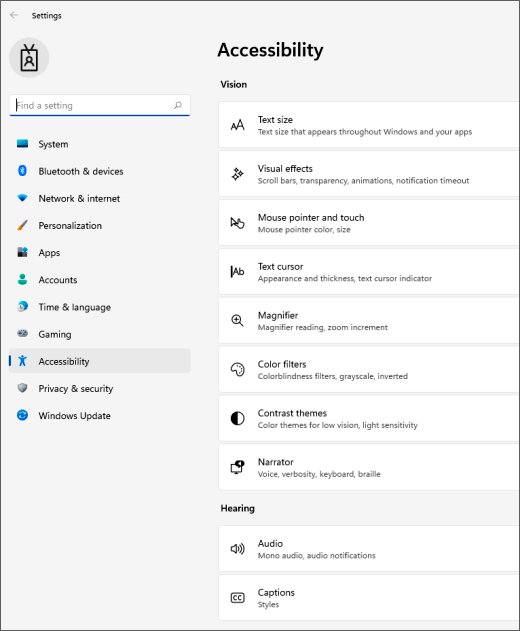
- Press Windows logo key + U to open Accessibility settings.
- Under Interaction, select Keyboard.
- Turn off the Sticky keys switch.
- Turn off the Filter keys switch.
- Press and release each Shift, Ctrl and Alt key once to release any modifier that is still active.
- Type a short sentence in Notepad and check that capitals appear only when you hold Shift.
If capitals or symbols keep appearing with Sticky Keys off, a Shift key is likely stuck down. Check it as described in the hardware section.
External keyboard testing: how to confirm whether the issue is hardware or software
Two clean comparisons settle the question: the Windows On-Screen Keyboard, which has no physical keys, and a second physical keyboard.
| On-Screen Keyboard | Second keyboard | Original keyboard | Conclusion |
|---|---|---|---|
| Types correctly | Types correctly | Types |zxcvbnm? | Original keyboard hardware is faulty |
| Types correctly | Not available | Types |zxcvbnm? | Most likely hardware; borrow a keyboard to confirm |
| Wrong characters | Wrong characters | Wrong characters | Windows layout or software issue |
| Types correctly | Types |zxcvbnm? too | Types |zxcvbnm? | Driver, software or a USB port problem |
| Types correctly | Types correctly | Fine on another PC | Port, driver or settings on this PC |
To open the On-Screen Keyboard without a working keyboard, go to Start > Settings > Accessibility > Keyboard and turn on On-Screen Keyboard. At the sign-in screen, select the Accessibility button in the lower-right corner.
Connecting the suspect keyboard to another PC is the final check. If it misbehaves there too, the keyboard needs repair or replacement.
Hardware-level causes: stuck keys, liquid damage, and internal keyboard short circuits
When the On-Screen Keyboard types cleanly but the physical keyboard keeps producing the bottom row, the keyboard is sending signals by itself.
| Cause | Typical sign | What to do |
|---|---|---|
| Stuck or held-down key | One key repeats, or text appears with no keys touched | Press the key several times; clear debris with compressed air |
| Dirt or crumbs under keys | Keys feel gritty or need extra force | Turn the keyboard off or unplug it, then clean around the keys |
| Liquid damage | Problem started after a spill; keys feel sticky | Power off at once, unplug, and do not use it until it is checked |
| Internal short circuit | One press triggers a whole row of characters | Replace an external keyboard; have a laptop keyboard repaired |
| Worn-out keyboard | Faults grow over weeks, several keys affected | Replace the keyboard |
After a spill, shut the computer down, unplug it and remove a wireless keyboard's batteries. Powering it on while wet can turn a cleanable spill into permanent damage.
Driver, firmware, and operating system issues that can trigger repeated character sequences
Software faults usually affect every keyboard on the PC at once. If the external keyboard test pointed to Windows, work through these steps in order.
- Type check for updates in the taskbar search box, select Check for updates, and install what Windows Update offers.
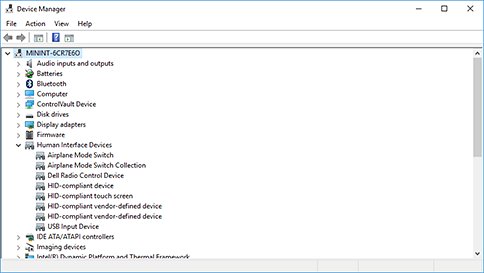
- Type device manager in the taskbar search box and open Device Manager.
- Expand Keyboards, double-click your keyboard, open the Driver tab and select Update Driver.
- If that does not help, right-click the keyboard under Keyboards, select Uninstall device, then restart so Windows reinstalls it.
- Install keyboard, chipset and BIOS or firmware updates for your exact model from the PC or keyboard maker's support site.
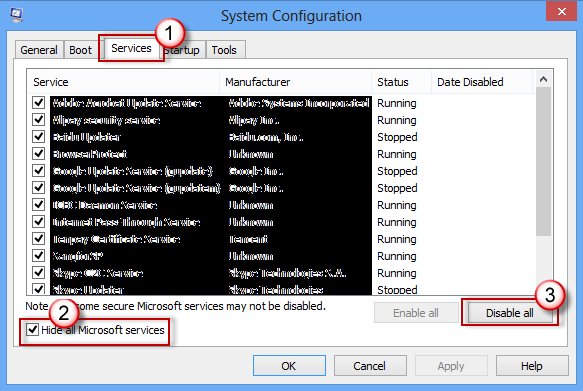
- Run a clean boot with msconfig: on Services, select Hide all Microsoft services and Disable all, then disable startup apps in Task Manager and restart.
- If typing is normal after the clean boot, re-enable services and apps a few at a time to find the one that garbles input.
Safe Mode is another quick test. Open Settings > System > Recovery > Advanced startup > Restart now, then choose Troubleshoot > Advanced options > Startup Settings > Restart and press 4. Clean typing there points to a driver or app.
Laptop-specific problems: ribbon cable faults, palm rest pressure, and keyboard matrix failures
A laptop keyboard connects to the motherboard through a thin internal cable, and its keys share circuits arranged in rows. Faults there often show up as whole rows misfiring.
| Problem | How to spot it | Next step |
|---|---|---|
| Loose or damaged internal cable | Keys fail or misfire in groups; problem changes when the laptop is moved | Manufacturer or authorised repair service |
| Palm rest or chassis pressure | Garbled text appears when you rest your wrists or lift a corner | Stop pressing on the area and arrange a repair check |
| Keyboard matrix failure | One press types several characters from the same row, such as zxcvbnm | Keyboard replacement |
Use an external USB or Bluetooth keyboard as a workaround until the laptop is repaired.
Many laptops do not treat the keyboard as a customer-replaceable part. Lenovo, for example, excludes it from the ThinkPad X1 Carbon Gen 13 self-repair list and sends it to a qualified technician.
How to check the keyboard is typing normally again
- Open Notepad and type each letter row slowly, from left to right.
- Hold Shift and type the bottom row; you should see capitals plus | and ? only while Shift is held.
- Release all keys and watch the window for one minute; no text should appear.
- Type a full sentence quickly and check that no characters repeat or go missing.
- Restart the PC and repeat the test to confirm the fix survives a reboot.
Keyboard typing zxcvbnm or wrong letters: fixes by symptom
The zxcvbnm keys are not working at all
A whole row going dead usually means a keyboard circuit or internal cable fault.
- Open the On-Screen Keyboard with Windows logo key + Ctrl + O and confirm Windows accepts those letters.
- Connect an external keyboard and test the same keys.
- If only the built-in keys fail, contact the laptop maker for keyboard repair.
The Y key types Z, or the keyboard types Y instead of Z
Windows is using a different keyboard layout from the one printed on the keys.
- Select the input language icon on the taskbar and choose your normal layout.
- Remove unused layouts in Settings > Time & language > Language & region > Language options.
- Test again in Notepad.
The keyboard keeps typing random keys or types on its own
A stuck key, debris, liquid or a failing keyboard is sending presses.
- Unplug the keyboard, or shut down a laptop, and check for stuck keys and debris.
- Clean around the keys with compressed air.
- Test with a second keyboard; replace or repair the original if the second one is clean.
The keyboard is not typing correctly in any app
Sticky Keys, Filter Keys, a wrong layout or a driver fault affects all programs.
- Turn off Sticky keys and Filter keys in Settings > Accessibility > Keyboard.
- Check the layout from the taskbar input language icon.
- Update or reinstall the keyboard driver in Device Manager, then restart.
Permanent fixes and workarounds: cleaning, repair, replacement, and when to seek professional help
| Option | When it fits | What to expect |
|---|---|---|
| Cleaning | Debris, crumbs or a single sticky key | Often fixes the fault if no liquid was involved |
| External keyboard | Laptop keyboard faulty and repair must wait | Immediate workaround; works on any USB port or over Bluetooth |
| Replace an external keyboard | Fault follows the keyboard to another PC | Usually cheaper than any repair |
| Manufacturer repair | Laptop keyboard, cable or matrix fault, or liquid damage | Check warranty first; keyboard may be a technician-only part |
| Professional help | Burning smell, or a spill on a laptop that was switched on | Stop using the device until it is inspected |
Check your warranty status before paying for a laptop keyboard repair, because faults that appear without a spill are often covered.
Keyboard typing |zxcvbnm? FAQ
Why is zxcvbnm not working?
When the whole bottom row stops working, the cause is usually the keyboard circuit for that row or the internal cable on a laptop. Test with the On-Screen Keyboard and an external keyboard; if both work, the built-in keyboard needs repair.
Why is my Y key typing Z?
A Y key that types Z means Windows is using a keyboard layout that differs from the labels on your keys. Select the input language icon on the taskbar, choose your usual layout, and remove unused layouts in Language options.
Why did my keyboard Y become Z?
Your keyboard layout changed, often after a new language or layout was added and selected with Windows logo key + Spacebar. Switch back from the taskbar input language icon and remove the layout you do not use.
Why is the keyboard not typing correctly?
Wrong characters usually come from a different keyboard layout, Sticky Keys or Filter Keys, a stuck Shift key, or a failing keyboard. Check the layout first, turn off Sticky and Filter keys, then test with another keyboard.
Why does my keyboard keep typing on its own?
A keyboard that types on its own is sending key presses from a stuck key, debris, liquid or a hardware fault. Unplug it or shut down the laptop, clean around the keys, and test a second keyboard to confirm.
Why does my keyboard keep typing random keys?
Random characters point to a physical fault such as a stuck key, liquid damage or a failing keyboard circuit. If the On-Screen Keyboard types cleanly while the physical keys misbehave, repair or replace the keyboard.
Why are the Z, X, C and V keys not working on my laptop?
Several neighbouring keys failing together on a laptop usually points to a keyboard row or internal cable fault. Confirm with an external keyboard, check Windows Update and the keyboard driver, then contact the manufacturer for repair.
What should I do if the ZXCVM keys are not working on a Lenovo laptop?
Test with the On-Screen Keyboard, check Sticky and Filter keys, update drivers through Lenovo Vantage or Windows Update, and reinstall the keyboard in Device Manager. These Lenovo keyboard fixes also cover FnLock and BIOS checks.
Can a stuck Shift key cause |zxcvbnm? to appear?
A held Shift key changes the backslash into | and the slash into ?, so it explains those two symbols. It does not explain one press typing the whole row, which points to a keyboard hardware fault.
Bottom line: repair or replace a keyboard typing |zxcvbnm?
Run the On-Screen Keyboard and second-keyboard test first; if only the original keyboard types the bottom row, replace an external keyboard or book a laptop keyboard repair. One press producing a whole row is a hardware symptom that settings cannot fix, while layout, Sticky Keys and driver causes show up on every keyboard and take minutes to rule out.