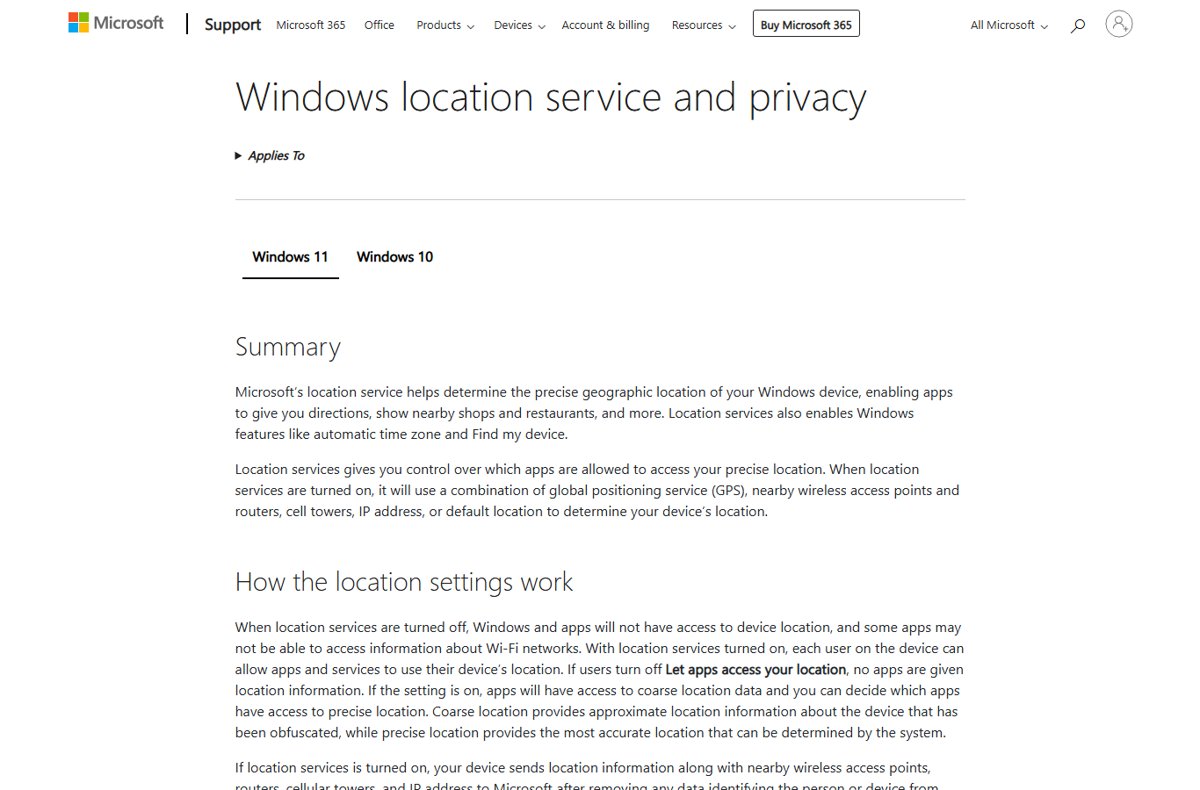
To fix location has been turned off by an admin on Windows 11, set the Turn off location policy back to Not Configured (or delete the DisableLocation registry value), then turn on Location services in Settings > Privacy & security > Location.
This guide shows how to tell a personal PC from a work-managed one, every place the block can come from, and what to check when location still fails after you remove it.
Fix via Windows Settings when location is not truly locked
Try Settings first. If the toggles respond, nothing is enforcing the block and you are done in under a minute.
The device-wide switch needs an administrator account, so sign in with one or have its password ready.
- Press Win + I to open Settings.
- Select Privacy & security in the left pane.
- Select Location on the right.
- Turn on Location services for the whole device.
- Turn on Let apps access your location for your own account.
- In the app list below it, turn on each app that should see your location.
If the switches are greyed out, or the page shows Some settings are managed by your organization at the top, a policy is enforcing the block. Continue with the sections below.
What the location turned off by an admin message actually means
The message means a policy, not a broken setting, is holding location off. Windows greys out the Location page whenever a policy forces the value.
| Where the block comes from | What you see | Who can undo it |
|---|---|---|
| Policy Turn off location (Computer or User Configuration) | All location toggles off and greyed out; no app, including Search, gets location | A local administrator, unless a domain or MDM reapplies it |
| Policy Turn off Windows Location Provider | Location page may look normal, but apps cannot get a position from Windows | A local administrator |
| Policy Let Windows apps access location set to Force deny | Per-app switches locked off | A local administrator or the MDM admin |
| Intune or another MDM setting System/AllowLocation = 0 | Same as Turn off location, plus the managed-by-your-organization banner | Only your IT department |
| Leftover value from privacy or tuning software | Greyed-out toggles on a personal PC with no work account | You, by deleting the value |
Before you change location policy settings on Windows 11
| Check | Why it matters |
|---|---|
| Is this a work or school PC? | Changes made locally get overwritten at the next policy sync, and removing management can break access to work resources. |
| Do you have an administrator account? | The Group Policy editor, the registry key under HKEY_LOCAL_MACHINE and the device-wide Location services switch all need admin rights. |
| Which Windows 11 edition is installed? | Microsoft documents the location policies for Pro, Enterprise and Education. Home has no Local Group Policy Editor, so use the registry section. |
| Can you undo a registry change? | Export the LocationAndSensors key before editing it, so you can double-click the .reg file to restore it. |
Check whether your device is managed (Intune/MDM)
Do this before touching any policy. On a managed PC, only the IT department can lift a location block for good.
- Open Settings and select Accounts.
- Select Access work or school. Any connected work or school account listed here can carry device policies.
- Press Win + R, type
cmdand press Enter. - Run
dsregcmd /statusand read the Device State block: AzureAdJoined : YES means the PC is joined to Microsoft Entra ID, and DomainJoined : YES means it belongs to an Active Directory domain. - Run
gpresult /r /scope computerto list the Group Policy objects applied to the computer. A domain-linked GPO name in the list means the block can come from your organization.
If the PC is joined or enrolled, ask IT to change the location setting. On a personal PC with a stray work account, you can remove it: select the account, choose Disconnect and confirm with Yes. You lose access to that organization's resources on this PC.
Fix via Group Policy (Pro/Enterprise)
Use this on Windows 11 Pro, Enterprise or Education that is not domain-joined or MDM-managed.
- Press Win + R, type
gpedit.mscand press Enter. - Go to Computer Configuration > Administrative Templates > Windows Components > Location and Sensors.
- Double-click Turn off location, select Not Configured and click OK.
- Set Turn off location scripting and Turn off sensors in the same folder to Not Configured if they are enabled.
- Open Windows Location Provider under Location and Sensors and set Turn off Windows Location Provider to Not Configured.
- Go to Windows Components > App Privacy, open Let Windows apps access location and set it to Not Configured.
- Repeat the Location and Sensors check under User Configuration > Administrative Templates > Windows Components, which has its own Turn off location policy.
- Open Command Prompt as administrator, run
gpupdate /force, then restart the PC.
Fix via Registry when Group Policy is not available
Each location policy writes a value under the same key, so deleting the value removes the block even where gpedit.msc does not exist. Windows treats a missing value the same as Not Configured.
- Press Win + R, type
regeditand press Enter, then approve the UAC prompt. - Go to
HKEY_LOCAL_MACHINE\SOFTWARE\Policies\Microsoft\Windows\LocationAndSensors. - Right-click the LocationAndSensors key, choose Export and save a backup.
- Delete the
DisableLocationvalue, or double-click it and set Value data to0. - Delete
DisableWindowsLocationProvider,DisableLocationScriptingandDisableSensorsif they exist. - Check
HKEY_CURRENT_USER\SOFTWARE\Policies\Microsoft\Windows\LocationAndSensorsfor the same values and remove them too. - Close Registry Editor and restart the PC, then turn on Location services in Settings.
If the key does not exist at all, no local location policy is set. Look at management and the App Privacy policy instead.
Restart the Geolocation Service in Windows 11
The Geolocation Service (service name lfsvc) tracks the PC's position for apps. If it is stopped or disabled, apps get no location even after the policy is gone.
- Press Win + R, type
services.mscand press Enter. - Scroll to Geolocation Service and double-click it.
- If Startup type shows Disabled, change it to Manual and click Apply.
- Click Start, or right-click the service and choose Restart if it is already running.
- Click OK and reopen the Location settings page.
How to check location is turned back on in Windows 11
- Open Settings > Privacy & security > Location and confirm the Some settings are managed by your organization banner is gone.
- Confirm Location services and Let apps access your location can be switched on and stay on.
- Under Default location, select Set default and confirm the Maps app opens.
- Open an app that uses location and watch the notification area for the location icon; hover over it to see which app is using it.
- Run
gpresult /h %USERPROFILE%\Desktop\gp.htmlfrom Command Prompt and open the report to confirm no location policy is listed as applied.
How a location block impacts apps and location history
| Feature | While location is blocked | After you unblock it |
|---|---|---|
| Store apps (Maps, Weather) | No precise position; they fall back to manual entry or a default | Per-app switches work again |
| Desktop apps and browsers | No position from Windows | They use Windows location again; desktop apps have no per-app precise location switch |
| Find my device | Cannot report this PC's position | Works once it is turned on in Settings |
| Windows Search results | No local results based on position | Location-aware results return |
| Location history | Nothing new is saved | Local history was removed in March 2025; cloud history saves only with a Microsoft account and Location services on |
To erase cloud history, sign in at account.microsoft.com, select Clear location activity and confirm with Clear.
Prevent location being turned off again (admin controls)
For admins who want users to keep control, these are the settings to leave alone or set explicitly.
| Setting | Value that keeps location usable | Where |
|---|---|---|
| Turn off location | Not Configured or Disabled | Group Policy, Location and Sensors |
| Turn off Windows Location Provider | Not Configured or Disabled | Group Policy, Location and Sensors > Windows Location Provider |
| Let Windows apps access location | Not Configured, or User is in control | Group Policy, App Privacy |
| System/AllowLocation | 1 (user control) or 2 (force on) | Intune or other MDM, Policy CSP |
| Privacy/LetAppsAccessLocation | 0 (user in control) or 1 (force allow) | Intune or other MDM, Policy CSP |
Setting AllowLocation back from 0 to 1 returns each app to the permission it had before the block, so users do not have to re-enable every app.
Why the location toggle keeps reverting on Windows 11
Location keeps turning off after every restart or sign-in
A domain Group Policy or MDM profile reapplies the block at each sync.
- Run
dsregcmd /statusandgpresult /r /scope computerto identify the source. - Check Settings > Accounts > Access work or school for a connected account.
- Ask the IT department to change AllowLocation or Turn off location for your device; local edits will not stick.
The registry value comes back after you delete it
Privacy or tweaking software, or a scheduled script, is rewriting it.
- Open the privacy tool you installed and turn off its location or telemetry hardening option.
- Open Task Scheduler and look for tasks created by that tool.
- Delete the
DisableLocationvalue again and restart.
Location services will not turn on and the switch is greyed out
You are signed in with a standard account, or a policy is still applied.
- Sign in with an administrator account and try the Location services switch again.
- Recheck both Computer and User Configuration under Location and Sensors.
- Run
gpupdate /forceand restart.
Location still won't work after you unblock it on Windows 11
Location is not available in apps even though the toggles are on
The Windows Location Provider policy or the Geolocation Service is still off.
- Set Turn off Windows Location Provider to Not Configured, or delete
DisableWindowsLocationProvider. - Start the Geolocation Service in services.msc.
- Restart the PC.
One app says location not found while others work
That app's own switch is off, or it is a desktop app that relies on the global toggle.
- Open Settings > Privacy & security > Location.
- Turn on the switch next to that app in the app list.
- For a desktop app, confirm Let apps access your location is on, then restart the app.
Find my device cannot locate the PC
Find my device depends on Location services, which the block switched off.
- Turn on Location services in Settings.
- Press Win + R, type
ms-settings:findmydeviceand press Enter. - Turn on Find my device on that page.
Location turned off by admin troubleshooting checklist
| Step | Check | Fixed if |
|---|---|---|
| 1 | Settings > Privacy & security > Location | Toggles respond and stay on |
| 2 | Access work or school and dsregcmd /status | No work account and not joined |
| 3 | Turn off location (Computer and User) | Both Not Configured |
| 4 | LocationAndSensors registry key | No DisableLocation or DisableWindowsLocationProvider value |
| 5 | Let Windows apps access location | Not Configured |
| 6 | Geolocation Service | Running, startup type not Disabled |
| 7 | gpupdate /force and restart | Banner gone after reboot |
Location turned off by admin on Windows 11 FAQ
Why does my location keep turning off on Windows 11?
A policy keeps reapplying it. On a work or school PC, a domain Group Policy or Intune profile sets location off at each sync. On a personal PC, privacy software or a leftover DisableLocation registry value is the usual cause.
How do I fix location is not available on Windows 11?
Turn on Location services and Let apps access your location in Settings > Privacy & security > Location. If they are greyed out, set the Turn off location policy to Not Configured, start the Geolocation Service and restart the PC.
Why is my location not working after I turned it on?
The Turn off Windows Location Provider policy or a stopped Geolocation Service can still block apps. Set that policy to Not Configured, start the Geolocation Service in services.msc, and check the individual app's switch on the Location page.
Why is my location services not working on a work laptop?
Your organization manages it. The Location page shows Some settings are managed by your organization when an MDM or domain policy controls location. Only the IT department can change it permanently; local edits are overwritten at the next sync.
How do I turn off location on Windows 11?
Open Settings > Privacy & security > Location and switch off Location services for the whole device, or switch off Let apps access your location for only your account. You can also turn off location for individual apps in the list below.
Where do I turn off location services in Windows 11?
Location services is in Settings > Privacy & security > Location. You can also press Win + R, type ms-settings:privacy-location and press Enter to open that page directly. Admins can force it off with the Turn off location policy.
Should I turn off location services on Windows 11?
Turn it off if you never use Maps, Weather, Find my device or location-based search results. Leave it on if you rely on Find my device to locate a lost laptop, because that feature needs Location services enabled.
Why is Find my device not finding my location?
Find my device depends on Location services. If location has been turned off by an admin, Find my device cannot report the PC's position until the policy is removed.
Can a standard user remove the location turned off by admin block?
No. The Turn off location policy, the registry key under HKEY_LOCAL_MACHINE and the device-wide Location services switch all need an administrator account. A standard user can only change per-app switches when they are not locked.
Bottom line: can you fix location turned off by an admin?
On a personal PC, reset Turn off location and Turn off Windows Location Provider to Not Configured (or delete their registry values), start the Geolocation Service and restart. Those policies are the only things that grey out the Location page; on a joined or Intune-enrolled PC they come back at every sync, so the fix there has to come from IT.


![[Solved] Lenovo laptop plugged in but not charging](https://techdows.com/wp-content/uploads/2026/10/Solved-Lenovo-laptop-plugged-in-but-not-charging-533x338.jpg)