Microsoft wants users to know the learning tools available in Edge for students and educators with the “Learning Toolkit” feature. The company has added a button to the Edge toolbar for it. Here is how you can enable and use it. Here is the tools Edge’s Learning Toolkit contains and more details on them.
What is Learning Toolkit in Microsoft Edge?
If you’re using Edge, you were already familiar with Math Solver, PDF Reader, Immersive Reader, Read Aloud, and Citations features in the browser. The company now collectively calls them including Microsoft 365 as a Learning Toolkit.
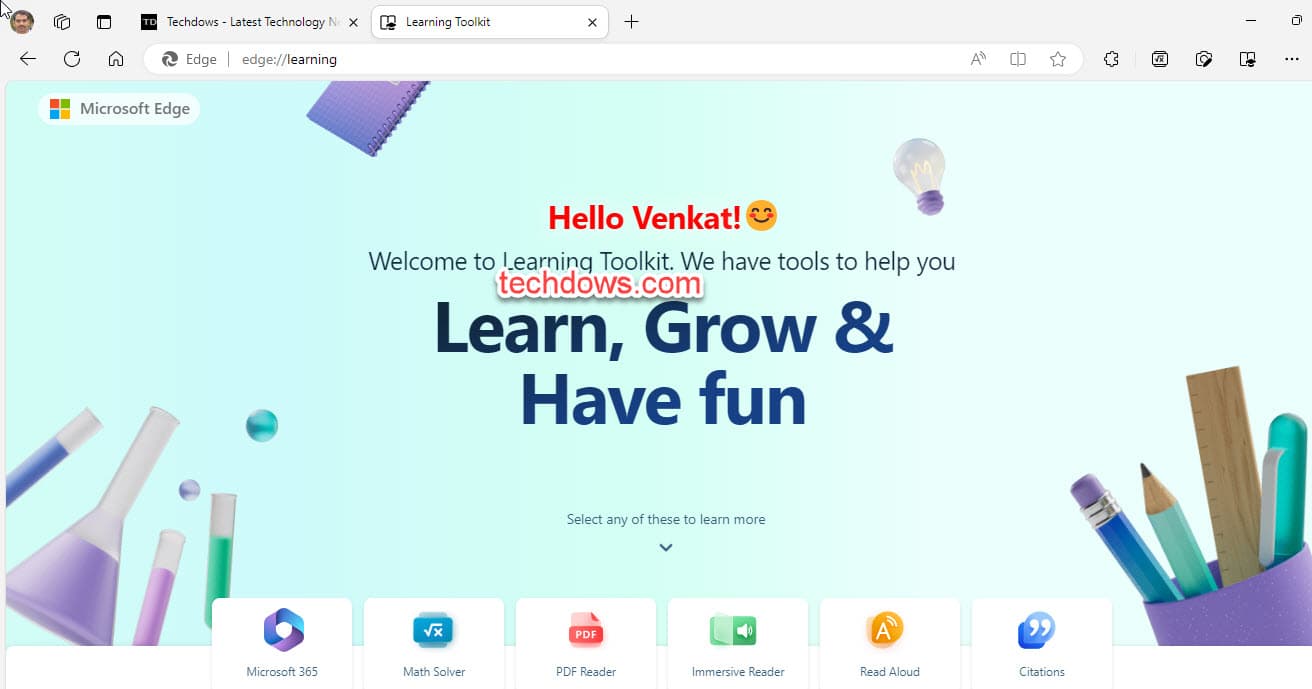
Microsoft 365 on Microsoft Edge provides a comprehensive suite of tools that can unlock your creativity, promote teamwork, and provide a safe experience for education. With this tool, students can collaborate on projects, access shared resources, and work on assignments with ease. It also offers an affordable solution for schools, allowing them to streamline their administrative tasks and manage their resources more efficiently.
Math Solver on Microsoft Edge is a quick and easy way to find solutions to your math problems. With this tool, you can snip any math problem from the web or PDFs and get an instant step-by-step solution. This tool is perfect for students who need help with their math homework or for teachers who want to demonstrate a problem-solving technique to their students.
PDF Reader on Microsoft Edge is an excellent tool for students who need to open and work on their assignments with ease. The rich editing tools enable students to draw, markup, highlight, and take notes on their PDFs. This tool is perfect for students who need to annotate their readings, complete worksheets, or create presentations.
Immersive Reader on Microsoft Edge is a great tool to improve your reading on the web. It simplifies the web page layout by removing clutter and helps you customize your reading experience the way you want it. It has awesome tools to help improve your focus, reading comprehension, grammar, and more. This tool is perfect for students who need to read a lot of material online and struggle with distractions.
Read aloud on Microsoft Edge is another great tool for students who struggle with reading. It is a powerful tool that reads the text on a web page out loud. Students can follow along with the audio and improve their reading skills. This tool is also useful for students who need to review a lot of material quickly.
Citations on Microsoft Edge is a tool that can generate citations for your next class project instantly. Students can right-click on any page and copy its citation, eliminating the need to manually create citations. This tool is perfect for students who need to cite a lot of sources and want to save time.
You can visit the edge://learning page to view Learning Toolkit and show the Citations and Math Solver buttons on the Toolbar.
How to enable the Learning Toolkit button on Microsoft Edge Toolbar
- Launch Edge browser
- Click on the ellipsis icon
- Select Appearance
- Scroll down to “Select which buttons to show on the toolbar”
- Enable “Learning Toolkit”, the learning toolkit button appears on the toolbar.
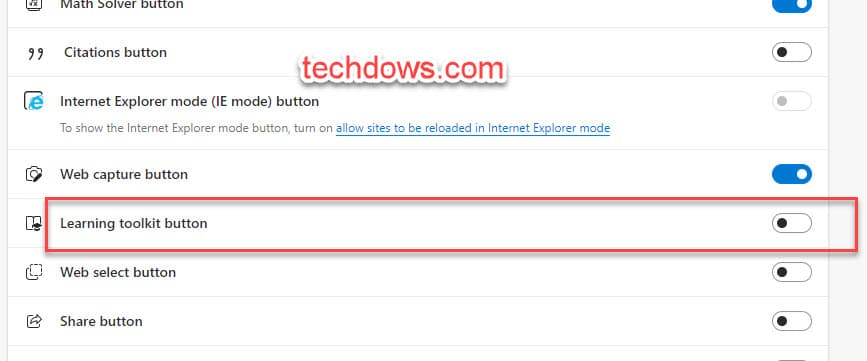
You can also enable Math Solver and Citations under Customize Toolbar area in Appearance Settings.

The feature is being tested in Edge 115. You need to be using the Canary version to see it.
What’s your take on this? Have you found the learning tools in Edge useful? Let us know in the comments below.





