Microsoft today quietly added Bing‘s Visual Search feature for images to Microsoft Edge 99 Canary version. With this, the Visual Search context menu option and icon/button appear when you right-click or hover over an image.
Microsoft adds Visual Search to Micorsoft Edge
Microsoft Edge comes with a unique Sidebar Search feature that lets you search the web for a term or phrase or images and get results without needing to leave the page you’re on.
Edge also lets you search the web for an image, results will be displayed on another tab through Bing’s Visual Search.
If you’re using Edge Canary and updated to the latest version, you can notice the Bing Image Search icon when you hover over any of the images on websites.

This has nothing to do with using Bing as the default engine, even when you switch to Google, the feature remains as it was built into Edge browser.

You can find options to control Visual Search in Edge in Context Menus Settings.
Here are more details about Visual Search options:
The context menu option displays related content about the image in the sidebar on the right side when you select the option in right-click menu.
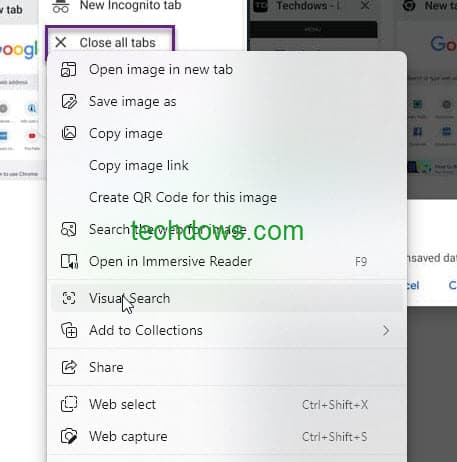
Similarly, when you hover over an image, the Visual Search button appears, this also shows the same content in the sidebar.
You can either use the context menu option or hover over a picture and use the icon to find related stuff about it
Disable Visual Search button in Microsoft Edge browser
- Launch Microsoft Edge browser
- Click on Settings and More and select Settings
- Click on Appearance > Context Menus >Visual Search
- Disable the “Show Visual Search on hover over ” setting.

Disable or remove Visual Search Context menu option in Microsoft Edge browser
- Visit Settings > Apperance > Context menu > Visual Search
- Disable “show visual search in the context menu” setting.
The visual Search button that appears on the image hover over is more annoying than the context menu option, to be honest. It is up to you to use or disable the feature.
Microsoft has rolled out the feature to insiders a few months back, seems now the company widely rolling out the feature to Edge users running the Canary channel.
If you like visual Search, you can continue to use it on Edge without any issues.
Summary:
Seems Microsoft has quietly added the Visual Search feature to Edge browser with the latest Canary update. We found the Visual Search hover over button pretty annoying. We’ve covered feature details and how to disable it here.
Are you going to use Bing’s Visual Search in the Microsoft Edge browser? What’s your take on it? Let us know in the comments below
More about Microsoft Edge:
How to disable Microsoft Edge’s Find on-page related matches
Fix Microsoft Edge takes forever to start downloads
Edge 99 introduces Web Capture support for PDFs, fixes Default Search Providers issue
Microsoft Edge soon lets you put Vertical Tabs on the right side





