If you install new Microsoft Edge browser based on Chromium, it will replace Classic Edge and brings the tabs you’ve set aside into the new Edge as favorites, currently, Microsoft offers a flag in Edge Canary to import data from Legacy Edge, what you may not know is the new Edge browser in Dev and Canary versions include an option in its clear browsing data dialog to delete Legacy Edge’s all data including history, favorites and more.
New Microsoft Edge allows to select and delete these items in its clear browser data dialog: browsing history, download history, cookies, cached images, saved passwords, autofill form data, site permissions, Hostedapp data, in addition to these, Edge 83 Dev and Edge 84 Canary lets you clear old Edge browsing data as well.
Clear Legacy Edge’s browsing data in new Microsoft Edge
1. Launch new Edge browser
2. Click on ellipsis icon, select history > Clear browsing data or press Ctrl+Shift+Delete to open the dialog
3. Choose the time range available from Last Hour to All-time, scroll down and select “All data from the previous version of Microsoft Edge”
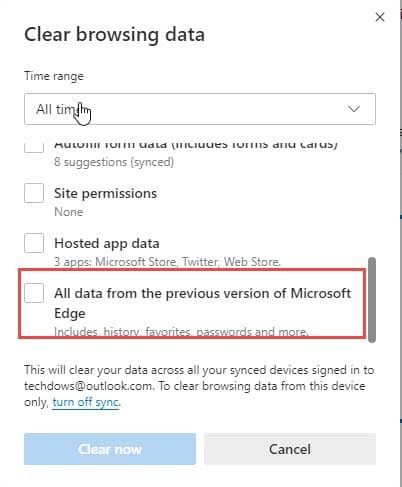
4. Click Clear now, old Edge’s data will be deleted in the background where Classic Edge icon appears on the taskbar for a while, while the process is going on.
Related articles:
How to clear browsing data for Internet Explorer mode in Chromium Edge
Microsoft Chromium Edge: Global Media Controls, Clear browsing data on Exit, dark mode on Windows 7
Microsoft makes clearing Edge Chromium browsing data dead simple with new design





