To clear the clipboard in Windows 11, open Settings > System > Clipboard and select Clear next to Clear clipboard data.
This guide also covers the Windows logo key + V shortcut, deleting a single item, pinned items that survive a clear, synced clipboard data and what a restart removes.
How to clear the clipboard in Windows 11 using Settings
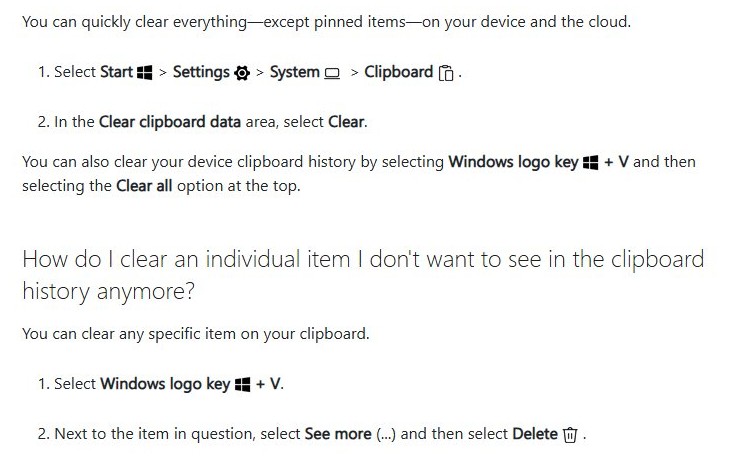
The Settings route clears everything in your clipboard history except pinned items, both on this PC and in the cloud if you sync your clipboard.
- Select Start > Settings.
- Select System > Clipboard.
- Find the Clear clipboard data area.
- Select Clear.
You can also jump straight to this page: press Windows logo key + R, type ms-settings:clipboard and press Enter.
How to quickly clear clipboard history with Windows + V
This is the clipboard shortcut most people use. It clears the clipboard history on this device, again leaving pinned items in place.
- Press Windows logo key + V to open clipboard history.
- Select Clear all at the top of the panel.
- Check that only pinned items, if you have any, remain in the list.
How to delete one item from clipboard history
Delete a single entry when you copied something sensitive, such as a password or an account number, but want to keep the rest of your history.
- Press Windows logo key + V.
- Find the item you want to remove.
- Select See more (…) next to the item.
- Select Delete.
How to view the clipboard before clearing it
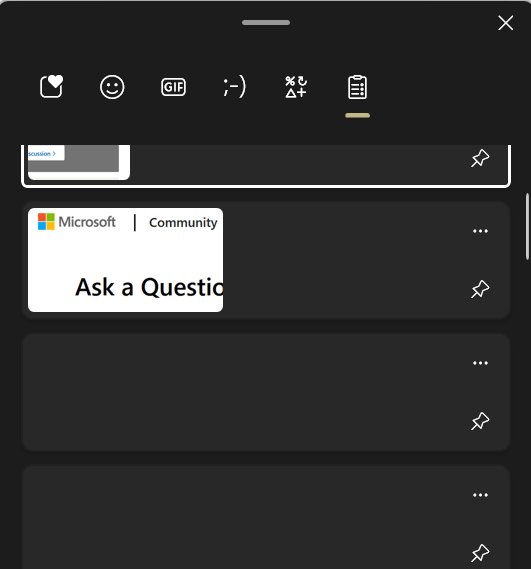
Clipboard history shows the items you copied, newest first. Check it before you clear so you do not lose a pinned snippet you still need.
- Press Windows logo key + V.
- Select Turn on if Windows asks you to switch clipboard history on for the first time.
- Scroll through the list to see your recent copied text, HTML and images.
- Select any item to paste it into the app you have open, or close the panel and clear the history.
Clear clipboard in Windows 11 with Command Prompt
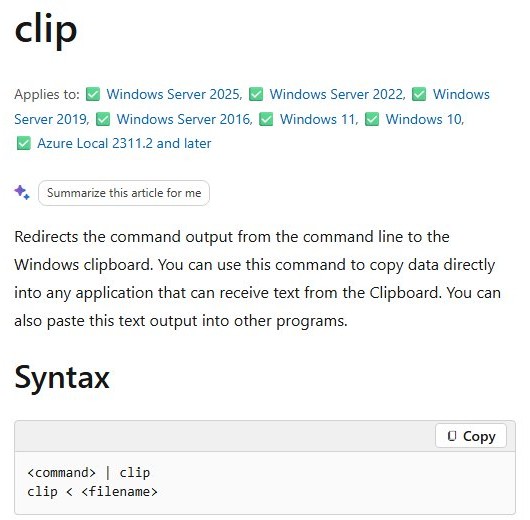
The built-in clip command, one of the standard Command Prompt commands, sends a command's output to the Windows clipboard and replaces what was there. Sending it an empty output leaves nothing to paste. This empties the current clipboard; it does not remove entries already saved in clipboard history.
cmd /c "echo off | clip"echo off produces no text, and clip copies that empty output to the Windows clipboard, replacing the last item you copied.
You should see: Press Ctrl + V in Notepad and nothing is pasted. Use Windows logo key + V > Clear all to remove the older history entries too.
Does Clear all also clear synced clipboard data?
It depends on where you clear from. Microsoft separates the two routes: the Settings button clears the device and the cloud, while Clear all in the Windows logo key + V panel clears the device clipboard history.
- Select Start > Settings > System > Clipboard if you sync clipboard history across devices.
- Select Clear in the Clear clipboard data area to remove synced items from this device and the cloud.
- Press Windows logo key + V on this PC and confirm only pinned items remain.
- Open clipboard history on your other signed-in device and confirm the synced items no longer appear.
Does restarting Windows 11 clear the clipboard?
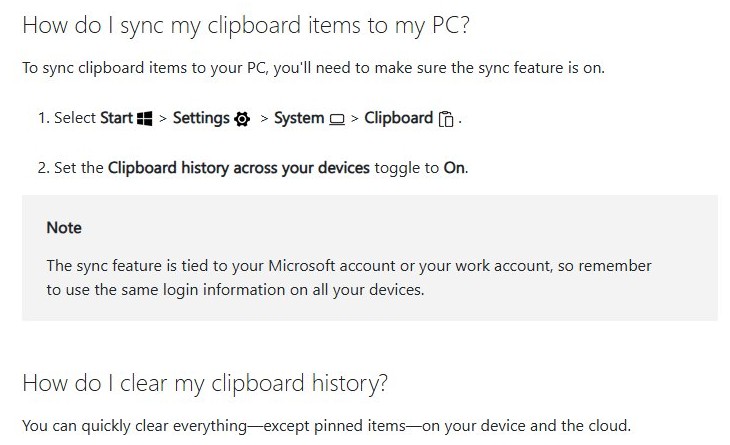
Yes. Restarting your PC clears clipboard history, except for the items you have pinned. Microsoft documents that clipboard history is cleared each time you restart. Restarting is a slow way to clear it, though; Windows logo key + V > Clear all does the same job without closing your apps, and neither removes pinned items.
What happens to the clipboard when you restart Windows?
| Clipboard content | After a restart |
|---|---|
| Unpinned items in clipboard history | Removed |
| Pinned items in clipboard history | Kept, and shown at the next Windows logo key + V |
| The clipboard history list | Shows only pinned items until you copy something new |
To make an item survive restarts, pin it in the Windows logo key + V panel. To make a pinned item go away, delete it from that panel.
Does clearing the clipboard delete your files?
No. Clearing the clipboard removes only the copied entries in clipboard history, not the documents, photos or folders you copied them from. Copying places a copy of the content on the clipboard so you can paste it, usually with the copy and paste keyboard shortcuts. The original Word document or file stays where it is. If you used Cut and have not pasted yet, paste first, because the clipboard may hold the only copy of that cut text.
Will clearing the clipboard free up disk space?
Not in any way you will notice. Clipboard history holds at most 25 entries of up to 4 MB each, and unpinned entries disappear on every restart anyway. Windows already removes older unpinned items to make room for new ones once the 25-entry limit is reached. For storage space, use the Windows storage tools to free up disk space instead; for memory, it helps more to clear the RAM cache.
Can clearing clipboard history help fix copy and paste problems?
Clearing helps only when old entries crowd the list. Most copy and paste problems in clipboard history come from its limits, which clearing does not change.
| Problem | Cause | Will clearing help? |
|---|---|---|
| Item does not appear in clipboard history | Each item is limited to 4 MB, and only text, HTML and bitmap formats are supported | No; copy a smaller selection or a supported format |
| Older items vanish from the list | History keeps 25 entries and removes older unpinned ones | No; pin the items you want to keep |
| Windows logo key + V shows nothing | Clipboard history is turned off | No; select Turn on in the panel |
| Copied text does not reach another PC | Sync is off or the devices use different accounts | No; turn on sync with the same account on both devices |
| List is long and hard to search | Many old entries | Yes; select Clear all |
Why are pinned clipboard items still there after clearing?
Pinned items stay after **Clear all** or the Settings **Clear** button
Both clear options remove everything except pinned items, by design.
- Press Windows logo key + V.
- Select See more (…) next to the pinned item.
- Select Delete to remove it from clipboard history.
- Repeat for each pinned item you want gone.
Pinned items come back after a restart
Restarting clears clipboard history except pinned items, so they are kept.
- Delete the pinned item from the Windows logo key + V panel as above.
- Restart the PC and press Windows logo key + V to confirm it is gone.
What if Windows + V doesn’t show clipboard history?
The panel opens but asks you to turn on clipboard history
Clipboard history has never been turned on for this account.
- Press Windows logo key + V.
- Select Turn on.
- Copy some text with Ctrl + C, then press Windows logo key + V again to see it listed.
Clipboard history is empty after a restart
Clipboard history is cleared each time you restart, except pinned items.
- Copy new content after the restart.
- Pin any item you want to keep across restarts from the Windows logo key + V panel.
Clipboard items are not syncing to your other devices
Sync is off, or the devices are signed in with different accounts.
- Select Start > Settings > System > Clipboard.
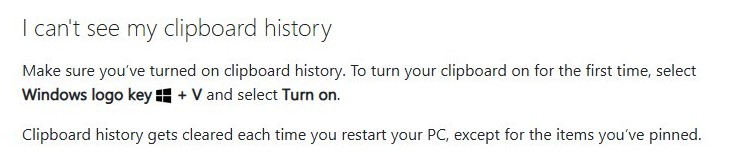
- Set Clipboard history across your devices to On.
- Select Automatically sync text that I copy.
- Sign in with the same Microsoft account or work account on every device.
Should you clear clipboard history for privacy?
Yes, clear it or delete the single item after you copy a password, card number or private message, especially on a shared PC or with sync turned on. Anyone using your signed-in account can press Windows logo key + V and see recent copied items. With sync on, text you copy can also be uploaded to the cloud and appear on your other devices, so use the Settings Clear button, which clears both the device and the cloud.
Clear clipboard vs. turn off clipboard history
| Your situation | Use this | Why |
|---|---|---|
| You copied something sensitive once | Delete that item from Windows logo key + V | Removes one entry and keeps the rest |
| You want a clean slate on this PC | Windows logo key + V > Clear all | Clears device history in two clicks |
| You sync clipboard across devices | Settings > System > Clipboard > Clear | Clears the device and the cloud |
| You never want copied items stored in a history list | Turn off clipboard history on the Clipboard settings page | Windows stops building the history; normal copy and paste still works |
| You only want the current copied item gone | Run cmd /c "echo off | clip" |
Replaces the current clipboard content with nothing |
How to clear clipboard in Windows 11: frequently asked questions
What is the fastest way to clear the clipboard in Windows 11?
Press Windows logo key + V and select Clear all at the top of the panel. It clears your device clipboard history in two steps, but pinned items stay until you delete them one by one.
Is there a shortcut to clear the clipboard in Windows 11?
There is no single key combination that clears it. The quickest shortcut route is Windows logo key + V, then Clear all. To clear only the current copied item, run cmd /c "echo off | clip" from the Run box.
Where is the Clear clipboard option in Windows 11?
Open Start > Settings > System > Clipboard. The Clear button sits in the Clear clipboard data area. You can open the page directly by typing ms-settings:clipboard in the Run box.
How do I clear clipboard data in Windows 11 on all my devices?
Use the Clear button in Settings > System > Clipboard. Microsoft states it clears everything except pinned items on your device and in the cloud, which covers clipboard data synced to your other devices.
How do I clear clipboard history in Windows 10?
Windows 10 also has clipboard history on Windows logo key + V. Open the panel and select Clear all, or delete single items through See more (…) > Delete. Pinned items stay until you delete them.
Why didn't Clear all remove everything?
Clear all never removes pinned items. Open Windows logo key + V, select See more (…) next to each pinned item and select Delete to remove it from clipboard history.
Will clearing my clipboard delete a Word document?
No. Clearing the clipboard removes only copied entries from clipboard history. The Word document you copied text from stays exactly where it was, with all of its content.
How many items does Windows 11 clipboard history keep?
Clipboard history keeps up to 25 copied entries, and each item can be up to 4 MB. Older unpinned items are removed automatically to make room for new ones.