To get your screen back to normal size on Windows 10, open Settings > System > Display and set both Display resolution and the scale option to the values marked (Recommended).
If only one browser is zoomed, the whole screen is magnified, or the picture is sideways, a different fix applies, and each one is below with exact steps for Windows 10 and the matching Windows 11 labels.
Reset Windows 10 display resolution and scale to recommended
The (Recommended) values are the ones Windows picks for your monitor's native resolution and pixel density, so they are the normal size for that screen.
- Select Start > Settings > System > Display.
- Scroll to the Scale and layout section.
- Under Change the size of text, apps, and other items, choose the option marked (Recommended).
- Open the Display resolution list and choose the option marked (Recommended).
- Look at the desktop: icons, text and the taskbar should now be at their usual size with no black borders.
On Windows 11 the same controls sit under Settings > System > Display > Scale & layout, with Scale and Display resolution as separate rows.
Quick diagnosis: what looks wrong?
Match what you see to a row, then jump to that fix. Most "screen too big" problems are one of these six causes.
| What you see | Likely cause | Fix |
|---|---|---|
| Only web pages or one app look huge or tiny | App or browser zoom changed | Press Ctrl + 0 in Microsoft Edge, or reset zoom in the app |
| Icons, text and taskbar are all too large or too small | Scale is not at the recommended value | Set scale to (Recommended) in Display settings |
| Picture is stretched, blurry, or has black edges | Resolution is below the monitor's native resolution | Set Display resolution to (Recommended) |
| Everything is magnified and follows the mouse | Magnifier is on | Press Windows logo key + Esc |
| Screen is sideways or upside down | Display orientation changed | Set orientation back to Landscape |
| Only the second monitor looks wrong | That display has its own resolution and scale | Select that display in Display settings, then fix it |
If only a browser or app is zoomed in
Browser zoom only changes web pages, so Windows display settings will not fix it. Microsoft Edge zooms in and out in 25% steps with the keyboard, which is how a page often gets zoomed by accident.
- In Microsoft Edge, press Ctrl + 0 (zero) to reset the page zoom level to the default.
- To change the default for every site, open Settings and more (or press Alt + F), choose Settings, then Accessibility.
- Under Visibility, set Page zoom back to 100%.
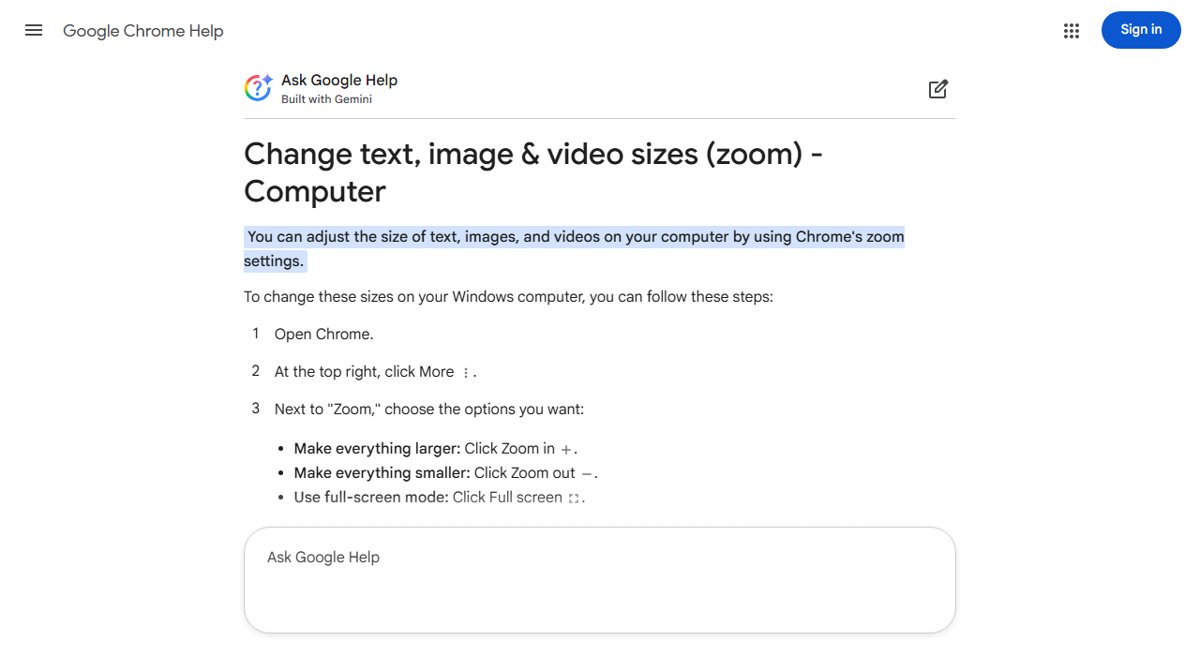
- In Google Chrome, click More (three dots), then use the Zoom buttons until the value reads 100%.
- To change Chrome's default, go to More > Settings > Appearance and set Page zoom to 100%.
- Avoid holding Ctrl while scrolling the mouse wheel, since that zooms the page in or out.
Many desktop apps, including Office apps and File Explorer, have their own zoom control. For a desktop that looks zoomed rather than a single page, zoom in and out on the desktop with the Windows controls instead.
If everything in Windows is too large or too small
When the taskbar, Start menu, icons and text are all oversized, the scale setting is usually above the recommended value. Text size is a separate setting that enlarges only text.
- Select Start > Settings > System > Display.
- Under Scale and layout, open Change the size of text, apps, and other items and choose the (Recommended) value.
- If only text is too large, go to Start > Settings > Ease of Access > Display.
- Drag the Make text bigger slider all the way to the left.
- On Windows 11, use Settings > Accessibility > Text size and move the Text size slider to the left instead.
If the picture is stretched, blurry, or does not fit the screen
Microsoft notes that a resolution lower than the monitor's native one makes text less sharp, and the picture can look small and centered with black edges, or stretched. Returning to the recommended resolution fixes all three.
- Select Start > Settings > System > Display.
- Scroll to Scale and layout and find Display resolution.
- Open the list and choose the value marked (Recommended).
- If there is no (Recommended) entry, go to Settings > Update & Security > Windows Update and select Check for updates to get a current graphics driver.
- Restart the PC after the driver installs, then repeat steps 1 to 3.
For a 1080p monitor the recommended value is 1920 x 1080, and you can set 1920 x 1080 on Windows 10 when it is missing from the list.
If the whole screen is magnified
If the view is enlarged and pans as you move the mouse, Magnifier is running. It turns on with Windows logo key + Plus sign (+), which is easy to press by accident.
- Press Windows logo key + Esc to turn Magnifier off.
- If you want to keep Magnifier open but smaller, press Windows logo key + Minus sign (-) to zoom out.
- Press Ctrl + Alt + M to cycle between the full screen, docked and lens views if the magnified area is the wrong shape.
If the screen is sideways or upside down
A rotated picture means the display orientation changed. Switching it back is a single drop-down in Display settings.
- Select Start > Settings > System > Display.
- Open the orientation drop-down under Scale and layout.
- Choose Landscape for a normal horizontal screen.
- On Windows 11, use the drop-down next to Display orientation in the same Display page.
If you rotated the orientation on purpose for a monitor that stands upright, you also need to rotate the screen physically.
If you use an external monitor
Each connected display keeps its own resolution and scale, so the laptop screen can look right while the monitor does not. Pick the right display before changing anything.
- Select Start > Settings > System > Display.
- In Rearrange your displays, select Identify to see which number belongs to which screen.
- Select the display that looks wrong.
- Set its scale and Display resolution to the (Recommended) values.
- If the monitor is not listed, open Multiple displays and select Detect.
- Press Windows logo key + P and pick PC screen only, Duplicate, Extend or Second screen only to change how the screens are used.
Get full screen back to normal size in Edge and Chrome
A browser in full screen hides the taskbar and address bar, which looks like the screen size changed. F11 toggles full screen in both Microsoft Edge and Google Chrome on Windows.
- Click inside the browser window so it has focus.
- Press F11 to leave full screen.
- In Chrome you can also open More and use the full-screen button next to Zoom to toggle it.
Confirm Windows 10 display settings are back to recommended
- Open Start > Settings > System > Display.
- Check that Display resolution shows a value ending in (Recommended).
- Check that the scale value under Change the size of text, apps, and other items also shows (Recommended).
- Confirm the desktop fills the screen edge to edge with no black bars and sharp text.
Can't get my screen back to normal size on Windows 10
There is no (Recommended) resolution, or the list is short
Windows is using a basic display driver that does not know the monitor's native resolution.
- Go to Settings > Update & Security > Windows Update.
- Select Check for updates and install any display or graphics driver offered.
- Restart the PC and choose the (Recommended) resolution again.
Screen is not centered or has black bars around it
The resolution is lower than the panel's native resolution, so the picture does not fill it.
- Open Settings > System > Display.
- Set Display resolution to (Recommended).
- If you use an external monitor, select that display first in Rearrange your displays.
Can't get the window screen back in the window frame
An app window is maximized, in full screen, or partly off the edge of the display.
- Click the window so it is active.
- Press F11 if it is a browser in full screen.
- Hold the Windows logo key and press the Left Arrow or Right Arrow to snap the window to one side of the screen.
- Drag the divider between snapped windows to resize it.
Resolution keeps changing back on its own
The graphics driver is outdated or misreporting the display.
- Select Settings > Update & Security > Windows Update > Check for updates.
- Install the offered updates and restart.
- Set the resolution to (Recommended) again.
Frequently asked questions
How do I get my screen back to its original size?
Open Settings > System > Display and set Display resolution and scale to the values marked Recommended. Those values match your monitor's native resolution, which is its original size. If only web pages look large, press Ctrl + 0 in Edge instead.
Why is my screen suddenly zoomed in?
Usually one of three things: browser zoom changed with Ctrl and the mouse wheel, Magnifier turned on with the Windows logo key and Plus sign, or the resolution dropped after a driver change. Press Windows logo key + Esc to close Magnifier, then check browser zoom and resolution.
How do I get my screen back to 100%?
In a browser, press Ctrl + 0 in Edge or set Zoom to 100% in Chrome's More menu. For Windows itself, use the scale marked Recommended in Display settings, which can be 125% or 150% on laptops rather than 100%.
How do I get my screen back to horizontal or landscape?
Go to Settings > System > Display and choose Landscape in the orientation drop-down. On Windows 11 the drop-down is labelled Display orientation. If the monitor is physically rotated, turn it back to horizontal as well.
How do I get my full screen back on a computer?
Press F11 in Microsoft Edge or Google Chrome to toggle full screen on or off. For other apps, maximize the window or press the Windows logo key with an arrow key to snap it to the side of the screen.
What if the recommended resolution is not available?
Windows is probably using a basic display driver. Go to Settings > Update & Security > Windows Update, select Check for updates, install the graphics driver offered, restart, and the Recommended resolution should appear in Display settings.
How do I get my screen back to normal size on an HP laptop?
The steps are the same on HP and every other Windows 10 PC: Settings > System > Display, then pick the Recommended resolution and scale. The display settings come from Windows, not the PC maker.
How do I get my screen back to normal zoom?
Press Windows logo key + Esc if Magnifier is on, then press Ctrl + 0 in Edge to reset page zoom. If the desktop itself is too big, set scale to Recommended in Settings > System > Display.
How do I get my screen back to center?
An off-center picture with black bars usually means the resolution is below the panel's native one. Set Display resolution to the Recommended value in Settings > System > Display, and update the graphics driver if that value is missing.