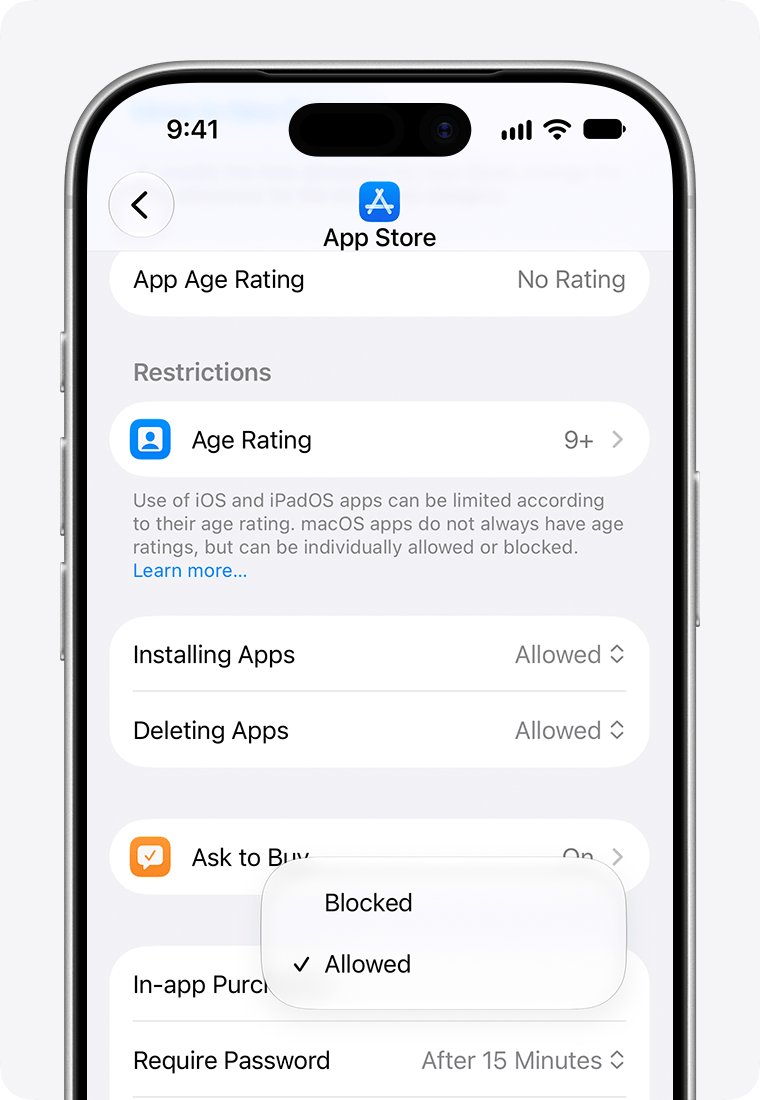
When the option to delete apps is gone on iPhone, a Screen Time restriction is usually blocking it, so open Settings > Screen Time > Content & Privacy Restrictions > iTunes & App Store Purchases and allow deleting apps.
This guide covers that fix, the other places you can delete an app, child and work-managed iPhones, built-in apps that cannot be deleted, and why apps sometimes delete themselves.
How to get the Delete App option back on iPhone
Screen Time can block deleting apps on your own iPhone. When that restriction is on, touching and holding an app no longer offers Delete App.
- Open the Settings app.
- Tap Screen Time, then tap Content & Privacy Restrictions.
- Enter your Screen Time passcode if asked.
- Tap iTunes & App Store Purchases.
- Set the restriction for deleting apps to allow it.
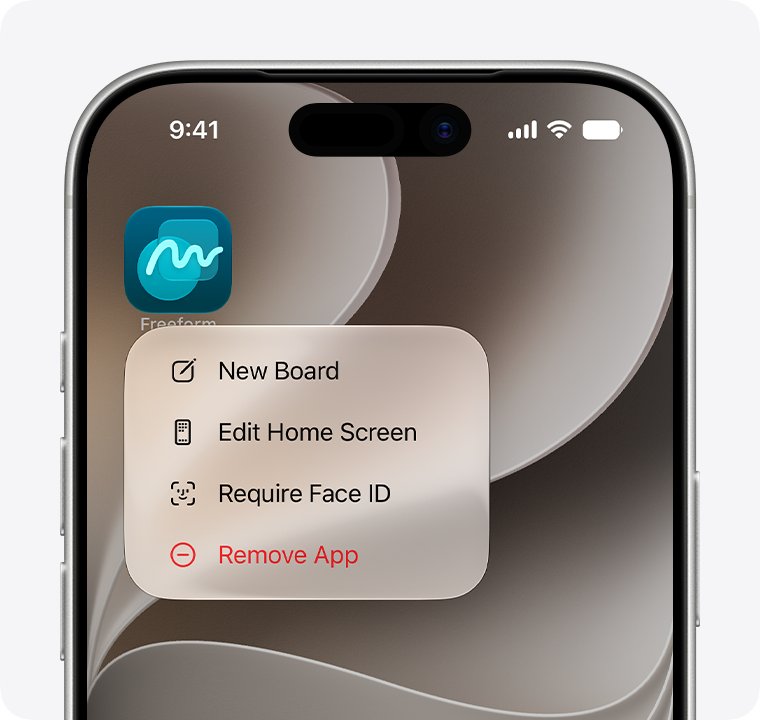
- Return to the Home Screen, touch and hold the app, tap Remove App, then tap Delete App.
If you do not know the Screen Time passcode on a child's iPhone, the parent or guardian in the Family Sharing group has to change the setting.
Why can't I delete apps on my iPhone
| What you see | Likely cause | What to do |
|---|---|---|
| Remove App shows only Remove from Home Screen for every app | Screen Time blocks deleting apps | Allow deleting apps in Content & Privacy Restrictions |
| It happens on a child's iPhone in Family Sharing | A parent set App Store restrictions | The parent changes it from Settings > Family |
| Only one Apple app, such as Phone or Settings, will not delete | Some built-in Apple apps can be removed from the Home Screen but not deleted | Remove it from the Home Screen instead |
| A work or school iPhone will not delete any app | The organisation's device management blocks removing apps | Ask the IT administrator |
| The app vanished from the Home Screen but is still installed | It was removed to App Library, not deleted | Delete it from App Library or iPhone Storage |
How to delete apps on iPhone from the Home Screen or App Library
Deleting an app removes it and its data from the iPhone. Data the app saved to iCloud stays in iCloud.
- Touch and hold the app on the Home Screen.
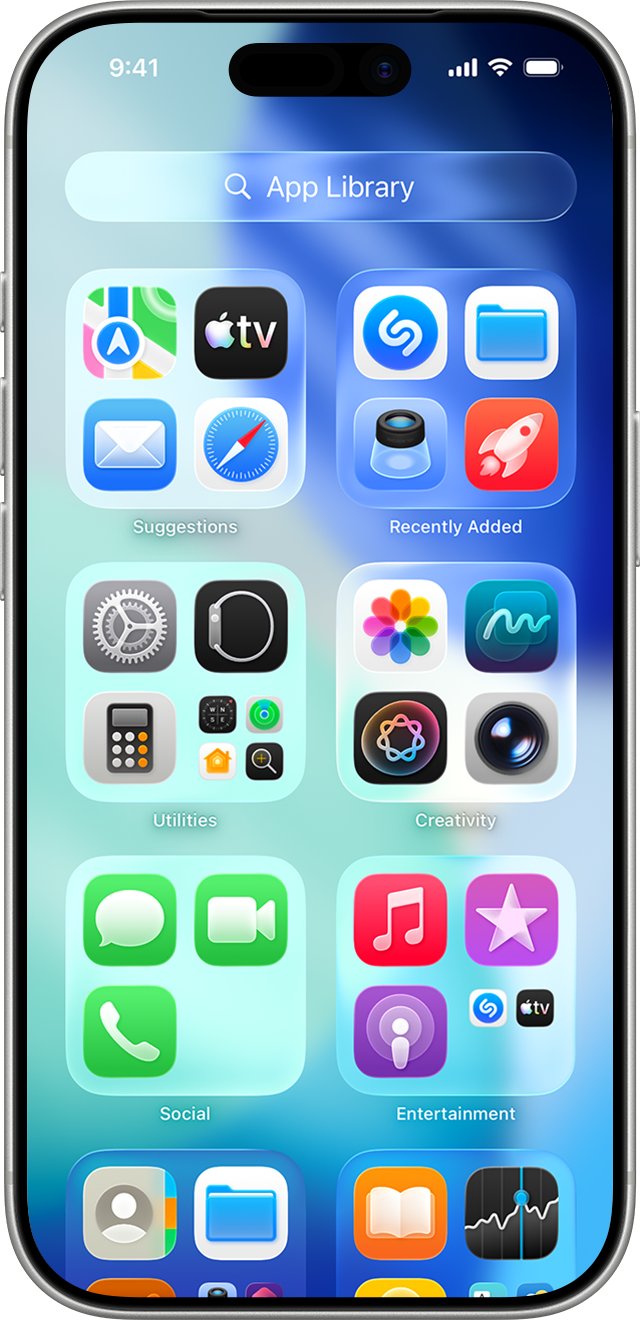
- If it is not on the Home Screen, swipe left past all Home Screen pages to reach App Library and find it there.
- Tap Remove App.
- Tap Delete App, not Remove from Home Screen.
- Tap Delete to confirm.
Storage figures can take a moment to update after the app is gone.
Delete apps from iPhone Storage in Settings
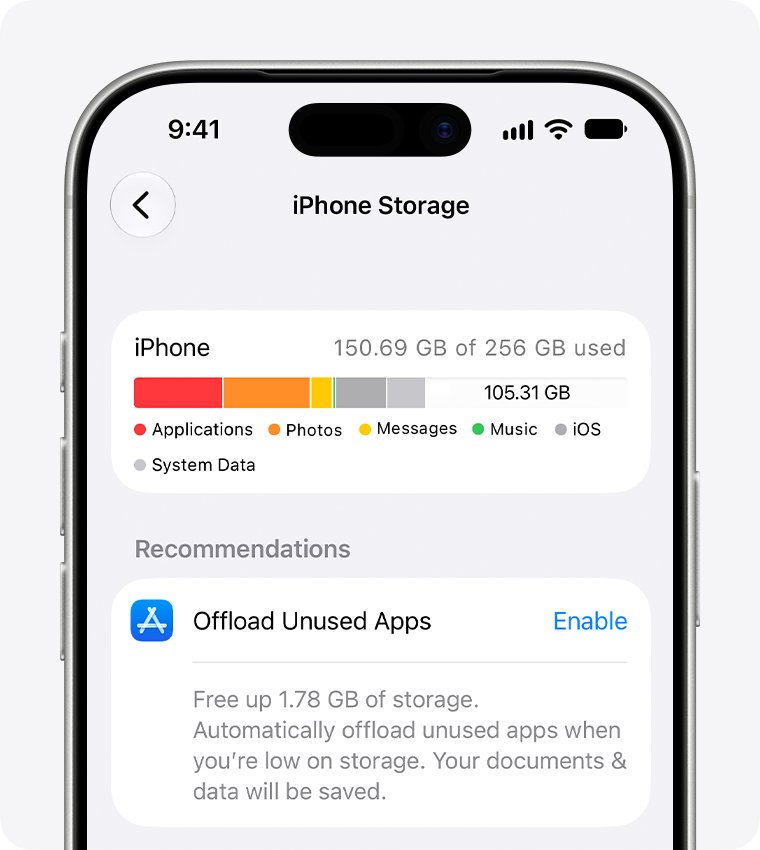
The storage list in Settings gives a second route to Delete App, and it shows how much space each app uses.
- Open Settings, then tap General.
- Tap iPhone Storage and wait for the app list to load.
- Tap the name of the app you want to remove.
- Tap Delete App to remove the app and its data, or Offload App to free space but keep its documents and data.
- Confirm when asked.
Allow deleting apps on a child's iPhone with Screen Time
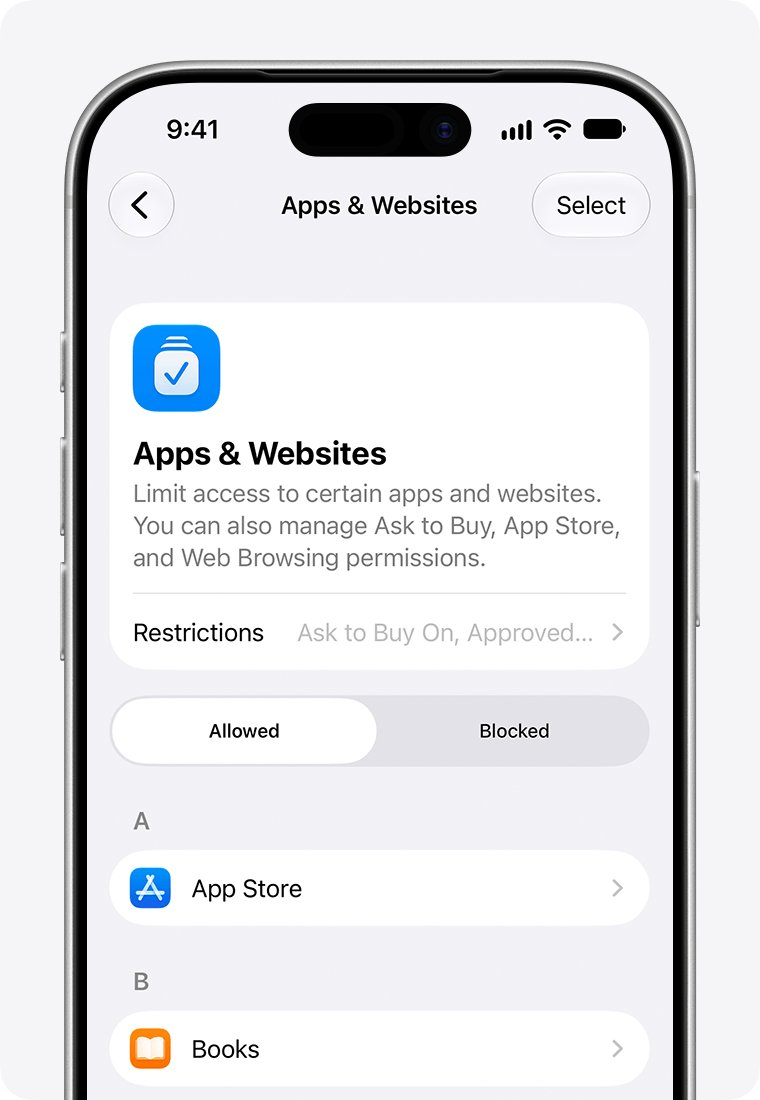
On a child's iPhone, the parent or guardian in Family Sharing controls whether apps can be installed or deleted. Make the change from the parent's own iPhone.
- On the parent's iPhone, open Settings and tap Family.
- Tap the child's name.
- Tap Apps & Websites and enter the Screen Time passcode if asked.
- Tap App Store.
- Choose the setting for deleting apps, then choose Allowed.
Blocking an app in Screen Time does not delete it; the app just appears dimmed on the Home Screen.
Apps you can't delete from iPhone
| Case | What happens | Workaround |
|---|---|---|
| Some built-in Apple apps | They can be removed from the Home Screen but not deleted | Choose Remove from Home Screen; the app moves to App Library |
| Built-in apps you can delete, such as Weather, Calculator or Stocks | Related features elsewhere stop working, for example weather in Notification Center or the Control Center calculator | Reinstall the app from the App Store by its exact name |
| Supervised work or school iPhones | Device management can stop users removing installed apps or system apps | Only the organisation's administrator can lift it |
| Hidden apps | They leave the Home Screen and sit in the Hidden folder at the bottom of App Library | Open the Hidden folder, authenticate, then delete or unhide the app |
| Apps in the European Union | More built-in apps can be deleted in some countries or regions | Check the delete option on the app itself |
Check the app is deleted from iPhone
- Swipe left to App Library and search for the app name.
- Confirm it no longer appears in the results.
- Open Settings > General > iPhone Storage and confirm the app is not listed.
- Open the App Store, find the app, and confirm it shows a download button instead of Open.
iPhone apps not deleting: fixes
How to delete apps that won't delete
The Home Screen menu is restricted or only offers Remove from Home Screen.
- Open Settings > General > iPhone Storage.
- Tap the app, then tap Delete App.
- If Delete App is missing there too, allow deleting apps in Screen Time > Content & Privacy Restrictions > iTunes & App Store Purchases.
Why is my app not deleting after I tap Remove App
Remove from Home Screen was chosen, which only moves the app to App Library.
- Swipe left to App Library and find the app.
- Touch and hold it, tap Remove App, then tap Delete App.
- Tap Delete to confirm.
Why does my iPhone delete apps on its own
Offload Unused Apps removes apps you have not used when storage is low, and keeps their data.
- Open Settings, tap Apps, then tap App Store.
- Turn off Offload Unused Apps.
- Tap an offloaded app's icon, which shows a cloud symbol, to reinstall it.
App disappeared but I didn't delete it
The app was hidden or removed to App Library.
- Open Settings > Apps > Hidden Apps to see hidden apps.
- Swipe to App Library and search for the app.
- Touch and hold it until it moves to the Home Screen.
Delete app option missing FAQ
Why can't I delete apps on my iPhone?
A Screen Time restriction is the usual cause. Open Settings > Screen Time > Content & Privacy Restrictions > iTunes & App Store Purchases and allow deleting apps. On a child's or work iPhone, a parent or IT administrator controls this.
Why won't it let me delete apps?
Either deleting apps is restricted in Screen Time, the device is managed by an organisation, or the app is a built-in Apple app that can only be removed from the Home Screen.
How do I completely delete an app?
Touch and hold the app, tap Remove App, tap Delete App, then tap Delete. That removes the app and its data from the iPhone. Data the app stored in iCloud is not deleted.
How do I find and delete apps I don't use?
Open Settings > General > iPhone Storage. The list shows every app and the space it uses, and tapping one gives Delete App and Offload App options.
How do I delete removed apps on iPhone?
Apps removed from the Home Screen are still installed in App Library. Swipe left past your last Home Screen page, touch and hold the app, tap Remove App, then Delete App.
Does uninstalling an app also delete its data?
Deleting an app on iPhone removes it and its data from the device. Photos or documents the app saved to iCloud stay in iCloud. Offload App is different: it removes the app but keeps its documents and data.
Why does my iPhone delete apps?
Offload Unused Apps removes apps you have not used when storage runs low, keeping their data. Turn it off in Settings > Apps > App Store, and tap a cloud-marked icon to reinstall an offloaded app.
How do I delete apps on Android or Mac?
Each platform has its own steps, and iPhone Screen Time settings do not affect them. You can completely uninstall apps on Android and delete apps on a Mac with their own menus.
What happens if I delete a built-in Apple app?
Features tied to it stop elsewhere. Deleting Weather or Stocks removes that information from Notification Center, and deleting Calculator removes it from Control Center. Reinstall the app from the App Store to restore them.