When Windows desktop icon spacing changes and looks messed up, set the display scale and resolution back to the values marked (Recommended) and pick an icon size from the desktop View menu.
This guide covers each cause of wide or uneven icon spacing on Windows 11 and Windows 10, how to confirm the fix held, and what to do when icons or folder names go missing.
Desktop icon spacing changed and messed up in Windows 11/10
Most sudden spacing changes follow a scale or resolution change, often after a driver update, a new monitor or a docking station. Resetting both values fixes the grid in most cases.
- Select Start > Settings > System > Display.
- Under Scale & layout (Windows 11) or Scale and layout (Windows 10), open Scale and choose the value marked (Recommended).
- Open Display resolution and choose the value marked (Recommended).
- Close Settings and return to the desktop.
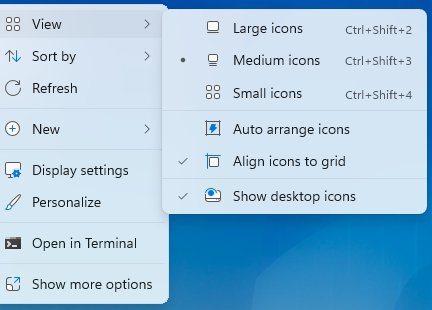
- Right-click an empty area of the desktop, select View, and choose Medium icons.
- Sign out and back in if the spacing has not settled yet.
Lower-than-recommended resolutions can make the desktop look stretched, which spreads icons further apart or squeezes them together.
Desktop icon spacing too wide or too big: causes and fixes
Match what you see on your desktop to a row, then use the fix in that row.
| What you see | Likely cause | Fix |
|---|---|---|
| Icons and text are huge and spaced far apart | Display scale set above the recommended value | Set Scale to (Recommended) |
| Desktop looks stretched or blurry, gaps look uneven | Resolution below the screen's native value | Set Display resolution to (Recommended) |
| Icons themselves are too large or too small | Icon size changed with Ctrl and the mouse wheel | Pick Large, Medium or Small icons in View |
| Spacing or resolution resets after every restart | Outdated or replaced graphics driver | Install driver updates from Windows Update |
| Icons are fine but in the wrong places | Arrangement changed, not spacing | Turn on Auto arrange icons or drag them back |
| Icons are missing entirely | Icons hidden or Desktop folder moved | See the troubleshooting section below |
How to change desktop icon spacing in Windows 11 and 10
Windows sets the gap between desktop icons from the icon size and the display scale. Changing the icon size is the quickest way to tighten or loosen the grid without touching the rest of the interface.
- Right-click an empty area of the desktop.
- Select View.
- Choose Large icons, Medium icons or Small icons.
- For finer steps, click the desktop, then hold Ctrl and scroll the mouse wheel up to enlarge icons or down to shrink them.
- Stop when the icons and the gaps between them look right.
You can also resize desktop icons in more detail, including the size presets for each Windows version.
Change display scale to fix desktop icon spacing too wide
Display scale enlarges text, apps and desktop icons together. A value of 150% or 175% on a small screen spreads the icon grid out noticeably.
- Right-click the desktop and select Display settings.
- On Windows 11, find Scale & layout and open the Scale list.
- On Windows 10, find Change the size of text, apps, and other items under Scale and layout.
- Select the value marked (Recommended).
- If text then looks too small, step up one value at a time rather than jumping to the largest.
With several monitors, select each display at the top of the page first, because every screen keeps its own scale.
Fix desktop icon spacing after a resolution change
A game, a remote desktop session or a new monitor can leave Windows at a lower resolution. The desktop then stretches, and icon spacing looks wrong.
- Select Start > Settings > System > Display.
- Select the monitor whose icons look wrong if more than one is shown.
- Open Display resolution and pick the value marked (Recommended).
- Select Keep changes when Windows asks to confirm.
- If the resolution keeps changing on its own, go to Settings > Windows Update (Windows 11) or Settings > Update & Security > Windows Update (Windows 10).
- Select Check for updates and install any display driver update offered, then restart.
Arrange desktop icons after fixing the spacing
Once the spacing is right, put the icons back in order so the grid stays tidy.
- Right-click an empty area of the desktop and select View.
- Select Auto arrange icons to line every icon up in columns from the left edge.
- Clear Auto arrange icons again if you prefer to place icons by hand.
- Right-click the desktop and select Sort by to order icons by name, size, item type or date modified.
Confirm the desktop icon spacing fix stuck
- Restart the PC and sign in.
- Check that the icons sit in even columns with the same gap as before the change.
- Open Settings > System > Display and confirm Scale and Display resolution still show (Recommended).
- Disconnect and reconnect any external monitor or dock, then check the spacing again.
If the values revert after a restart, the graphics driver is the usual suspect, so install the update from Windows Update.
Folder icons or localized folder names not showing in Windows 11
Missing desktop icons often show up at the same time as a spacing change, because both follow a display or profile change. These fixes also apply to Windows 10.
All desktop icons disappeared
Desktop icons are hidden from the View menu.
- Right-click an empty area of the desktop.
- Select View.
- Check Show desktop icons.
This PC, Recycle Bin or Network icons are missing
The system icons are turned off in Desktop icon settings.
- Right-click the desktop and select Personalize, then select Themes.
- Select Desktop icon settings under Related settings.
- Check the icons you want, such as Computer, Recycle Bin or Network.
- Select Apply, then OK.
The desktop shows the wrong files or folder icons are missing
The Desktop folder points to another location, usually after OneDrive folder backup was set up.
- Open File Explorer and expand your OneDrive folders.
- Right-click the Desktop folder and select Properties.
- Select the Location tab and then Move.
- Browse to the folder that holds your desktop files, choose Select Folder, then Apply.
- Select Yes when asked to move files to the new location.
To add a single system icon back, you can also show the Network icon on the desktop from the same settings page.
Desktop icon spacing FAQ
How do I change desktop icon spacing?
Right-click the desktop, select View, and pick Large, Medium or Small icons, or hold Ctrl and scroll the mouse wheel. The gap between icons follows the icon size and the display scale, so set Scale to its recommended value too.
How do I adjust desktop icon spacing in Windows 11?
Open Settings > System > Display, set Scale and Display resolution to the values marked Recommended, then choose an icon size from the desktop View menu. Windows 11 has no Settings slider for spacing alone.
Why did my desktop icon spacing suddenly change?
A change to display scale or resolution is the usual cause. It often happens after a graphics driver update, connecting a new monitor or dock, or running a game or remote session that switches the resolution.
How do I fix desktop icon spacing that is too wide?
Set Scale to the Recommended value in Settings > System > Display, because a higher scale spreads icons apart. Then pick Medium or Small icons from the desktop View menu to tighten the grid further.
How do I change icon spacing on the desktop in Windows 10?
Open Settings > System > Display, set Change the size of text, apps, and other items to Recommended, and set Display resolution to Recommended. Then right-click the desktop, select View, and choose an icon size.
How do I change the spacing between desktop icons without changing their size?
Windows 11 and Windows 10 have no built-in Settings option that changes only the gap. Adjusting display scale changes spacing and text together, which is the closest supported setting.
Why do my desktop icons rearrange themselves?
Auto arrange icons is turned on, or the resolution changed and Windows repositioned icons to fit the new grid. Clear Auto arrange icons in the View menu and keep the resolution at the recommended value.