A weak iPhone 17 Pro Max speaker is most often caused by the Volume Limit or Reduce Loud Sounds setting under Built-In Speaker in Settings > Sounds & Haptics, so turn both off first.
If the speaker is still quiet, this guide covers blocked grilles, Silent mode, Focus, software updates, the ringtone slider test and when the phone needs Apple service.
Fix a quiet iPhone 17 Pro Max speaker in Settings
iOS can cap the maximum loudness of the built-in speaker. When the cap is on, the volume buttons reach the top of the slider but the sound stays soft.
- Open the Settings app.
- Tap Sounds & Haptics.
- Under Built-In Speaker, tap Volume Limit.
- Turn off Limit Maximum Volume, or drag the slider all the way to the right.
- Go back and turn off Reduce Loud Sounds under Built-In Speaker.
- Play a song or video and press the volume up button until the slider is full.
If the sound is now normal, the speaker hardware is fine and the limit was the cause.
Why is my iPhone 17 Pro Max speaker so quiet?
| Cause | What you notice | Fix |
|---|---|---|
| Built-In Speaker Volume Limit is on | Full volume slider, soft sound | Turn off Limit Maximum Volume |
| Reduce Loud Sounds is on | Loud passages sound flattened or softer | Turn off Reduce Loud Sounds |
| Screen Time Speaker Volume Limit set to Don't Allow | Volume Limit setting cannot be changed | Change it in Screen Time with the Screen Time passcode |
| Case, film or screen protector over the openings | Muffled sound, worse with the case on | Remove the case and protector and test again |
| Dirt or lint in the speaker or receiver opening | Muffled or crackling sound from one end | Clean with a small, soft, dry brush |
| Media volume is low | Ringer is loud but videos are quiet | Press volume up while audio is playing |
| Silent mode or Do Not Disturb | No ringtone or alert sound | Turn off Silent mode and the Focus |
| Poor network reception | Calls quiet or crackly, media fine | Call again later or from another location |
| Hardware fault | Ringtone slider plays nothing or is dimmed | Get service from Apple |
Clean the iPhone 17 Pro Max speaker and receiver openings
The bottom speaker grille and the receiver at the top of the display collect pocket lint. A blocked opening makes the speaker sound weak or muffled.
- Remove the case, any film and the screen protector from the iPhone.
- Look at the speaker openings on the bottom edge and the receiver opening at the top of the screen.
- Brush each opening gently with a small, soft-bristled brush that is clean and dry.
- Play audio again with nothing covering the phone and compare the volume.
Do not push a pin, needle or liquid into the openings. Apple's guidance calls only for a clean, dry, soft brush.
Turn off Silent mode and Do Not Disturb on iPhone 17 Pro Max
Silent mode mutes ringtones and alerts, which can look like a dead speaker.
- Swipe down from the top-right corner to open Control Center.
- Check that Silent mode is off.
- If the Action button is set to Silent mode, press it to switch Silent mode off.
- Open Settings, tap Focus, then tap Do Not Disturb.
- Make sure Do Not Disturb is off.
iPhone 17 Pro Max volume settings for ringtone, media and alarms
The volume buttons control media while audio plays and ringer volume at other times. That split explains why a video can be quiet while calls ring loudly.
- Start a song or video, then press the volume up button to raise media volume.
- Open Settings and tap Sounds & Haptics.
- Drag the slider under Ringtone to raise ringer volume.
- Turn on Change with Buttons if you want the volume buttons to change ringer volume too.
- Under Alarms and Timers or Alerts and System Sounds, turn off Match Ringtone Volume and drag the slider to set those separately.
- Open Control Center and drag the volume control to check the level while an app is open.
Remove the Screen Time speaker volume limit on iPhone
If Volume Limit is greyed out or keeps resetting, a Screen Time restriction is locking it. This is common on a phone set up for a family member.
- Open Settings and tap Screen Time.
- Tap Content & Privacy Restrictions.
- Tap Speaker Volume Limit.
- Select Allow, entering the Screen Time passcode if asked.
- Return to Sounds & Haptics and turn off Limit Maximum Volume.
Restart or force restart iPhone 17 Pro Max to fix speaker sound
A soft reset of the iPhone clears an audio app or system process that is stuck. Use the iPhone force restart only if the iPhone is frozen.
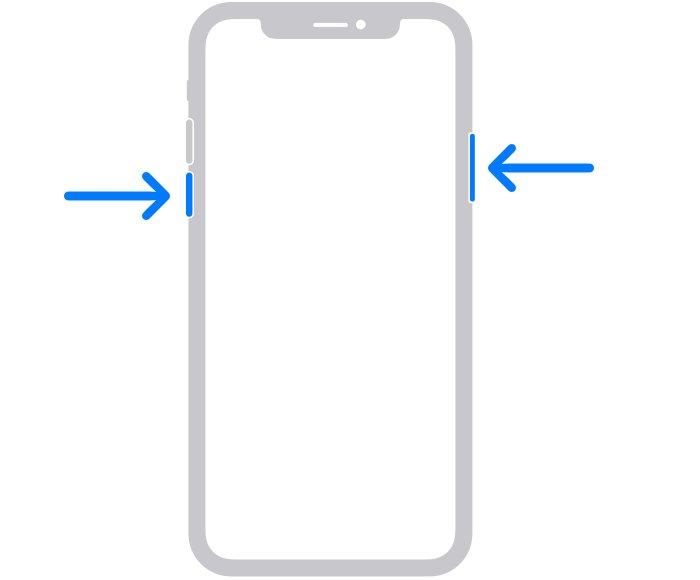
- Press and hold either volume button and the side button until the power-off slider appears.
- Drag the slider, then wait 30 seconds for the iPhone to turn off.
- Press and hold the side button until the Apple logo appears.
- If the phone is frozen, press and quickly release volume up, press and quickly release volume down, then press and hold the side button until the Apple logo appears.
Update iOS on iPhone 17 Pro Max
Apple ships bug fixes in iOS updates, so install any pending update before you book a repair.
- Back up the iPhone to iCloud or a computer.
- Plug the iPhone into power and connect to Wi-Fi.
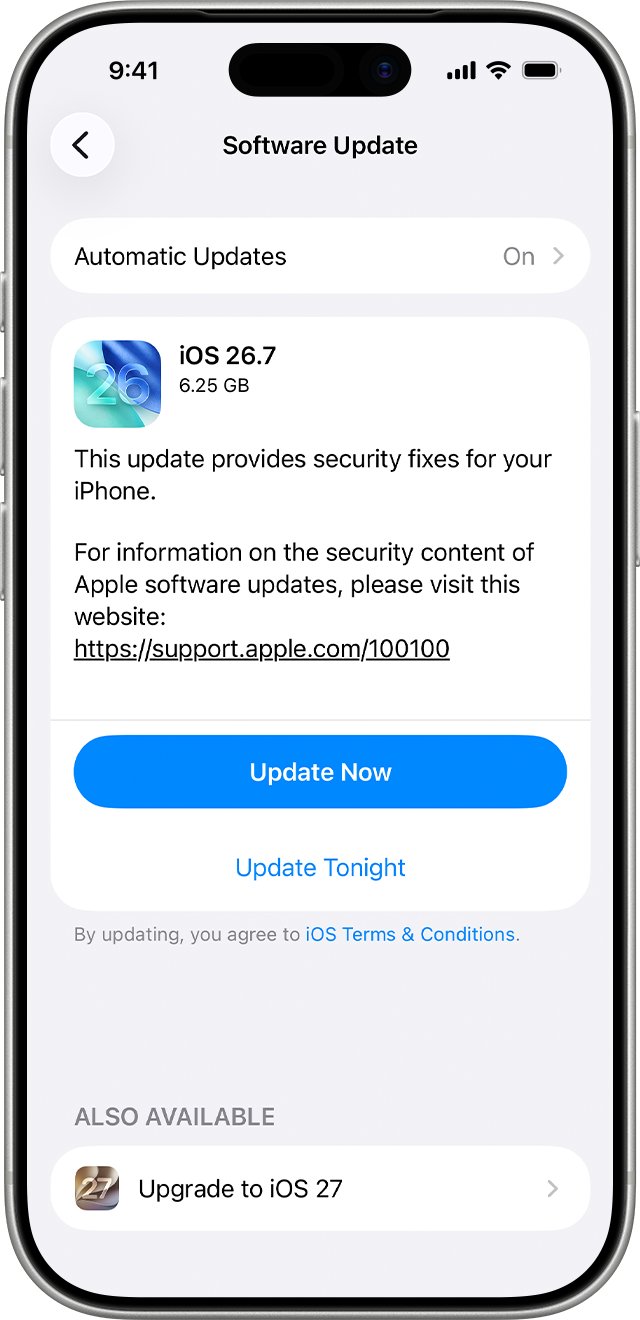
- Open Settings and tap General.
- Tap Software Update.
- If an update is available, tap Download and Install and follow the onscreen instructions.
Test the iPhone 17 Pro Max speaker with the ringtone slider
This test plays sound straight through the built-in speaker, so it separates a hardware fault from an app or network problem.
- Open Settings and tap Sounds & Haptics.
- Drag the slider under Ringtone back and forth a few times.
- Listen for the ringtone at each position. A clear, loud tone means the speaker works.
- If you hear nothing, or the speaker icon on the slider is dimmed, the speaker needs service.
- If you hear sound, make a phone call and turn on speakerphone to test call audio.
iPhone 17 Pro Max speaker issue fixes
Speaker is quiet even at full volume
A Built-In Speaker volume cap or Reduce Loud Sounds is active.
- Open Settings > Sounds & Haptics.
- Under Built-In Speaker, tap Volume Limit and turn off Limit Maximum Volume.
- Turn off Reduce Loud Sounds.
Bottom speakers sound muffled
A case, film or debris is covering the speaker openings.
- Remove the case and any film.
- Brush the bottom openings with a soft, dry brush.
- Test again with the ringtone slider.
Speakerphone calls are quiet, crackly or full of static
Weak network reception, not the speaker.
- Confirm music plays loudly through the speaker.
- Call again later or from a location with a stronger signal.
- Check that the receiver opening at the top is clean for calls held to the ear.
No sound for calls or notifications
Silent mode or Do Not Disturb is on.
- Open Control Center and turn off Silent mode.
- Open Settings > Focus > Do Not Disturb and turn it off.
Ringtone slider plays no sound
The speaker hardware has a fault.
- Restart the iPhone and repeat the test.
- Update iOS.
- If there is still no sound, contact Apple Support or visit an Apple Store for service.
When to get iPhone 17 Pro Max speaker service from Apple
Book Apple service if the ringtone slider test plays no sound, the speaker icon is dimmed, or the sound stays weak after the volume limit, cleaning, restart and update. Those steps rule out every settings and blockage cause, so the remaining fault is in the speaker hardware and needs an Apple repair.
iPhone 17 Pro Max speaker FAQ
Why is my iPhone 17 Pro Max speaker so quiet?
The most common cause is the Built-In Speaker volume limit. Open Settings, tap Sounds & Haptics, tap Volume Limit under Built-In Speaker and turn off Limit Maximum Volume. Also turn off Reduce Loud Sounds, then remove the case and clean the openings.
Where are the speakers on the iPhone 17 Pro Max?
The main speaker openings are on the bottom edge, and the receiver sits at the top of the display. Check both for lint or a covering case when sound is weak, and clean them only with a small, soft, dry brush.
How do I test my iPhone 17 Pro Max speaker?
Open Settings, tap Sounds & Haptics, and drag the Ringtone slider back and forth. If you hear the ringtone clearly, the speaker works. If you hear nothing or the speaker button is dimmed, the speaker needs service.
Why are calls quiet on speakerphone but music is loud?
Quiet or crackly speakerphone calls with loud music point to network reception, not the speaker. Apple recommends calling again later or from a different location. Also check the receiver opening at the top for dirt.
Does Reduce Loud Sounds make the iPhone speaker quieter?
Yes. Reduce Loud Sounds under Built-In Speaker in Sounds & Haptics softens loud sounds from the speaker. Turn it off if the iPhone 17 Pro Max speaker sounds weaker than expected at high volume.
Why can't I change the Volume Limit on my iPhone?
A Screen Time restriction is locking it. Go to Settings, tap Screen Time, tap Content & Privacy Restrictions, tap Speaker Volume Limit and choose Allow. You need the Screen Time passcode to make the change.
How do I make the iPhone 17 Pro Max ringtone louder?
Open Settings, tap Sounds & Haptics and drag the slider under Ringtone to the right. Turn on Change with Buttons if you want the volume buttons to raise ringer volume when nothing is playing.
Can a case make the iPhone speaker sound weak?
Yes. A case, film or screen protector can cover the speaker or receiver openings. Apple's first troubleshooting steps include removing all of them and testing the sound again before anything else.