Mouse Without Borders, now part of Microsoft PowerToys, lets one keyboard and mouse control up to four Windows computers and share the clipboard and files between them.
This guide covers how to set up Mouse Without Borders with a security key, arrange the devices, run it as a service, use its shortcuts and fix connection problems.
How to set up Mouse Without Borders in PowerToys
Install PowerToys on Windows 11 on every computer you want to control, and keep all of them on the same network.
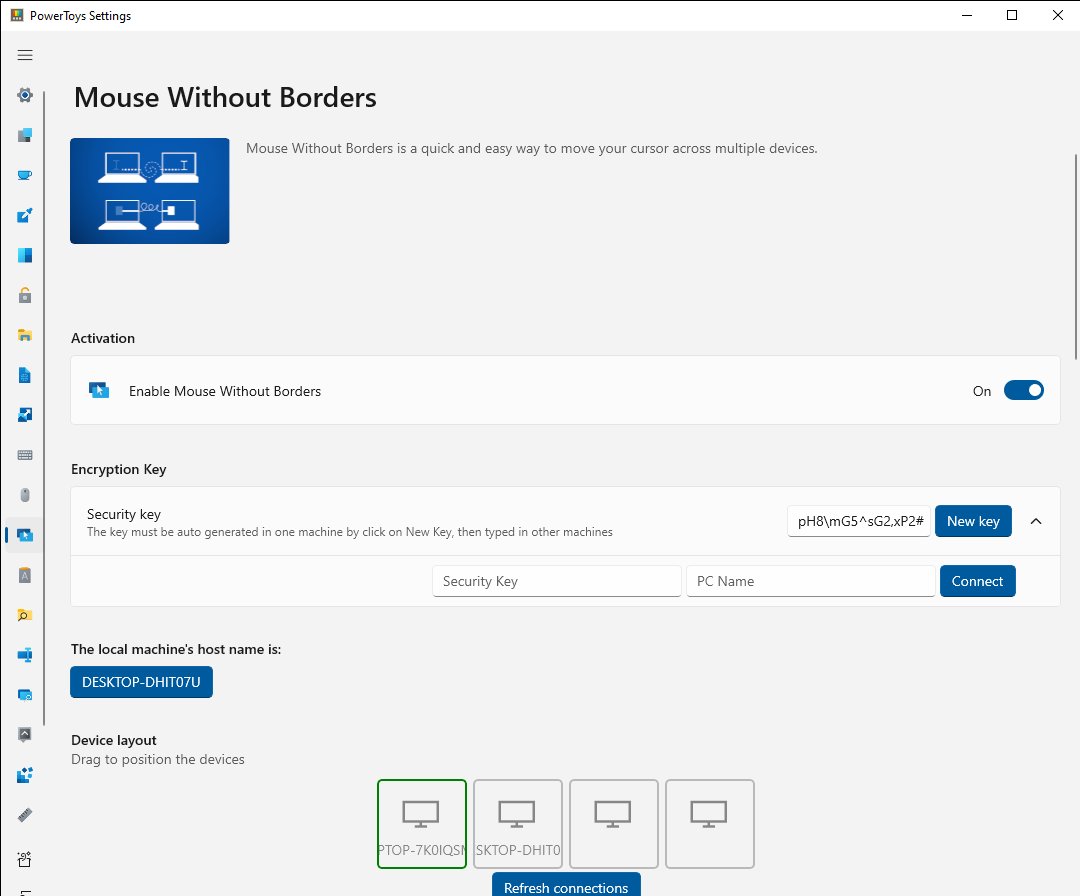
- Open PowerToys Settings on the first computer and select Mouse Without Borders.
- Select New Key to generate a security key.
- Note the key and the Local machine's host name shown on that page.
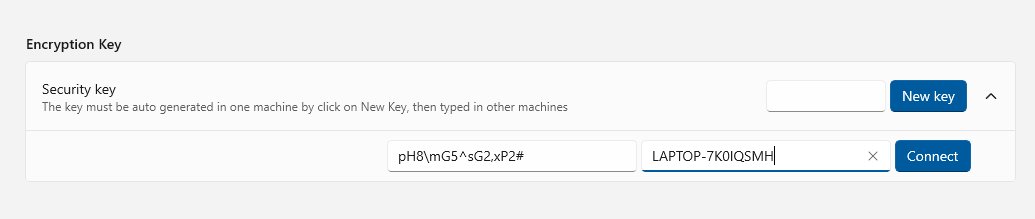
- On the second computer, open Mouse Without Borders in PowerToys Settings.
- Enter the security key and the first computer's name, then select Connect.
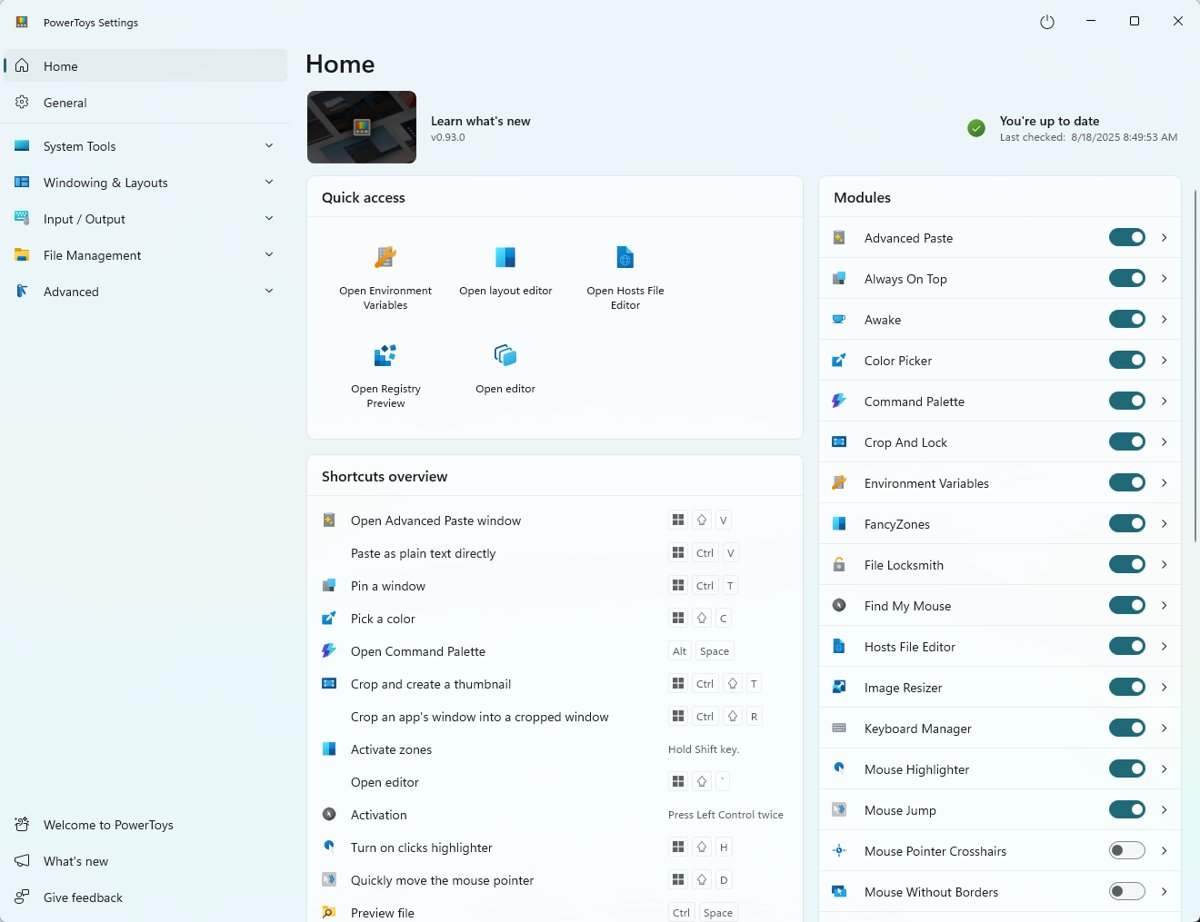
- Move the mouse pointer past the edge of the screen to cross to the other computer.
Mouse without Borders tool for PC
Microsoft first released Mouse Without Borders as a Microsoft Garage project; the current version ships inside the free PowerToys suite for Windows. The keyboard follows the mouse, so typing goes to whichever computer the pointer is on.
| Feature | What it does | Limit |
|---|---|---|
| Shared keyboard and mouse | Controls several PCs from one set of peripherals | Up to four computers |
| Share clipboard | Copies text and images between machines | Same setting on each PC |
| Transfer file | Copies or drags a file to another machine | One file at a time, 100 MB, no folders or network files |
| Multiple machine mode | Sends the same input to every machine at once | Toggled by shortcut |
| Service mode | Controls the lock screen and elevated apps | Needs PowerToys run as administrator |
Mouse Without Borders settings and device layout
| Setting | Use it to |
|---|---|
| Device layout | Drag machine icons so screen edges match where the PCs sit on your desk |
| Devices in a single row | Choose one row or a 2×2 grid |
| Wrap mouse | Jump from the last machine back to the first |
| Easy Mouse | Switch at screen edges, optionally only while holding Shift or Ctrl |
| Disable easy mouse when an application is in fullscreen | Stop accidental switches during games or videos |
| Block mouse at screen corners | Avoid switching when the pointer hits a corner |
| Move mouse relatively | Fix pointer jumps when resolutions or monitor counts differ |
| Hide mouse at the screen's edge | Park the old pointer at the top edge after switching |
| Draw mouse cursor | Show a pointer on a PC with no physical mouse |
| Block screen saver on other machines | Keep other PCs awake |
| Same subnet only / Validate remote machine IP | Restrict connections to your local network |
Mouse Without Borders keyboard shortcuts
Each shortcut uses Ctrl + Alt plus a key you pick on the settings page.
| Shortcut setting | Action |
|---|---|
| Ctrl + Alt + number (1-4), or F1-F4 | Switch to that machine |
| Shortcut to toggle Easy Mouse | Turn edge switching on or off |
| Shortcut to lock all machines | Press twice to lock every PC with the same setting |
| Shortcut to try reconnecting | Re-establish dropped connections |
| Shortcut to switch to multiple machine mode | Type into all machines at once |
Run Mouse Without Borders as a service for the lock screen
Service mode runs under the System account. It adds control over the lock screen and admin windows, and it also widens the attack surface, so turn it on only on machines you trust.
- Close PowerToys, then start it again with Run as administrator.
- Open Mouse Without Borders in PowerToys Settings.
- Turn on Use Service.
- Select Uninstall Service later if you want to remove it.
Check the Mouse Without Borders connection status
- Open Mouse Without Borders in PowerToys Settings on either computer.
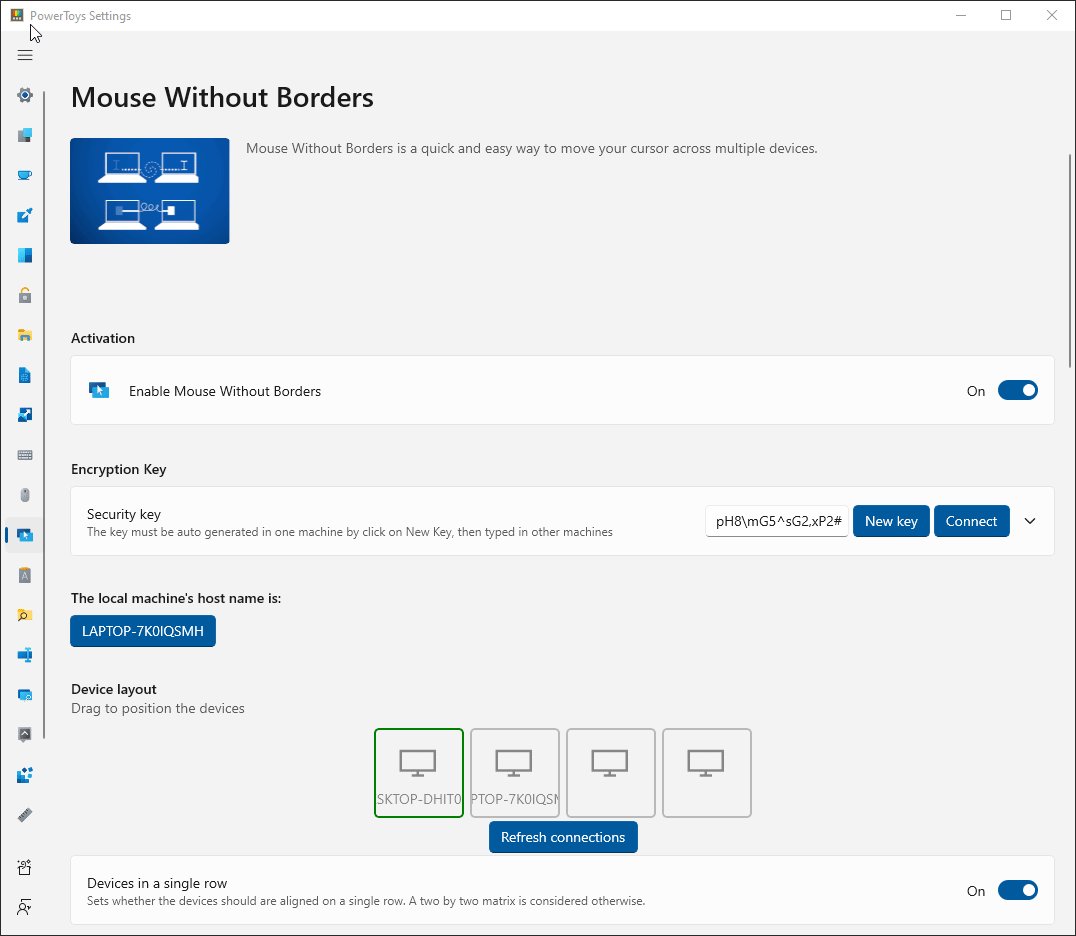
- Look at the colour of each machine icon in Device layout: green means connected.
- Treat yellow, orange or blue as still resolving, connecting or handshaking, and wait a few seconds.
- Re-enter the security key if the icon turns brown (invalid key), or select Refresh connections for pink (timeout) or red (error).
- Move the pointer across the shared edge and type a few characters to confirm the keyboard follows.
Mouse Without Borders not working or not connecting
Mouse Without Borders not connecting the first time
Different networks, a typo in the key or name, or a firewall block.
- Put both PCs on the same network.
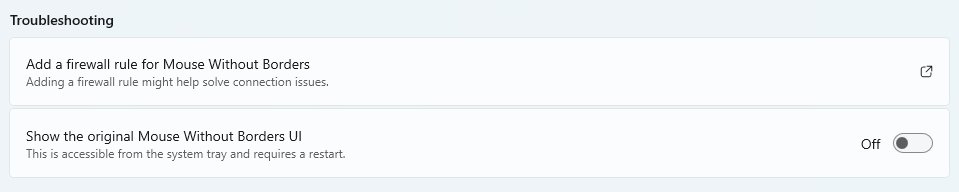
- Re-enter the security key and host name exactly.
- Select Add a firewall rule for Mouse Without Borders.
- Select Connect again.
Mouse Without Borders stopped working after it connected
The link dropped.
- Confirm both machines are still on the network.
- Select Refresh connections in Settings or the PowerToys Quick Access flyout, or press your reconnect shortcut.
Mouse cursor is moving in the opposite direction on Windows PC
The device layout does not match the physical position of the screens.
- Open Mouse Without Borders settings.
- Drag the machine icons in Device layout into their real left-right order.
- Turn on Move mouse relatively if the pointer still jumps.
Keyboard does not follow the mouse
A full-screen Remote Desktop, virtual machine or simulator window holds focus.
- Turn on Hide mouse at the screen's edge.
- Or click another window on the host before switching.
Pointer invisible on the other computer
No physical mouse is attached to it.
- Turn on Draw mouse cursor.
- Plug in a spare mouse (fix a mouse that is not working if it is not detected) or turn on Mouse Keys in Control Panel.
Folder or multiple files will not copy
Only single files up to 100 MB transfer.
- Zip the files into one archive under 100 MB.
- Copy or drag the archive.
Mouse Without Borders FAQ
What is Mouse Without Borders?
Mouse Without Borders is a Microsoft utility, now in PowerToys, that lets one keyboard and mouse control up to four Windows PCs on the same network, with clipboard and file sharing.
Is Mouse Without Borders free?
Yes. Mouse Without Borders is included in Microsoft PowerToys, a free set of Windows utilities, so there is no licence or subscription to buy for any of the four computers you connect.
Does Mouse Without Borders work with keyboard?
Yes. The keyboard follows the mouse pointer, so keystrokes go to whichever computer the pointer is currently on.
Does Mouse Without Borders work on Windows 11?
Yes. PowerToys runs on Windows 11 and Windows 10, and Mouse Without Borders is one of its utilities.
Does Mouse Without Borders work on Mac or Linux?
No. Microsoft documents Mouse Without Borders only as a PowerToys utility for Windows, so every connected computer must run Windows.
Is Mouse Without Borders safe and secure?
Connections require a shared security key, and you can limit them with Same subnet only and Validate remote machine IP. Service mode adds risk, so enable it only on trusted machines.
How do I connect two computers with Mouse Without Borders?
Select New Key on the first PC, then enter that key and the first PC's name on the second PC and select Connect.
Can I use Mouse Without Borders with a wireless mouse?
Yes. Any mouse attached to the host PC works, including wireless and Bluetooth models, because the software relays input over the network.
Is Mouse Without Borders worth using?
Use Mouse Without Borders if you run two to four Windows PCs on one desk and network. It is free, sets up with a single key, and adds clipboard and file sharing, but it cannot reach Mac or Linux machines.

![Copilot not working in Teams [Fix]](https://techdows.com/wp-content/uploads/2026/10/Copilot-not-working-in-Teams-Fix-1-600x338.jpg)


![Blue Screen of Death Causes and Solutions [Guide]](https://techdows.com/wp-content/uploads/2026/10/Blue-Screen-of-Death-Causes-and-Solutions-Guide-600x338.jpg)