If news and interests is missing from your taskbar, right-click a blank space on the taskbar in Windows 10 and switch it back on from the News and interests menu, or turn on the Widgets toggle in Windows 11 taskbar settings.
This guide covers both versions, the updates and Group Policy settings that hide the button, the Windows 11 weather widget, and high CPU or memory use by Widgets and Feeds.
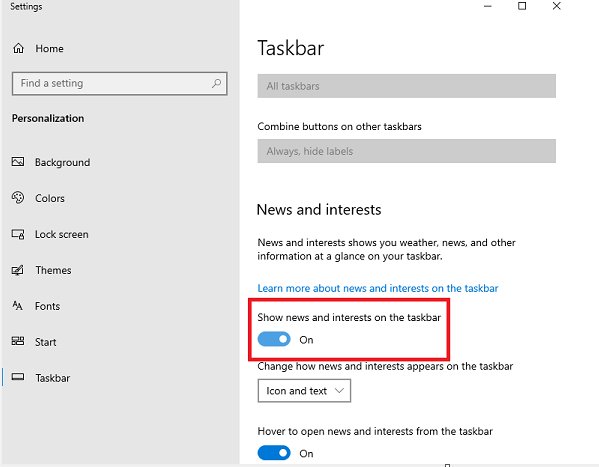
News and Interests not showing or missing on Windows Taskbar
On Windows 10, news and interests lives in the taskbar context menu. A hidden button is the most common reason it disappears.
- Right-click a blank space on the Windows taskbar.
- Point to News and interests in the menu.
- Choose a display option that shows the button instead of turning it off.
- Leave Open on hover checked if you want the feed to open when you point at the button.
- Look at the right side of the taskbar for the weather and news button.
If the News and interests entry is not in the menu at all, the feature is either not installed yet or blocked by policy. The next sections cover both.
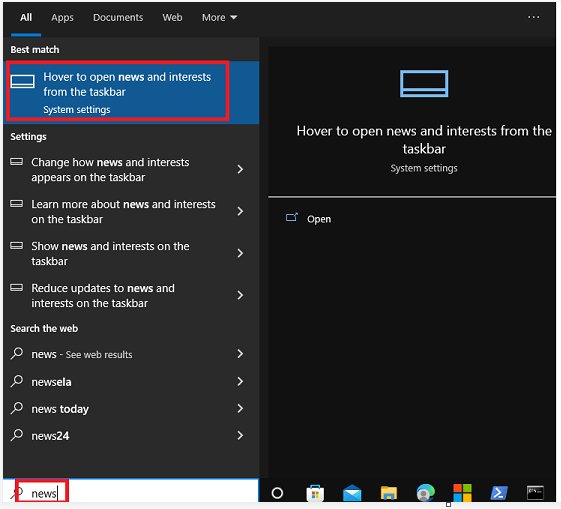
News and interests taskbar on Windows 10 vs Windows 11
| Your situation | Where to turn it on | Why it may be missing |
|---|---|---|
| Windows 10, menu entry present | Taskbar right-click menu > News and interests | The button was turned off |
| Windows 10, no menu entry | Windows Update, then Group Policy | Update missing or policy Enable news and interests on the taskbar set to Disabled |
| Windows 11 | Taskbar settings > Taskbar items > Widgets | Widgets toggle off, or policy Allow widgets set to Disabled |
| Work or school PC | Ask your IT admin | Policy set by the organisation removes the setting |
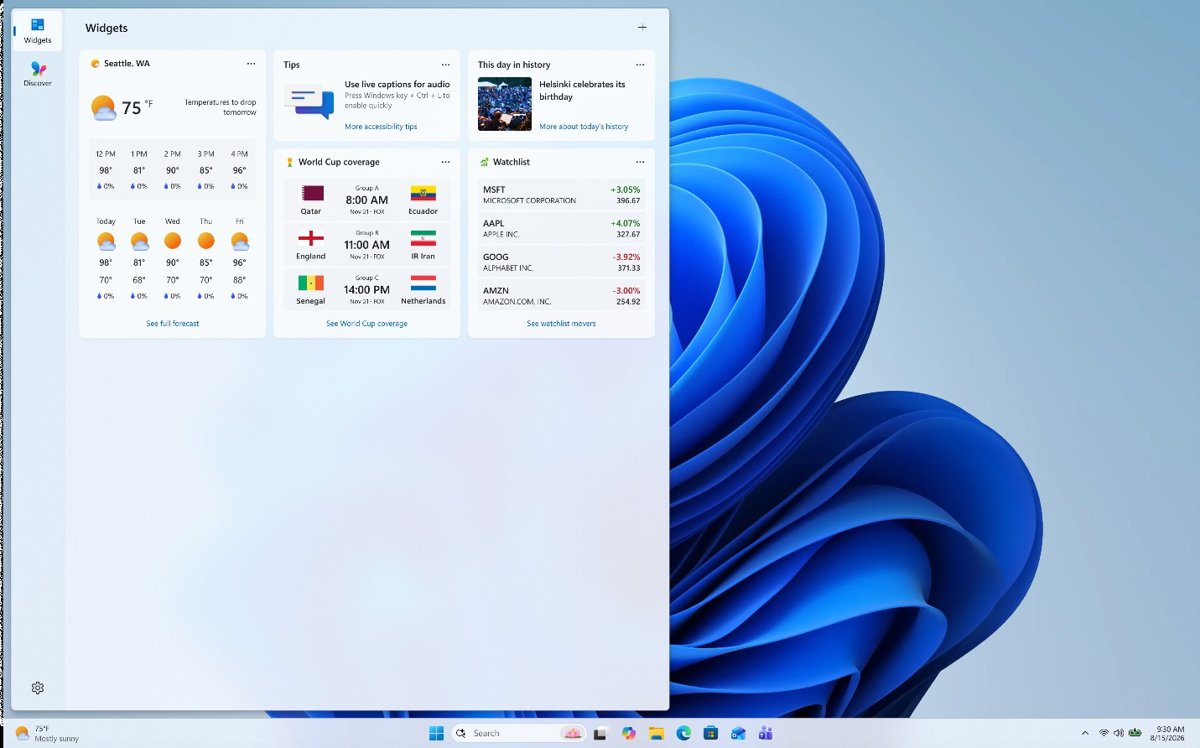
Run Windows Update to get news and interests on Windows 10
News and interests arrived through cumulative updates. The April 28, 2021 preview update KB5001391 introduced it for Windows 10 versions 2004 and 20H2. The May 25, 2021 update KB5003214 made it available to anyone who installs it and added the Open on hover option.
- Open Settings and select Update & Security.
- Select Windows Update, then Check for updates.
- Install every available update, including optional quality updates if offered.
- Restart the PC when prompted.
- Right-click the taskbar again and look for News and interests.
Enable news and interests via Group Policy on Windows 10
The policy Enable news and interests on the taskbar controls the feature on Windows 10 Pro, Enterprise and Education. When it is set to Disabled, the feature is off completely and its menu entry is removed. Home editions do not include the Group Policy Editor, though you can enable gpedit on Home editions with a workaround.
- Press Win + R, type
gpedit.mscand press Enter. - Go to Computer Configuration > Administrative Templates > Windows Components > News and interests.
- Double-click Enable news and interests on the taskbar.
- Select Not Configured or Enabled, then select OK.
- Restart the PC so the taskbar picks up the change.
Weather widget not showing on Taskbar in Windows 11
Windows 11 replaced news and interests with Widgets. The weather appears on the left of the taskbar as the Widgets entry point, so turning Widgets on brings it back. If the board itself is broken, you can uninstall and reinstall Widgets. Widgets also needs current versions of the Windows Web Experience Pack and the Start Experiences app, which normally update automatically.
- Right-click the taskbar and select Taskbar settings.
- Under Taskbar items, switch the Widgets toggle on.
- Press Win + W to confirm the Widgets board opens.
- Open Microsoft Store, select Library, then Get updates to update the Windows Web Experience Pack and Start Experiences app.
On Pro, Enterprise and Education, the policy Allow widgets under Computer Configuration > Administrative Templates > Windows Components > Widgets must not be set to Disabled. Its registry value is AllowNewsAndInterests under HKLM\SOFTWARE\Policies\Microsoft\Dsh.
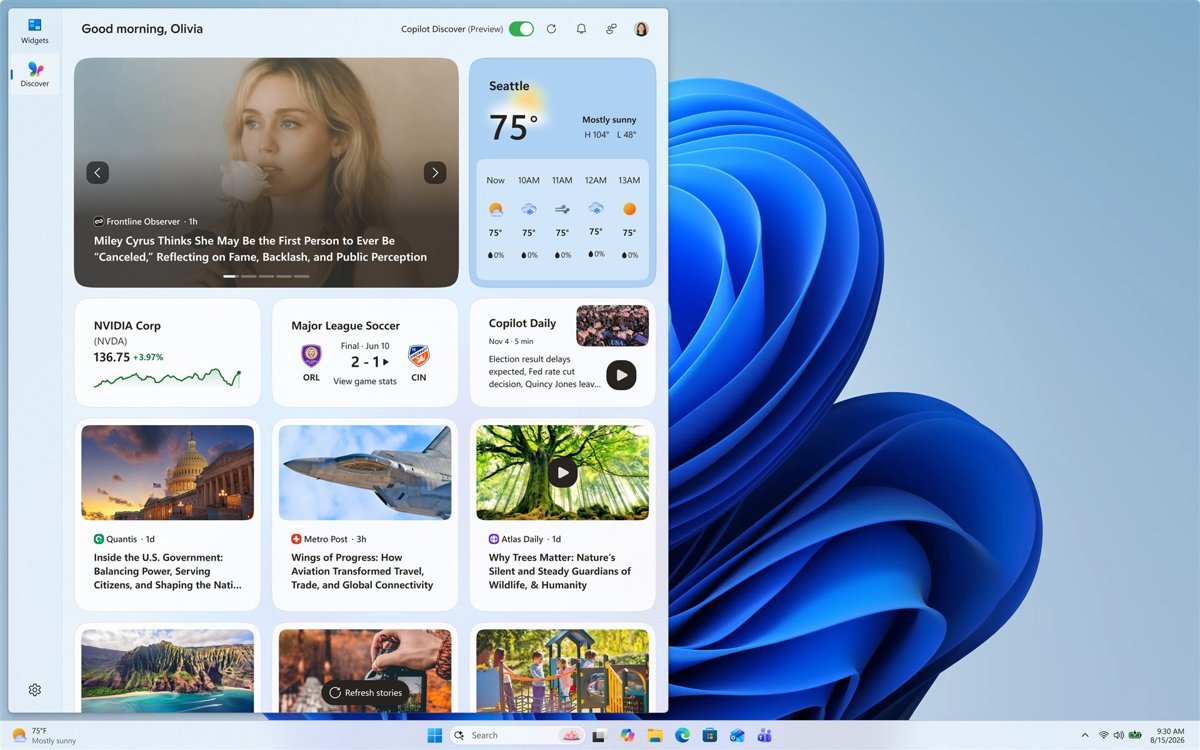
Confirm news and interests is back on the taskbar
- On Windows 10, look for the weather and news button near the clock and point at it to open the feed.
- On Windows 11, look for the weather or Widgets icon at the left of the taskbar.
- Press Win + W on Windows 11 and confirm the Widgets board opens with news cards.
Fix Windows Widgets high CPU usage and Feeds high memory usage
Windows Widgets high CPU usage [Fix]
The Widgets board or its web content keeps refreshing in the background.
- Press Ctrl + Shift + Esc to open Task Manager.
- Select Widgets in the process list, then End task.
- Update the Windows Web Experience Pack from Microsoft Store > Library > Get updates.
- If the usage returns, switch off the Widgets toggle in Taskbar settings.
Feeds showing High Memory Usage in Windows 11
The news feed holds web content in memory while it stays open.
- Close the Widgets board when you are not reading it.
- Run Windows Update and install pending updates.
- Restart the PC to clear the feed processes.
- Turn Widgets off from Taskbar settings if memory use stays high.
News and interests entry missing from the taskbar menu
The update is not installed or a policy removed it.
- Install the latest Windows 10 cumulative update.
- Set Enable news and interests on the taskbar to Not Configured in Group Policy.
- Restart the PC.
News and interests taskbar FAQ
How do I get news on my taskbar?
On Windows 10, right-click the taskbar, open News and interests and pick a display option. On Windows 11, open Taskbar settings and turn on Widgets under Taskbar items. The weather and news then appear on the taskbar.
How do I add news and interests to the taskbar in Windows 11?
Windows 11 does not have news and interests; Widgets replaced it. Right-click the taskbar, select Taskbar settings and switch on Widgets. Press Win + W to open the news feed.
Why is news and interests not loading on the taskbar?
An outdated Windows build, a policy that disables the feature, or an outdated Windows Web Experience Pack can stop it loading. Install Windows updates, update the pack from Microsoft Store and restart the PC.
Why is news and interests greyed out or gone from the taskbar menu?
The Group Policy Enable news and interests on the taskbar set to Disabled removes the setting from the taskbar menu. Set it to Not Configured, or ask your IT admin on a managed PC.
How do I turn off news and interests on the taskbar?
Right-click the taskbar, open News and interests and choose the option to disable news and interests. On Windows 11, switch off Widgets in Taskbar settings. Both changes can be reversed the same way.
Why is my taskbar in the way?
The taskbar covers part of the screen when it is set to always show. In taskbar settings you can turn on automatic hiding so it slides away until you move the pointer to the screen edge.