Double-click the AVI file, or right-click it and choose Open with > Media Player, to play it in the media app built into Windows 11.
This guide covers Media Player, Movies & TV, Windows Media Player Legacy and VLC, how to make one of them the default for .avi files, and what to do when an AVI file refuses to play.
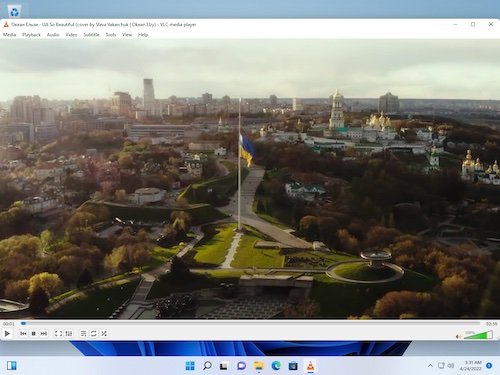
How to open AVI files on Windows 11
AVI (Audio Video Interleave) is a container, not a single format. The video and audio inside it are compressed with a codec, and Windows can only play the file when that codec is installed.
Most AVI files use common codecs such as DivX, MJPEG, DV or MP3 audio, so the built-in player handles them without extra software.
- Open File Explorer and go to the folder that holds the AVI file.
- Right-click the file and select Open with.
- Select Media Player from the list.
- Use the play, pause and seek controls at the bottom of the window to watch the video.
- If the video plays without sound or shows a codec message, jump to the troubleshooting section below.
Best AVI player for Windows 11
| Your situation | Use this player | Why |
|---|---|---|
| You want to play the file right now with nothing extra installed | Media Player | It ships with Windows 11 and opens common AVI files |
| You prefer the older Windows interface and library | Windows Media Player Legacy | Microsoft offers it as an optional feature in some Windows 11 editions |
| You want another Microsoft app to try | Movies & TV | Microsoft suggests it as an alternative player from the Microsoft Store |
| The AVI uses an unusual codec or will not play anywhere else | VLC media player | VideoLAN says it plays most codecs with no codec packs needed |
| You run Windows 11 N | Media Feature Pack first, then any player | N editions ship without Windows Media Player, Media Foundation and many codecs |
Play AVI files in Media Player on Windows 11
Media Player is the current Microsoft app for music and video on Windows 11. Open it once from Start if you want to browse your videos instead of double-clicking a single file.
- Select Start, type Media Player and open the app.
- Select Video library in the left pane to see the videos in your Videos folder.
- If the AVI file is stored somewhere else, drag it from File Explorer into the Media Player window.
- The video starts playing straight away.
- Select the full-screen button, or press F11, to fill the screen.
Microsoft recommends the Media Player app over the legacy player for modern playback, including 4K video.
Movies & TV or Photos app
Movies & TV is another Microsoft video app. Microsoft's codec help names it as an alternative player when Windows Media Player cannot open a file. Photos is built for pictures and short clips, so use Media Player or Movies & TV for full-length AVI videos.
- Select the Microsoft Store icon on the taskbar, or search for Microsoft Store from Start.
- Search the Store for Movies & TV.
- Select Get or Install if the app is not already on your PC.
- In File Explorer, right-click the AVI file and select Open with.
- Select Movies & TV to play the file.
How to open AVI files in Windows Media Player
Windows Media Player Legacy is the classic Windows Media Player 12. Microsoft lists Audio Visual Interleave (.avi) among its supported file types, provided the right codecs are installed.
- Open Settings and go to System > Optional features.
- Next to Add an optional feature, select View features.
- Search for Windows Media Player Legacy, tick its box and select Next.
- Select Add and wait for the install to finish.
- Right-click the AVI file in File Explorer, select Open with and choose Windows Media Player Legacy.
DVD playback is not included in Windows Media Player Legacy. If the feature is not listed, your Windows 11 edition does not offer it, so use Media Player or VLC instead.
Open AVI files with VLC media player
VLC is a free, open-source player from VideoLAN. It carries its own decoders, so it plays AVI files (and it can also play VOB files from DVDs) with codecs Windows does not include, and it has no ads or user tracking.
- Go to videolan.org in your browser and open the VLC page. Get VLC only from VideoLAN's own site.
- Select Download VLC and run the installer when it finishes.
- Follow the installer prompts and accept the default components.
- Right-click the AVI file, select Open with and choose VLC media player.
- If VLC is not listed, select Choose another app and pick it from the list.
Change the default app to open AVI files on Windows 11
Set a default once and every AVI file opens in that player when you double-click it.
- Open Settings and select Apps > Default apps.
- In the search box at the top, type .avi.
- Select the .avi result that appears.
- Choose Media Player, VLC media player or another installed player from the list.
- Close Settings. Double-click any AVI file to confirm it opens in the new player.
To change several video types at once, select the player itself under Set defaults for applications in the same page, then change each file type it lists. You can also type ms-settings:defaultapps in the Run box to jump straight to this page.
Check which codec an AVI file uses
Knowing the codec tells you why one player works and another fails. Microsoft notes that no method identifies the codec with complete certainty, and the file extension is only a hint.
- Play the file in Windows Media Player Legacy so it appears in the library.
- Right-click the file in the library and select Properties.
- Open the File tab.
- Read the Audio codec and Video codec entries.
- To list every codec installed on the PC, select Help > About Windows Media Player > Technical Support Information. If the menu bar is hidden, select Organize > Layout > Show menu bar first.
Can’t open AVI files in Windows 11
"A codec is required to play this file"
The AVI was compressed with a codec Windows does not have.
- Open the file in VLC media player, which decodes most formats on its own.
- If you must use a Microsoft player, check the codec name with the steps above.
- Install a matching codec extension from the Microsoft Store, or get the codec from its manufacturer's own site.
- Avoid free codec packs. Microsoft warns they can cause playback problems and system corruption.
- Match the codec to your Windows: a 32-bit codec may not work on 64-bit Windows.
"Windows Media Player encountered an error" or the player will not start
A damaged library, cache or app install. You can troubleshoot Windows Media Player with the steps below.
- Open Settings > System > Troubleshoot > Other troubleshooters and select Run next to Windows Media Player.
- Go to Settings > Apps > Installed apps, select the three dots next to the player and choose Advanced options.
- Select Repair. If that does not help, select Reset, which clears settings but keeps your media files.
- Open Command Prompt as administrator and run
sfc /scannowto repair system files. - Install pending updates from Settings > Windows Update and update your graphics and audio drivers.
Media Player is missing on Windows 11 N
N editions ship without Windows Media Player, Media Foundation and most audio and video codecs.
- Open Settings and go to Apps > Optional features.
- Next to Add an optional feature, select View features.
- Select Media Feature Pack and install it.
- Restart the PC. Windows does not prompt you, but the install is not complete until you do.
AVI file plays in the wrong app
Another program took over the .avi file association.
- Open Settings > Apps > Default apps.
- Search for .avi and select it.
- Pick the player you want and close Settings.
AVI file will not play in any player
The file is incomplete or damaged, often after an interrupted download or copy.
- Copy the file again from its original source, then try VLC first.
- Compare the file size with the original; a much smaller copy is incomplete.
- If the file came from another computer, transfer it from PC to PC again with a reliable method.
Play AVI files on Windows 11 FAQ
Does Windows 11 play AVI files natively?
Yes. The built-in Media Player app opens AVI files that use common codecs such as DivX, MJPEG, DV and MP3 audio. Files compressed with an unusual codec need that codec installed, or a player such as VLC that carries its own decoders.
Why does my AVI file have sound but no picture?
The audio codec is installed but the video codec is not. AVI files store video and audio separately, so Windows can decode one and fail on the other. Open the file in VLC, or install the missing video codec from a trusted source.
Can Windows Media Player play AVI files on Windows 11?
Yes. Windows Media Player Legacy supports the .avi file type when the right codecs are installed. Add it from Settings > System > Optional features > View features if your Windows 11 edition offers it.
Is VLC safe to install on Windows 11?
VLC from videolan.org is free, open-source software that VideoLAN states has no spyware, ads or user tracking. Download it only from VideoLAN's own site, not from download portals that bundle extra software.
How do I make VLC the default player for AVI files?
Open Settings > Apps > Default apps, type .avi in the search box, select the .avi result and choose VLC media player. Every AVI file then opens in VLC when you double-click it.
Should I install a codec pack to play AVI files?
No. Microsoft advises against free codec packs because they can cause playback problems and system corruption. Use a Microsoft Store codec extension, the codec maker's own installer, or a player like VLC instead.
Why can't I find Media Player on Windows 11 N?
Windows 11 N editions ship without Windows Media Player and many media codecs. Install the Media Feature Pack from Settings > Apps > Optional features, then restart the PC to finish the install.