To add SharePoint to File Explorer in Windows 11, open the SharePoint document library in your browser, select Sync and approve the OneDrive prompt, and the library appears in File Explorer's left pane.
This guide covers the Sync button, the Add shortcut to OneDrive route, the older View in File Explorer option, how to stop syncing, and fixes for a missing Sync button, stuck syncing and edits that do not save.
How to add SharePoint to File Explorer in Windows 11/10
Syncing needs a Microsoft 365 work or school account, or SharePoint Server 2019. It uses the OneDrive app that comes with Windows 11 and Windows 10.
- Open the Microsoft 365 app launcher in the upper-left corner of any Microsoft 365 page in your browser.
- Select SharePoint, then open the site you want.
- Select Documents, or open the subfolder you want to sync.
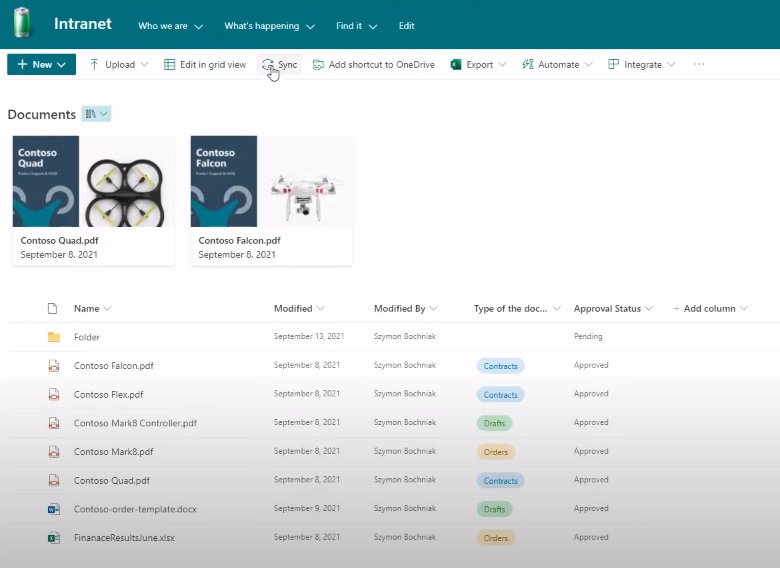
- Select Sync on the library toolbar.
- If the browser asks to open Microsoft OneDrive, allow it.
- Sign in to OneDrive with your work or school account if asked, and finish setup.
- Open File Explorer and select the folder named after your organization in the left pane.
Files sync to a folder such as %userprofile%\Contoso, where Contoso is your organization's name. You cannot pick a different location, and you only set this up once per PC.
Sync vs add shortcut to OneDrive for SharePoint
| Your situation | Use this | Why |
|---|---|---|
| You want the library on this PC, including offline | Sync | Creates a permanent folder under your organization's name in File Explorer |
| You use several computers and want the library on all of them | Add shortcut to OneDrive | The shortcut lives in your OneDrive, so it follows you to every device signed in to it |
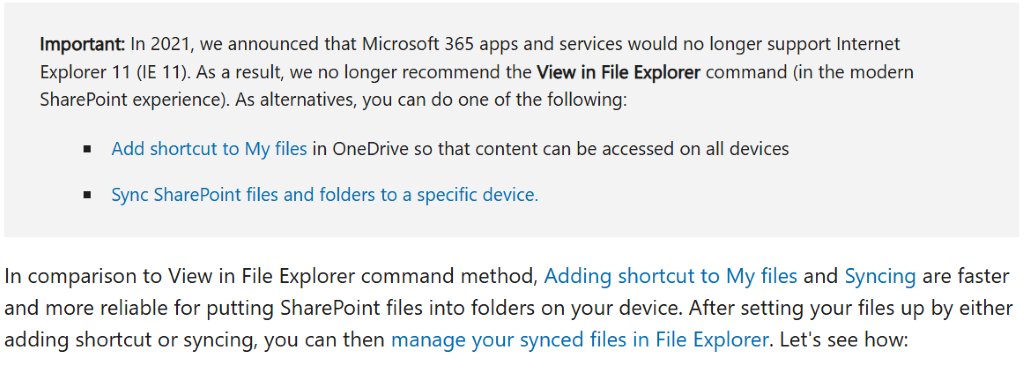
| You need a one-off copy or move between two libraries | View in File Explorer | Opens a temporary window, but Microsoft no longer recommends it |
Add SharePoint folder to File Explorer with a OneDrive shortcut
- Sign in to the SharePoint site in your browser.
- Open the document library or folder you want.
- Select Add shortcut to OneDrive.
- When the confirmation appears, select My files to see the new shortcut.
- Open File Explorer, select your OneDrive work or school folder in the left pane and open the shortcut.
Open a SharePoint library with View in File Explorer
This older route is hidden by default in modern SharePoint and may need an admin to turn it on in Microsoft Edge. The window it opens is temporary.
- Open the document library in Microsoft Edge.
- Select the View menu, then View in File Explorer.
- If an Internet Explorer Security dialog appears, select Allow.
- Copy or move the files you need with Ctrl + C, Ctrl + X and Ctrl + V.
- Close the window when you finish, then refresh the SharePoint page to see the uploaded files.
Copying this way keeps only the latest version of each file. Use Move to in SharePoint when version history matters.
Check SharePoint is syncing in File Explorer
- Open File Explorer and select your organization's folder in the left pane.
- Open the site folder and confirm the library's files are listed.
- Select the OneDrive cloud icon in the notification area to check the sync status.
- Create a test file in the folder and refresh the SharePoint library in your browser to see it appear.
You can also pin the folder to Quick Access in File Explorer so it sits at the top of File Explorer.
Stop syncing a SharePoint library in Windows 11
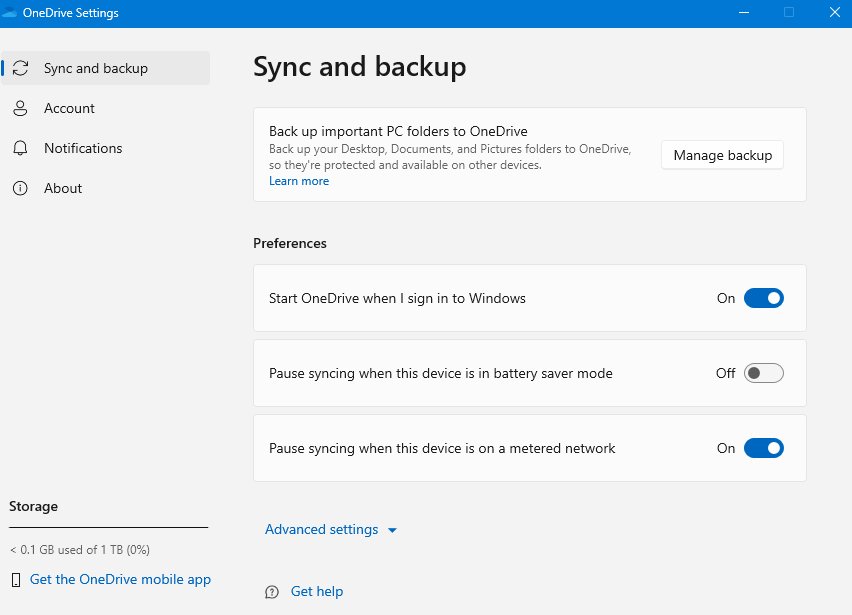
- Select the OneDrive cloud icon in the notification area. Open the Show hidden icons arrow first if you cannot see it.
- Select the Help & Settings gear, then Settings.
- Open the Account tab.
- Select Stop sync next to the site, or Choose folders to sync only some folders.
Copies of the files stay on your PC after you stop syncing. Delete the local folder yourself if you no longer need them.
Why is SharePoint not showing in File Explorer?
No Sync button, or "Which library do you want to sync?"
The site is not set up for the OneDrive sync app.
- Ask the site owner to open Library settings > More library settings > Advanced settings.
- Have them allow Offline Client Availability for the library.
- Reload the library page and select Sync again.
Files stay stuck on syncing
The OneDrive sync client has stalled.
- Select the OneDrive cloud icon, then the gear, and choose Pause syncing for 2 hours.
- Select the gear again and choose Resume syncing.
- Check that each file is under 250 GB and that full paths stay under 400 characters.
Sync is slow or stops with very large libraries
Syncing more than 100,000 items can cause performance problems.
- In File Explorer, right-click the synced folder and select Properties.
- If Contains shows more than 100,000 files, open OneDrive Settings > Account > Choose folders.
- Clear the folders you do not need.
The OneDrive icon is missing
The icon is hidden or an older OneDrive build is running.
- Select Show hidden icons in the notification area.
- Search the Start menu for OneDrive and open the entry without "for work or school" in its name.
- If problems continue, unlink OneDrive and run setup again, then reset OneDrive.
SharePoint not saving changes or edits
Synced files show a lock icon
The files are read-only for your account, so edits will not sync back.
- Open the library in the browser and check your permission level.
- Ask the site owner for edit permission.
- Reopen the file from File Explorer after the change syncs.
Edits to several files will not upload
The library requires check-out before editing.
- Check the file out in SharePoint before editing it.
- Ask the site owner whether Check out required can be turned off for the library.
Version history is missing after moving files
Moving Office files between sites in File Explorer copies only the latest version.
- Move files with Move to or Copy to in SharePoint instead.
- Use File Explorer only for files inside the same synced library.
Add SharePoint to File Explorer FAQ
How do I add a SharePoint site to File Explorer?
Open the site's Documents library in your browser and select Sync. OneDrive opens and adds the library to a folder named after your organization in File Explorer's left pane. You only set this up once per computer.
How do I add a SharePoint folder to File Explorer?
Open the folder inside the SharePoint library and select Sync or Add shortcut to OneDrive. Sync puts just that folder on this PC, while the shortcut appears in your OneDrive work or school folder on every device.
How do I add a SharePoint shortcut to File Explorer?
Select Add shortcut to OneDrive in the SharePoint library, then select My files in the confirmation. The shortcut appears inside your OneDrive work or school folder in File Explorer on any PC signed in to that account.
How do I add a file to SharePoint?
Drag the file into the synced SharePoint folder in File Explorer, or select Upload in the library in your browser. Files you place in the synced folder upload automatically once OneDrive finishes syncing.
Why can't I add files to SharePoint?
You may only have read access, shown by a lock icon on synced files, or the library may require check-out. File limits also apply: each file must be under 250 GB and the full path under 400 characters.
Is SharePoint the same as OneDrive?
No. SharePoint holds team sites and shared libraries, while OneDrive is your own file storage. The OneDrive sync app is what puts SharePoint libraries in File Explorer, and SharePoint shortcuts sit inside your OneDrive.
Can I choose where SharePoint syncs on my PC?
No. SharePoint libraries sync to a folder named after your organization under your user profile, such as %userprofile%\Contoso. You cannot select a different location for synced libraries.
Do I need Internet Explorer to view SharePoint in File Explorer?
No. Microsoft 365 apps stopped supporting Internet Explorer 11 in August 2021. Use Sync or Add shortcut to OneDrive in Microsoft Edge or another modern browser instead of the old View in File Explorer route.