Most printer spooler failures on Windows 10 and 11 clear when you stop the Print Spooler service, delete the files in the spool PRINTERS folder, and start the service again.
If the spooler keeps stopping, the cause is usually a third-party print driver, a Group Policy that disables the service, or a security app blocking spool files.
Fastest way to fix the Print Spooler service
Restarting the service clears stuck print jobs. Open an elevated Command Prompt and run the two commands one after the other.
net stop spooler
net start spooler
Stops the Print Spooler service, then starts it again so queued jobs are reloaded.
You should see: Command Prompt reports that the Print Spooler service was stopped and then started successfully.
You can also restart the Print Spooler from Services or run Restart-Service -Name spooler in an elevated PowerShell window.
Print spooler error symptoms and the matching fix
| What you see | Likely cause | Fix to use |
|---|---|---|
| Jobs stuck in the queue | A corrupt job in the spool folder | Clear the PRINTERS folder |
| Print Spooler service not running | Service stopped or set to Disabled | Start it and set Startup type to Automatic |
| "Spooler subsystem app has encountered a problem and needs to close" | A third-party print driver | Clear the spooler, then remove or update the driver |
| Error 0x00000057, 0x000005b3, 0x00000bc4 or 0x00000002 when adding a printer | A third-party driver install or upgrade | Reset the spooler and reinstall the vendor's current driver |
| No printers appear even though some are installed | A driver or service broke the printer list | Reset the spooler, then re-add the printer |
| Service stops again on a work PC | Group Policy disables the spooler | Ask your IT administrator |
Troubleshoot printer spooler failures: step-by-step (Windows 10/11)
This is Microsoft's reset for a spooler that crashes or holds corrupt jobs. It deletes every waiting print job, so reprint those documents afterwards.
- In the taskbar search box, type services and select Services.
- Double-click Print Spooler in the list.
- Select Stop, then select OK.
- In the taskbar search box, enter
%WINDIR%\system32\spool\printersand open the folder. - Delete every file in the PRINTERS folder. Leave the folder itself in place.
- Return to Services and double-click Print Spooler again.
- Select Start, set Startup type to Automatic, then select OK.
Restart Print Spooler from PowerShell
Type powershell in the search bar, right-click Windows PowerShell and select Run as administrator first.
Restart-Service -Name spoolerStops and starts the Print Spooler service in one cmdlet.
You should see: The prompt returns with no error, and Get-Service spooler shows Status Running.
Check that the Print Spooler service is running
- Open Services and find Print Spooler.
- Confirm Status reads Running and Startup type reads Automatic.
- Print a test page from the printer's settings page.
- Open the printer queue and confirm the job leaves the list.
Print spooler keeps stopping on Windows 10/11
Spooler subsystem app has encountered a problem and needs to close
A third-party printer driver or service is crashing the spooler.
- Reset the spooler with the PRINTERS folder steps above.
- Open Settings and go to the printers page under Bluetooth & devices (Windows 11) or Devices (Windows 10).
- Select the printer that installed most recently and select Remove.
- Install the current driver from the printer maker's own support site.
- Add the printer again and print a test page.
Printer driver was not installed (error 0x00000057)
A failed third-party driver install or upgrade left the spooler in a bad state.
- Stop Print Spooler in Services.
- Delete the files in
%WINDIR%\system32\spool\PRINTERS. - Start Print Spooler and set it to Automatic.
- Run the printer maker's current driver installer again.
Print Spooler will not start or stops a few minutes later
System resource problems, an outdated driver, or a policy setting.
- Open Event Viewer and check the System log for Print Spooler errors around the time it stopped.
- Update the printer driver and install pending Windows updates.
- On a work or school PC, ask IT whether Group Policy disables the Print Spooler service.
- Check your security app's history for blocked files in the spool folder, and ask its vendor how to allow them.
Print jobs stay stuck in the queue
A corrupt job blocks every job behind it.
- Run
net stop spoolerin an elevated Command Prompt. - Delete the files in
%WINDIR%\system32\spool\PRINTERS. - Run
net start spooler. - Send the document to the printer again.
If the problem is with the printer itself rather than the service, run the printer troubleshooter from Get Help or Settings.
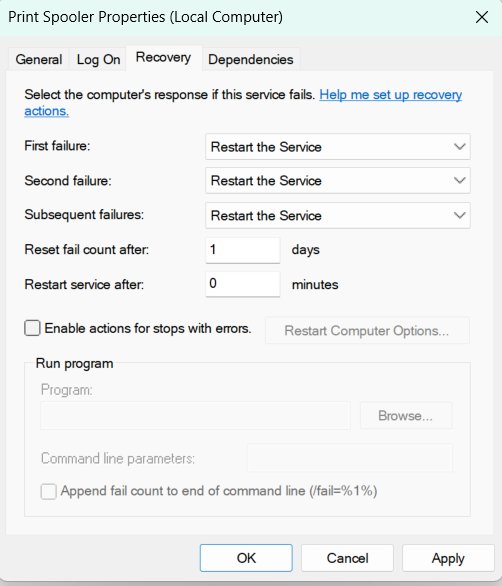
Should you disable the Print Spooler service?
Leave Print Spooler on Automatic on any PC that prints; disable it only on machines that never print, such as some servers. Microsoft notes that disabling the spooler is a security mitigation on some systems, but a stopped spooler blocks installing printers, connecting to network printers and printing.
Print spooler failure FAQ
What does the Print Spooler service do?
Print Spooler manages print jobs and printer connections on Windows. It normally starts with Windows and runs until shutdown. When it stops, you cannot install printers, connect to network printers, or print.
How do I restart the print spooler in Windows 11?
Open Services, right-click Print Spooler and select Restart. You can also run net stop spooler and net start spooler in an elevated Command Prompt, or Restart-Service -Name spooler in PowerShell.
Where is the print spooler folder?
Queued jobs are stored in %WINDIR%\system32\spool\PRINTERS, which is C:\Windows\System32\spool\PRINTERS on most PCs. Stop the Print Spooler service before deleting files in it.
Is it safe to delete files in the spool PRINTERS folder?
Yes, with the Print Spooler service stopped. The files are waiting print jobs, so deleting them cancels those jobs. Delete the files only, not the folder itself.
Why does my print spooler keep stopping?
A third-party printer driver is the usual cause. Outdated drivers, low system resources, a Group Policy that disables the service, or a security app blocking spool files can also stop it.
What does error 0x00000057 mean when adding a printer?
Microsoft links error 0x00000057 to a third-party print driver install or upgrade affecting the spooler. Clear and reset the spooler, then reinstall the driver.
Why do no printers show after a spooler error?
A third-party driver or service can break the printer list even when printers are installed. Reset the spooler, then remove and re-add the affected printer.
Can I disable Print Spooler for security?
Only on machines that never print. Microsoft lists disabling the spooler as a security mitigation, often on domain controllers, but printing stops completely while it is disabled.