To turn off background recording in Windows 11, go to Settings > Gaming > Captures and switch off Record what happened.
That setting belongs to Xbox Game Bar and is the usual cause, but Steam, microphone permissions and background apps can also record, so each one is covered below with the way to confirm nothing is still capturing.
Turn off Xbox Game Bar background recording (main cause)
Background recording in Windows 11 means Game Bar keeps the last stretch of gameplay in memory so you can save it after the moment has passed. Microsoft ships it switched off, so if it is on, someone enabled it.
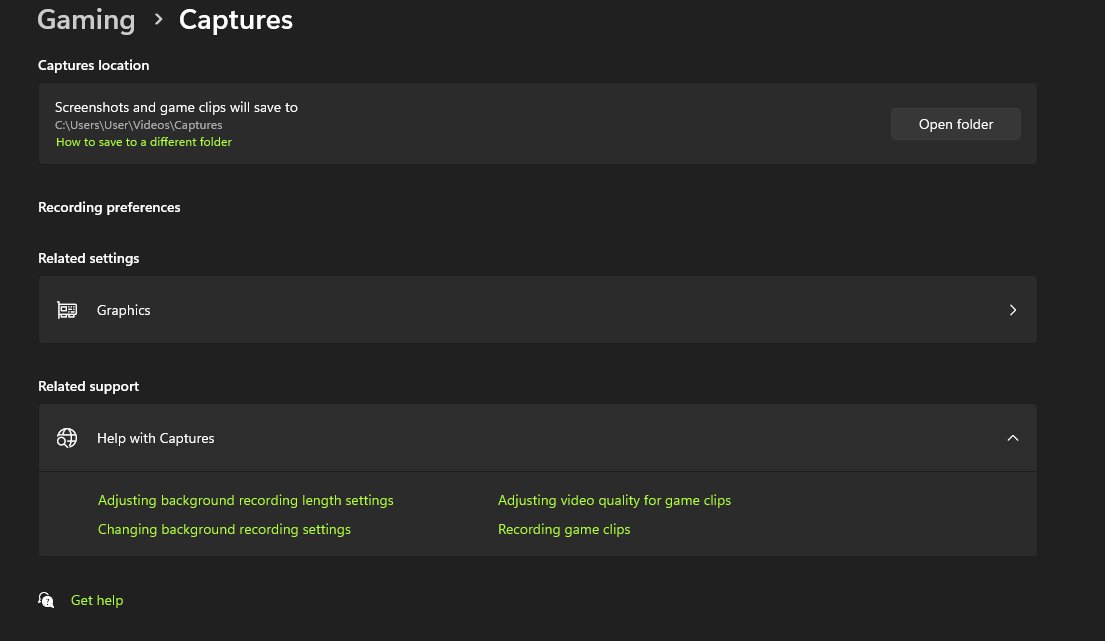
- Select Start, then Settings.
- Select Gaming in the left pane.
- Select Captures.
- Turn off Record what happened.
- Close Settings. The change applies straight away, with no restart.
These are the complete steps to turn off background recording in Windows 11 for Game Bar. The switch also stops the Windows + Alt + G shortcut from saving the last few seconds, because that shortcut needs background recording to work.
Understanding background recording in Windows 11
Several features can capture audio or video without a visible window. Only the first two keep a rolling buffer of what happened.
| Feature | What it records | Where you turn it off |
|---|---|---|
| Xbox Game Bar Record what happened | The last part of your game or app session, kept so you can save it after the fact | Settings > Gaming > Captures |
| Steam Record in background | All gameplay in games launched from Steam, up to the disk space you set; older footage is overwritten | Steam > Settings > Game Recording |
| Steam Record on demand | Gameplay only while you start a recording | Steam > Settings > Game Recording |
| Apps with microphone access | Audio whenever the app chooses to listen | Settings > Privacy & security > Microphone |
| Apps with camera access | Video from the webcam | Settings > Privacy & security > Camera |
Background recording uses system resources while it runs, which is why Microsoft leaves it off by default. Windows 11 Game Mode is a separate setting and is not affected.
Is Windows 11 recording in the background right now?
Windows shows a few signs when something is capturing. Use them before you change anything, so you know which source to switch off.
| What you see | What it means | Next step |
|---|---|---|
| A microphone icon in the notification area of the taskbar | An app is using the microphone now | Remove microphone access from the app in Settings > Privacy & security > Microphone |
| The camera light is on, or a camera notification appears | An app is using the webcam | Check Settings > Privacy & security > Camera |
| Record what happened is on in Settings > Gaming > Captures | Game Bar is buffering gameplay while you play | Turn it off |
| Steam's overlay shows a timeline with recording progress | Steam game recording is on | Set Steam to Off/Don't record |
| The Captures folder keeps gaining MP4 files you did not save on purpose | Something is triggering Game Bar recordings | Turn off the Game Bar shortcuts and controller access as shown below |
Use Xbox Game Bar to check the setting
Game Bar has its own capture settings that mirror the ones in Windows Settings. Changing one side changes the other.
- Press Windows + G to open Game Bar.
- Select the Settings icon in the top bar.
- Select More settings.
- Open Widgets, then Captures.
- Look at the recording options. If background recording shows as on, turn it off here or in Settings > Gaming > Captures.
- Press Esc to close Game Bar.
Disable Game Bar screen capture and audio recording settings
If you still use Game Bar for the odd clip but do not want it picking up your voice or desktop sounds, cut the audio side down.
- Go to Settings > Gaming > Captures.
- Turn off the option to record audio when recording a game.
- Press Windows + G, select Settings, then More settings.
- Open Widgets > Captures.
- Under Audio to record, choose None to record no sound, or Game only to leave out your microphone and other apps.
- Close Game Bar.
The All option captures your microphone, music and system sounds, including notifications, so avoid it if privacy is the concern.
Disable manual Game Bar recording too
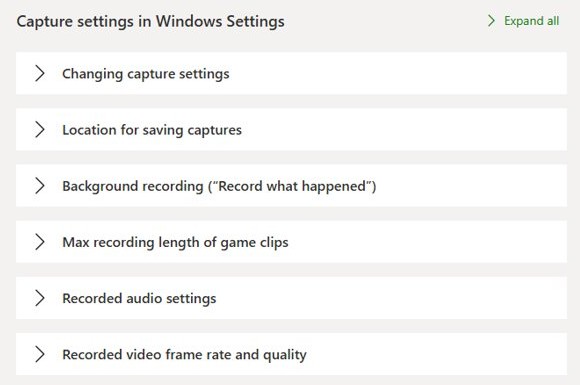
Turning off Record what happened stops the rolling buffer, but Windows + Alt + R can still start a full recording. If you never use Game Bar, turn the whole overlay off.
- Select Start > Settings.
- Go to Gaming > Game Bar.
- Turn off the Game Bar switch at the top of the page.
- Press Windows + G to confirm that the overlay no longer opens.
You can turn Xbox Game Bar back on from the same page later.
Turn off microphone access for apps and system services
Microphone access for apps is the switch that matters most for audio recording, because it covers every app on the PC, not only Game Bar.
- Select Start > Settings.
- Go to Privacy & security, then select Microphone under App permissions.
- To block everything, turn off Microphone access.
- To block only some apps, leave it on and turn off the apps you do not trust under Let apps access your microphone.
- To block classic desktop programs, turn off Let desktop apps access your microphone.
Turning off desktop app access also stops some Windows features from using the microphone, such as Windows dictation. Windows components that use the microphone indirectly show up as the component, for example Speech Runtime Executable.
Stop background recording by managing app permissions (camera, audio, screen)
Camera access works the same way as microphone access. Screen recording has no single Windows permission page, so you stop it inside the app that does it, such as Game Bar or Steam.
- Go to Settings > Privacy & security > Camera.
- Turn off Camera access to block every app, or turn off individual apps in the list.
- Turn off Let desktop apps access your camera for desktop programs.
- Return to Privacy & security > Microphone and repeat for audio.
- For screen capture, turn off Record what happened in Game Bar and set Steam game recording to off.
Desktop apps may not always appear in these lists, and some can still reach the camera or microphone through other methods, so the taskbar microphone icon remains the real check.
Disable background recording for specific apps (per-app controls)
If one app is the problem, block just that app and leave everything else working.
| App type | Per-app control | Where |
|---|---|---|
| Microsoft Store app | Its own microphone and camera toggles | Settings > Privacy & security > Microphone or Camera |
| Desktop program | No single-app toggle; one switch covers all desktop apps | Let desktop apps access your microphone |
| A game Game Bar treats as a game | Clear Remember this is a game so Game Bar stops applying gaming features to it | Windows + G > Settings > More settings > General, with the game open |
| A Steam game | Steam records any game that supports the Steam Overlay when recording is on | Steam > Settings > Game Recording |
Select an app under the desktop apps list to see the exact file on your device that used the camera or microphone.
Stop recordings caused by another app
Steam has its own recorder that captures gameplay in the background and does not appear in Windows Settings at all.
- Open the Steam client.
- Select Steam > Settings.
- Select Game Recording.
- Choose Off/Don't record. Pick Record on Demand instead if you want recording only when you start it.
- Close the Settings window.
You can reach the same page during play: open the Steam Overlay and select the Game Recording tab at the bottom of the screen. Steam only records games played through the Steam client, not your desktop or other programs.
Prevent background recording by disabling startup and background apps
A recorder that never starts cannot record. Stop capture and streaming tools you do not need from loading with Windows.
- Go to Settings > Apps > Startup.
- Turn off the toggle for any recording, streaming or chat app you do not need at sign-in.
- Go to Settings > Apps > Installed apps.
- Select More (three dots) next to an app, then Advanced options.
- Under Let this app run in the background, choose Never.
- Alternatively, press Ctrl + Shift + Esc, open the Startup apps tab in Task Manager, and select Disable on the app.
The background option sits with the other per-app settings in Windows 11 and appears only for apps that support it; many desktop programs do not show it.
Advanced privacy controls: turning off activity history and diagnostics
Activity history and diagnostic data are not audio or video recording, but they are the other things Windows records about how you use the PC.
- Go to Settings > Privacy & security > Activity history.
- Turn off Store my activity history on this device.
- Select Clear history to remove what is already stored for this account.
- Go to Settings > Privacy & security > Diagnostics & feedback.
- Under Diagnostic data, leave only required data by turning off optional diagnostic data.
If you see Some settings are hidden or managed by your organization, a work or school policy controls these options and you cannot change them yourself.
Additional settings to consider
These settings do not stop recording on their own, but they decide how much a recording can capture and where it goes.
| Setting | Path | Why it matters |
|---|---|---|
| Captures folder | Settings > Gaming > Captures > Open folder | Shows every Game Bar clip and screenshot; they save as MP4 and PNG in Videos > Captures |
| Max recording length | Settings > Gaming > Captures | Caps how long a manual Game Bar recording can run |
| Capture mouse cursor | Settings > Gaming > Captures | Decides whether the pointer shows in clips |
| Steam disk space for background recording | Steam > Settings > Game Recording | Limits how much drive space Steam's rolling recording can fill |
| Game Bar keyboard shortcuts | Windows + G > Settings > More settings > Shortcuts | Clear or change shortcuts so a stray key press does not start a recording |
Understanding other built-in recording features
Windows 11 has other recorders that only run when you start them. None of them record in the background.
| Tool | What it records | Starts on its own? |
|---|---|---|
| Snipping Tool Record mode | A region of the screen you draw | No, you select Record and draw the area |
| Sound Recorder | Audio from the microphone, up to 3 hours per file | No, you press Ctrl + R or the record button |
| Game Bar Start recording | The current game or app window | No, you press Windows + Alt + R |
Delete clips that are already using storage
Turning off recording does not remove clips that were already saved. Delete them by hand.
- Go to Settings > Gaming > Captures and select Open folder.
- Select the MP4 and PNG files you do not want, then press Delete.
- In Steam, select View > Recordings & Screenshots.
- Delete the recordings and clips you no longer need.
- Empty the Recycle Bin to free the space.
Steam's background recordings are temporary and get overwritten once their reserved space fills, but clips you saved stay until you delete them.
What changes when background recording is disabled?
These are the implications of disabling background recording. Nothing else in Windows depends on it.
| Before | After you turn it off |
|---|---|
| Windows + Alt + G saves the last few seconds of play | The shortcut has nothing to save |
| Game Bar uses resources during every game | That overhead is gone |
| Steam's timeline lets you rewind past play | No footage to rewind until you record on demand |
| Screenshots with Windows + Alt + PrtScn | Still work |
| Manual recording with Windows + Alt + R | Still works unless you also turn off Game Bar |
How to confirm background recording is fully disabled (final verification)
- Open Settings > Gaming > Captures and confirm Record what happened is off.
- Launch a game, play for a minute, then press Windows + Alt + G. No new clip should appear in Videos > Captures.
- In Steam, open Settings > Game Recording and confirm Off/Don't record is selected.
- Watch the notification area of the taskbar. No microphone icon should appear while you are not in a call or using voice input.
- Open Settings > Privacy & security > Microphone and check that only the apps you allowed are switched on.
If the setting is missing
Record what happened is not on the Captures page
The PC cannot record clips, or Game Bar is turned off or out of date.
- Open Settings > Gaming > Game Bar and turn on the Game Bar switch.
- Update Game Bar from Microsoft Store > Library > Get updates.
- If Game Bar says Sorry, this PC doesn't meet the hardware requirements for recording clips, the graphics hardware lacks a supported video encoder, so background recording cannot run at all.
Privacy settings are greyed out
A work or school organisation manages the device.
- Look for Some settings are hidden or managed by your organization at the top of the page.
- Ask your IT administrator to change the policy.
Steam keeps recording after you turned off Game Bar
Steam's recorder is separate from Windows.
- Open Steam > Settings > Game Recording.
- Select Off/Don't record.
The microphone icon still appears
A desktop app has microphone access.
- Open Settings > Privacy & security > Microphone and look at the desktop apps list for the program that used it.
- Close the app, or turn off Let desktop apps access your microphone.
Background recording Windows 11 FAQ
How do I turn off background recording in Game Bar?
Open Settings > Gaming > Captures and turn off Record what happened. You can reach the same option from Game Bar by pressing Windows + G, then Settings > More settings > Widgets > Captures. The change applies immediately without a restart.
How do I turn off Xbox background recording on PC?
Xbox background recording on a Windows PC is the Game Bar Record what happened setting. Turn it off in Settings > Gaming > Captures. To stop all Game Bar recording, also turn off the Game Bar switch in Settings > Gaming > Game Bar.
How do I turn off background recording in Steam?
In the Steam client, go to Steam > Settings > Game Recording and choose Off/Don't record. Record on Demand is the alternative if you still want to record only when you start it. Steam's recorder works separately from Windows settings.
How do I disable background recording on Windows 10?
Windows 10 has the same Record what happened option under Settings > Gaming > Captures. Turn it off there. The Game Bar page on Windows 10 is labelled Xbox Game Bar instead of Game Bar.
Does background recording slow down my PC?
It uses system resources while you play, which is why Microsoft leaves it off by default. Steam's recorder uses NVIDIA and AMD graphics hardware where it can, and falls back to the CPU, which can cause a noticeable performance hit.
How do I turn off recording completely on Windows 11?
Turn off Record what happened in Settings > Gaming > Captures, turn off the Game Bar switch in Settings > Gaming > Game Bar, and set Steam game recording to Off. Then remove microphone and camera access in Settings > Privacy & security.
How do I stop a background process from recording?
Stop it from starting: turn it off in Settings > Apps > Startup and set Let this app run in the background to Never under the app's Advanced options. Then block its microphone access in Settings > Privacy & security > Microphone.
Does turning off background recording delete my clips?
No. Clips already saved stay in Videos > Captures for Game Bar and in View > Recordings & Screenshots for Steam. Delete them by hand if you want the storage back.