To run a virtual machine on Windows 11, turn on CPU virtualization in UEFI, then use Hyper-V on Pro or Enterprise, or install VirtualBox or VMware Workstation on any edition.
This guide compares the four built-in and free options, lists the requirements for a Windows 11 guest, and fixes the errors that stop a VM from starting.
How do I create a virtual machine in Windows 11?
The quickest route to install a virtual machine in Windows 11 Pro uses Hyper-V, because it ships with Windows and needs no download. On Windows 11 Home, use VirtualBox or VMware Workstation instead, and follow the same flow to run a virtual machine with either app.
- Make sure virtualization (Intel VT or AMD-V) is turned on in UEFI.
- Select Start, type Windows features, and open Turn Windows features on or off.
- Tick Hyper-V, select OK, and restart when prompted.
- Open Hyper-V Manager, then select New > Virtual Machine in the Actions pane.
- Pick Generation 2, assign memory, choose a virtual switch, and create a virtual hard disk.
- Under Installation Options, point to a Windows or Linux .iso file and select Finish.
- Right-click the VM, select Connect…, then Action > Start.
Hyper-V vs VirtualBox vs VMware Workstation vs Windows Sandbox
All four use hardware virtualization, but they differ in edition support, cost and what survives a restart. If you only need Linux command-line tools, WSL 2 on Windows 11 is lighter than a full VM.
| Option | Windows editions | Cost and source | Keeps changes? | Works with Hyper-V on? | Best for |
|---|---|---|---|---|---|
| Hyper-V | Windows 11 Pro or Enterprise (not Home) | Built into Windows; there is no Hyper-V download | Yes | It is Hyper-V | Windows and Linux test machines on Pro |
| Oracle VirtualBox | Windows 11 host; Oracle lists no edition limit | Free, GPL v3 base package; separate Extension Pack | Yes, plus snapshots | May not start VMs or may run slower in emulated mode | Home users, old operating systems |
| VMware Workstation Pro | Windows host | Free from Broadcom since November 11, 2024; no Broadcom support for free users | Yes, plus snapshots | Yes, through Host VBS Mode on Windows 10 build 19041.264 or newer, with some limits | Home users who also need Hyper-V-based security |
| Windows Sandbox | Pro, Enterprise, Education (not Home) | Built into Windows | No, everything is deleted on close | Uses the Microsoft hypervisor itself | Opening an untrusted file or app once |
What is a virtual machine?
A virtual machine is a complete computer emulated in software: its own firmware, CPU cores, memory, disk file and network card, running as a window on your PC.
| Term | Meaning on Windows 11 |
|---|---|
| Host | Your physical Windows 11 PC that runs the hypervisor |
| Guest | The operating system inside the VM, such as Windows 11, Windows 10 or Linux |
| Hypervisor | Hyper-V, VirtualBox or VMware Workstation; it hands CPU, RAM and disk to each guest |
| Virtual hard disk | A file on the host (.vhdx for Hyper-V) that the guest sees as its drive |
| ISO file | The installation disc image the guest boots from |
| Virtual Machine Platform | A Windows optional feature that provides core virtualization services to apps |
Why use a virtual machine?
Virtual machines are useful whenever you need a second operating system without a second PC or a dual-boot setup. A server guest such as the Ubuntu Server ISO runs in a VM exactly as it would on bare metal.
| Use | Why a VM helps |
|---|---|
| Try Windows 11 updates or Insider builds | A broken guest never touches the host install |
| Run Linux next to Windows | Both systems run at once, no restart |
| Test software and scripts | Restore a snapshot to get a clean machine again |
| Open suspicious files | Windows Sandbox discards everything when closed |
| Keep legacy apps alive | Old Windows versions run in VirtualBox |
| Learn server administration | Build a small network of VMs on one PC |
Limitations of virtual machines
The advantages of virtual machines are isolation, snapshots and several systems on one PC. The costs are just as concrete.
| Limitation | What it means |
|---|---|
| Shared RAM | Memory you give a guest is taken from the host while the VM runs |
| Disk space | Each guest needs its own disk file; Windows 11 alone needs 64 GB |
| One hypervisor owns the CPU | VirtualBox and VMware can fail or slow down while Hyper-V is on |
| Licensing | A Windows guest still needs its own product key |
| Edition limits | Hyper-V and Windows Sandbox are not available on Windows 11 Home |
Hardware requirements
Check requirements for Windows before you start: the host needs hardware virtualization, and a Windows 11 guest needs the same TPM and Secure Boot as a physical PC.
| Requirement | Hyper-V host | Windows Sandbox | Windows 11 guest |
|---|---|---|---|
| Windows edition | Windows 11 Pro or Enterprise | Pro, Enterprise, Pro Education/SE, Education | Any licensed edition |
| CPU | 64-bit with SLAT and VM Monitor Mode Extension | AMD64, or Arm64 on 22H2 and later; 2 cores minimum | Supported for Windows 11 |
| Firmware setting | Intel VT or AMD-V on, plus DEP (XD or NX bit) | Virtualization on in BIOS | UEFI with Secure Boot |
| Memory | 4 GB minimum | 4 GB minimum, 8 GB recommended | 4 GB assigned to the VM |
| Disk | Room for virtual hard disks | 1 GB free, SSD recommended | 64 GB virtual disk |
| TPM | Not needed on the host for Hyper-V | Not listed | TPM 2.0 (virtual TPM in the VM) |
Method 1: Enable virtualization in BIOS or UEFI
Many PCs ship with virtualization already on, and Surface devices always have it on. If the requirements check says otherwise, here is how to enable virtualization on Windows 11 from the firmware.
- Open Settings > System > Recovery.
- Next to Advanced startup, select Restart now.
- Select Troubleshoot > Advanced options > UEFI Settings > Restart to access the UEFI (or BIOS).
- Find the virtualization option, often labelled Intel Virtualization Technology (VT-x), Intel VMX or AMD-V/SVM, and turn it on.
- Change nothing else, then save and exit; the PC restarts.
- Back in Windows, open Turn Windows features on or off, tick Virtual Machine Platform, select OK and restart if asked.
The menu names in the UEFI differ by maker, so open your PC manufacturer's support page (Acer, Asus, Dell, HP or Lenovo) for the exact location. Turning on Virtual Machine Platform mainly matters on PCs upgraded from Windows 10.
Method 2: Use Hyper-V (Windows 11 Pro and Enterprise)
Enable Hyper-V on Windows 11 Pro from the Windows Features dialog; it is an optional feature, not a separate app. The same choices apply to turning on Hyper-V in 26H2, including PowerShell and DISM.
Enable Hyper-V on Windows 11 Home is not possible: Microsoft states the Hyper-V role cannot be installed on Home. Use VirtualBox or VMware Workstation there, or upgrade to Pro.
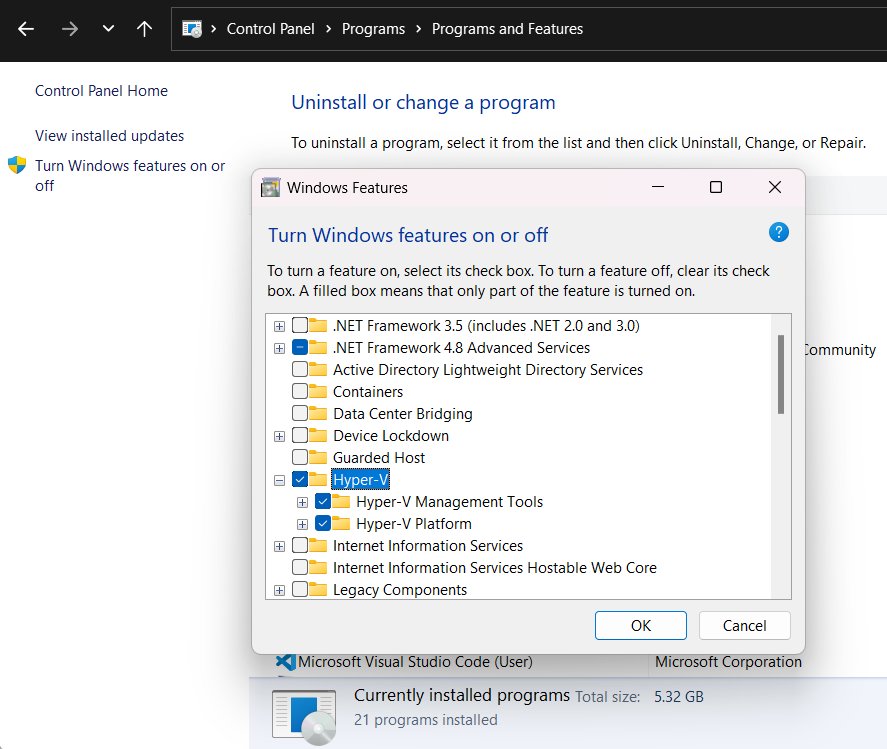
- Select Start, type Windows features, and open Turn Windows features on or off.
- Tick Hyper-V; both Hyper-V Platform and Hyper-V Management Tools are selected.
- Select OK.
- Restart the PC when Windows asks.
- Search the Start menu for Hyper-V Manager to confirm it opens.
If the list shows Windows Hypervisor Platform but no Hyper-V entry, the PC or edition does not meet the Hyper-V requirements.
Install Hyper-V
Open Windows PowerShell as administrator, or the command fails. This is the fastest way to enable Hyper-V on several PCs.
Enable-WindowsOptionalFeature -Online -FeatureName Microsoft-Hyper-V -AllTurns on every Hyper-V component on the running system. With DISM, use DISM /Online /Enable-Feature /All /FeatureName:Microsoft-Hyper-V instead.
You should see: PowerShell asks to restart; enter Y. DISM reports "The operation completed successfully."
Create a virtual machine
You need to be in the local Administrators or Hyper-V Administrators group, and you need an .iso file or an existing .vhdx disk.
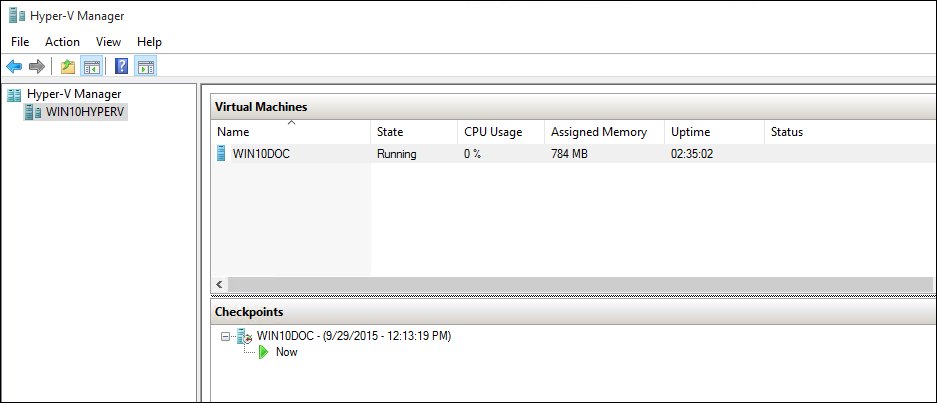
- Open Hyper-V Manager and select your PC in the left pane.
- In the Actions pane, select New > Virtual Machine, then Next.
- On Specify Name and Location, name the VM and select Next.
- On Specify Generation, choose Generation 2 unless you have a reason for Generation 1.
- On Assign Memory, enter the startup memory (4096 MB for Windows 11) and optionally tick Dynamic Memory.
- On Configure Networking, pick a virtual switch, or skip and add one later.
- On Connect Virtual Hard Disk, select Create a virtual hard disk, then on Installation Options choose Install an operating system from a bootable image file and select Finish.
- To start and connect to the virtual machine, right-click it, select Connect…, then Action > Start.
Generation 2 VMs have Secure Boot on by default and support a virtual TPM, which a Windows 11 guest needs. Add the virtual TPM in the VM's security settings before you start Setup.
Method 3: Use Oracle VirtualBox on Windows 11
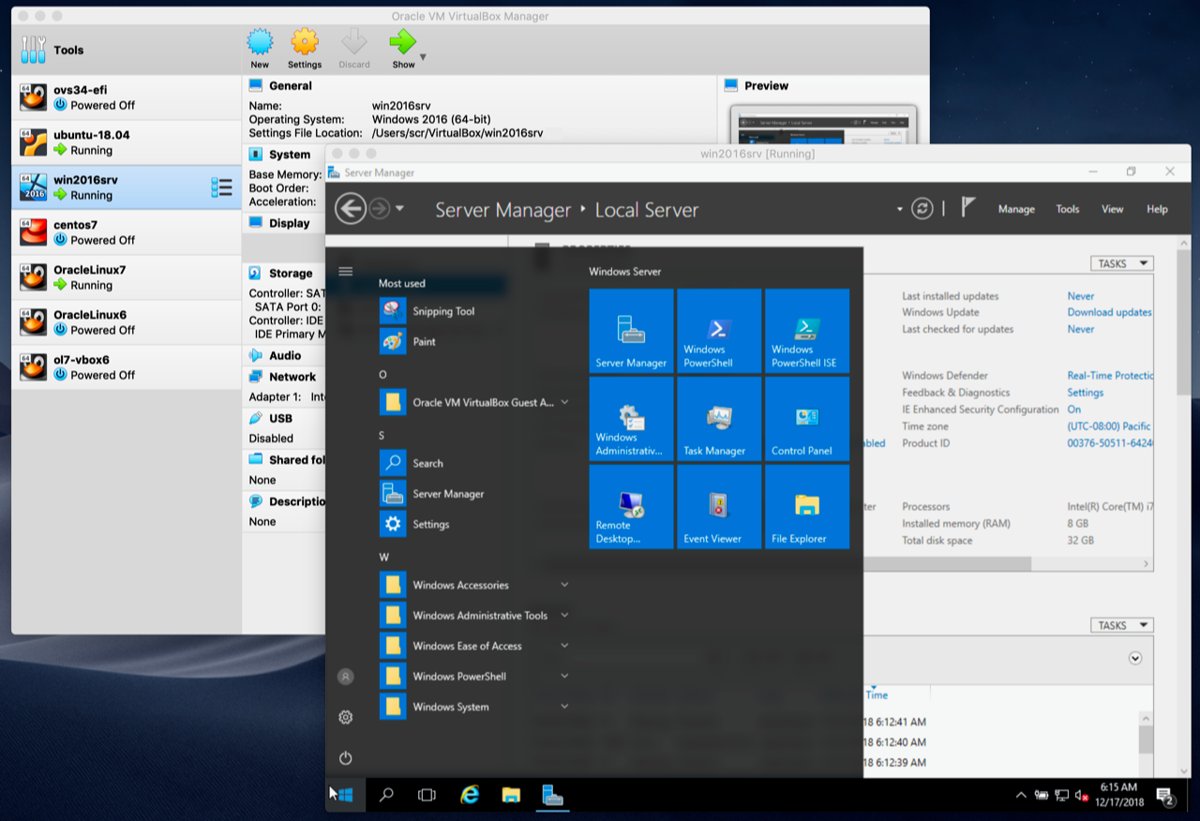
VirtualBox runs on Windows 11 Home as well as Pro. Get the current VirtualBox installer from Oracle, then install VirtualBox on Windows 11 and configure it.
- Run the VirtualBox installer and keep the default components.
- Open VirtualBox Manager and select New to start the Create Virtual Machine wizard.
- Optionally install the Extension Pack from Tools > Extensions for VRDP remote display, webcam passthrough, PXE boot and disk encryption.
The base package is open source under GPL v3; the Extension Pack is a separate download with its own licence. VirtualBox also handles very old guests, such as a Windows 95 VirtualBox build from your own install media.
How to download the Windows 11 ISO file for VirtualBox
Microsoft's download page offers an ISO meant for this exact case: creating a virtual machine.
- Open the Download Windows 11 page on microsoft.com.
- Under Download Windows 11 Disk Image (ISO) for x64 devices, select Windows 11 (multi-edition ISO for x64 devices).
- Select Confirm, then pick the language for the ISO.
- Select the 64-bit download link and save the .iso to a drive with space for the VM too.
The ISO is multi-edition; your product key decides which edition installs. Arm64 PCs need the separate Arm64 ISO.
How to create a new virtual machine for Windows 11
Windows 11 setup checks for a TPM and Secure Boot inside the VM, the TPM 2.0 and Secure Boot requirement Microsoft added for guests in 2021. VirtualBox provides both on the Motherboard tab.
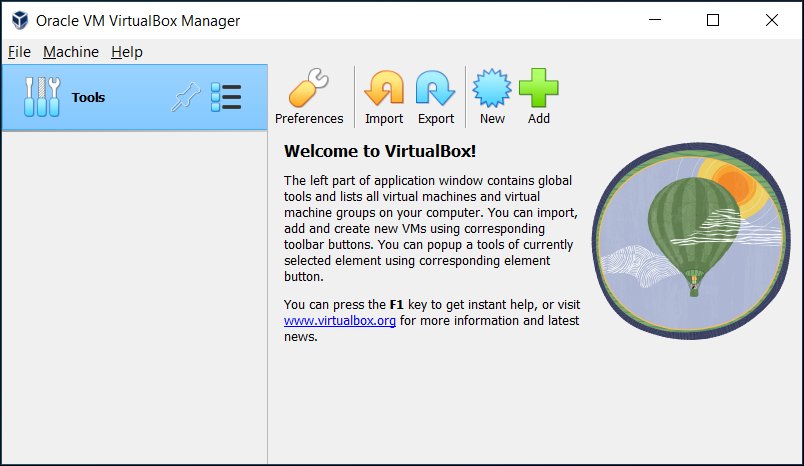
- In VirtualBox Manager, select New and name the VM.
- Next to ISO Image, browse to the Windows 11 ISO; VirtualBox fills in Type and Version.
- Tick Skip Unattended Installation if you want to run Setup yourself.
- Set Base Memory to at least 4096 MB and give the VM 2 or more processors.
- Create a virtual hard disk of 64 GB or more and select Finish.
- Open Settings > System > Motherboard, tick Enable EFI and Enable Secure Boot, and set TPM to version 2.0.
How to install Windows 11 in VirtualBox
Install an operating system the same way in any hypervisor: boot the VM from the ISO and run Setup.
- Select the VM and click Start; it boots from the attached ISO.
- Pick the language and enter your product key when Setup asks.
- Install Windows on the empty virtual disk.
- Finish the out-of-box setup, then install Guest Additions.
With unattended installation, VirtualBox runs these steps itself and can add Guest Additions automatically.
Install Guest Additions or integration tools
Guest tools add the display driver, shared clipboard, drag and drop and shared folders. Each hypervisor has its own package; for screenshots of each step, use this walkthrough for installing Guest Additions in a Windows 11 VM.
| Hypervisor | How to install | Then |
|---|---|---|
| VirtualBox | In the VM window, select Devices > Insert Guest Additions CD Image; if autorun is off, run VBoxWindowsAdditions.exe from the virtual CD drive | Reboot the guest |
| VMware Workstation Pro | Select VM > Install VMware Tools; if autorun is off, run D:\setup64.exe in a 64-bit guest | Reboot when prompted |
Configure shared folders
Shared folders need the Guest Additions but no network. They are read-write unless you tick read-only.
- In the running VirtualBox VM, select Devices > Shared Folders.
- Add a host folder and give it a share name.
- Turn on automatic mounting so it appears in the guest, and read-only access for untrusted guests.
- In the Windows guest, open File Explorer and find the share under the network location VirtualBox Shared Folders, or map it with Map Network Drive.
Configure networking
VirtualBox's default NAT mode is enough for browsing, downloads and email inside the guest. Change it only for servers or VM-to-VM traffic.
| Network mode | Use it when |
|---|---|
| NAT (default) | The guest only needs internet access |
| NAT Network | Several VMs need to see each other and reach the internet |
| Bridged | The guest must appear on your real network, for example a server |
| Host-only | The host and VMs talk to each other with no outside access |
| Not attached | You want the guest to see a network card with the cable pulled |
In Hyper-V, the matching choice is the virtual switch you pick on the Configure Networking page.
Use snapshots
A snapshot saves the VM's exact state so you can return to it after a bad update or test. Keep free disk space, because snapshots grow the VM folder.
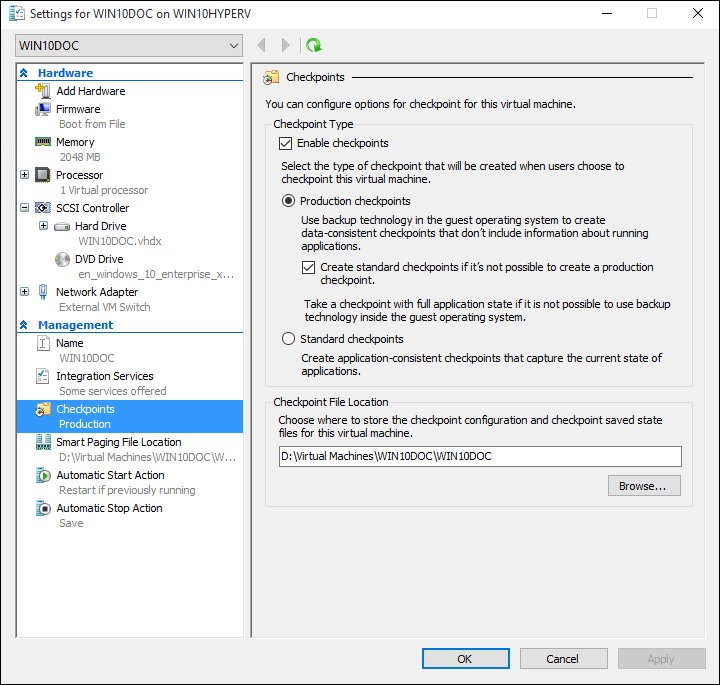
- In VirtualBox Manager, select the VM and open the Snapshots tool.
- Select Take, name the snapshot, and confirm.
- To roll back, select the snapshot and choose Restore.
- Select Delete on snapshots you no longer need to reclaim space.
Method 4: Use VMware Workstation on Windows 11
VMware Workstation Pro is free for personal and commercial use, downloaded through a Broadcom account. Grab the free Workstation Pro download, and add the VMware Remote Console client only if you also manage VMs on ESXi or vSphere.
- Install Workstation Pro and open it.
- Start the new virtual machine wizard and choose the installer disc image (ISO).
- Set the guest type, VM name, disk size and memory, then finish the wizard.
- Power on the VM and run the operating system's Setup.
- Select VM > Install VMware Tools, then reboot the guest.
Workstation Pro runs on a PC with Hyper-V turned on through Host VBS Mode, which switches on automatically on Windows 10 build 19041.264 or newer. Broadcom notes that VMs in this mode have functional limitations.
Enable Windows Sandbox from Control Panel
Windows Sandbox is a disposable Windows desktop that starts clean every time and deletes everything when closed. Microsoft does not support it on Windows 11 Home edition. You can also enable Windows Sandbox from Settings and fix its startup errors.
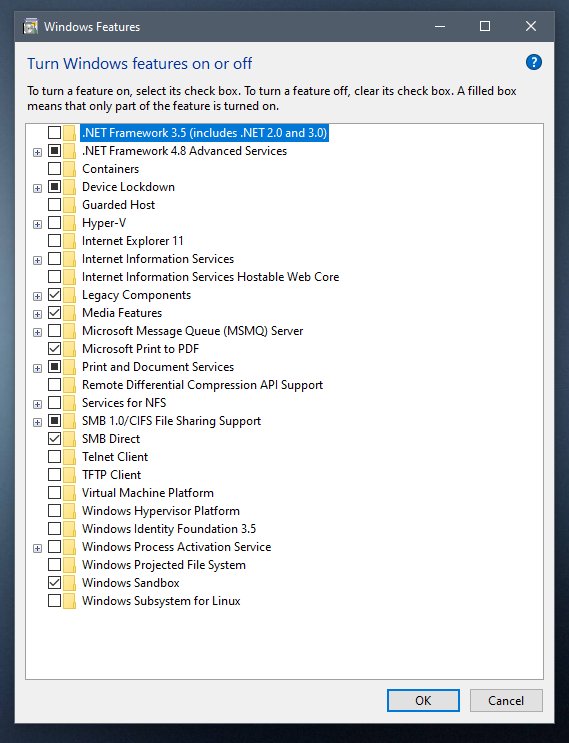
- Confirm virtualization is on in UEFI (prerequisites: 4 GB RAM, 1 GB free disk, 2 CPU cores).
- Search the taskbar for Turn Windows features on or off and open it; this is the Control Panel dialog.
- Tick Windows Sandbox and select OK.
- Restart if prompted.
- Open Windows Sandbox from the Start menu.
If the Windows Sandbox box is missing or greyed out, the PC does not meet the requirements, usually the edition or the virtualization setting.
Enable Windows Sandbox from PowerShell
Open PowerShell as administrator and run the following command:
Enable-WindowsOptionalFeature -FeatureName "Containers-DisposableClientVM" -All -OnlineInstalls the Windows Sandbox optional feature on the running system; this is the command line interface route for managing the feature.
You should see: Windows asks to restart, and Windows Sandbox appears in the Start menu afterwards.
Inside a Hyper-V VM, Sandbox needs nested virtualization. Run Set-VMProcessor -VMName <VMName> -ExposeVirtualizationExtensions $true on the host first.
Using the Windows Sandbox feature in Windows 11
Sandbox behaves differently from a full VM in a few ways worth knowing before installation.
| Behaviour | Detail |
|---|---|
| Closing the window | Deletes all files, apps and settings in the sandbox |
| Restart inside the sandbox | Data survives from Windows 11 22H2 onward |
| Networking | On by default; customizing Windows Sandbox using configuration files lets you turn it off |
| Mapped folders | A configuration file can map a host folder read-only |
| Instances | Only one sandbox can run at a time |
| Inbox apps | Calculator, Photos, Notepad and Terminal are missing from 24H2 onward |
| Preview features | Try WSB preview features by joining the Windows Insider Program (Dev, Beta or Release Preview channel) |
Check whether virtualization is enabled
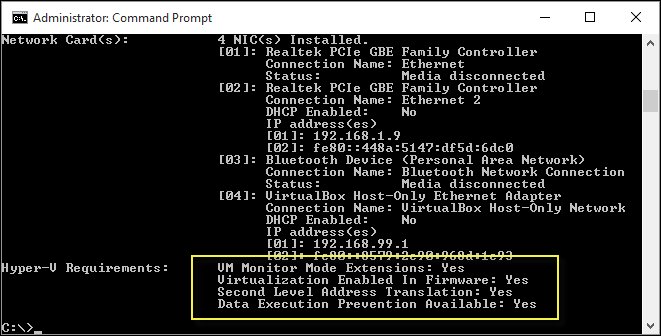
One report shows both whether the CPU feature is on and whether Hyper-V is already running. To dig into each Hyper-V component, confirm Hyper-V is enabled with the extra PowerShell and DISM checks.
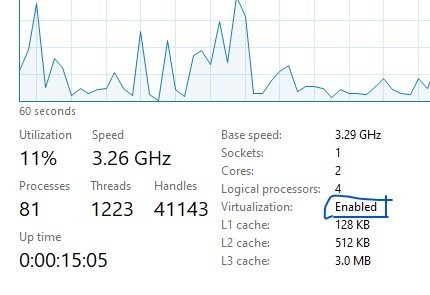
- Open Command Prompt or PowerShell, type systeminfo.exe and press Enter.
- Scroll to Hyper-V Requirements; every line reading Yes means the PC can run Hyper-V.
- A No next to virtualization enabled in firmware means you should repeat Method 1.
- If the section reads "A hypervisor has been detected. Features required for Hyper-V will not be displayed.", Hyper-V is already running.
- For a second check, search for msinfo32.exe, open System Information, and look for the same hypervisor line in the details pane.
Improve virtual machine performance
Get the most out of Windows 11 virtualization by sizing each guest to fit beside the host, not on top of it.
| Setting | Recommendation |
|---|---|
| Allocate system resources: memory | Give the guest what it needs (4 GB for Windows 11), but leave enough for the host; two running VMs each take their own share |
| Processors | 2 or more cores for Windows 11 guests |
| Disk | Store VM files on an SSD with spare space for snapshots |
| Hyper-V memory | Turn on Dynamic Memory so Hyper-V adjusts RAM while the VM runs |
| Guest tools | Install Guest Additions or VMware Tools for the proper display driver |
| One hypervisor at a time | Turn off Hyper-V when VirtualBox falls back to slow emulation |
Common problems and solutions
VirtualBox or VMware VMs will not start, or run very slowly
Hyper-V, Memory Integrity or Credential Guard holds the CPU's virtualization extensions.
- Open Control Panel > Programs and Features > Turn Windows features on or off.
- Expand Hyper-V > Hyper-V Platform and clear Hyper-V Hypervisor.
- Select OK and restart.
- If you depend on Memory Integrity, use VMware Workstation's Host VBS Mode instead of turning protection off.
Hyper-V is missing from Windows Features
The PC runs Windows 11 Home or fails a hardware requirement.
- Check the edition in Settings > System > About.
- Run systeminfo.exe and read the Hyper-V Requirements lines.
- On Home, install VirtualBox or VMware Workstation instead.
Windows 11 setup says the PC can't run Windows 11
The VM has no TPM 2.0, no Secure Boot or too little RAM or disk.
- In VirtualBox, open Settings > System > Motherboard and turn on EFI, Secure Boot and TPM 2.0.
- In Hyper-V, use a Generation 2 VM with a virtual TPM.
- Assign at least 4 GB RAM and a 64 GB disk.
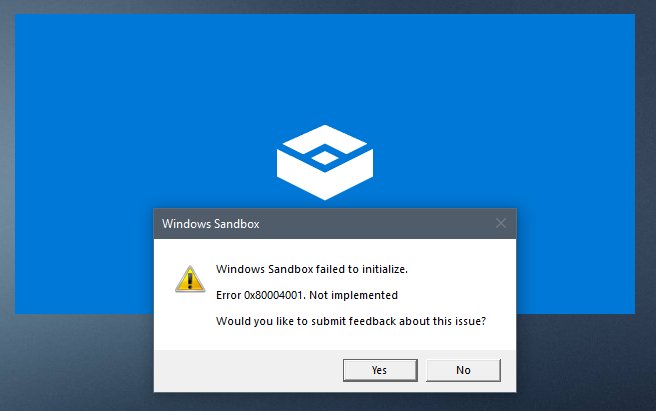
Windows Sandbox option is greyed out
Virtualization is off in firmware, or the edition is Home.
- Turn on virtualization in UEFI using Method 1.
- Confirm the PC runs Pro, Enterprise or Education.
- Inside a VM, expose virtualization extensions from the host.
Virtual machine not working on Windows 11: symptom, cause and fix
| Symptom | Likely cause | Fix |
|---|---|---|
| systeminfo shows virtualization disabled in firmware | Intel VT or AMD-V off in UEFI | Enable it in UEFI (Method 1) |
| Only Windows Hypervisor Platform is listed | Edition or CPU fails Hyper-V requirements | Use VirtualBox or VMware Workstation |
| VirtualBox VM is slow after enabling Hyper-V | Hyper-V owns virtualization, VirtualBox emulates | Clear Hyper-V Hypervisor and restart |
| Hyper-V Manager not in Start | Management Tools not installed | Re-run Windows Features with all Hyper-V items ticked |
| No clipboard or shared folders in a VirtualBox guest | Guest Additions missing or outdated | Insert Guest Additions CD Image and reboot |
| Calculator or Notepad missing in Sandbox | Not included from 24H2 | Install the app inside the sandbox or wait for Microsoft's fix |
Virtual machines on Windows 11 FAQ
Can I install a virtual machine on Windows 11?
Yes. Every Windows 11 edition can run VirtualBox or VMware Workstation Pro, and Pro or Enterprise also include Hyper-V. Turn on Intel VT or AMD-V in UEFI first, then create a VM from an ISO file.
Can I run a virtual machine on Windows 11 Home?
Yes, but not with Hyper-V or Windows Sandbox, which Microsoft does not support on Home. Install Oracle VirtualBox or VMware Workstation Pro, both free, and create the VM inside that app.
How do I enable Hyper-V in Windows 11?
Open Turn Windows features on or off, tick Hyper-V and restart. As an alternative, run Enable-WindowsOptionalFeature -Online -FeatureName Microsoft-Hyper-V -All in an administrator PowerShell window and enter Y to restart.
How do I enable Hyper-V in Windows 11 with DISM?
Open PowerShell or Command Prompt as administrator and run DISM /Online /Enable-Feature /All /FeatureName:Microsoft-Hyper-V. When it reports that the operation completed successfully, restart the PC to finish the install.
How do I enable Hyper-V in BIOS?
Hyper-V itself is a Windows feature, but it needs Intel VT or AMD-V turned on in the BIOS or UEFI. Restart into UEFI from Settings > System > Recovery > Advanced startup and switch the virtualization option on.
How do I open Hyper-V Manager in Windows 11?
Select Start, type Hyper-V Manager and open it. If it does not appear, the Hyper-V Management Tools are not installed, so tick the full Hyper-V entry in Windows Features and restart.
How do I turn off a virtual machine in Windows 11?
Shut the guest down from its own Start menu, which is the safe route. To stop Hyper-V itself, clear Hyper-V Hypervisor under Hyper-V Platform in Windows Features and restart.
Why disable Hyper-V?
VirtualBox and some VMware setups cannot use the CPU's virtualization extensions while Hyper-V runs, so their VMs fail or fall back to slow emulation. Disabling Hyper-V also turns off features that depend on it, such as Memory Integrity.
Is a Windows 11 virtual machine free?
The hypervisors are free: Hyper-V ships with Pro, and VirtualBox and VMware Workstation Pro cost nothing. The Windows 11 guest still needs a valid licence, entered as a product key during Setup.