To run the printer troubleshooter in Windows 11, open the Get Help app, search for printer troubleshooter and follow the prompts; in Windows 10, open Settings > Update & Security > Troubleshoot > Additional troubleshooters > Printer.
This guide covers both versions, why Windows 11 now sends you to Get Help, and 14 fixes to try when you still cannot print in Windows 11/10. When the troubleshooter finds nothing, a broader Windows 11/10 printer reference helps narrow down driver, settings and scanning faults.
Where to find and run the Windows 11/10 printer troubleshooter
Quick summary: Windows 11 runs the printer troubleshooter through the Get Help app, and Windows 10 still runs the classic built-in version from Settings. Both scan your printer setup and try to repair what they find.
- Turn the printer on and connect it by USB cable or to the same Wi-Fi network as the PC.
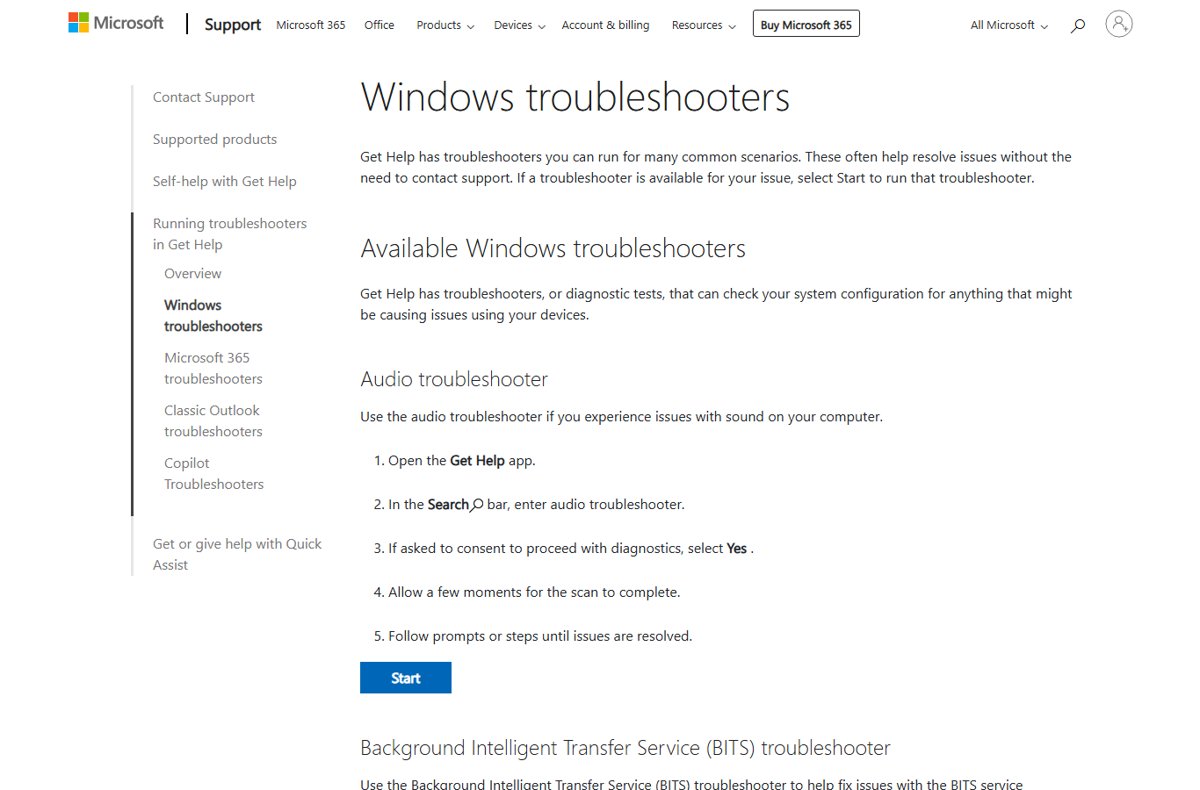
- Select Start, type
get helpand open the Get Help app. - Type
printer troubleshooterin the search bar and press Enter. - Select Yes if Get Help asks for consent to run diagnostics.
- Follow the prompts to scan for printers and troubleshoot your configuration.
- Apply any fix Get Help suggests, then print a test page to check the result.
On Windows 10, or on Windows 11 version 22H2 and older, the classic troubleshooter in Settings also works. The version sections below give both paths.
Check your Windows version first
Where the printer troubleshooter lives depends on your Windows release. Microsoft redirected the classic Printer troubleshooter to Get Help on newer Windows 11 builds and left older versions alone.
| Your Windows version | Printer troubleshooter you get | Where to start it |
|---|---|---|
| Windows 11, release after 22H2 | Get Help printer troubleshooter | Get Help app, or Settings > System > Troubleshoot > Other troubleshooters |
| Windows 11 version 22H2 and older | Classic built-in Printer troubleshooter | Settings > System > Troubleshoot > Other troubleshooters |
| Windows 10 | Classic built-in Printer troubleshooter | Settings > Update & Security > Troubleshoot > Additional troubleshooters |
To read your version, select Start > Settings > System > About and note the Windows edition and version.
How to run the printer troubleshooter on Windows 11 (step-by-step)
Use this route when you prefer to start from Settings instead of searching Get Help. On current Windows 11 builds it hands you to the same Get Help printer troubleshooter.
- Select Start > Settings > System > Troubleshoot.
- Select Other troubleshooters.
- Find Printer in the list and select Run next to it.
- Sign in to Get Help with your Microsoft account or work or school account if prompted.
- Choose your printer when the troubleshooter lists the printers it found.
- Let the scan finish and accept the fixes it offers, then close the app and print again.
The same route also lets you run any troubleshooter on Windows 10 and 11, such as Bluetooth for a Bluetooth printer.
Why the printer troubleshooter opens Get Help now
Microsoft is retiring the Microsoft Support Diagnostic Tool (MSDT) that ran the classic troubleshooters. The Printer troubleshooter was one of those moved to Get Help instead of being removed.
| Year | What changed in the MSDT retirement |
|---|---|
| 2023 | Microsoft began redirecting classic troubleshooters, including Printer, to the Get Help platform |
| 2024 | Redirection completed; troubleshooters without a Get Help version were removed |
| 2025 | The MSDT platform itself was removed from newer Windows 11 releases |
| Unaffected | Windows 11 version 22H2 and older, Windows 10, Windows 8.1 and Windows 7 keep the classic troubleshooters |
The removed list includes the old Devices and Printers and Hardware and Devices troubleshooters, so the Printer troubleshooter is now the one to use for printing faults. Get Help asks you to sign in with a Microsoft account or a work or school account.
How to run the printer troubleshooter on Windows 10
Windows 10 keeps the classic built-in printer troubleshooter, so you can run it straight from Settings.
- Select Start > Settings > Update & Security.
- Select Troubleshoot in the left pane.
- Select Additional troubleshooters.
- Select Printer, then select Run the troubleshooter.
- Choose the printer that is giving trouble when the troubleshooter asks.
- Follow the on-screen prompts to apply the fixes it reports, then print a test page.
Windows 10 lists earlier runs under Settings > Update & Security > Troubleshoot > View troubleshooting history.
Run the printer troubleshooter using commands or shortcuts
A Run box shortcut skips the menus. It opens the Troubleshoot page, where Other troubleshooters (Windows 11) or Additional troubleshooters (Windows 10) holds the Printer entry.
ms-settings:troubleshootPress Win + R, paste the line and press Enter. It opens Settings at the Troubleshoot page on Windows 11 and Windows 10.
You should see: The Troubleshoot page opens, and the Printer troubleshooter is one click away under Other troubleshooters or Additional troubleshooters.
Two other shortcuts help: type get help in Start search to open the Get Help app directly, or press Win + R and run control printers to open the Printers folder and confirm Windows can see the printer. Older msdt.exe commands depend on the MSDT tool that Microsoft removed from newer Windows 11 releases, so they are no longer a reliable route.
How printer troubleshooters help fix common printer problems
The troubleshooter checks configuration and services, so it repairs software faults. It cannot fix a jammed tray or an empty cartridge.
| The printer troubleshooter can | The printer troubleshooter cannot |
|---|---|
| Scan for printers connected locally or on the network | Clear a paper jam or close an open cover |
| Check your printer configuration for settings that block printing | Refill ink or toner |
| Run automated diagnostics and attempt to fix what they find | Join a wireless printer to your Wi-Fi network for the first time |
| Report its findings with suggested remedies | Repair a failed printhead or a broken USB port |
Pick your problem: common printer issues and quick fixes
Match what you see to a row and jump to that fix. Run the troubleshooter first in every case, because it is the quickest check.
| What you see | Likely cause | Go to fix |
|---|---|---|
| Printer shows Offline | Lost connection or a paused queue | 4 |
| Jobs sit in the queue and nothing prints | Stuck job or a crashed Print Spooler | 5 |
| "Printer not found" or not listed at all | Connection, driver or port problem | 2, 9 and 10 |
| Printer prints from one app but not another | Wrong printer selected or app settings | 13 |
| Printing stopped after a Windows or driver update | Incompatible or new driver | 6 and 11 |
| Faded, streaked or blank pages | Low ink, clogged printhead or paper type | 14 |
| Cannot print to a shared or network printer | Network discovery or sharing turned off | 12 |
What to do if the printer troubleshooter did not fix the issue
Work through the fixes in this order. Each one rules out a cause before the next, more involved step.
- Restart the printer and the PC (fix 1).
- Check the USB or Wi-Fi connection (fix 2), then set the printer as default (fix 3).
- Clear the print queue and restart the Print Spooler (fix 5).
- Update, roll back or reinstall the printer driver (fix 6).
- Remove the printer and add it again (fix 7).
- Run the printer manufacturer's diagnostic tool, then the advanced options near the end of this guide.
1. Restart your printer and computer
A power cycle clears a confused network connection or a printer stuck in an error state.
- Turn off the printer and unplug it from the wall.
- Wait 30 seconds, plug it back in and turn it on.
- Select Start > Power > Restart on the PC.
- Send a print job once both are back up.
2. Check the printer connection (USB or Wi-Fi)
| Connection type | What to check |
|---|---|
| USB | The cable is seated at both ends; try a different USB port on the PC |
| Wi-Fi | The printer's wireless option is on, and its wireless connectivity test from the printer menu passes |
| Wi-Fi with extenders or several routers | The PC and printer are on the same network name (SSID), not separate ones |
| Bluetooth | Bluetooth is on for both devices and the printer is within range |
If the PC itself cannot get online, fix the network connection before you go further with the printer.
3. Set your printer as the default printer
Apps send jobs to the default printer unless you pick another one, so a wrong default looks like a dead printer.
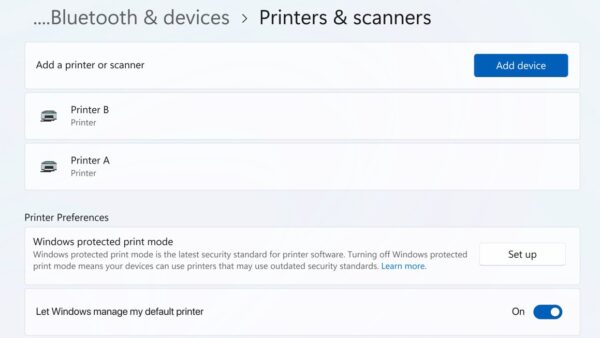
- Select Start > Settings > Bluetooth & devices > Printers & scanners.
- Turn off Let Windows manage my default printer if the next button is missing.
- Select your printer.
- Select Set as default.
4. Fix printer showing offline in Windows
Printer shows Offline although it is on
Windows lost contact with the printer, often after a network change or sleep.
- Power cycle the printer for 30 seconds.
- Confirm the printer and PC are on the same Wi-Fi network.
- Select Start > Settings > Bluetooth & devices > Printers & scanners, select the printer and choose Open print queue.
- Select … and then Cancel all to clear waiting jobs.
Printer stays offline on Windows 10
The queue is set to work offline or is paused.
- Open Settings > Devices > Printers & scanners, select the printer and choose Open queue.
- Select the Printer menu.
- Clear Pause Printing and Use Printer Offline if either is ticked.
5. Restart the Print Spooler service and clear stuck print jobs
The Print Spooler service manages every print job. One stuck job can block everything behind it, and a crashed spooler stops printing completely.
- Open Settings > Bluetooth & devices > Printers & scanners, select the printer and choose Open print queue.
- Right-click each job and select Cancel, or use … > Cancel all.
- Press Win + R, type
services.mscand press Enter. - Scroll to Print Spooler, right-click it and select Restart.
- Print a test page to confirm the queue moves.
If a job will not cancel, you can delete the stuck print job by clearing the spool folder by hand.
6. Update or reinstall printer drivers
Outdated or incompatible drivers cause recognition failures and spooler crashes. This is also the Windows 11/10 printer driver update and download route.
- Select Start, type
Device Managerand open it. - Expand Printers or Print queues.
- Right-click your printer and select Update driver.
- If no update is found, download the driver for your exact model, Windows version and system type (64-bit or 32-bit) from the printer maker's support site and install it.
- If the problem began after a driver update, right-click the printer, select Properties, open the Driver tab and select Roll Back Driver.
- Restart the PC and try printing again.
Avoid drivers marked for older Windows versions unless the maker offers nothing newer.
7. Remove and reinstall the printer
- Select Start > Settings > Bluetooth & devices > Printers & scanners.
- Select the printer, select Remove and confirm with Yes.
- Restart the PC.
- Return to Printers & scanners and select Add device next to Add a printer or scanner.
- Select Add device beside your printer when it appears, or Add manually if it does not.
With Add manually you can add the printer in Windows 11 by name, IP address or port.
8. Fix printer not detected in Windows
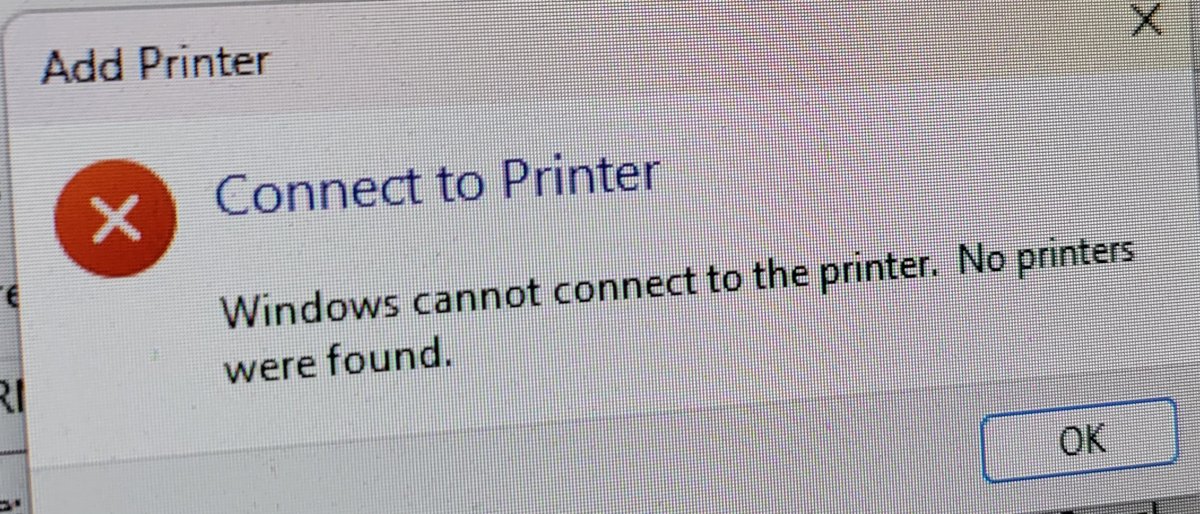
"Printer not found" or "Printer not recognized"
A loose connection, an outdated driver or a stalled spooler.
- Reseat the USB cable or move it to another port; for Wi-Fi, check the printer's screen for connection errors.
- Restart Print Spooler in
services.msc. - In Device Manager, right-click the printer under Printers and select Uninstall device, then restart so Windows reinstalls it.
Printer missing from the Add device list
Windows did not find it automatically.
- Select Add manually in Printers & scanners.
- For a USB printer, choose Add a local printer or network printer with manual settings, then Use an existing port and pick the USB port.
- Select Windows Update to refresh the driver list, pick the maker and model, and finish the wizard.
9. Check the printer port and IP address
A network printer that changed IP address leaves Windows sending jobs to the old one. Compare the port Windows uses with the address the printer reports.
Get-PrinterPortRun it in Windows PowerShell. It lists every printer port installed on the PC and does not need administrator rights.
You should see: The port your printer uses appears in the list; its address should match the one on the printer's network configuration page.
Print a network configuration page from the printer's own menu to find the printer's IP address. Run Get-Printer -Name "Your printer name" | Format-List to see which port that printer is set to. If the addresses differ, remove the printer and add it again so Windows picks up the new address.
10. Check Windows Update for printer fixes
Microsoft ships printing fixes and many printer drivers through Windows Update. Optional driver updates do not install on their own.
- Select Start > Settings > Windows Update and select Check for updates (Windows 10: Update & Security > Windows Update).
- Install what is offered and restart.
- On Windows 11, open Windows Update > Advanced options > Optional updates.
- Tick any printer driver listed and select Download and install, then restart.
11. Check firewall and network settings
Shared and network printers need discovery and sharing turned on for the network you use. Leave the firewall itself switched on.
- Select Start > Settings > Network & internet > Advanced network settings.
- Select Advanced sharing settings.
- Turn on Network discovery and File and printer sharing.
- For a printer shared from another PC, open File Explorer and type
\\ComputerNamein the address bar to test that the host is reachable. - Add the shared printer with Add manually > Select a shared printer by name and enter
\\ComputerName\PrinterShareName.
12. Fix printer connected but not printing
Printer prints a test page but not from Word, Excel or another app
App-level settings or a damaged app install.
- Print from Notepad or Paint to confirm the problem is in one app.
- In the app, select File > Print, pick the right printer and check that it shows Ready.
- Make sure Print to PDF or Print to file is not selected.
- For Microsoft 365, open Settings > Apps > Installed apps, select Microsoft 365 > Advanced options and run Quick Repair.
Troubleshooting why the printer will not print anything
Windows cannot hand jobs to the printer.
- Select your printer in Printers & scanners, select Printer properties and choose Print Test Page on the General tab.
- If the test page fails, clear the queue and restart the spooler (fix 5), then update the driver (fix 6).
13. Check printer hardware and supplies
A status of "Printer in error state" usually points at the printer itself, not Windows.
- Check for low paper, low ink or toner, an open cover and jammed paper.
- Print a test page from the printer's own control panel, usually under Setup, Tools or Maintenance.
- If that page is streaked or faded, run the printer's Clean printhead and Align printhead tools.
- In Printing preferences, set quality to Normal or Best, turn off draft or toner-saver modes and match the paper type.
A clean self-test page with failed jobs from Windows means the fault is in the connection, driver or queue, not the hardware.
Try the printer manufacturer's diagnostic tool
Printer makers ship their own repair tools that know model-specific errors the Windows troubleshooter cannot read. HP, for example, offers HP Print and Scan Doctor for Windows.
- Open the support site of your printer's maker and search for your model.
- Look for the diagnostic or printer setup tool listed for Windows.
- Install it from the maker's own site only.
- Run it with the printer turned on and connected, and apply the fixes it reports.
HP owners can also work through the most common HP printing problems one at a time.
Special note for ARM-based PCs (Copilot+ PCs)
Microsoft reports that some ARM PCs cannot add or install a printer with the installer supplied by the printer manufacturer. Copilot+ PCs are one example.
- Select Start > Settings > System > About.
- Look at System type under Device specifications; ARM devices show ARM-based processor.
- On an ARM PC, skip the maker's installer and add the printer from Settings > Bluetooth & devices > Printers & scanners > Add device.
- Follow the printer maker's own guidance if it differs.
Advanced options if nothing else works
These steps reset the print system more deeply. Use them only after the numbered fixes.
- Search for Services, double-click Print Spooler and select Stop, then OK.
- Type
%WINDIR%\system32\spool\PRINTERSin the taskbar search, open the folder and delete every file in it. - Return to Print Spooler, select Start, set Startup type to Automatic and select OK.
- In Device Manager, uninstall old or duplicate printer drivers that may conflict.
- Add the printer manually with Add a local printer or network printer with manual settings and choose Replace the current driver when asked.
If the spooler will not stay running, restart the Print Spooler from Command Prompt and check its dependencies.
Tips for keeping the printer running smoothly
| Additional tip | Why it helps |
|---|---|
| Print a test page about once a month on an inkjet | Keeps ink moving through the nozzles so they do not dry and clog |
| Clean the printhead only when quality drops | Each cleaning cycle uses ink |
| Install drivers from the printer maker or Windows Update | Matches the driver to your Windows version and system type |
| Keep the PC and printer on the same network name | Separate SSIDs from extenders stop Windows finding the printer |
| Use clean, dry paper of the type set in Printing preferences | Mismatched paper causes jams and poor output |
Printer troubleshooter FAQ
How do I run the printer troubleshooter?
On Windows 11, open the Get Help app, search for printer troubleshooter and follow the prompts, or go to Settings > System > Troubleshoot > Other troubleshooters and select Run next to Printer. On Windows 10, open Settings > Update & Security > Troubleshoot > Additional troubleshooters > Printer > Run the troubleshooter.
How do I run the troubleshooter on a printer from my PC?
Run it from Windows, not from the printer. Turn the printer on, connect it, then start the printer troubleshooter in Get Help on Windows 11 or in Settings on Windows 10. It scans the printers it can see and lets you pick the one with the problem.
How do I troubleshoot printer issues in Windows?
Start with the printer troubleshooter. If it finds nothing, restart the printer and PC, check the USB or Wi-Fi connection, clear the print queue, restart the Print Spooler service, update the driver, and remove and re-add the printer, in that order.
How do I troubleshoot a printer problem that keeps coming back?
Look for the pattern. A printer that keeps going offline usually has a changing network address or separate Wi-Fi networks. Jobs that keep sticking point to a driver conflict with the Print Spooler, so update or reinstall the driver from the printer maker.
Why does the printer troubleshooter open Get Help?
Microsoft retired the MSDT tool that ran the classic troubleshooters and moved the Printer troubleshooter to the Get Help app on Windows 11 releases after 22H2. Windows 10 and Windows 11 version 22H2 and older still run the classic version.
Why is my printer not working in Windows 11?
The common causes are a lost connection, a stuck print job, a crashed Print Spooler service, an outdated or incompatible driver, or a hardware fault such as a paper jam or empty cartridge. The printer troubleshooter checks the software side; the printer's own test page checks the hardware.
Does the printer troubleshooter need a Microsoft account?
On Windows 11 releases that use Get Help, yes: Get Help asks you to sign in with a Microsoft account or a work or school account. The classic troubleshooter on Windows 10 runs without signing in.
Bottom line: when the printer troubleshooter is enough
Run the printer troubleshooter first, then restart the printer, clear the queue and update the driver before you remove the printer or reset the spooler folder. The troubleshooter catches configuration and spooler faults in a minute, and the numbered fixes cover the hardware, driver and network causes it cannot repair.