To enable Windows Sandbox, open Turn Windows features on or off, tick Windows Sandbox, select OK and restart the PC when asked.
It works on Windows 11 and Windows 10 version 1903 or later in Pro, Enterprise and Education editions, and this guide covers all four ways to turn it on, how to move files in, and how to fix startup errors.
Fastest way to turn on Windows Sandbox
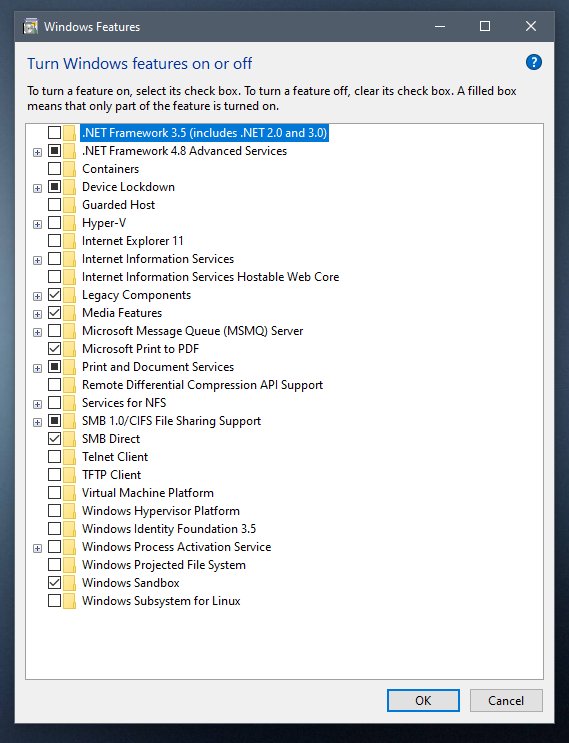
- Select the search box on the taskbar and type Turn Windows features on or off.
- Open the result to launch the Windows Features window.
- Tick Windows Sandbox and select OK.
- Select Restart now if Windows asks you to restart.
- Open Start, find Windows Sandbox and select it to launch a clean desktop.
If Windows Sandbox is missing or greyed out in the list, the PC does not meet the requirements below. Windows Sandbox is not supported on Windows Home.
Windows Sandbox requirements on Windows 11 and Windows 10
| Requirement | Minimum | Recommended |
|---|---|---|
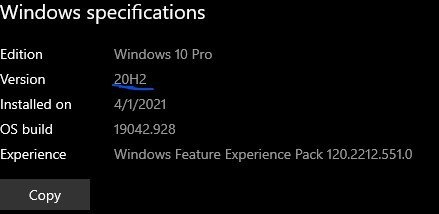
| Windows version | Windows 10 version 1903 or Windows 11 | Latest Windows 11 release |
| Edition | Pro, Enterprise, Education or Pro Education/SE | Same; Home is not supported |
| Processor architecture | AMD64, or Arm64 on Windows 11 version 22H2 and later | AMD64 or Arm64 |
| CPU cores | 2 cores | 4 cores with hyper-threading |
| Memory | 4 GB RAM | 8 GB RAM |
| Free disk space | 1 GB | 1 GB on an SSD |
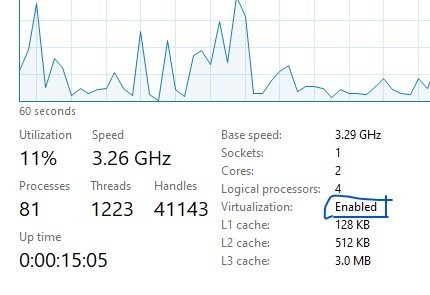
| Virtualization | Enabled in BIOS/UEFI | Enabled, with Hyper-V hypervisor available |
Inside a virtual machine, the host must expose nested virtualization. On a Hyper-V host, open PowerShell as administrator and run Set-VMProcessor -VMName <VMName> -ExposeVirtualizationExtensions $true and, if needed, Update-VMVersion -VMName <VMName>.
Which way to enable Windows Sandbox should you use?
| Your situation | Use this | Why |
|---|---|---|
| Windows 11, you prefer Settings | Settings > System > Optional features | Opens the same feature list from the modern app |
| Windows 10 or any version, mouse only | Control Panel | The classic Windows Features dialog works on both versions |
| Scripting or many PCs | PowerShell | One command, easy to run remotely or in a script |
| Recovery console or no PowerShell | Command Prompt with DISM | DISM is available in any elevated Command Prompt |
Enable Windows Sandbox from Settings
On Windows 11 the Settings app links to the classic Windows Features list.
- Press Win + I to open Settings.
- Select System, then Optional features.
- Scroll down and select More Windows features.
- Tick Windows Sandbox, then select OK.
- Restart the computer when prompted.
Enable Windows Sandbox from Control Panel
- Open Start, type Control Panel and open it.
- Select Programs.
- Under Programs and Features, select Turn Windows features on or off.
- Tick Windows Sandbox and select OK.
- Wait for Windows to apply the changes, then select Restart now.
Enable Windows Sandbox from PowerShell
Open Start, type PowerShell, right-click Windows PowerShell and select Run as administrator. The feature's internal name is Containers-DisposableClientVM.
Enable-WindowsOptionalFeature -FeatureName "Containers-DisposableClientVM" -All -OnlineTurns on the Windows Sandbox optional feature on the running system; -All also enables any parent features it depends on.
You should see: PowerShell asks to restart the computer. Enter Y, and Windows Sandbox appears in Start after the restart.
Enable Windows Sandbox from Command Prompt
Open Start, type cmd, right-click Command Prompt and select Run as administrator. DISM enables the same feature.
Dism /online /Enable-Feature /FeatureName:"Containers-DisposableClientVM" /AllUses DISM to enable the Windows Sandbox feature online; /All enables its parent features in the same command.
You should see: DISM prints "The operation completed successfully" and asks to restart. Check the state later with Dism /online /Get-FeatureInfo /FeatureName:Containers-DisposableClientVM.
How to check Windows Sandbox is enabled and up to date
- Open Start and search for Windows Sandbox; the app should be listed.
- Launch it and confirm a separate Windows desktop opens in a window.
- In PowerShell, run
Get-AppxPackage -Name WindowsSandbox | Select-Object Versionto see which version you have. - A version number means the newer Microsoft Store app; an empty result means the older built-in version.
- On the newer version,
wsb --versionalso works, and the app shows under Settings > System > System components.
On Windows 11 version 24H2, the first launch tries to update Sandbox from the Microsoft Store. This usually takes 30 seconds to 2 minutes.
How to transfer files to Windows Sandbox
Clipboard redirection is on by default, so copy and paste works for both text and files. For repeat use, a .wsb configuration file can share a host folder.
- Copy a file in File Explorer on the host with Ctrl + C.
- Click inside the Windows Sandbox window and paste it on the desktop with Ctrl + V.
- On the newer Store version, select the … icon in the top-right corner to share a folder while Sandbox is running.
- To share a folder every time, open Notepad and create a file with
<Configuration>and</Configuration>tags. - Between them, add a
<MappedFolders>block with<HostFolder>, optional<SandboxFolder>and<ReadOnly>true</ReadOnly>. - Save it as
"MySandbox.wsb"with the quotes, then double-click the file to start Sandbox with that folder.
The host folder must already exist, or Sandbox fails to start. Changes in a writable mapped folder persist after the sandbox closes, so use read-only mode for untrusted files.
What Windows Sandbox does and does not keep
| Behaviour | What happens |
|---|---|
| Closing Sandbox | All software, files and state are deleted; the next launch is a clean copy |
| Restart inside Sandbox | Data persists through restarts started inside the sandbox on Windows 11 version 22H2 and later |
| Networking | On by default through the Hyper-V default switch; turn it off with <Networking>Disable</Networking> in a .wsb file |
| Memory | Default sandbox gets up to 4 GB |
| Instances | Only one Sandbox can run at a time |
| Windows build | Always the same build as the host |
| Inbox apps | Microsoft Store, Notepad, Calculator, Photos and Terminal are not available inside it on Windows 11 version 24H2 |
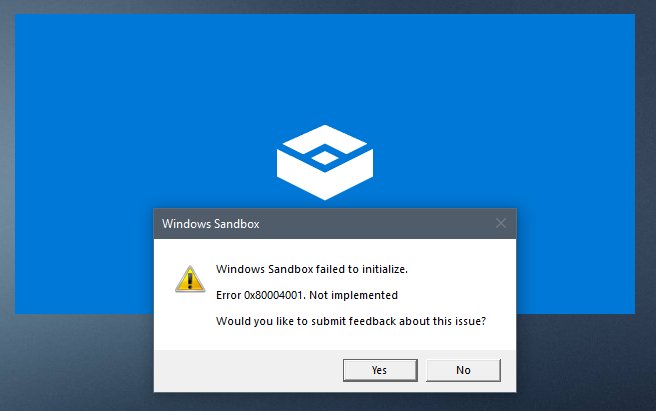
Windows Sandbox failed to initialize [Fix]
"No hypervisor was found. Please enable hypervisor support."
Windows Sandbox only runs on the Hyper-V hypervisor; virtualization is off or a third-party hypervisor is in use.
- Restart into BIOS/UEFI setup and turn on the CPU virtualization option.
- In Windows, turn on Hyper-V with
DISM /Online /Enable-Feature /All /FeatureName:Microsoft-Hyper-Vfrom an elevated prompt. - Restart and launch Windows Sandbox again.
REGDB_E_IIDNOTREG when launching Sandbox
The Windows Sandbox component is not enabled.
- Open Turn Windows features on or off.
- Tick Windows Sandbox, select OK and restart.
Windows Sandbox option is missing or greyed out
The PC fails a requirement: Home edition, too little RAM or CPU, or virtualization disabled.
- Check your edition under Settings > System > About.
- Compare the PC with the requirements table above.
- Enable virtualization in firmware and check the list again.
E_FAIL, E_UNEXPECTED or a general failure during installation
Group Policy blocks Sandbox, or the Microsoft Store could not be reached.
- Ask your IT admin whether Windows Sandbox is blocked by policy.
- Check the internet connection and try again later.
Cannot upgrade to the latest version of Windows Sandbox
No access to the internet, Windows Update or the Microsoft Store.
- Connect to the internet and confirm Windows Update works.
- Open Microsoft Store, go to Updates & downloads and install the queued Sandbox update.
Windows Sandbox error 0x80070569, logon failure
Windows Sandbox signs in with its own built-in account, WDAGUtilityAccount, so a logon failure means that sign-in did not complete. Microsoft does not publish a dedicated fix for 0x80070569, so work through the documented checks in order.
Error 0x80070569: Logon failure when Sandbox starts
The sandbox account could not sign in, often after an incomplete feature install or update.
- Install all pending updates in Settings > Windows Update and restart.
- Open Turn Windows features on or off, untick Windows Sandbox, select OK and restart.
- Open the same window again, tick Windows Sandbox, select OK and restart.
- If your PC is managed by work or school, ask IT whether a policy restricts the sandbox account.
Error 0x80070005 Access is Denied with a .wsb file
The config maps a host folder straight to the sandbox Desktop, which WDAGUtilityAccount restrictions block.
- Change
<SandboxFolder>to a new subfolder of the Desktop, or remove it to use the default. - Save the .wsb file and launch it again.
How to disable or uninstall Windows Sandbox
- Open Settings > System > Optional features.
- Select More Windows features.
- Untick Windows Sandbox and select OK.
- Restart the computer to finish removing it.
From an elevated Command Prompt, Dism /online /Disable-Feature /FeatureName:Containers-DisposableClientVM does the same.
Windows Sandbox on Windows 11 and 10 FAQ
Can you enable Windows Sandbox on Windows 11 Home?
No. Microsoft supports Windows Sandbox only on Pro, Enterprise, Education and Pro Education/SE editions. On Home, the option does not appear in Windows Features.
Do you need to download Windows Sandbox?
No. Windows Sandbox is part of supported Windows editions and is turned on as an optional feature. On Windows 11 version 24H2, the app then updates itself through the Microsoft Store.
Is Windows Sandbox the same as Hyper-V?
No. Windows Sandbox is a disposable, lightweight environment that discards all changes when closed. A Hyper-V virtual machine keeps changes, uses fixed resources and needs more setup.
Does Windows Sandbox save files after closing?
No. Closing Windows Sandbox deletes all software, files and state. Only changes written to a mapped host folder with write access remain.
Can you run two Windows Sandbox windows at once?
No. Windows Sandbox allows only one instance at a time, so close the open sandbox before launching another or double-clicking a different .wsb file. For several isolated environments running side by side, use Hyper-V virtual machines instead.
Can Windows Sandbox run a different version of Windows?
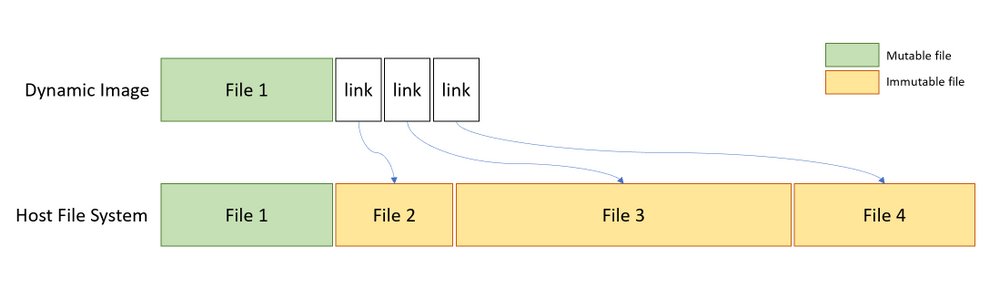
No. Windows Sandbox always uses the same Windows build as the host PC, which keeps it lightweight because it reuses the host's read-only system files. To test another Windows version, create a Hyper-V virtual machine instead.
Does Windows Sandbox have internet access?
Yes, networking is on by default through the Hyper-V default switch. Add Networking set to Disable in a .wsb configuration file to start Sandbox offline when you open untrusted files.
Why can't I open the Microsoft Store or Notepad in Windows Sandbox?
Inbox apps such as Store, Notepad, Calculator, Photos and Terminal are not available inside Windows Sandbox on Windows 11 version 24H2. You can still install apps from the web or from an .appx package.
Best way to enable Windows Sandbox
Use Turn Windows features on or off for a single PC, and the PowerShell command when you set up several machines. Both enable the same Containers-DisposableClientVM feature, but the dialog needs no typing and the command can be scripted.
Sandbox does not replace other protection: keep SmartScreen turned on for downloads you open on the host.