To create a sleep timer shutdown in Windows 11, run shutdown /s /t 3600 from Command Prompt and the PC turns itself off in one hour.
This guide also covers the idle sleep timer in Settings, a true sleep countdown, nightly scheduled shutdowns, waking the PC at a set time, and fixes for a timer that does nothing.
How to set up Windows sleep timer shutdown
The built-in shutdown command takes a countdown in seconds, so a timer needs no extra software.
Any countdown above zero forces open apps to close, so save your work before the timer runs out.
- Select Search on the taskbar, type
cmdand open Command Prompt. - Work out the delay in seconds: 30 minutes is
1800, 1 hour is3600, 2 hours is7200. - Type
shutdown /s /t 3600and press Enter, replacing3600with your own number. - Leave the PC running. It shuts down on its own when the countdown reaches zero.
- To stop the timer early, open a new Command Prompt window and run
shutdown /a.
The valid range for /t is 0 to 315360000 seconds, which is ten years. Without /t, the default delay is 30 seconds.
You can also type the same command in the Run dialog box instead of opening Command Prompt.
Windows sleep timer or shutdown timer: which one to use
| What you want | Use this | Why |
|---|---|---|
| Turn the PC off once, after a set number of minutes | shutdown /s /t <seconds> |
Built in, one line, cancel with shutdown /a |
| Put the PC to sleep whenever it sits unused | Make my device sleep after in Settings | This is the permanent idle sleep timer |
| Put the PC to sleep once, after a countdown | PsShutdown -d -t |
Windows' own shutdown command has no sleep switch |
| Hibernate instead of shutting down | shutdown /h |
Keeps open apps; needs hibernation enabled |
| Shut down at the same clock time every night | schtasks with a DAILY trigger |
Runs without you starting a countdown each time |
| Shut down after the PC has been idle | schtasks with an ONIDLE trigger |
Fires only after 1 to 999 idle minutes |
| Wake the PC from sleep at a set time | Scheduled task with WakeToRun | Task Scheduler can wake the computer for a task |
How to change the Windows 11 sleep timer in Settings
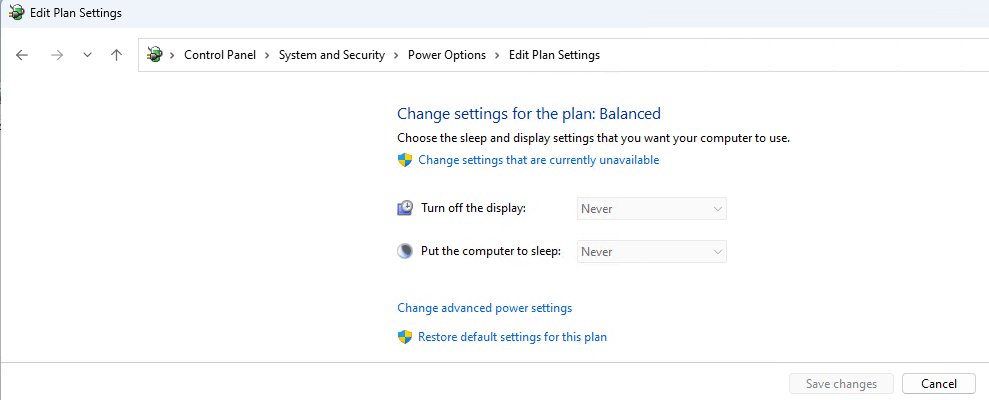
Windows 11 already has a sleep timer: the idle timeout that sends the PC to sleep after a period with no input.
Laptops show separate values for plugged in and on battery.
- Select Start > Settings > System > Power & battery.
- Expand Screen, sleep, & hibernate timeouts.
- Open the Make my device sleep after list and pick a time, such as 15 minutes.
- Set the battery value too if your laptop shows both plugged in and on battery options.
- Open Turn my screen off after if you want the display to go dark sooner than sleep.
- Close Settings. The new timer applies immediately.
On Windows 10 the same setting sits under Settings > System > Power & sleep. To set it from a command line, run powercfg /change standby-timeout-ac 30; the value is in minutes, and standby-timeout-dc sets the battery value.
Windows sleep timer command: sleep after a countdown
The Windows shutdown command can shut down, restart or hibernate, but it has no sleep switch.
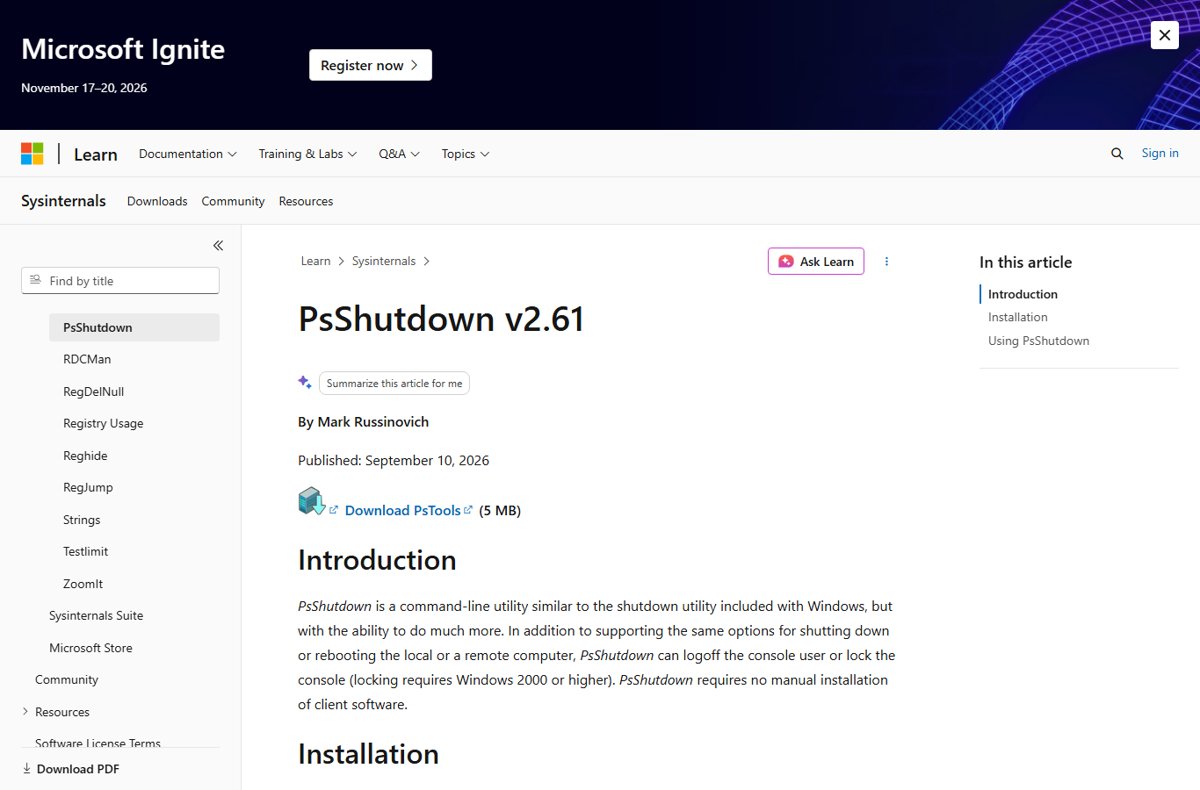
PsShutdown, a free Sysinternals tool published by Microsoft, adds suspend with a countdown.
- Download PsTools from the PsShutdown page on Microsoft Learn (learn.microsoft.com/sysinternals).
- Extract the archive and copy
psshutdown.exeto a folder on your path, or open Command Prompt in its folder. - Type
psshutdown -d -t 1800and press Enter to suspend the PC in 30 minutes. - Add
-cif you want the signed-in user to be able to cancel the countdown. - Run
psshutdown -awhile the countdown is still running to abort it.
The -t value is either a countdown in seconds or a clock time in 24-hour notation. The default countdown is 20 seconds.
To hibernate on a timer instead, use psshutdown -h -t 1800, or set the idle timer in Settings to send the PC to sleep and let Windows hibernate from there.
Schedule a Windows 11 shutdown at a set time every night
A countdown is fine for tonight. For a fixed bedtime, create a scheduled task once and let Windows run it daily.
- Select Search, type
cmd, then select Run as administrator. - Type
schtasks /create /tn "Nightly shutdown" /tr "shutdown /s /t 60" /sc daily /st 23:30and press Enter. - Change
23:30to your own time. The/stvalue uses the 24-hour HH:mm format. - For a single date instead of every night, replace
/sc dailywith/sc onceand keep/st. - To shut down after the PC sits unused, use
/sc onidle /i 30instead of/sc daily /st 23:30. - To remove the schedule later, run
schtasks /delete /tn "Nightly shutdown".
The 60-second countdown in the task gives you time to run shutdown /a if you are still using the PC.
The task follows the PC's clock, so set the correct time zone first if the time shown on the taskbar is wrong.
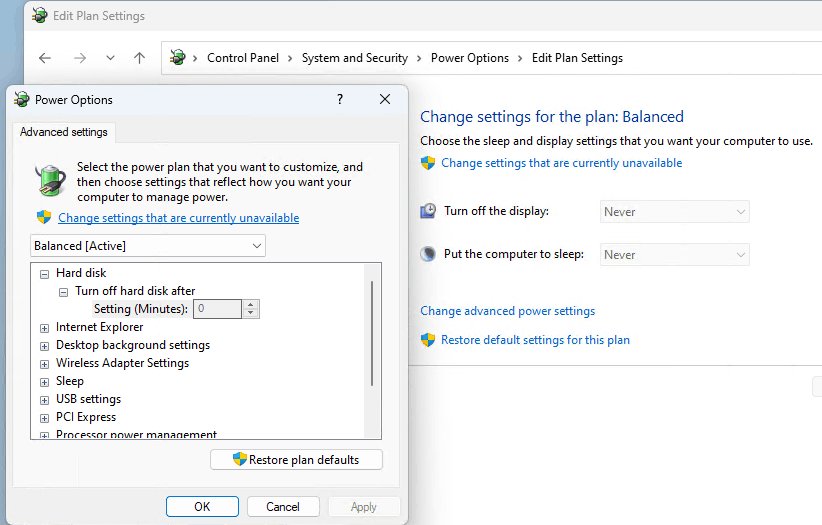
Prevent hard disk from going to sleep in Windows 11
Windows can power down an idle hard disk separately from the rest of the PC. An external drive that spins down mid-copy or a backup that stalls are the usual reasons to stop it.
The disk timeout is a minute value, and 0 means the disk is never powered down for idleness.
- Open Command Prompt as administrator.
- Type
powercfg /change disk-timeout-ac 0and press Enter to stop disk sleep while plugged in. - On a laptop, also run
powercfg /change disk-timeout-dc 0for battery power. - To restore a timeout later, run the same command with a number of minutes, such as
powercfg /change disk-timeout-ac 20.
These commands change the active power plan only. If you switch plans, run them again.
How to wake up computer from sleep at a particular time in Windows 11
Task Scheduler can wake a sleeping computer when a task is due. A small task with the WakeToRun setting works as an alarm clock for the PC.
When Windows wakes for a task, the screen can stay off until it detects that someone is using the PC.
- Select Search, type
powershell, then select Run as administrator. - Run
$a = New-ScheduledTaskAction -Execute "cmd.exe" -Argument "/c exit"to create a harmless action. - Run
$t = New-ScheduledTaskTrigger -Daily -At 6:30am, or use-Once -At 6:30amfor a single morning. - Run
$s = New-ScheduledTaskSettingsSet -WakeToRunso the task wakes the computer. - Run
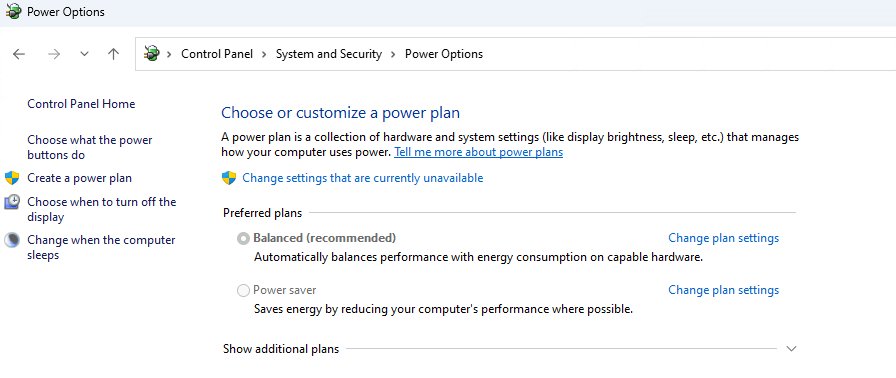
Register-ScheduledTask -TaskName "Morning wake" -Action $a -Trigger $t -Settings $sto save it. - Open Control Panel > System and Security > Power Options, open the active plan's advanced settings, and confirm Sleep > Allow wake timers is enabled.
- Put the PC to sleep, not shut down, before the wake time.
A wake task works from sleep and hibernation. It cannot start a PC that is fully shut down; Wake on LAN from another device on the network is the usual way to do that on supported hardware.
Check a Windows shutdown timer or wake timer is set
- After
shutdown /s /t, runshutdown /ain a new window only if you want to test it: cancelling succeeds when a countdown is pending, then set the timer again. - For a wake task, open an administrator Command Prompt and run
powercfg /waketimers. Your task should be listed with its expiry time. - After the PC wakes, run
powercfg /lastwaketo see what woke it. - For the idle sleep timer, leave the PC untouched for the chosen time and confirm it sleeps.
Computer will not wake up from sleep mode in Windows 11
The PC stays asleep when you press a key or move the mouse
Only devices armed for wake can bring the PC out of sleep, and many keyboards and mice are not armed.
- Press the PC's power button briefly. On most PCs this resumes from sleep.
- Open Command Prompt as administrator and run
powercfg /devicequery wake_armedto list devices that can wake the PC. - Run
powercfg /devicequery wake_programmableto list devices that could be armed. - Run
powercfg /deviceenableawake "<device name>"with your keyboard's name from that list. - Put the PC to sleep and test the keyboard again.
The scheduled wake time passes and the PC stays asleep
Wake timers are disabled in the power plan, or the task lacks the WakeToRun setting.
- Run
powercfg /waketimersas administrator and check that your task is listed. - If it is missing, recreate the task with
New-ScheduledTaskSettingsSet -WakeToRun. - Confirm Sleep > Allow wake timers is enabled in the active plan's advanced settings.
- Make sure the PC was put to sleep, not shut down.
USB devices or the display misbehave after waking
Some connected devices do not resume cleanly from sleep or hibernation.
- Disconnect and reconnect the affected device.
- Restart the PC if the device still does not respond.
- Check the PC maker's support site for updated chipset and USB drivers.
Windows sleep timer not working: fixes
The PC never goes to sleep after the set time
An app or driver holds a power request that blocks sleep, such as a media player or a download.
- Open Command Prompt as administrator.
- Run
powercfg /requeststo list apps and drivers blocking sleep. - Close or pause the app or driver the list names.
- Wait for the idle time again and confirm the PC sleeps.
The PC wakes up by itself soon after sleeping
A scheduled task or maintenance timer is allowed to wake the PC.
- Run
powercfg /lastwaketo see what woke the PC. - Run
powercfg /waketimersto list pending wake timers and the task behind each. - Disable Allow wake timers in the plan's advanced settings if you do not need any wake task.
Windows 11 sleep timer shutdown FAQ
Does Windows have a sleep timer?
Yes. Windows 11 puts the PC to sleep after the idle time set in Make my device sleep after under Settings > System > Power & battery. For a one-off shutdown countdown, use shutdown /s /t followed by the delay in seconds.
How do I set a sleep timer on my PC?
Open Settings > System > Power & battery, expand Screen, sleep, & hibernate timeouts and choose a time under Make my device sleep after. The PC then sleeps whenever it sits unused for that long.
How do I set a sleep timer in Windows 10?
Go to Settings > System > Power & sleep and pick a time under the Sleep setting. The shutdown /s /t and powercfg /change standby-timeout-ac commands work the same way on Windows 10 as on Windows 11.
What is the Windows sleep timer command?
Windows has no built-in command that sleeps after a countdown. powercfg /change standby-timeout-ac 30 sets the idle sleep timer to 30 minutes, and Microsoft's PsShutdown runs psshutdown -d -t 1800 to suspend the PC in 30 minutes.
How do I set a shutdown timer in Windows 11?
Open Command Prompt and run shutdown /s /t followed by seconds, for example shutdown /s /t 3600 for one hour. The PC shuts down when the countdown ends.
How do I cancel a shutdown timer?
Open a new Command Prompt window and run shutdown /a before the countdown ends. The command only works while a shutdown is still pending.
Will a shutdown timer close my open apps?
Yes. Any /t value above zero implies /f, which forces running apps to close without warning. Unsaved work in those apps is lost, so save everything before the timer expires.
What is the longest shutdown timer Windows allows?
The /t switch accepts 0 to 315360000 seconds, which equals ten years. For anything longer than a day, a scheduled task with schtasks is easier to manage.
Can Windows hibernate on a timer instead of shutting down?
Yes. shutdown /h hibernates the PC if hibernation is enabled, and psshutdown -h -t 1800 hibernates after a 30-minute countdown. Hibernate keeps your open apps and uses less power than sleep.
Where is the Sleep button in Windows 11?
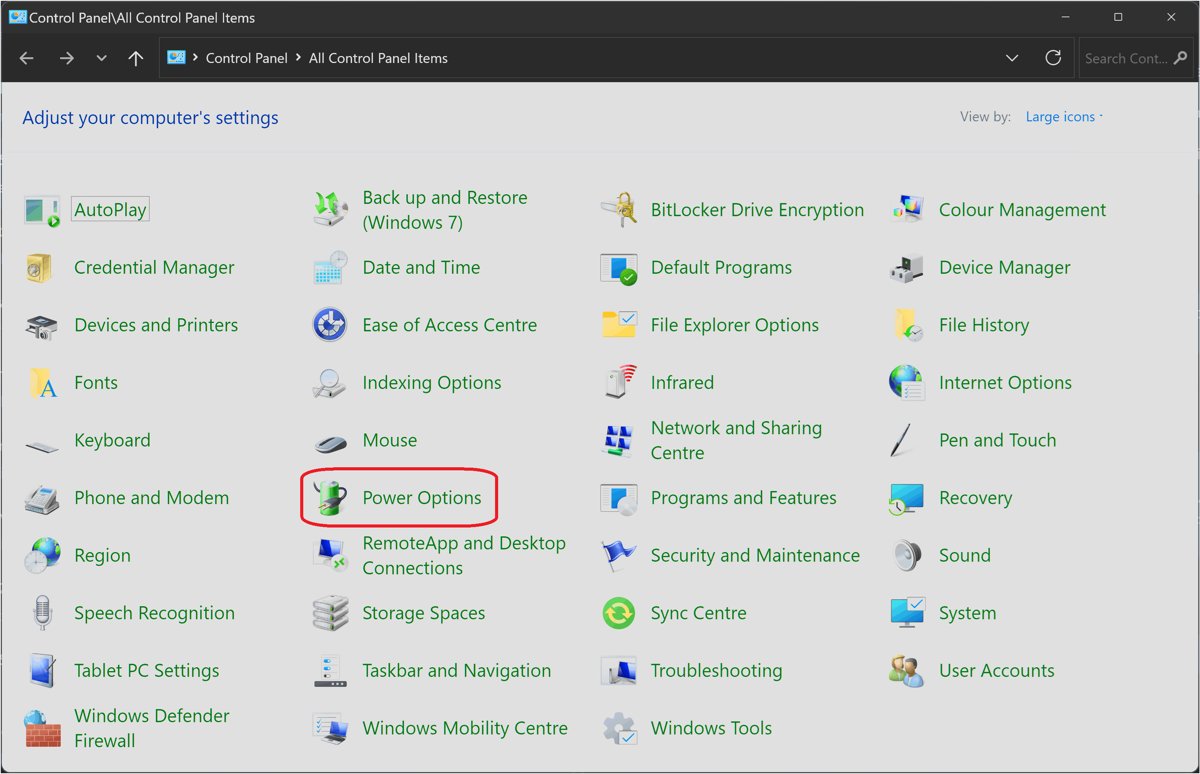
Pressing the power button or closing a laptop lid puts the PC to sleep when those actions are set to Sleep. Change them in Control Panel > System and Security > Choose what the power buttons do.
Best way to create a sleep timer shutdown in Windows 11
Use shutdown /s /t <seconds> for a one-time shutdown timer and the Make my device sleep after setting for everyday sleep. Both are built into Windows 11, need no downloads, and can be undone in seconds with shutdown /a or a different timeout.