When several apps stop working at once on an iPhone 17 Pro Max, quit them from the App Switcher, force restart the iPhone, then install the latest iOS and app updates; that clears most cases.
This guide covers each fix in order, from a quick restart to Reset All Settings, plus what to check when apps only fail on cellular, after an update or when an Apple service is down.
How to fix multiple apps not working on iPhone 17 Pro Max
Test the apps after each step. Stop as soon as they work.
- Open the App Switcher and swipe up on each app that isn't working.
- Reopen the apps from the Home Screen or App Library.
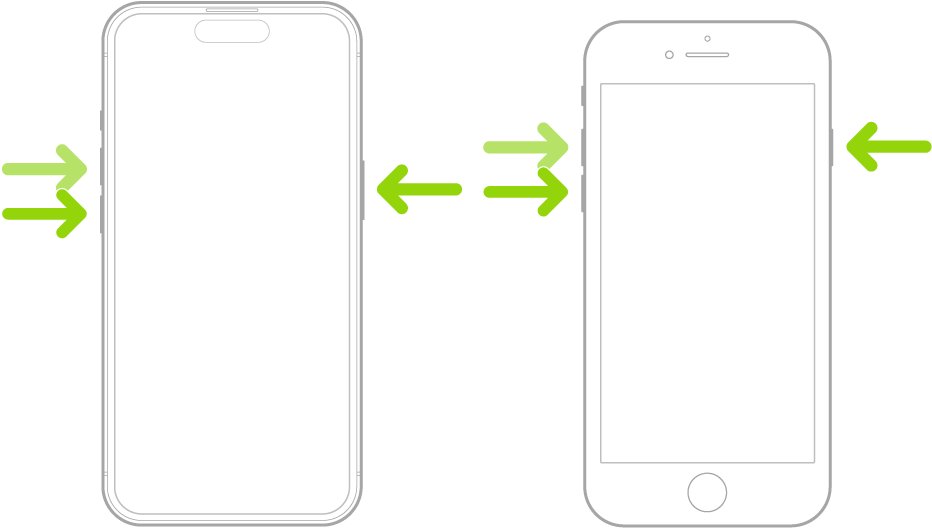
- Force restart the iPhone: press and quickly release volume up, press and quickly release volume down, then press and hold the side button until the Apple logo appears.
- Open Settings > General > Software Update and tap Download and Install if an update is listed.
- Open the App Store, tap your picture, tap App Updates, then tap Update All.
- Check Settings > General > iPhone Storage and free space if it is nearly full.
Why are multiple apps not working on my iPhone 17 Pro Max?
Match the pattern you see to a row, then go straight to that fix.
| What you see | Likely cause | Fix |
|---|---|---|
| Apps freeze or won't respond | Apps or iOS stuck in a bad state | Fix 1 and fix 2 |
| Problems started after an iOS update | Apps not yet updated for the new iOS, or a bug fixed in a later update | Fix 3 and fix 4 |
| Several Apple apps (iMessage, iCloud, App Store) fail together | An Apple service outage | Fix 5 |
| Apps close or won't save, storage almost full | Not enough free space | Fix 6 |
| Apps work on Wi-Fi but not on cellular | Cellular data off for those apps, or Low Data Mode | Fix 7 |
| One or two apps keep failing after everything else works | Corrupt app install | Fix 8 |
| Many apps misbehave after all of the above | A changed setting | Fix 9, then fix 10 as a last resort |
1. Quit and reopen the apps that aren't responding
Quitting an app that isn't responding and opening it again is Apple's first fix. It does not save battery to quit apps you aren't using, so only do this for the broken ones.
- Open the App Switcher.
- Swipe right to find the app that isn't working.
- Swipe up on the app to quit it.
- Repeat for every app that is misbehaving.
- Go to the Home Screen or App Library and tap each app to reopen it.
If the apps are still unresponsive after quitting and reopening, restart the iPhone.
2. Restart or force restart the iPhone 17 Pro Max
A normal restart clears temporary glitches. Use a force restart when the screen is frozen and the power-off slider won't appear.
| Situation | What to do |
|---|---|
| iPhone responds to touch | Press and hold either volume button and the side button until the power-off slider appears, drag the slider, wait 30 seconds, then press and hold the side button until the Apple logo appears |
| iPhone is frozen or apps lock the screen | Press and quickly release volume up, press and quickly release volume down, then press and hold the side button and release it when the Apple logo appears |
| Apple logo doesn't appear | Keep holding the side button; the logo can take longer than 10 seconds |
3. Update iOS on the iPhone 17 Pro Max
Software updates carry bug fixes, and the apps that came with the iPhone are updated whenever iOS is updated.
- Back up the iPhone using iCloud or a computer.
- Plug the iPhone into power and connect to Wi-Fi.
- Open Settings and tap General.
- Tap Software Update to see the installed version and any available update.
- Tap Download and Install and follow the onscreen instructions.
If the update won't download, turn off any VPN or proxy, since those can stop the iPhone reaching Apple's update servers. If it asks to remove apps temporarily for space, tap Continue; they reinstall automatically afterwards.
4. Update all apps from the App Store
App Store apps update automatically by default, but a turned-off setting or a stalled download can leave several apps out of date at once.
- Open the App Store.
- Tap your picture in the top corner.
- Tap App Updates.
- Tap Update All, or tap Update next to each app that isn't working.
- To keep apps current, open Settings > Apps > App Store and turn on App Updates.
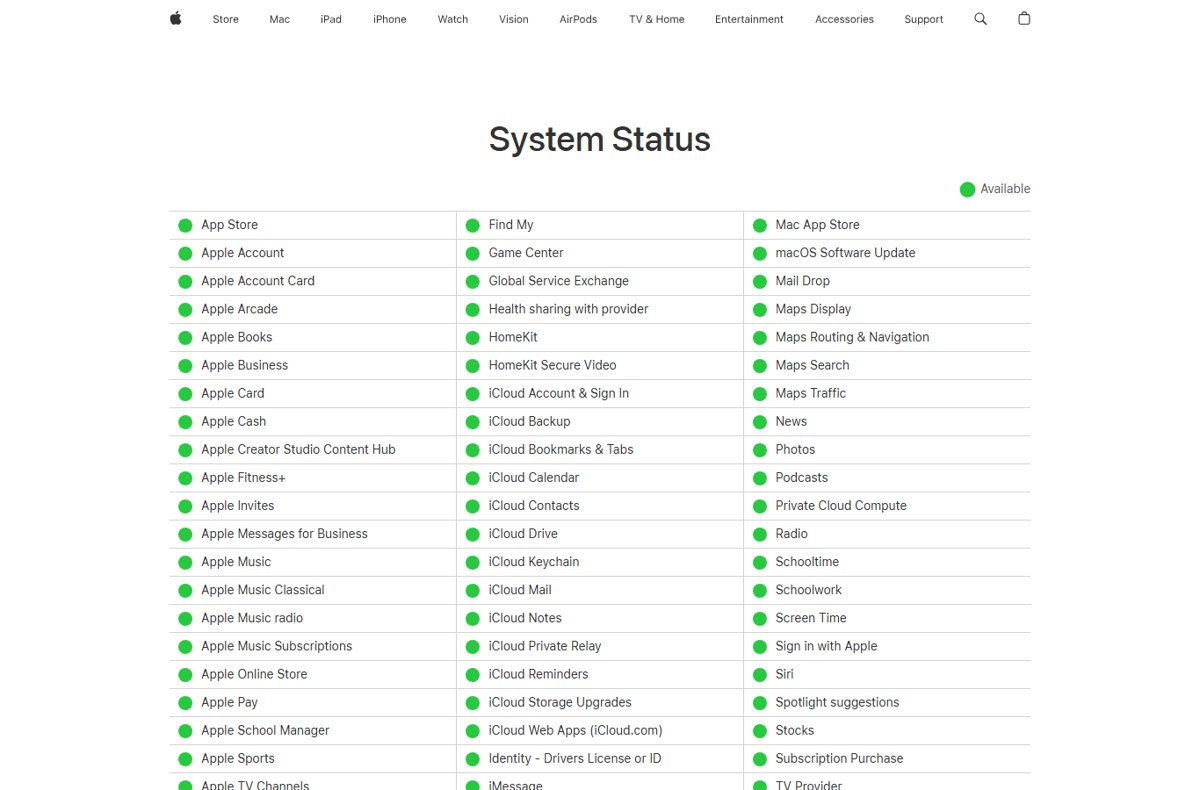
5. Check Apple System Status for an outage
When iMessage, FaceTime, iCloud, the App Store or Apple Music all fail together, the problem may be on Apple's side rather than the iPhone.
- Open apple.com/support/systemstatus in Safari or on another device.
- Find the services that aren't working, such as App Store, iMessage, iCloud Drive or FaceTime.
- Look for a status other than Available, such as an outage or an issue.
- If a service shows a problem, wait for Apple to resolve it before changing settings.
- If every service shows Available, continue with the next fix.
For third-party apps such as banking or social apps, check the developer's own status page or support site.
6. Free up iPhone storage space
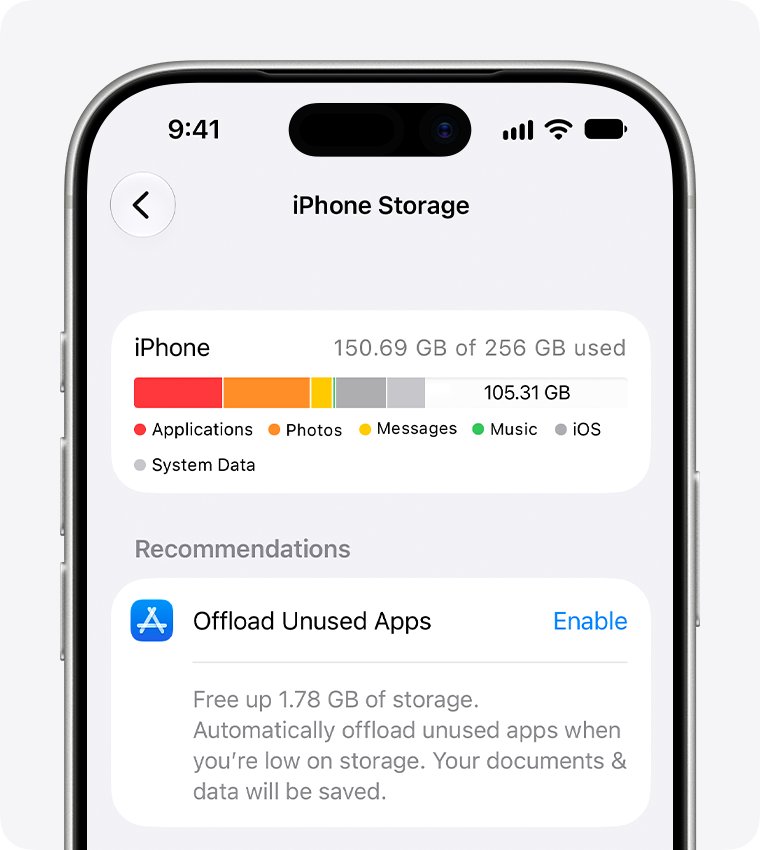
A nearly full iPhone can stop apps saving data or updating. Check the free space before deleting anything.
- Open Settings, tap General, then tap iPhone Storage.
- Read the available storage at the top of the screen.
- Back up photos and videos to iCloud, then remove them from the iPhone.
- Delete old Messages conversations and attachments, and downloaded videos you've watched.
- Delete apps you no longer use.
- Optionally open Settings > Apps > App Store and turn on Offload Unused Apps.
An offloaded app keeps its data and shows a cloud symbol on its icon. Tap the icon to reinstall it.
7. Check cellular data and Low Data Mode for apps
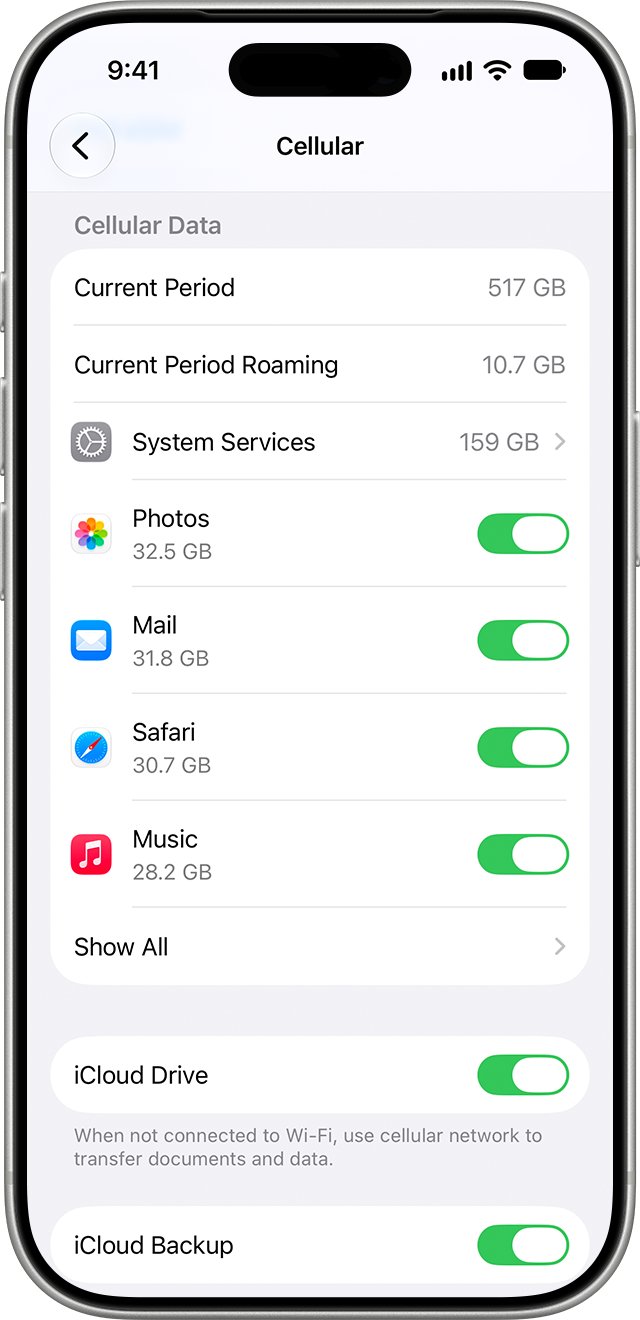
If apps only fail away from Wi-Fi, cellular data may be turned off for them. Low Data Mode also pauses automatic updates and background tasks off Wi-Fi.
- Open Settings and tap Cellular.
- Make sure Cellular Data is on.
- Scroll down to the list of apps and turn on each app that isn't working.
- Tap Cellular Data Options, tap Data Mode, and choose a mode other than Low Data Mode if it's selected.
- Reopen the apps on cellular and test them.
When cellular data is off for an app, the iPhone uses only Wi-Fi for it, so the app looks broken on the road but fine at home.
8. Delete and reinstall apps that keep failing
Reinstalling replaces a damaged app install. Deleting an app removes its data from the iPhone, but data stored in iCloud stays, so sign-in details may be needed again.
- Touch and hold the app on the Home Screen or in App Library.
- Tap Remove App, then tap Delete App.
- Tap Delete to confirm.
- Open the App Store, tap your picture, then tap Apps & Purchase History and Your Apps.
- Find the app and tap the download button to reinstall it.
9. Reset all settings on iPhone 17 Pro Max
Reset All Settings returns every setting to its default without deleting data or media. Back up first if you want to be able to restore your settings.
- Open Settings and tap General.
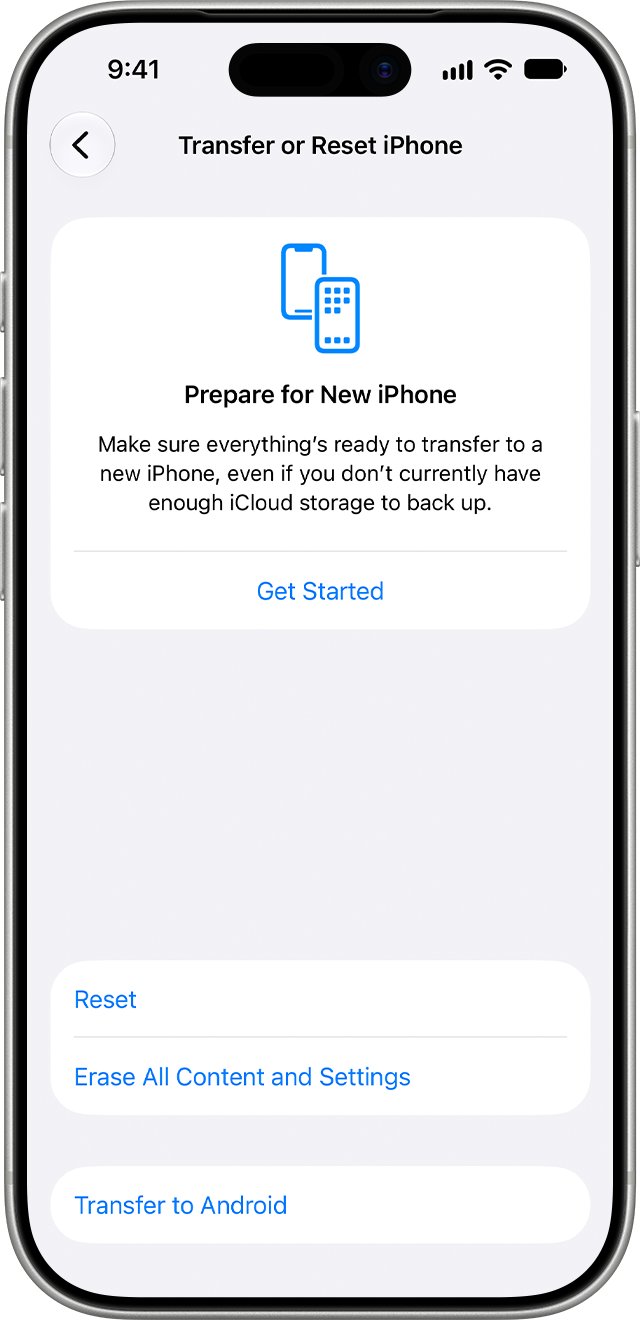
- Tap Transfer or Reset iPhone, then tap Reset.
- Tap Reset All Settings.
- Enter your passcode and confirm.
- After the iPhone restarts, rejoin Wi-Fi and test the apps.
This resets network settings, location and privacy settings, the keyboard dictionary and Apple Pay cards. Do not tap Erase All Content and Settings unless you mean to wipe the iPhone.
10. Factory reset iPhone 17 Pro Max as a last resort
Erasing the iPhone and restoring from a backup is the final software fix. Have your passcode and Apple Account password ready.
- Back up the iPhone to iCloud or a computer.
- Open Settings, tap General, then tap Transfer or Reset iPhone.
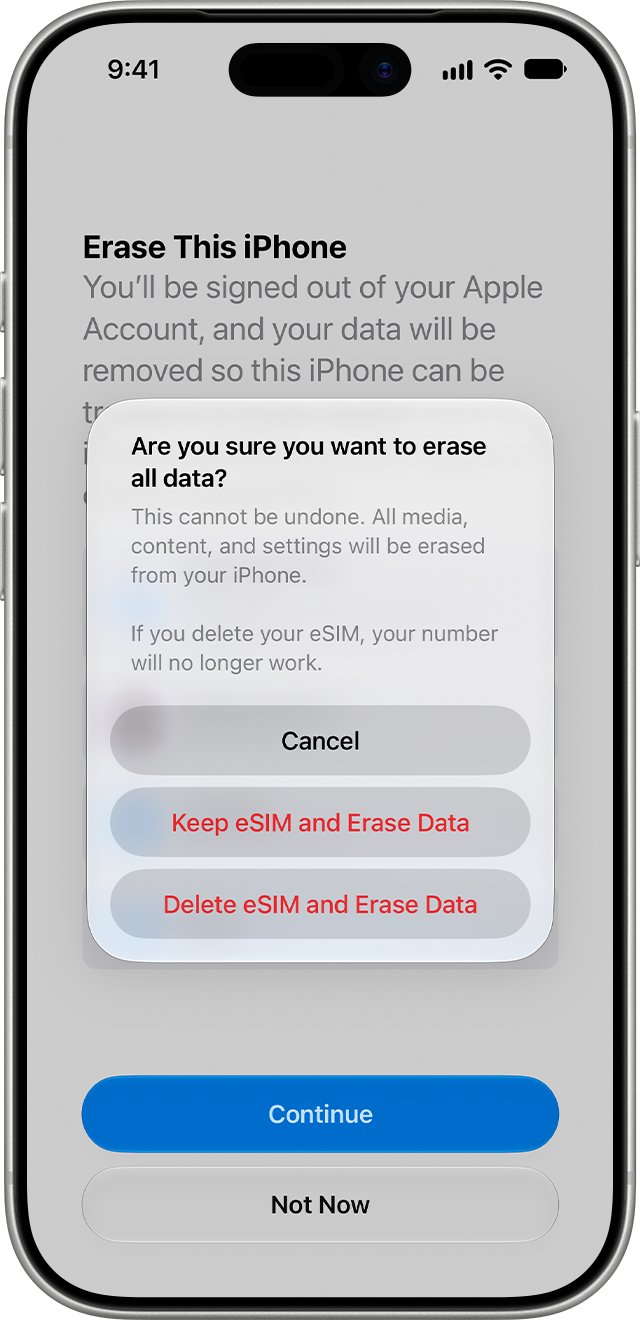
- Tap Erase All Content and Settings, then tap Continue.
- Choose whether to keep or delete your eSIM.
- Enter your passcode, wait for the backup to finish, then enter your Apple Account password.
- Wait for the Hello screen, then set up the iPhone and restore your backup.
Deleting the eSIM means contacting your carrier to reactivate the plan, so keep it unless you are selling the phone.
How to check the apps are working again
- Open each app that failed and use the feature that broke, such as sending a message or loading a feed.
- Test the apps on Wi-Fi, then on cellular.
- Open Settings > General > Software Update and confirm it says iOS is up to date.
- Open the App Store, tap your picture and confirm App Updates lists nothing pending.
- Use the iPhone normally for a day and note whether any app freezes again.
iPhone 17 Pro Max apps still not working: fixes by symptom
Apps stopped working after an iOS update
Apps not yet updated for the new iOS version.
- Update every app from App Updates in the App Store.
- Check Software Update for a newer iOS release.
- Force restart the iPhone.
Apps won't load anything on cellular
Cellular data turned off for those apps, or Low Data Mode on.
- Open Settings > Cellular and turn the apps on.
- Change Data Mode away from Low Data Mode.
- Reset network settings from Transfer or Reset iPhone > Reset > Reset Network Settings if it persists.
App icon shows a cloud symbol and won't open
The app was offloaded to save space.
- Connect to Wi-Fi.
- Tap the icon to reinstall the app; its data was kept.
- Free storage so iOS doesn't offload it again.
A work app says the developer isn't trusted
A manually installed enterprise app needs trust established.
- Tap Cancel on the alert.
- Open Settings > General > VPN & Device Management.
- Tap the developer under Enterprise App, tap Trust, then Allow & Restart.
- Stay online so the iPhone can verify the developer's certificate.
Apple apps and services fail together
An outage on Apple's servers.
- Check apple.com/support/systemstatus.
- Wait for the service to show Available again.
- Contact Apple Support if your issue isn't listed.
iPhone 17 Pro Max apps not working FAQ
How do I restart an iPhone 17 Pro Max?
Press and hold either volume button and the side button until the power-off slider appears. Drag the slider, wait 30 seconds, then press and hold the side button until the Apple logo appears.
How do I hard reset an iPhone 17 Pro Max?
Press and quickly release volume up, press and quickly release volume down, then press and hold the side button. Release it when the Apple logo appears. This force restart doesn't erase any data.
How do I turn on an iPhone 17 Pro Max?
Press and hold the side button on the right of the iPhone until the Apple logo appears. If it doesn't turn on, charge it and try again.
How do I reset an iPhone 17 Pro Max without losing data?
Go to Settings, General, Transfer or Reset iPhone, Reset, then tap Reset All Settings. Settings return to their defaults but no data or media are deleted. Avoid Erase All Content and Settings, which wipes the phone.
How do I factory reset an iPhone 17 Pro Max?
Back up first, then go to Settings, General, Transfer or Reset iPhone and tap Erase All Content and Settings. Tap Continue, choose whether to keep your eSIM, enter your passcode and Apple Account password, and wait for the Hello screen.
Does deleting an app delete its data?
Deleting an app removes it and its data from the iPhone, but data stored in iCloud, such as documents saved through the app, isn't deleted. Reinstall it from Your Apps in the App Store.
Does closing apps save battery on iPhone?
No. iPhone manages background apps automatically, so quitting apps you aren't using doesn't prolong battery life. Quit an app only when it isn't responding.
Bottom line: fixing apps that stop working on iPhone 17 Pro Max
Quit the broken apps, force restart, then update iOS and every app before you touch any reset. Several apps failing together usually points to iOS or app updates, storage or a service outage, all of which those steps cover. Use Reset All Settings next, and keep Erase All Content and Settings for when nothing else works.