To break an endless iCloud login loop on Windows 11, update iCloud for Windows from the Microsoft Store, set the PC clock to automatic, then sign out and sign back in.
If the loop survives that, repair, reset or reinstall the app, and check the Apple Account side: two-factor codes, Advanced Data Protection, security keys and the password.
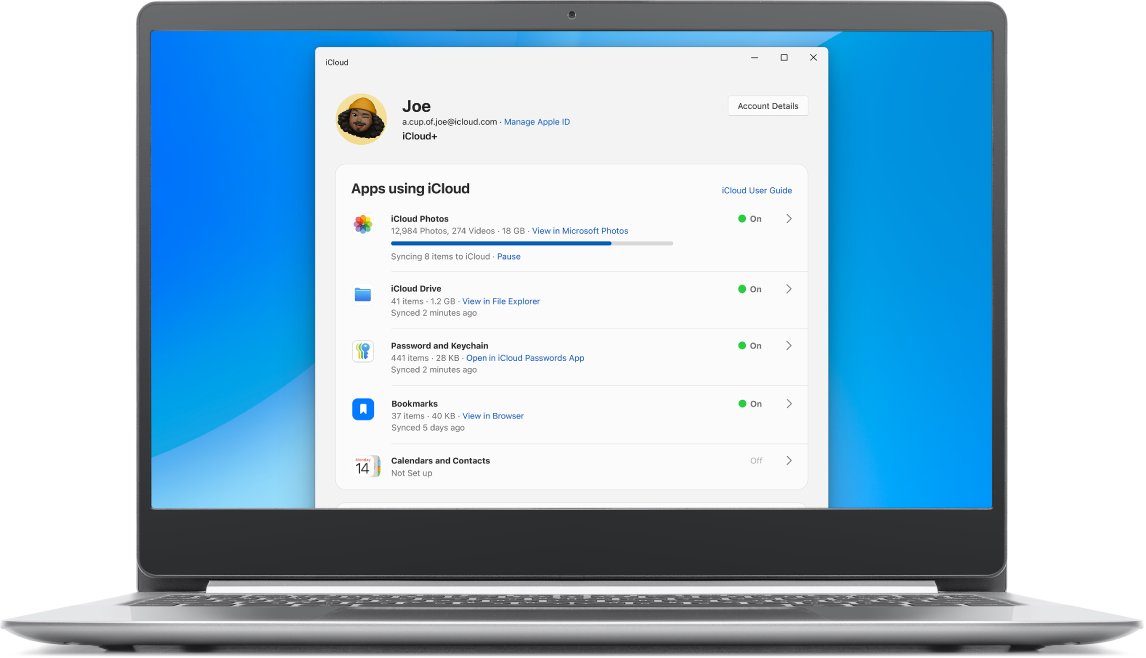
Fix the iCloud for Windows sign-in loop fast
Work through these in order and test the sign-in after each one. Most loops end by step 4.
- Open Microsoft Store, select Library, then select Get updates so iCloud for Windows is on the latest version.
- Open Settings > Time & language > Date & time and turn on Set time automatically and Set time zone automatically.
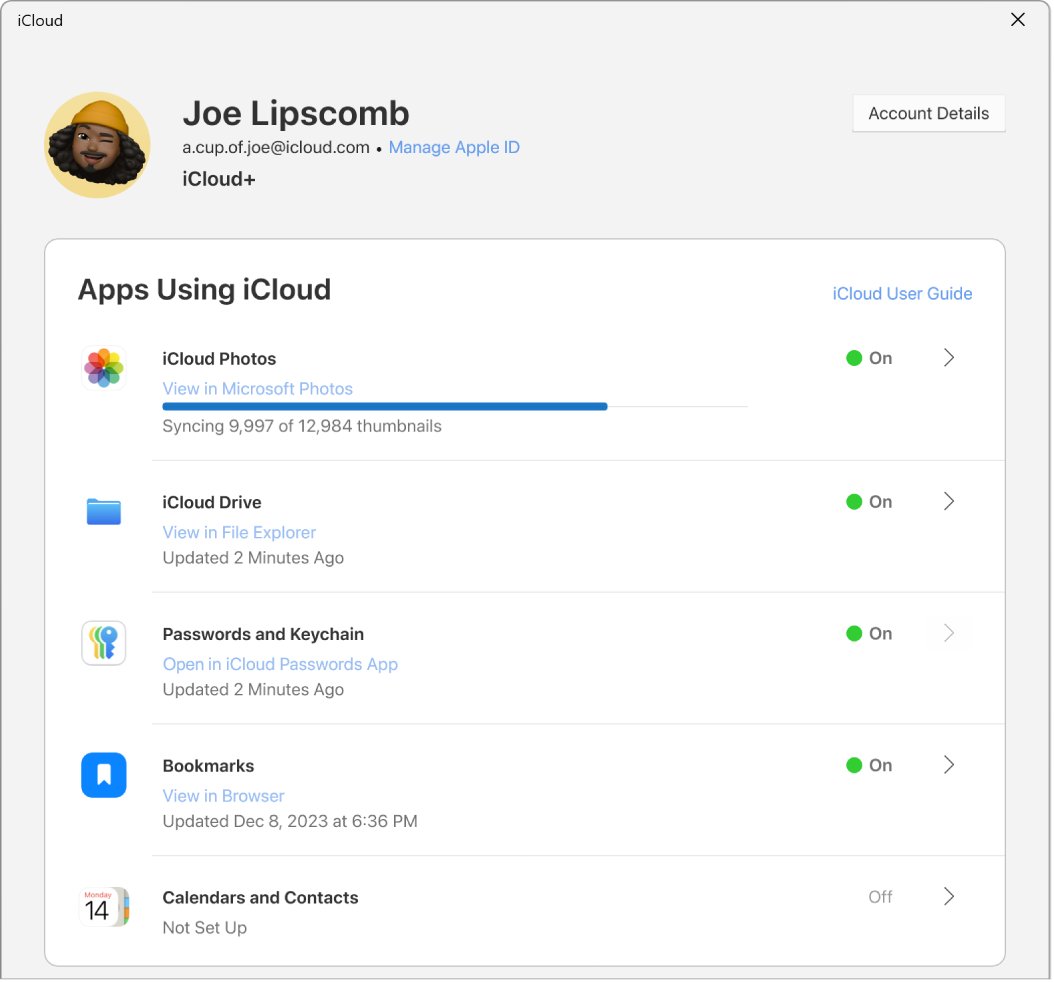
- Open iCloud for Windows, click Account Details, click Sign Out and follow the prompts.
- Restart the PC, open iCloud for Windows and sign in with the same Apple Account your iPhone, iPad or Mac uses.
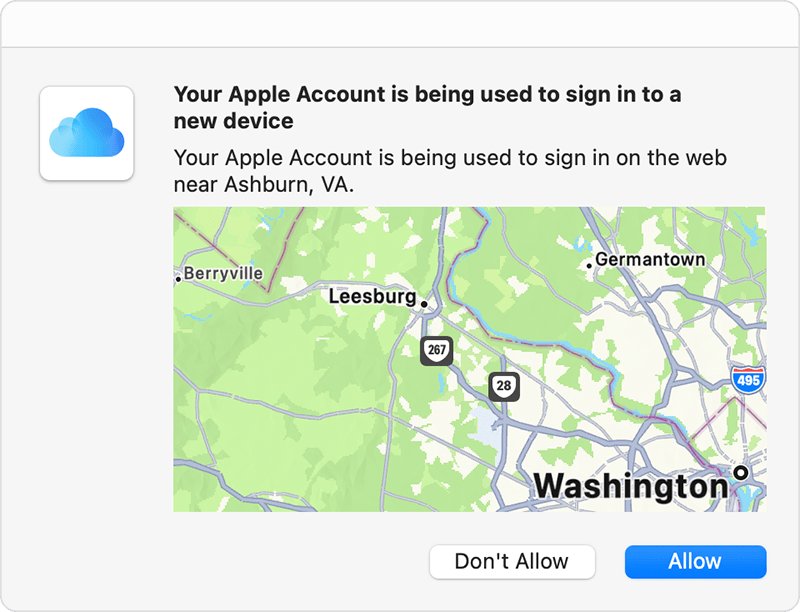
- Approve the sign-in on your trusted Apple device and type the verification code into iCloud for Windows.
- Choose Sync or Not Now for each feature, then click Finish Setup.
Why iCloud keeps asking you to sign in on Windows 11
| What you see | Likely cause | Fix to try |
|---|---|---|
| Sign-in window reopens after you enter the password | Outdated app or damaged sign-in data | Update, then sign out and back in |
| Loop started after a clock or time zone change | PC time out of step with Apple's servers | Turn on automatic date and time |
| Code screen repeats or no code arrives | Trusted device not reachable | Use Didn't Get a Code? for a text or call |
| Loop only since you turned on Advanced Data Protection | Trusted device out of range, or a VPN in the way | Keep the iPhone nearby on the same Wi-Fi, pause the VPN |
| You use a security key for your Apple Account | iCloud for Windows older than version 15 | Update to iCloud for Windows 15 or later |
| Work or school Apple Account | Managed Apple Accounts are not supported | Use a personal Apple Account |
| Password is rejected every time | Wrong or changed Apple Account password | Reset the password, then sign in again |
| Nothing above helps | Corrupt app installation | Repair, reset, then reinstall the app |
iCloud for Windows requirements on Windows 11
A missing requirement can look exactly like a loop: the app accepts your details and then asks again.
| Requirement | What Apple asks for |
|---|---|
| Windows | Windows 11 recommended; Windows 10 May 2019 Update or later at minimum |
| iCloud for Windows version | iCloud for Windows 15 recommended; 15 or later for security keys |
| Apple device | iCloud already set up on an iPhone, iPad, iPod touch or Mac |
| Accounts | A Microsoft account on the PC and a personal Apple Account with its password |
| Advanced Data Protection | iCloud for Windows 14.1 or later |
| Outlook (Mail, Contacts, Calendars) | Outlook 2021 or later |
| Browsers for Passwords and Bookmarks | Firefox 128, Chrome 130 or Edge 130 or later |
Update iCloud for Windows from the Microsoft Store
Apple now ships iCloud for Windows only through the Microsoft Store, so you update Store apps manually from the Library page to get the latest version.
- Select Start and open Microsoft Store.
- Select Library in the left pane.
- Select Get updates and wait for the list to finish.
- If iCloud appears with an update, let it install, then close the Store.
- Restart the PC before you open iCloud for Windows again.
If the Store itself will not load or download anything, reset the Microsoft Store cache and check for updates again.
Set the correct date and time in Windows 11
Sign-in tokens carry timestamps, so a clock that is minutes or hours off can make iCloud reject a session it just created.
- Select Start > Settings.
- Select Time & language, then Date & time.
- Turn on Set time automatically.
- Turn on Set time zone automatically, or pick your zone from the Time zone list if location is off.
- Check the taskbar clock matches your phone, then sign in to iCloud again.
Sign out of iCloud on Windows 11 and sign back in
Signing out clears the iCloud information stored on the PC. Your data stays on your other devices and on iCloud.com and returns when you sign back in.
- Open iCloud for Windows.
- Click Account Details, then click Sign Out.
- Follow the onscreen instructions to finish signing out.
- Restart the PC.
- Open iCloud for Windows and sign in with your Apple Account email or phone number and password.
- Approve the sign-in on your trusted device, enter the code, and click Finish Setup.
If iCloud Drive files exist only on this PC, copy them somewhere else before you sign out.
Repair or reset the iCloud app in Windows 11
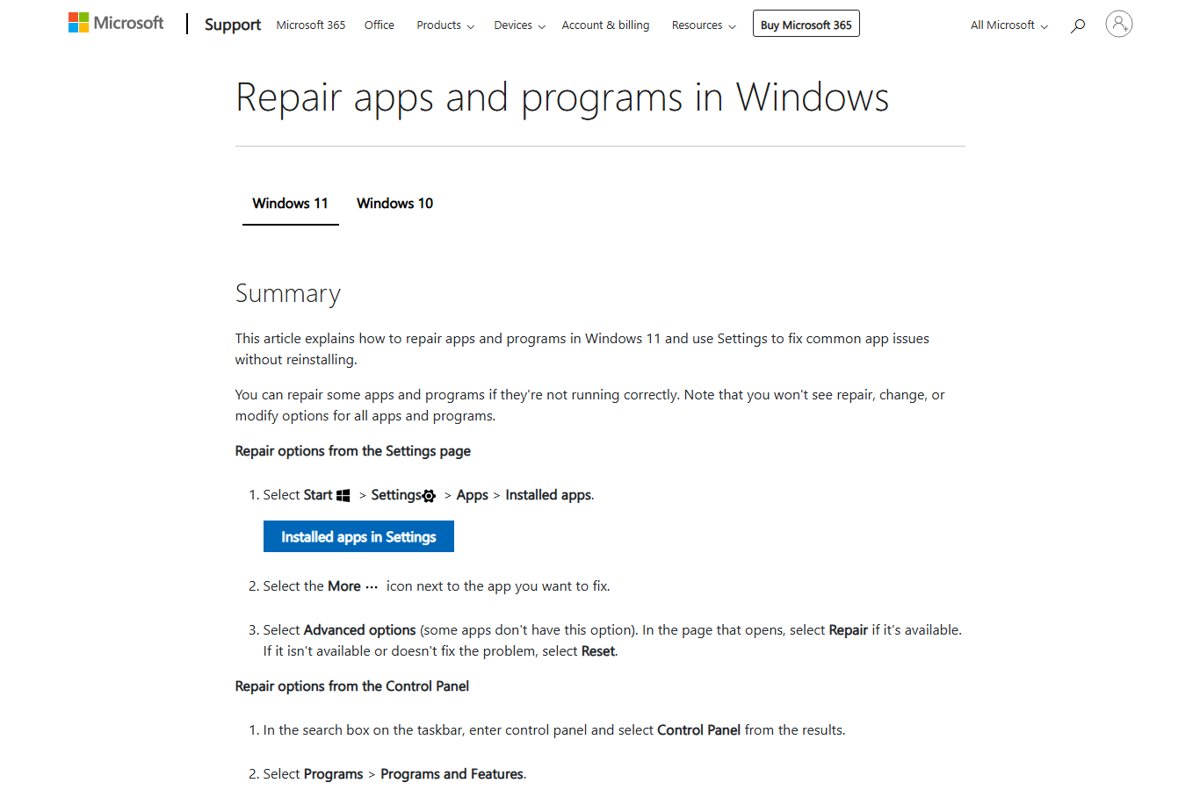
Repair keeps the app's data. Reset goes further, so expect to sign in to iCloud again afterwards.
- Select Start > Settings > Apps > Installed apps.
- Find iCloud and select the More (three dots) icon next to it.
- Select Advanced options.
- Select Repair, let it finish, then try signing in.
- If the loop continues, return to the same page and select Reset.
- Open iCloud for Windows and sign in again.
Uninstall and reinstall iCloud for Windows 11
A clean reinstall replaces every app file. Sign out first so the old session is closed properly. You can download iCloud for Windows again afterwards.
- Open iCloud for Windows, click Account Details, then Sign Out.
- Open Settings > Apps > Installed apps.
- Find iCloud, select More, choose Uninstall, and follow the prompts.
- Restart the PC.
- Open Microsoft Store, select Library, find iCloud, and select Install.
- Open iCloud for Windows and sign in with your Apple Account.
Get the iCloud verification code on Windows 11
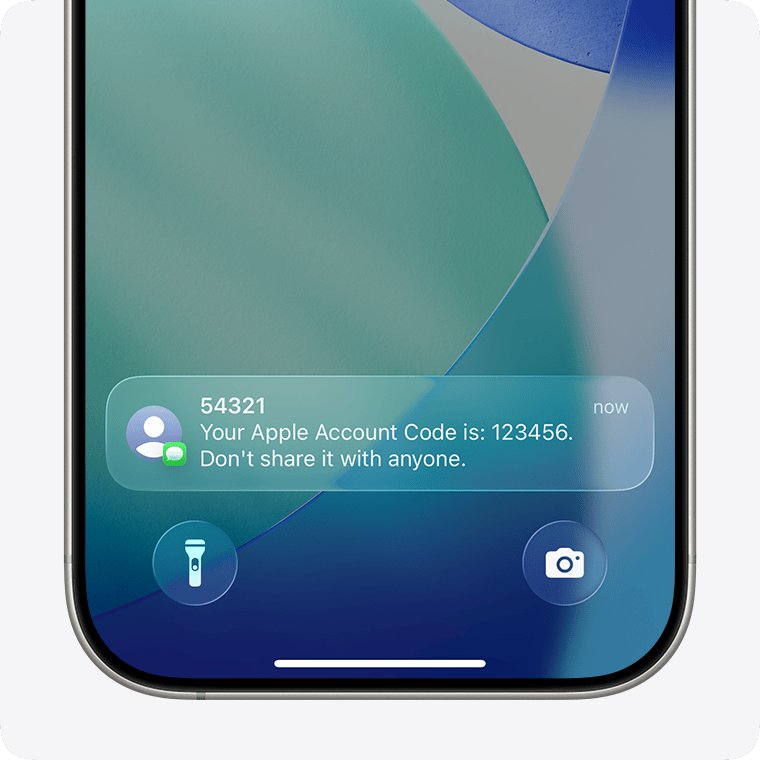
Two-factor authentication sends the code to a trusted Apple device first. If that device is off or out of reach, the code screen can repeat forever.
- Enter your Apple Account and password in iCloud for Windows.
- On your iPhone, iPad or Mac, tap Allow on the sign-in notification.
- Type the verification code shown on that device into iCloud for Windows.
- If no notification appears, select Didn't Get a Code? or Can't get to your devices? on the PC.
- Choose to send the code to your trusted phone number by text or call.
- If you filter unknown senders in Messages, check that list for the text, then enter the code.
iCloud sign-in with Advanced Data Protection or a security key
These two Apple Account settings add conditions that the Windows app has to meet before sign-in completes.
| Your Apple Account uses | What iCloud for Windows needs | What to do |
|---|---|---|
| Advanced Data Protection | Version 14.1 or later | Update from Microsoft Store Library |
| Advanced Data Protection (version 14.2 or later) | Trusted Apple device within Bluetooth range of the PC or on the same Wi-Fi router | Keep the iPhone next to the PC on the same network during sign-in |
| Advanced Data Protection with a VPN on the PC | A direct connection during sign-in | Turn off the VPN temporarily, sign in, then turn it back on |
| Security keys | iCloud for Windows 15 or later | Update, then insert or tap the key when prompted |
Reset your Apple Account password when iCloud rejects it
If iCloud for Windows keeps returning to the password field, the password itself may be the problem. Reset it from a trusted iPhone, iPad or Mac (on a Mac you can change the Apple Account password in System Settings), then use the new one on the PC.
- On an iPhone, iPad or Mac already signed in to your Apple Account, change the password from your account settings.
- Without a trusted device, go to iforgot.apple.com in Safari on a device with iOS 17 or later and follow the instructions.
- On a borrowed Apple device, open the Apple Support app, go to Support Tools > Reset Password > Help Someone Else.
- Once the password is changed, open iCloud for Windows and sign in with the new password.
- If no reset option works, request account recovery and expect it to take several days.
How to check iCloud for Windows is signed in
- Close iCloud for Windows and restart the PC.
- Open iCloud for Windows from Start; it should open on your account, not the sign-in screen.
- Click Account Details and confirm your Apple Account email is listed.
- Open File Explorer and go to
C:\Users\[user name]\iCloud Driveto see your iCloud Drive files if you turned that feature on. - Check that a file added on your iPhone or at iCloud.com appears on the PC.
Where is iCloud in Windows 11?
iCloud for Windows is a normal app in the Start menu and in Settings > Apps > Installed apps. Its features show up inside other Windows apps.
| iCloud feature | Where it appears on Windows 11 |
|---|---|
| iCloud for Windows settings and sign-in | The iCloud app in the Start menu |
| iCloud Drive | File Explorer, by default at C:\Users\[user name]\iCloud Drive |
| Calendars and Contacts | Microsoft Outlook 2021 or later |
| Passwords | The iCloud Passwords app and a browser extension in Chrome, Edge or Firefox |
| Bookmarks | Your web browser |
| Photos and Shared Albums | Set up from the iCloud app's Photos option |
Cannot log in to iCloud on Windows 11: fixes by symptom
"Can't connect to server" during sign-in
The PC is offline, or an Apple service is down or under maintenance.
- Open a web page to confirm the internet connection works.
- Check Apple's System Status page for iCloud and Apple Account issues.
- If a service shows an outage, wait until it clears and sign in again.
A Media Feature Pack message appears before sign-in
Windows media features that iCloud needs are turned off.
- Open Control Panel > Programs and Features.
- Select Turn Windows features on or off.
- Tick Media Features, select OK, and restart if asked.
iCloud Passwords keeps relaunching from the taskbar
An old taskbar shortcut from iCloud for Windows 13.
- Right-click the iCloud Passwords icon and unpin it from the taskbar.
- Open Start, find iCloud Passwords, and pin a fresh shortcut.
Sign-in fails with a work or school Apple Account
iCloud for Windows does not support Managed Apple Accounts.
- Sign in with a personal Apple Account instead.
- Ask your organisation's administrator for another way to reach work files.
The loop returns after every restart
Damaged app data that sign-out alone does not clear.
- Sign out of iCloud for Windows.
- Run Repair, then Reset from Advanced options for iCloud.
- If it still loops, uninstall iCloud, restart, and reinstall it from Microsoft Store > Library.
iCloud login loop on Windows 11 FAQ
Why does iCloud for Windows keep asking me to sign in?
iCloud for Windows usually loops when the app is outdated, the PC clock is wrong, or the stored sign-in data is damaged. Update the app from the Microsoft Store, turn on automatic date and time, then sign out and sign back in.
Where is iCloud in Windows 11?
iCloud for Windows is an app in the Start menu once you install it from the Microsoft Store. iCloud Drive files sit in File Explorer at C:\Users\[user name]\iCloud Drive, and Calendars and Contacts appear in Outlook.
How do I sign in to iCloud on Windows 11?
Install iCloud for Windows from the Microsoft Store, open it, and sign in with the Apple Account your iPhone, iPad or Mac uses. Approve the sign-in on a trusted device, enter the code, pick the features to sync, and click Finish Setup.
How do I sign out of iCloud on Windows 11?
Open iCloud for Windows, click Account Details, then click Sign Out and follow the prompts. Signing out removes iCloud information stored on the PC, but the data stays on your other devices and at iCloud.com.
Why can't I log in to iCloud on Windows 11 with a work account?
iCloud for Windows does not support Managed Apple Accounts, which organisations issue to staff and students. Sign in with a personal Apple Account instead, or ask your administrator about other ways to reach the files.
Does iCloud for Windows work with Advanced Data Protection?
Yes, with iCloud for Windows 14.1 or later. From version 14.2, keep your trusted Apple device within Bluetooth range of the PC or on the same Wi-Fi router, and turn off any VPN temporarily while you sign in.
Will reinstalling iCloud for Windows delete my photos or files?
Your iCloud data stays on Apple's servers, your other devices and iCloud.com when you sign out or uninstall. Files kept only on the PC are not part of iCloud, so copy those elsewhere before you remove the app.
Is an iCloud login loop the same as a Windows 11 login loop?
No. An iCloud loop happens inside the iCloud for Windows app after Windows has started. A Windows 11 login loop returns you to the Windows sign-in screen and needs Windows account or startup repairs instead.
Bottom line on the iCloud for Windows sign-in loop
Update iCloud for Windows, fix the PC clock, and sign out and back in before you try anything heavier. Those three steps clear the outdated-app, timestamp and stale-session causes in a few minutes. If the loop survives them, Repair, Reset and a clean reinstall replace the app itself, and the Apple Account checks catch code, security key and password problems that no Windows fix can solve.