Magic Mouse scrolling on Windows depends on Apple's own mouse driver, which Apple ships only inside the Boot Camp Windows support software for Intel-based Macs.
This guide shows how to install that driver, tune the Windows 11 scroll settings, and what your options are on a regular PC where Apple offers no driver.
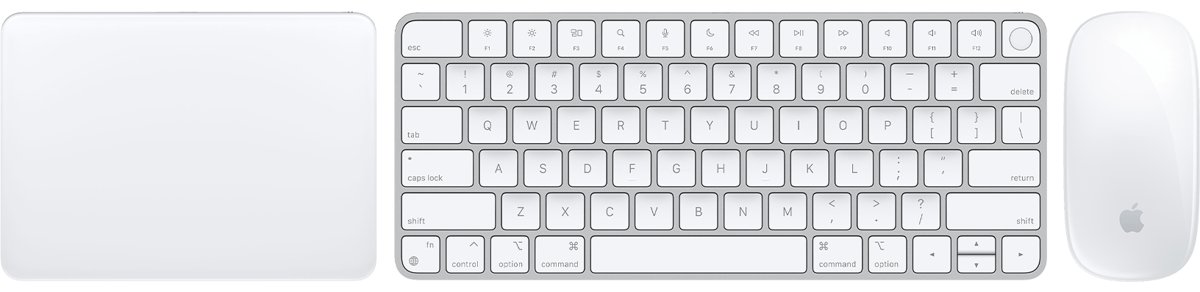
Enable Magic Mouse scrolling on Windows 11 with the Boot Camp driver
Pairing alone does not turn the touch surface into a scroll wheel. The fix is to run Apple's Windows support software installer in Repair mode from inside Windows.
These steps assume Windows is installed on an Intel Mac with Boot Camp and you already have the support software on a USB drive. The next sections cover getting that drive ready.
- Start your Mac in Windows with the USB drive connected directly to the Mac, not through a hub.
- Open File Explorer and open the USB drive.
- Open the WindowsSupport or BootCamp folder and double-click Setup or setup.exe.
- Click Yes when Windows asks to allow Boot Camp to make changes.
- Click Repair to reinstall the Apple drivers, including the mouse driver.
- Click Continue Anyway if a Windows Logo testing warning appears.
- Click Finish, then click Yes to restart the Mac.
- After the restart, slide one finger up or down on the Magic Mouse surface to scroll.
Can Magic Mouse scroll on Windows? Your setup decides
The answer depends on what hardware runs Windows. Apple's driver is the only official route, and Apple distributes it through Boot Camp Assistant on a Mac.
| Your setup | Can you get scrolling? | What to do |
|---|---|---|
| Intel Mac running Windows 10 through Boot Camp | Yes, with Apple's support software | Run the Boot Camp installer and choose Repair |
| Intel Mac running Windows 11 Pro through Boot Camp | Possibly, but Apple lists only Windows 10 for Boot Camp | Try the same Repair install; Apple does not support this combination |
| Mac with Apple silicon | Not through Boot Camp | Boot Camp requires a Mac with an Intel processor |
| Windows PC that is not a Mac | No official route | Apple offers no Windows driver for non-Mac PCs; use a mouse with a scroll wheel |
Magic Mouse on Windows: what you need before installing the driver
| Requirement | Detail |
|---|---|
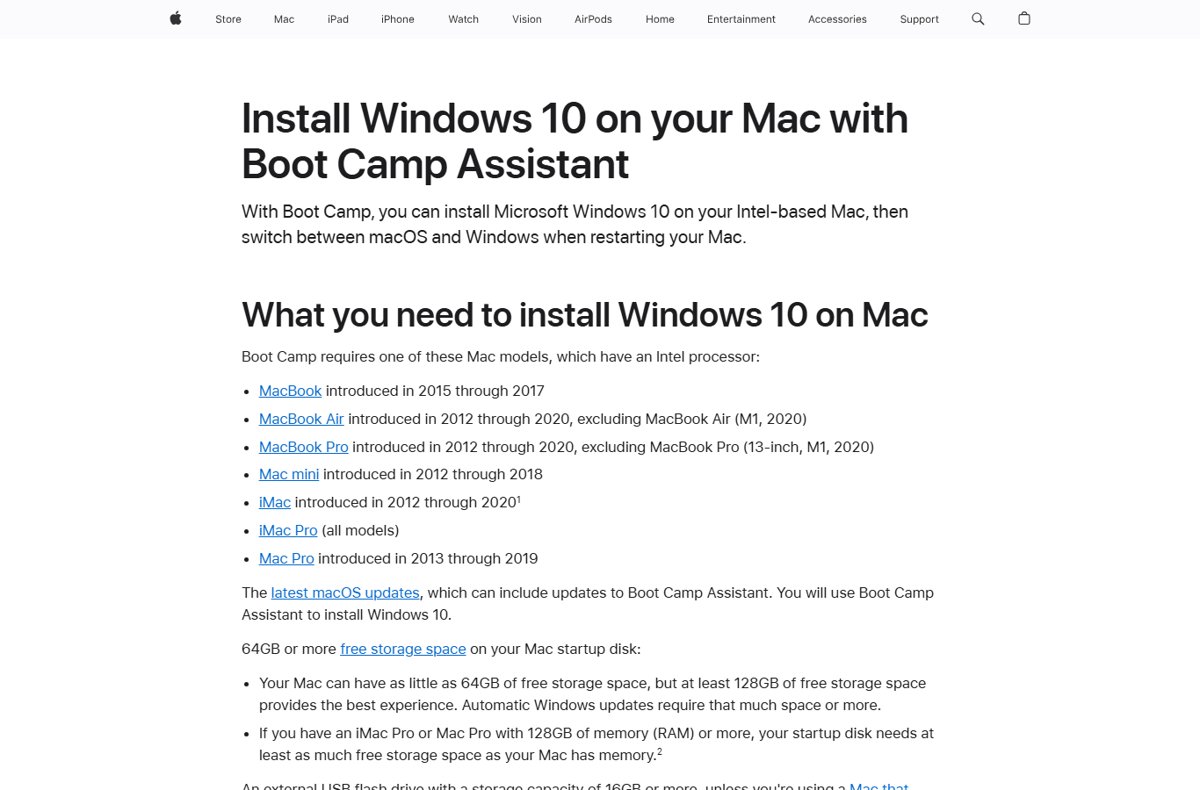
| Mac model | An Intel-based Mac supported by Boot Camp, such as MacBook Air or MacBook Pro models from 2012 to 2020 |
| Windows | Apple lists 64-bit Windows 10 Home or Windows 10 Pro; Windows 11 is not on Apple's list |
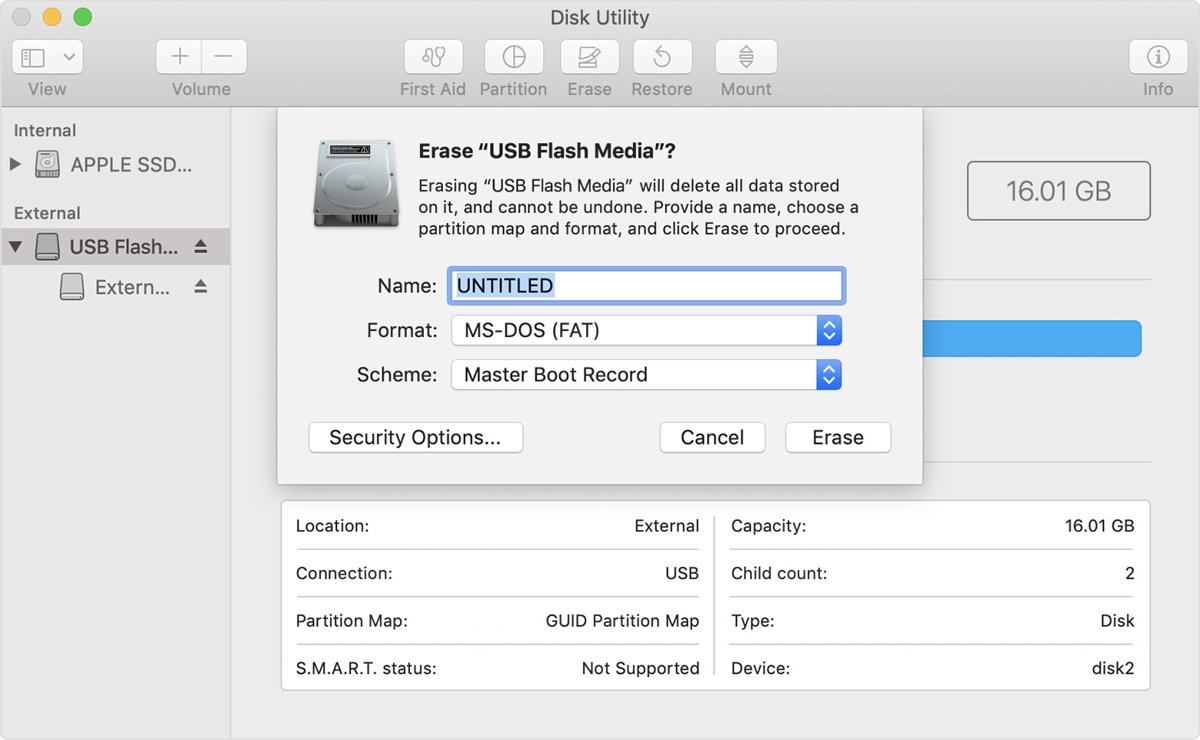
| USB flash drive | 16GB or larger, erased as MS-DOS (FAT) with the Master Boot Record scheme |
| macOS | The latest macOS updates, because they can include Boot Camp updates |
| Internet | The Mac needs a connection while Boot Camp Assistant downloads the software |
| Magic Mouse | Switched on, with green showing under the power switch on the bottom |
Download the Windows support software for Magic Mouse in macOS
Do this part in macOS. It prepares the USB drive that the Windows installer runs from.
- Start the Mac in macOS and plug in the USB flash drive.
- Open Disk Utility from the Utilities folder in Applications.
- Choose View > Show All Devices, then select the drive name in the sidebar.
- Click Erase, choose MS-DOS (FAT) as the format and Master Boot Record as the scheme, then click Erase.
- Quit Disk Utility and open Boot Camp Assistant from the Utilities folder.
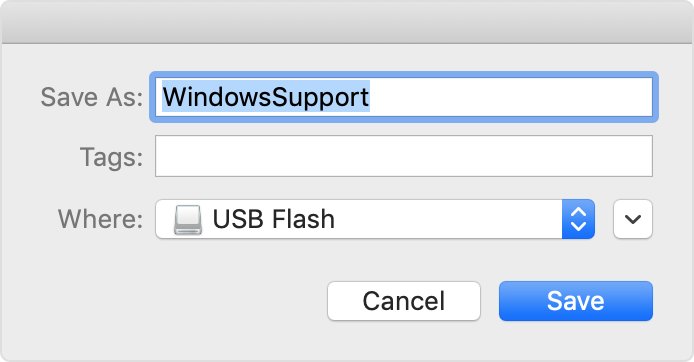
- Choose Action > Download Windows Support Software and select the USB drive as the destination.
- Quit Boot Camp Assistant when the download finishes, then restart the Mac in Windows.
Pair Magic Mouse with Windows 11 over Bluetooth
Windows has to see the mouse before any scrolling setting matters, so turn on Bluetooth in Windows 11 first; the switch is in Settings > Bluetooth & devices.
- Slide the power switch on the bottom of the Magic Mouse until green shows.
- Select the Network, Sound or Battery icon next to the clock on the taskbar.
- Select the chevron beside the Bluetooth quick setting labelled Manage Bluetooth devices.
- Select the Magic Mouse under New devices; scroll past Your devices if the list is long.
- Follow any prompts, then select Done.
Once paired, the mouse reconnects on its own whenever Bluetooth is on and the mouse is in range. If the cursor never moves at all, start with the basics to enable a mouse in Windows before reinstalling drivers.
Change Magic Mouse scroll speed and direction in Windows 11 settings
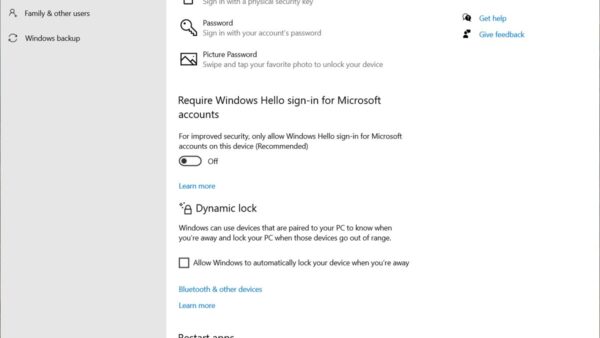
With the Apple driver working, Windows treats Magic Mouse scrolling like a wheel, so the standard Windows mouse settings apply to it. These settings change scroll speed and direction, and the same page lets you adjust pointer speed, but they cannot create scrolling that the driver does not provide.
- Open Start > Settings > Bluetooth & devices > Mouse.
- Under Scrolling, set Roll the mouse wheel to scroll to multiple lines or one screen at a time.
- Drag the Lines to scroll at a time slider to make each swipe move more or less.
- Turn on Scroll inactive windows when hovering over them to scroll a window without clicking it first.
- Open Scrolling direction and pick Down motion scrolls up for Mac-style natural scrolling, or Down motion scrolls down for the Windows default.
- For sideways scrolling, select Additional mouse settings, open the Wheel tab, set the Horizontal Scrolling value and select OK.
How to check Magic Mouse scrolling works in Windows
- Open a long web page or a document in any app.
- Slide one finger up and down on the top surface of the Magic Mouse; the page should move.
- Change Lines to scroll at a time in Settings > Bluetooth & devices > Mouse and swipe again; a larger value should move the page further.
- Flip Scrolling direction and confirm the page now moves the opposite way, then set it back to the direction you prefer.
If the pointer moves and clicks work but nothing scrolls, the Apple driver is missing or damaged, so run the Repair install again. If the pointer does not respond at all, work through the usual fixes for a mouse that is not working first.
Magic Mouse not scrolling on Windows: causes and fixes
Magic Mouse moves and clicks but does not scroll
Windows is using a generic mouse driver instead of Apple's driver from the Boot Camp support software.
- Connect the USB drive with the Windows support software directly to the Mac.
- Open WindowsSupport or BootCamp on the drive and run Setup.
- Click Repair, finish the install and restart the Mac.
Magic Mouse stopped scrolling after a Windows update
An update can replace or break the Apple driver package.
- In macOS, install the latest macOS updates, which can include Boot Camp updates.
- Download a fresh copy with Action > Download Windows Support Software in Boot Camp Assistant.
- Restart in Windows and run Setup > Repair from the new drive.
Magic Mouse not scrolling on a Windows PC that is not a Mac
Apple distributes its Windows mouse driver only through Boot Camp Assistant for Intel Macs.
- Accept that the touch surface works only as a pointer and buttons on that PC.
- Scroll with the scroll bars, Page Up, Page Down or the arrow keys when needed.
- Use a mouse with a physical scroll wheel for daily work on that PC.
Magic Mouse not connecting or showing in Windows
The mouse is off, paired to a nearby Mac, or the Bluetooth pairing record is stale.
- Check that green shows under the power switch, then charge the mouse with its cable if the battery is low.
- Open Settings > Bluetooth & devices, select More options (…) beside the mouse and choose Remove device.
- Select Add device, choose the Magic Mouse and finish pairing.
- Select Run the troubleshooter in Get Help if it still fails to connect.
Boot Camp installer will not run or fails
The drive is too small, formatted wrongly, or connected through a hub.
- Use a USB drive of at least 16GB erased as MS-DOS (FAT) with Master Boot Record.
- Plug it straight into the Mac, not into a display, keyboard or hub.
- Confirm the Mac model supports Boot Camp on Apple's list of Intel Macs.
Magic Mouse gestures that do not work in Windows
Expect basic one-finger scrolling from Apple's driver, not the full macOS gesture set. Apple states that Force Click is not supported in Windows, and macOS-only gesture settings in System Settings have no Windows equivalent, so Windows controls stop at speed, direction and horizontal scroll amount.
Magic Mouse scrolling on Windows FAQ
Can Magic Mouse scroll on Windows?
Yes, on an Intel Mac running Windows through Boot Camp with Apple's Windows support software installed. That package includes the Apple mouse driver that turns finger swipes into scrolling. On a regular Windows PC, Apple offers no driver, so the touch surface does not scroll.
How do I scroll with a Magic Mouse on Windows?
Slide one finger up or down on the top surface of the mouse once Apple's driver is installed. Install it by running Setup from the Boot Camp support software drive and choosing Repair. Speed and direction then follow Settings > Bluetooth & devices > Mouse.
Why isn't my Magic Mouse scrolling on Windows?
The Apple mouse driver is missing, so Windows treats the Magic Mouse as a plain pointer with buttons. Apple says to install the Windows support software when an Apple mouse does not work in Windows. Run its Setup in Repair mode and restart.
Why is my Magic Mouse not scrolling after it worked before?
A Windows update or a damaged install can break the Apple driver. Install the latest macOS updates, download a fresh copy of the Windows support software in Boot Camp Assistant, then run Setup and choose Repair from inside Windows.
How do I scroll with a Magic Mouse on a Mac?
Slide one finger up or down on the top surface of the mouse; macOS needs no extra driver for it. To change how fast pages move, open System Settings > Accessibility > Pointer Control, click Mouse Options and drag the Scroll speed slider.
Does Magic Mouse scrolling work on Windows 11 Pro?
Apple lists only 64-bit Windows 10 Home and Windows 10 Pro for Boot Camp, so Windows 11 Pro is not an Apple-supported setup. The Repair install may still be tried on an Intel Mac, but Apple does not guarantee the driver there.
Is there an Apple Magic Mouse driver for a normal Windows PC?
No. Apple distributes its Windows mouse driver only as part of the Boot Camp Windows support software, which Boot Camp Assistant downloads on an Intel Mac. A non-Mac PC has no official route to Magic Mouse scrolling.
Can I reverse Magic Mouse scroll direction in Windows?
Yes. Open Settings > Bluetooth & devices > Mouse and change Scrolling direction to Down motion scrolls up for Mac-style scrolling. Pick Down motion scrolls down to return to the usual Windows behaviour.
Bottom line: is Magic Mouse worth using for scrolling on Windows?
Use the Magic Mouse for scrolling on Windows only on an Intel Mac with Apple's Boot Camp support software installed; on any other Windows PC, switch to a mouse with a scroll wheel. Scrolling comes entirely from Apple's driver, Apple supports it only through Boot Camp on Intel Macs with Windows 10, and Windows settings cannot add it on their own.