To sync refresh rates for smooth playback in Windows, open Settings > System > Display > Advanced display and set every monitor to the same rate under Choose a refresh rate.
Microsoft warns that mismatched rates across monitors can make video stall or stop and start, so matching them comes first; this guide then covers picking a rate that fits the video, Dynamic Refresh Rate, VRR, and fixes for stutter on Windows 11 and Windows 10.
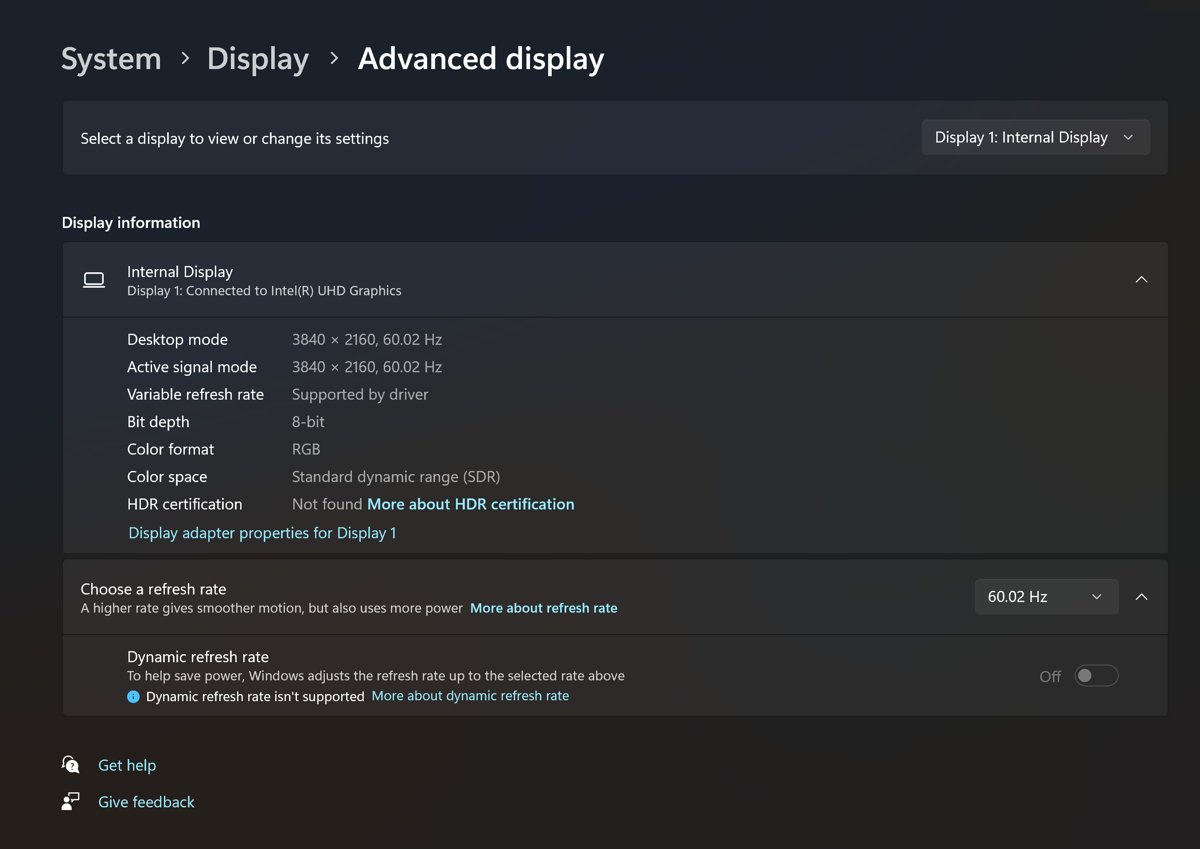
Sync all monitors to the same refresh rate
Do this whenever video plays on a second monitor, a TV or a Miracast screen. Microsoft's own fix for stalling playback is to give all monitors the same refresh rate.
- Select Start > Settings > System > Display.
- Scroll down and select Advanced display.
- Pick the first monitor from the display selector at the top of the page.
- Note the current rate in the Display information panel, then select a rate next to Choose a refresh rate.
- Switch the selector to the next monitor and choose the same rate.
- Repeat for every connected display, then replay the video.
If one monitor tops out at 60 Hz, change the monitor refresh rate on the others to 60 Hz as well, even if they can go higher.
Refresh rate and video frame rate are different
The refresh rate is how many times per second the screen redraws; a 60 Hz display updates 60 times a second. The frame rate is how many pictures per second the video contains.
Smooth playback depends on how the two line up. When the refresh rate is a whole multiple of the frame rate, every frame stays on screen for the same time; when it is not, some frames stay longer than others, which shows up as judder on slow pans.
| Term | What it measures | Who sets it | Why syncing matters |
|---|---|---|---|
| Refresh rate (Hz) | Screen redraws per second | You, in Windows display settings or the GPU app | Sets the timing grid every frame must fit into |
| Frame rate (fps) | Pictures per second in the video | The video's creator; you cannot change it | Fixed, so the display has to adapt to it |
| Variable refresh rate (VRR) | A display's ability to change its redraw timing on the fly | The monitor, GPU and driver together | Lets supported content set the pace instead of a fixed grid |
| Dynamic Refresh Rate (DRR) | Windows 11 switching rate based on what you are doing | Windows 11 on VRR displays of 120 Hz or more | Balances smoothness and battery life automatically |
Quick reference: refresh-rate targets for common video frame rates
Pick a refresh rate that divides evenly by the video's frame rate. Broadcast-style 23.976, 29.97 and 59.94 fps content pairs best with the matching fractional rate when your display lists one, such as 59.94 Hz.
| Video frame rate | Typical source | Even refresh rates | Uneven (judder-prone) rates |
|---|---|---|---|
| 23.976 / 24 fps | Films and most streaming series | 24 Hz, 48 Hz, 72 Hz, 120 Hz, 144 Hz | 60 Hz, 75 Hz, 165 Hz |
| 25 fps | PAL-region TV and video | 50 Hz, 75 Hz, 100 Hz | 60 Hz, 144 Hz |
| 29.97 / 30 fps | US TV, many online videos | 60 Hz, 90 Hz, 120 Hz | 75 Hz, 144 Hz |
| 50 fps | PAL-region sports and live TV | 50 Hz, 100 Hz | 60 Hz, 144 Hz |
| 59.94 / 60 fps | Sports, gameplay video, phone recordings | 60 Hz, 120 Hz, 240 Hz | 75 Hz, 144 Hz, 165 Hz |
120 Hz is the most flexible single rate for mixed viewing because it divides evenly by 24, 30 and 60.
What you need before syncing refresh rates in Windows
The rates Windows offers depend on the display, the cable and the graphics hardware together. Check these before blaming a setting.
| Check | Why it matters | Where to look |
|---|---|---|
| Display capabilities | Windows only lists the rates the display reports | Settings > System > Display > Advanced display > Display information |
| VRR support | Needed for Dynamic Refresh Rate and for G-SYNC or FreeSync | The Display information panel says whether the display supports variable refresh rate |
| Resolution | Some rates only exist at a lower resolution | Rates marked with an asterisk (*) in Choose a refresh rate |
| Cable and port | An older cable or port can cap the highest rate at a given resolution | The monitor's manual and the port you plugged into |
| Graphics driver | An outdated driver can hide rates or reset the resolution | Windows Update or the GPU maker's driver page |
| Windows version | Dynamic Refresh Rate exists only on Windows 11 | Windows 10 has no Dynamic refresh rate toggle |
Pick the right strategy: switching refresh rate vs using VRR
| Your situation | Use this | Why |
|---|---|---|
| Video stutters on a second monitor or TV | Match all monitors to one rate | Microsoft documents mismatched rates as a cause of stalling playback |
| You mostly watch 24 fps films | Fixed 120 Hz, or 24 Hz if the TV lists it | Each frame gets an equal number of refreshes |
| You watch a mix of films, TV and YouTube | Fixed 120 Hz | Divides evenly by 24, 30 and 60 |
| Laptop on battery with a 120 Hz+ VRR screen | Dynamic Refresh Rate | Windows lowers the rate when you are not scrolling or inking |
| You also game on the same screen | VRR (G-SYNC or FreeSync) plus a fixed desktop rate | VRR-aware games adapt the rate themselves |
| Display only offers 60 Hz | 60 Hz on every monitor | Even for 30 and 60 fps; accept slight judder on 24 fps |
How to select the best rate on one monitor
This is the Windows 11 refresh-rate switching route for a single display. Check the rate at the selected resolution, because the list changes when the resolution does.
- Select Start > Settings > System > Display > Advanced display.
- Read the current resolution and refresh rate in the Display information panel.
- Open the list next to Choose a refresh rate.
- Pick the rate from the quick reference table that suits what you watch, such as 120 Hz for mixed content.
- Avoid rates marked with an asterisk (*) unless you accept a resolution change; Windows switches resolution to reach them.
Windows 10 instructions for changing the refresh rate
Windows 10 has the same refresh-rate list but no Dynamic Refresh Rate. Microsoft ended Windows 10 support on October 14, 2025, although the PC keeps working.
- Select Start > Settings > System > Display.
- Select Advanced display settings.
- If several monitors are connected, select the display you want to change first.
- Pick a rate under Refresh rate.
- Repeat for each monitor so they all use the same rate.
If the rate you want is missing, update the graphics driver before changing players.
Use Dynamic Refresh Rate when the hardware supports it
Dynamic Refresh Rate (DRR) is a Windows 11 feature that raises the rate for scrolling, inking and gaming and lowers it to save battery. It needs a display that supports VRR and at least 120 Hz; otherwise the switch stays unavailable.
- Select Start > Settings > System > Display > Advanced display.
- Find the Dynamic refresh rate toggle.
- Turn it on for battery savings on a laptop, or off if you want one fixed rate for video.
- Turn it off if a favorite game now runs at a lower rate; Microsoft names this as the fix.
For a dedicated movie setup, a fixed rate is more predictable than DRR, because DRR picks the rate based on activity rather than on the video's frame rate.
Enable VRR (FreeSync/G-SYNC) to avoid judder and tearing
VRR lets the display follow the content's timing. NVIDIA describes G-SYNC and G-SYNC Compatible displays as delivering tear-free, stutter-free VRR, and AMD's equivalent is FreeSync.
VRR is switched on in two places: the monitor's own menu and the graphics vendor's app, such as the NVIDIA Control Panel or AMD Software. Intel laptops may have a separate setting in Intel's graphics software, so check it if the Windows choice keeps reverting.
- Open Settings > System > Display > Advanced display and confirm the Display information panel lists variable refresh rate support.
- Turn on the adaptive sync, FreeSync or G-SYNC option in the monitor's on-screen menu.
- Open your graphics vendor's control panel and turn on G-SYNC or FreeSync for the display.
- In Windows, open Settings > System > Display > Graphics.
- Under Default settings, turn on Optimizations for windowed games so DirectX 10 and 11 games in windowed or borderless mode can use VRR.
- Restart the game or player app so it picks up the change.
Most video players and browsers still draw at the fixed desktop rate, so VRR helps games far more than it helps film playback. Keep a sensible fixed rate as well.
Check Windows video playback settings
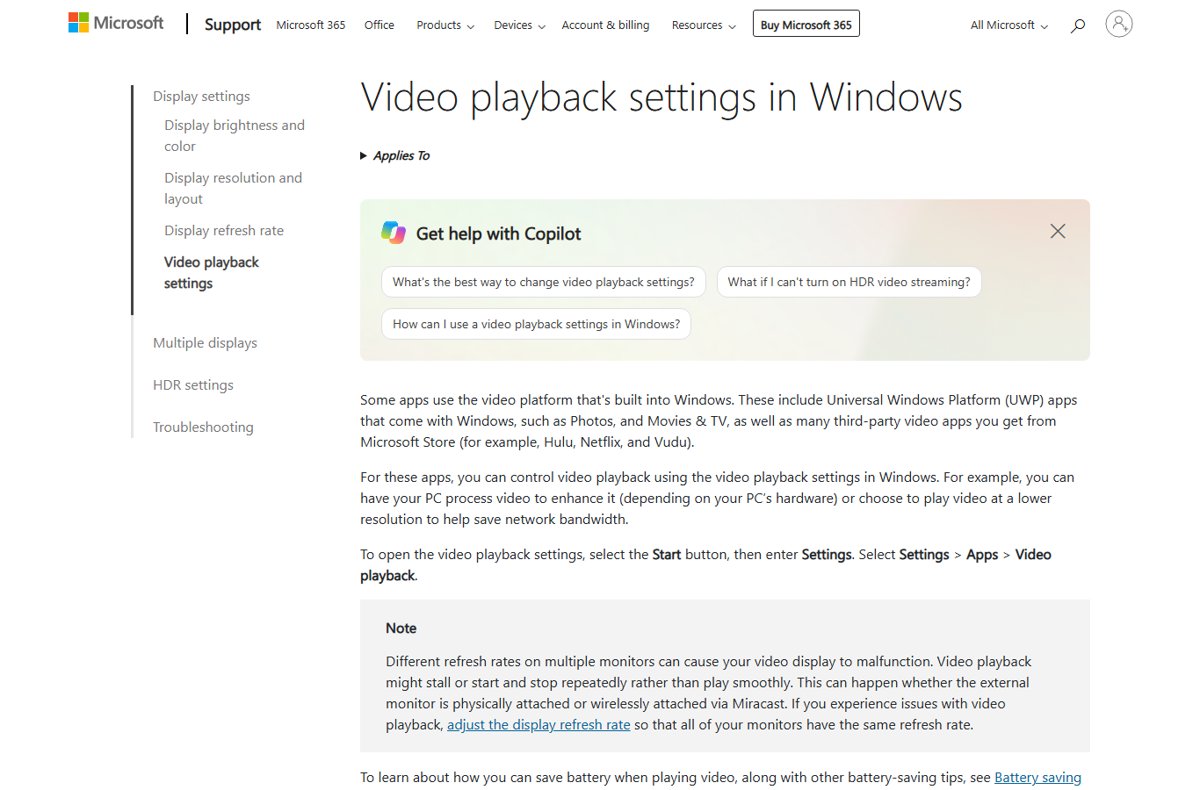
Video Playback settings are useful, but not universal. They apply only to apps that use the video platform built into Windows: Photos, Movies & TV, and Store apps such as Netflix, Hulu and Vudu.
- Select Start, type Settings and open it.
- Select Apps > Video playback.
- Turn on video processing to enhance video if your hardware supports it.
- Turn on the lower-resolution option only if you need to save network bandwidth.
- Replay the video in the same app to compare.
Each switch on the Windows video playback settings page has its own trade-off between quality and bandwidth. Desktop players and browsers that do not use the Windows video platform ignore these switches.
Configure media players to match video frame rate
Windows does not change the display rate for each video on its own. Use the right media player settings and players that can match modes where available, and set a good fixed rate for everything else, including browser playback in Edge and Chrome.
| Where you watch | What controls smoothness | What to do |
|---|---|---|
| Photos, Movies & TV, Netflix or Hulu app | Windows Video playback settings | Match monitor rates, then adjust Settings > Apps > Video playback |
| Desktop player with a display-mode or refresh-rate option | The player's own setting | Turn on its refresh-rate matching option if it has one, then test a 24 fps file |
| Desktop player without that option | The fixed Windows rate | Set 120 Hz, or a rate from the quick reference table |
| Edge or Chrome | The fixed Windows rate and the browser's graphics acceleration | Keep graphics acceleration on in the browser's system settings and use a fixed rate |
| TV connected over HDMI | Rates the TV reports to Windows | Pick 24 Hz or 60 Hz from Choose a refresh rate to match the content |
Optimize multi-monitor and TV playback setups
| Setup | Recommended rate plan | Reason |
|---|---|---|
| Laptop screen plus external monitor | Both at the same rate, such as 60 Hz | Microsoft warns that different rates can make playback stall |
| Two monitors where one supports 144 Hz | Both at 60 Hz, or both at 120 Hz if each supports it | A shared rate avoids stop-start video |
| PC to TV for movies | TV at 24 Hz if listed, other screens off or matched | Film frames map one-to-one at 24 Hz |
| Wireless display over Miracast | Main display at the same rate as the wireless screen | Microsoft lists Miracast among the affected setups |
| Single 120 Hz+ VRR laptop screen | DRR on battery, fixed 120 Hz when watching films | DRR targets activity, not the video's frame rate |
How to check the refresh rate is synced in Windows
- Open Settings > System > Display > Advanced display.
- Select each monitor in turn and read the refresh rate in the Display information panel; every display should show the same number.
- Play a video with a slow horizontal pan, such as a film's opening scene, on the main screen.
- Drag the player to the second monitor and play the same scene; it should neither stall nor stop and start.
- Check that Dynamic refresh rate is off if you wanted a fixed rate for playback.
A practical troubleshooting order for stutter, judder, and dropped frames
Work through this reliable sequence in order. Check the driver before changing players, because a driver problem affects every app.
Video stalls or starts and stops on a second monitor
The monitors run at different refresh rates, which Microsoft documents as a playback problem for wired and Miracast displays.
- Open Settings > System > Display > Advanced display.
- Set every monitor to the same value under Choose a refresh rate.
- Replay the video.
Smooth on most videos but judder on films
The refresh rate is not an even multiple of 24 fps, for example 60 Hz or 144 Hz.
- Switch to 120 Hz or another even multiple from the quick reference table.
- On a TV, choose 24 Hz if it appears in the list.
- Replay a slow pan to compare.
Refresh rate keeps changing on its own
Dynamic Refresh Rate is on, or a laptop graphics or power utility overrides the Windows choice.
- Turn off Dynamic refresh rate in Advanced display.
- Open the graphics vendor's app and turn off any refresh-rate power-saving option.
- Set the rate again under Choose a refresh rate.
Dynamic refresh rate is missing in Windows 11
DRR needs a display with VRR support and at least 120 Hz, and it does not exist on Windows 10.
- Check the Display information panel for VRR support.
- Check that the highest rate in Choose a refresh rate is 120 Hz or more.
- Update the graphics driver, then reopen Advanced display.
Automatic switching to the video's frame rate never happens
Seamless automatic switching may not happen because Windows does not offer it; only a player with its own rate-matching option can switch modes.
- Look in the player's video or display settings for a refresh-rate matching option.
- If there is none, set a fixed 120 Hz rate in Advanced display.
- Use DRR only for battery savings, not for frame-rate matching.
Why 24 Hz, 25 Hz, or 50 Hz may be missing
Can't get more refresh rate options in the list
Windows lists only the rates the display reports at the current resolution, and some monitors never report 24, 25 or 50 Hz.
- Open Advanced display and check for rates marked with an asterisk (*); those need a different resolution.
- Try another resolution in Settings > System > Display and reopen the list.
- Use a different port or cable if the monitor's manual lists higher rates for it.
Rates disappeared after an update or the resolution changed unexpectedly
The graphics driver needs an update or was replaced by a basic driver.
- Install pending updates from Windows Update in Settings.
- Install the latest driver from your graphics card maker's site if Windows Update has none.
- Restart the PC and check Choose a refresh rate again.
Common mistakes that make playback worse
| Mistake | What happens | Do this instead |
|---|---|---|
| Setting every monitor to its own highest rate | Mixed rates can make video stall on the second screen | Use one shared rate across all monitors |
| Assuming 144 Hz fixes 24 fps judder | 144 is not an even multiple of 24, so some frames still linger | Use 120 Hz or 72 Hz for films |
| Expecting DRR on every computer | The switch is greyed out or missing | Check for VRR support and 120 Hz or higher |
| Changing Windows Video playback settings for an app that ignores them | Nothing changes in browsers or most desktop players | Use the player's own options and the Windows refresh rate |
| Picking a rate marked with an asterisk | Windows changes the resolution to reach it | Choose an unmarked rate at your current resolution |
Windows refresh rate sync FAQ
How do I change the refresh rate in Windows 11?
Select Start > Settings > System > Display > Advanced display, then pick a rate next to Choose a refresh rate. The list shows only rates your display supports, and an asterisk marks rates that need a resolution change.
How do I synchronize the refresh rate on multiple monitors?
Open Advanced display, select each monitor from the selector at the top, and set the same value under Choose a refresh rate. Microsoft recommends matching rates because different ones can make video stall or start and stop.
How important is refresh rate synchronization?
It matters most when video plays on a second monitor, TV or Miracast screen. Microsoft documents mismatched refresh rates as a cause of stalling, stop-start playback, so matching them is the first fix to try for stutter.
What refresh rate is best for 24 fps movies?
Use 24 Hz, 48 Hz, 72 Hz or 120 Hz, because each divides evenly by 24. At 60 Hz or 144 Hz frames are held for unequal times, which causes visible judder on slow camera pans.
Should all monitors use the same refresh rate for video playback?
Yes. Microsoft's video playback guidance says different refresh rates on multiple monitors can make playback stall, whether the extra screen is wired or wireless. Set every display to a rate they all support.
How do I keep the refresh rate from changing?
Turn off Dynamic refresh rate in Settings > System > Display > Advanced display, then set a fixed rate. Also check the graphics vendor's app for refresh-rate power-saving options that override Windows on laptops.
How do I get more refresh rate options in Windows?
Lower the resolution, use a port and cable that support higher rates, and update the graphics driver. Windows lists only rates the display reports, so a monitor that never reports 24 Hz will not show it.
Why is Dynamic refresh rate missing in Windows 11?
DRR needs a display that supports variable refresh rate and at least 120 Hz. On other displays the toggle is unavailable, and Windows 10 does not have the feature at all.
Does Windows automatically match the monitor to every video's frame rate?
No. Windows Settings has no option that switches the display to each video's frame rate. DRR changes the rate based on activity, so use a fixed even-multiple rate or a player with its own matching option.
What is the difference between variable refresh rate and FreeSync?
Variable refresh rate is the general capability of a display to change its timing on the fly. FreeSync is AMD's implementation of it, and NVIDIA's are G-SYNC and G-SYNC Compatible.
The bottom line on syncing refresh rates for smooth playback
Set every monitor to the same refresh rate first, and make that rate an even multiple of what you watch most, with 120 Hz the best all-round choice. Matching monitors fixes the stop-start playback Microsoft documents, and an even multiple removes film judder, while DRR and VRR mainly help battery life and games rather than video.

![Rockstar Games Launcher not working on Windows PC [Fix]](https://techdows.com/wp-content/uploads/2026/10/Rockstar-Games-Launcher-not-working-on-Windows-PC-Fix-600x338.jpg)