To batch convert many files into separate PDFs at once, open Adobe Acrobat Pro and choose File > Create > Create Multiple PDF Files, then add the files or a whole folder.
This guide also covers merging many files into one PDF online or on a Mac, free routes for Word, Excel and PowerPoint files, and the settings that make the results smaller or archive-ready.
Batch convert files to separate PDFs in Acrobat Pro
Create Multiple PDF Files is the only route here that turns a whole batch into one PDF per source file in a single pass. It needs Adobe Acrobat Pro, not the free Acrobat Reader.
- Open Adobe Acrobat Pro on your computer.
- Check your conversion settings first, because every file in the batch uses the same ones.
- Select File > Create > Create Multiple PDF Files.
- Select Add Files and pick individual documents, or add a folder to convert everything inside it.
- Select OK to confirm the list.
- Fill in the Output Options dialog, which controls where the new PDFs are saved and how they are named.
- Select OK again and wait while Acrobat converts each file to its own PDF.
The original Word, Excel, PowerPoint or image files stay untouched. Each new PDF appears as a separate file in the output location you chose.
Which batch convert to PDF method should you use?
The right tool depends on two things: whether you want one PDF per file or one combined PDF, and whether you pay for Acrobat Pro.
| Your situation | Use this | What you get |
|---|---|---|
| Many files, one PDF each, Acrobat Pro installed | Create Multiple PDF Files in Acrobat Pro | Separate PDFs in one pass |
| Many PDFs to join, no paid software | Adobe Acrobat online Merge PDF tool | One combined PDF, up to 100 files |
| Word, Excel or images to join into one PDF on a Mac | Finder Quick Actions > Create PDF | One PDF, files in the order you selected them |
| A handful of Office files on Windows, no Acrobat | Save As or Export to PDF in Word, Excel or PowerPoint | One PDF per file, converted one at a time |
| Office files already in OneDrive or on the PC, Microsoft 365 user | Convert to PDF in the Microsoft Copilot app | A PDF saved next to the source file |
| Mixed Word, Excel and image files into one PDF on Windows | Acrobat Pro combine feature | One PDF built from several formats |
How to batch convert to a single merged PDF online
Batch converting to a single PDF means dropping several files in and getting back one merged document. Adobe's free online Merge PDF tool works in any browser and needs no account to merge.
The free tool joins PDF files. Combining Word, Excel, PowerPoint and image files directly into one PDF is an Acrobat Pro feature, so convert those files to PDF first if you only have the free tool.
- Open the Adobe Acrobat online Merge PDF tool in your web browser.
- Click Select files, or drag and drop the files into the drop zone.
- Choose the files you want to merge.
- Drag the thumbnails to reorder the files if the sequence matters.
- Click Merge files.
- Download the merged PDF, or sign in if you want to share it with a link.
One merge accepts up to 100 files, each file can hold up to 500 pages, and the merged PDF can reach 1,500 pages. Adobe deletes the uploaded files after processing unless you sign in to save them.
Batch convert files to one PDF on a Mac with Create PDF
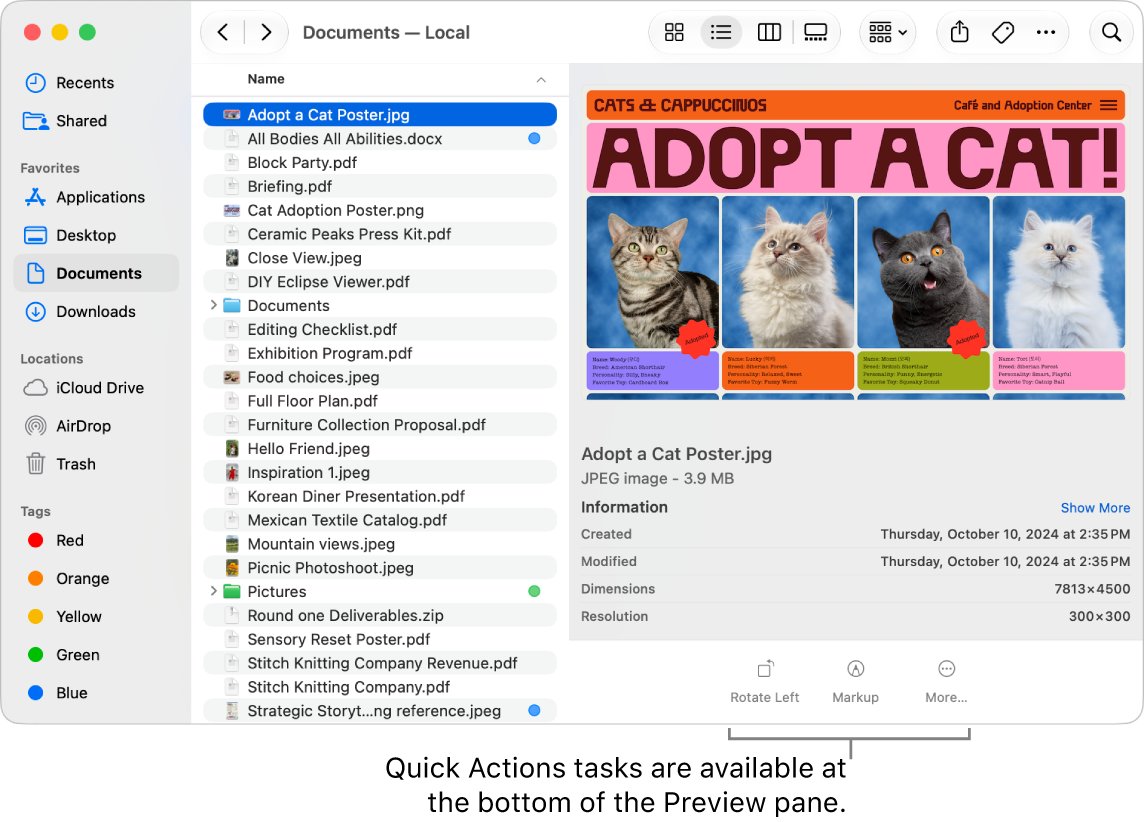
macOS can combine several files into one PDF straight from the Finder, with no extra software. The pages appear in the same order you select the files in Finder, so click them in the order you want.
- Open a Finder window from the Dock.
- Select the files you want to combine, clicking them in the order they should appear. Files on the desktop work too.
- Control-click the selection.
- Choose Quick Actions > Create PDF.
- Find the new PDF in the same folder. Its name is similar to the first file you selected.
You can also select the files and click Create PDF at the bottom of the Preview pane. If the pane is hidden, choose View > Show Preview.
How to batch convert Word docs to PDF without Acrobat
Word, Excel and PowerPoint on Windows save PDFs natively. There is no built-in batch command, so each file is converted on its own, but the job takes seconds per file once the pattern is set.
If you need to pick a group of documents first, select multiple files in File Explorer and open them together, then save each one as below.
| App | Steps to save as PDF | Notes |
|---|---|---|
| Word for Windows | File > Save a Copy (or Save As for an unsaved file) > Browse > choose PDF in the drop-down list > Save | More Options > Options sets the page range and bookmarks |
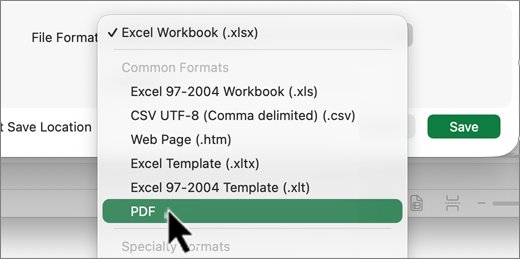
| Excel for Windows | File > Save As or Save a copy > type a name > Save as type: PDF (*.pdf) > Save | Use Options to set what gets printed to the PDF |
| PowerPoint for Windows | File > Export > type a name > Save as type: PDF (*.pdf) > Save | Options sets the optimization level |
| Word for the web | File > Export > Download as PDF or Download as PDF with comments > Download | The PDF lands in your browser's download folder |
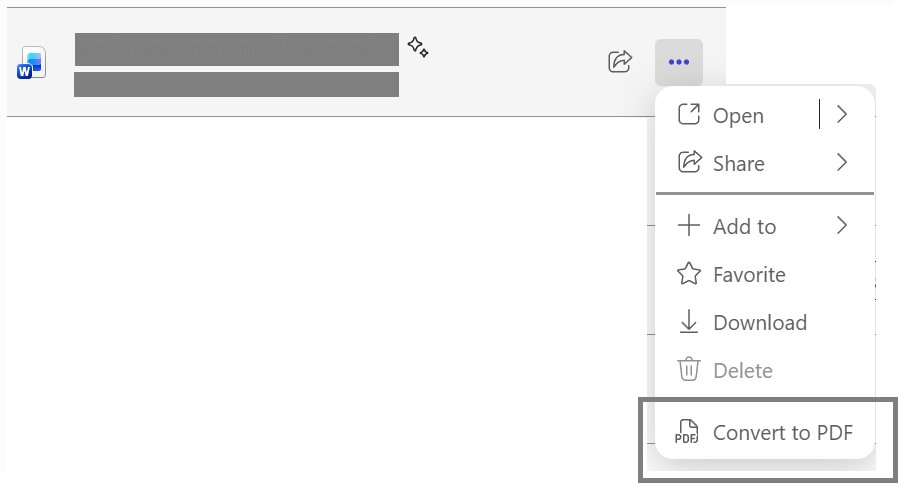
| Microsoft Copilot app | Search > find the file > more actions > Convert to PDF | Works for Word, Excel and PowerPoint files; the PDF is saved in the source folder |
Adobe's free online Word to PDF converter also accepts DOCX, DOC, RTF and TXT files up to 100MB each, but it handles one file at a time. For true one-pass batches, Create Multiple PDF Files in Acrobat Pro is the tool built for it.
How to check batch-converted PDFs
A batch can finish without errors and still produce a PDF with a missing page or a squashed table. Spot-check before you delete or send anything.
- Open the output folder and confirm the number of PDFs matches the number of source files.
- Sort the folder by Size and open any PDF that is much smaller than the rest, since a near-empty file usually means a failed conversion.
- Open two or three PDFs and compare their page count against the original documents.
- Scroll to the last page of a long document to make sure nothing was cut off.
- For a merged PDF, check that the files appear in the order you set.
On Windows, a PDF opens in Microsoft Edge by default, and you can open PDF files in Windows 11 in another reader if you prefer.
Optimize your PDFs further
Office's PDF options decide file size, navigation and archive compliance. Set them before converting, because they apply to the file being saved.
| Option | Where to find it | What it does | When to use it |
|---|---|---|---|
| Minimum size (publishing online) | Excel and PowerPoint Options under optimization | Shrinks the PDF at the cost of print quality | Email attachments and web uploads |
| Standard (publishing online and printing) | Excel and PowerPoint Options | Keeps full print quality | Files that will be printed |
| Create bookmarks using | Word More Options > Options | Builds PDF bookmarks from Headings or Word Bookmarks | Long reports and manuals |
| Document properties | Word Options | Carries title and author into the PDF | Leave it on for searchable archives |
| ISO 19005-1 compliant (PDF/A) | Word Options | Saves an archiving-standard PDF | Records you must keep long term |
| Page range | Word Options | Exports only the pages you choose | When only part of a document is needed |
Once the PDFs exist, Adobe's online tools can reorder pages, add text and comments, and merge files further without reconverting the originals.
Batch convert to PDF FAQ
How do I batch convert files to PDF?
Use Adobe Acrobat Pro and choose File > Create > Create Multiple PDF Files, then add files or a folder and set the output options. Acrobat creates one PDF per source file in a single run, leaving the originals untouched.
How do I batch convert Word files to PDF?
Acrobat Pro's Create Multiple PDF Files converts a folder of DOC and DOCX files in one pass. Without Acrobat, open each document in Word and use File > Save a Copy, choose PDF in the drop-down list, then select Save.
Can I batch convert to PDF for free?
Partly. Adobe's free online Merge PDF tool joins up to 100 PDFs into one file, and a Mac's Finder Create PDF quick action combines files at no cost. Converting many files into separate PDFs in one pass needs Acrobat Pro.
How do I batch convert Word docs into one PDF?
On a Mac, select the documents in Finder in the order you want, Control-click and choose Quick Actions > Create PDF. On Windows, Acrobat Pro can combine Word files directly, or you can save each as PDF and merge them online.
Is there a batch Word to PDF converter online for free?
Adobe's free online Word to PDF tool converts DOCX, DOC, RTF and TXT files up to 100MB, but it takes one file per conversion. Its free Merge PDF tool can then join the resulting PDFs into a single document.
How do I convert to and from PDF for free?
To PDF, use the free routes already built in: Save as PDF in Word, Excel and PowerPoint, Download as PDF in Word for the web, or Create PDF in a Mac's Finder. From PDF back to an editable file is the harder direction and needs a PDF editor such as Acrobat.
Can I batch convert PDF files back to Word?
Converting PDF to Word is the reverse job and needs a PDF editor such as Acrobat. The steps in this guide cover the Word-to-PDF direction only, where Word, Excel and PowerPoint can save PDFs without extra software.
Does the Microsoft Copilot app convert files to PDF?
Yes. Search for a Word, Excel or PowerPoint file in the Microsoft Copilot app, open its more actions menu and select Convert to PDF. The new PDF is saved in the same folder as the source file.
Bottom line: the best way to batch convert to PDF
Use Acrobat Pro's Create Multiple PDF Files when you convert batches regularly; use the free Merge PDF tool or a Mac's Create PDF quick action when one combined file is the goal. Acrobat Pro is the only option here that turns a whole folder into separate PDFs in one pass, while the free routes either merge everything into one file or convert one document at a time.