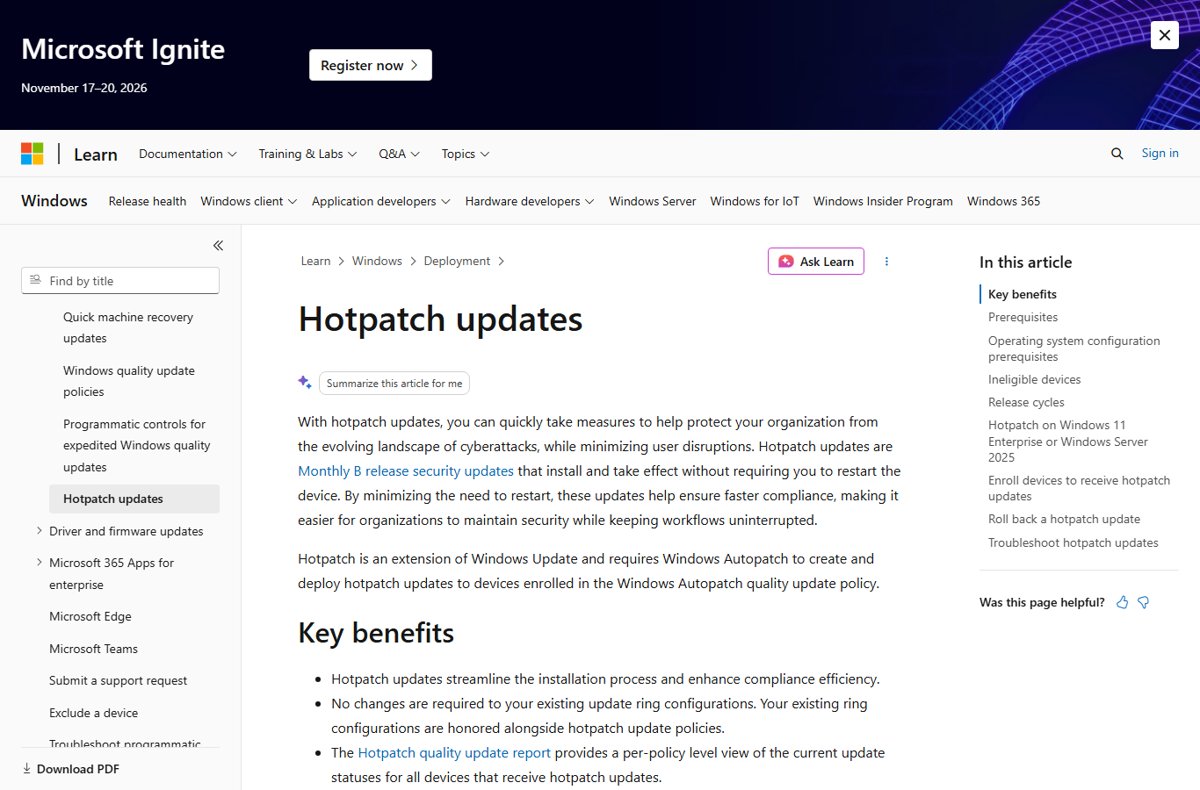
Windows hotpatch is a way of delivering monthly security updates that install and take effect without restarting the PC, by patching the code already loaded in memory.
This guide explains how hotpatching works on Windows 11 Enterprise and Windows Server, the quarterly schedule, who is eligible, how to turn it on in Microsoft Intune, how to confirm it is working and what happens on devices that do not qualify.
What Windows hotpatch actually is
Hotpatch updates are the monthly B release (Patch Tuesday) security updates in a form that applies without a restart. Hotpatch is an extension of Windows Update, not a separate product.
Four months a year a device still installs a normal cumulative update called a baseline, which does need a restart. In the other eight months it gets hotpatches.
Think of Windows hotpatch as cutting a managed PC's security restarts from twelve a year to about four, not as removing restarts altogether. Hotpatches cover security fixes only. Baseline months, unplanned baselines for urgent fixes, non-security updates, .NET updates and drivers still need a restart.
Hotpatch packages are much smaller than standard cumulative updates, so they install faster and use less network bandwidth.
How Windows hotpatching works
A hotpatch replaces vulnerable code inside running processes in memory. Apps keep running, so nothing has to close or restart for the fix to take effect.
| Part | What it is | Restart? |
|---|---|---|
| Baseline update | A standard cumulative update with the latest security fixes, cumulative features and improvements; it resets the starting point for the next hotpatches | Yes |
| Hotpatch update | Security updates only, applied to in-memory code on top of the current baseline | No |
| Planned baseline | The first month of each quarter: January, April, July and October | Yes |
| Unplanned baseline | Replaces a hotpatch month when an urgent fix, such as a zero-day, cannot ship as a hotpatch | Yes |
| Memory patching on Windows Server | Patches running processes without restarting them, so workloads are not interrupted | No |
| Updates outside the program | Non-security Windows updates, .NET updates, drivers and firmware | Yes, as normal |
An unplanned baseline does not shift the calendar. If June becomes a baseline, July is still a baseline too.
Windows hotpatch schedule: baseline and hotpatch months
Every hotpatch-supported operating system shares the same calendar: four baseline months and eight hotpatch months each year.
| Quarter | Baseline month (restart) | Hotpatch months (no restart) |
|---|---|---|
| Q1 | January | February and March |
| Q2 | April | May and June |
| Q3 | July | August and September |
| Q4 | October | November and December |
For Windows 11, version 26H2, the October 13, 2026 baseline is KB5127648 (build 26300.9711), with hotpatches planned for November and December 2026.
A device that is not on the latest baseline in a hotpatch month gets both the baseline (with a restart) and the hotpatch.
Windows hotpatch eligibility and prerequisites
A Windows 11 device must meet every requirement below. Miss one and it simply receives the normal monthly cumulative update instead.
| Requirement | Detail |
|---|---|
| Windows version | Windows 11, version 24H2 or later (24H2, 25H2 and 26H2). Not available on version 26H1 |
| License | Windows 11 Enterprise E3 or E5, Microsoft 365 F3, Windows 11 Education A3 or A5, Microsoft 365 Business Premium, or Windows 365 Enterprise |
| Management | Microsoft Intune, using a Windows quality update policy with hotpatch turned on (Windows Autopatch creates and deploys the hotpatches) |
| Current baseline | The device must be on the latest quarterly baseline update |
| Security configuration | Virtualization-based security (VBS) must be turned on and running |
| Arm64 devices | Compiled hybrid PE (CHPE) usage must be disabled, which takes one restart |
Home and Pro licenses are not on the list, so Windows 11 hotpatching is not available to home users. Hotpatch is also offered for Windows Server and Windows 365.
How to enable hotpatch in Microsoft Intune
Turning on hotpatch does not change your update rings, deferrals, deadlines or active hours. It only lets eligible devices take the rebootless version of the monthly update.
- Sign in to the Intune admin center and select Devices.
- Under Manage updates, select Windows updates, then open the Quality updates tab.
- Select Create and choose Windows quality update policy.
- Under Basics, enter a name for the policy and select Next.
- Under Settings, set When available, apply without restarting the device ("Hotpatch") to Allow, then select Next.
- Choose Scope tags or leave Default, then select Next.
- Assign the device groups, select Next, review the policy and select Create.
To switch an existing policy instead, edit it and set the same hotpatch option to Allow. If you use Windows Autopatch groups, create a hotpatch policy and assign those devices to it.
Disable CHPE on Arm64 devices for hotpatch
Hotpatches cannot service the CHPE binaries in %SystemRoot%\SyChpe32, which speed up 32-bit x86 apps on Arm64 PCs. Disabling CHPE is what lets every hotpatch apply. It matters only on Arm64 hardware.
- Check whether the device needs 32-bit x86 software, such as 32-bit Microsoft Office, VBA code with Declare statements or 32-bit COM add-ins.
- Move those apps to 64-bit, or exclude the device from your hotpatch policy.
- Set the DisableCHPE policy through its CSP, or create the DWORD
HotPatchRestrictionswith a value of1underHKLM\SYSTEM\CurrentControlSet\Control\Session Manager\Memory Management. - Restart the device once; the setting persists through later updates.
- To stop using hotpatch later, set
HotPatchRestrictionsto0and restart to turn CHPE back on.
Security updates for 32-bit Microsoft 365 Apps on Arm-based Windows PCs end in December 2026, and there are no plans to support hotpatching with CHPE enabled.
Hotpatch on Windows Server 2025 and Windows Server 2022
Windows Server hotpatching uses the same calendar but a different management model from Windows 11: Azure, Azure Local and Azure Arc rather than Intune.
| Platform | Supported editions or images | How patches are managed |
|---|---|---|
| Azure virtual machines | Windows Server 2022 Datacenter: Azure Edition (Core and Hotpatch images) and Windows Server 2025 Datacenter: Azure Edition | Automatic VM Guest Patching applies Critical and Security patches in off-peak hours |
| Azure Local virtual machines | The same Azure Edition publisher, offer and SKU combinations | Group Policy, SConfig on Server Core, or other patch tools |
| Azure Arc-connected machines | Windows Server 2025 Datacenter and Standard | Enable hotpatch in the Azure Arc portal; manage with Azure Update Manager, Group Policy or SConfig |
| Custom images and container base images | Not supported | Standard cumulative updates |
Azure Arc-enabled hotpatching for Windows Server 2025 is available at no extra cost. In the Azure portal, open the VM's Overview, then Operations > Updates to see its hotpatch status.
How to know if hotpatch is enabled
Check the device itself first, then confirm with Event Viewer if the policy looks right but no hotpatch arrives.
- Select Start > Settings > Windows Update > Advanced options > Configured update policies.
- Look for Enable hotpatching when available; it means the device is enrolled through Windows Autopatch.
- Search Start for System information and open it.
- Under System summary, confirm Virtualization-based security shows Running.
- Right-click Start, select Event Viewer, and filter for AllowRebootlessUpdates.
- Confirm the value is
1(ortrue), which shows the hotpatch policy is applied.
In a hotpatch month, a device that took the update without asking for a restart has hotpatched successfully.
What is Microsoft Windows hotpatch monitoring?
Hotpatch has an inbox monitor service on each device that checks the health of installed hotpatches. If it finds a critical error, the device installs the standard cumulative update so it stays fully secure.
| Where to look | What it shows |
|---|---|
| Event Viewer, Windows Application logs (filter for hotpatch) | Errors logged by the hotpatch monitor service on that device |
| Intune: Reports > Windows Autopatch > Windows quality updates > Reports > Hotpatch quality updates | Per-policy counts: Up to date, Hotpatched, Not up to date, In progress, Not ready, Paused and percent on the latest update |
| Report trend graph | Update status for all devices over the last 90 days, by percentage or device count |
| Windows Autopatch alerts | Devices flagged Hotpatch – VBS not running |
The Intune hotpatch report refreshes every four hours, and the last refresh time appears at the top of the page.
Hotpatch behavior on ineligible devices
An ineligible device is never left unpatched. It receives the standard Latest Cumulative Update (LCU), which contains that month's security and non-security fixes and needs a restart.
| Reason a device is ineligible | What it gets instead | How it becomes eligible |
|---|---|---|
| VBS is not turned on | The monthly LCU with a restart | Turn on VBS, for example with the VirtualizationBasedTechnology CSP |
| Not on the latest baseline | The baseline plus the hotpatch in a hotpatch month | Install the baseline; hotpatches follow |
| Upgraded to a new Windows version in a hotpatch month | Standard updates with a restart | Hotpatches resume after the next baseline |
| Arm64 device with CHPE enabled | Not every hotpatch can apply | Disable CHPE and restart once |
| Unsupported license or Windows version | The monthly LCU with a restart | Move to a listed license and Windows 11, version 24H2 or later |
The LCU keeps the update ring settings you configured. Upgrade hotpatch devices to a new Windows version during a baseline month and they stay on the hotpatch cycle.
How to roll back a hotpatch update
Hotpatch updates have no automatic rollback, but you can uninstall one. Uninstalling is quick, yet unlike installing it needs a restart.
- Select Start > Settings > Windows Update > Update history to find the hotpatch update you want to remove.
- Uninstall that hotpatch update.
- Install the standard Latest Cumulative Update for the month.
- Restart the device.
On Windows Server, uninstall the latest update and install the last working baseline, then restart the VM.
Windows hotpatch not working: troubleshooting
Device asks for a restart in a hotpatch month
The device is not on the latest baseline, so it receives the baseline as well as the hotpatch, or it fell back to the LCU.
- Open Update history and confirm the latest quarterly baseline is installed.
- Compare the build with the Windows 11 hotpatch calendar for your version.
- Let the baseline install and restart; the next hotpatch month should not need a restart.
Hotpatch – VBS not running alert in Windows Autopatch
Virtualization-based security is off, and the hotpatch installer needs it.
- Open System information and check Virtualization-based security under System summary.
- Turn on VBS with the VirtualizationBasedTechnology CSP in Intune.
- Recheck until the value reads Running.
Enable hotpatching when available is missing from Configured update policies
The device is not targeted by a quality update policy with hotpatch set to Allow.
- In Intune, open Windows updates > Quality updates and find the policy assigned to the device's group.
- Set When available, apply without restarting the device ("Hotpatch") to Allow.
- Wait for the device to sync, then check Configured update policies again.
Arm64 PC does not apply every hotpatch
CHPE is still enabled, and hotpatches cannot service CHPE binaries.
- Set
HotPatchRestrictionsto1or apply the DisableCHPE CSP. - Restart the device once.
- Confirm 32-bit x86 apps still work, or exclude the device from the hotpatch policy.
Hotpatch errors logged on the device
The hotpatch monitor service detected a problem with an installed hotpatch.
- Right-click Start, open Event Viewer and filter the logs for hotpatch.
- Read the Application log entries for the failing update.
- Expect the device to install the standard LCU if the error is critical.
What Windows patch do I have? Check your version and updates
Hotpatch eligibility depends on your Windows version and the last update installed, so check both.
- Right-click Start and select Settings.
- Select System > About and read the edition and version under Windows specifications.
- Go back and select Windows Update > Update history to see installed updates and their KB numbers.
- Match the latest KB or build number against the Windows 11 release information page to see whether it was a baseline or a hotpatch.
An Enterprise or Education edition on version 24H2 or later is the starting point for hotpatch; Home and Pro editions do not qualify.
Windows hotpatch FAQ: common questions
What is Windows hotpatch?
Windows hotpatch delivers monthly security updates that install and take effect without a restart by patching in-memory code. It runs on a quarterly cycle: one baseline update with a restart, then two hotpatch months with no restart.
What is a hotpatch?
A hotpatch is an update applied to software while it is running, changing the code in memory so the fix works without restarting the program or the computer. Microsoft uses it for Windows security updates on Windows 11 Enterprise and Windows Server.
How do I enable hotpatch on Windows 11?
Create or edit a Windows quality update policy in the Intune admin center and set When available, apply without restarting the device ("Hotpatch") to Allow. The device also needs an eligible license, version 24H2 or later, VBS running and the latest baseline.
Is Windows 11 hotpatching available for home users?
No. Hotpatch needs a Windows 11 Enterprise E3 or E5, Education A3 or A5, Microsoft 365 F3, Microsoft 365 Business Premium or Windows 365 Enterprise license and Intune management. Home and Pro PCs receive the normal monthly update.
Does Windows 11 24H2 support hotpatch?
Yes. Hotpatch requires Windows 11 version 24H2 or later, so versions 24H2, 25H2 and 26H2 all support it. Version 26H1, which ships only on certain new devices, does not support hotpatching.
What Windows patch do I have?
Open Settings, select Windows Update, then Update history to see installed updates and their KB numbers. Select System, then About, to see your Windows edition and version under Windows specifications.
Does Windows hotpatch ever need a restart?
Yes. Baseline months (January, April, July and October) need a restart, as do unplanned baselines for urgent fixes. Non-security updates, .NET updates and drivers still restart the device as usual, and uninstalling a hotpatch needs a restart.
Is hotpatch available on Windows Server?
Yes. Windows Server 2022 and 2025 Datacenter: Azure Edition support it on Azure and Azure Local, and Windows Server 2025 Datacenter and Standard support it on Azure Arc-connected machines at no extra cost.
What happens if a device is not eligible for hotpatch?
It receives the standard Latest Cumulative Update for the month, which includes security and non-security fixes and needs a restart. Its update ring settings stay the same, and it can start hotpatching once it meets the prerequisites.
Bottom line: is Windows hotpatch worth turning on?
If your Windows 11 fleet already has an eligible license and Intune, turn hotpatch on through a quality update policy and fix VBS on the devices that fall back. It needs nothing beyond the licenses and Intune you already have, leaves your update rings untouched, and replaces eight of twelve yearly security restarts with updates that apply silently, while ineligible PCs still get the normal cumulative update.