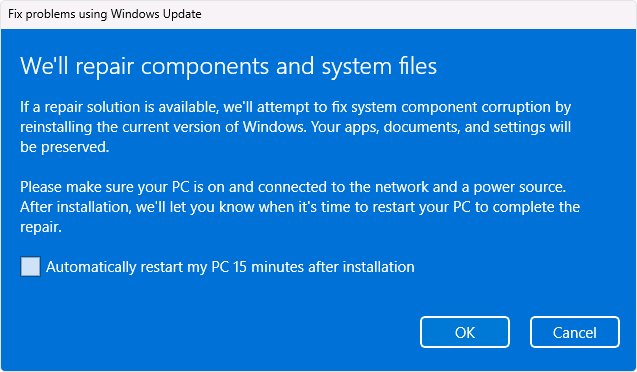
Errors 0x80073712 and 0x800f0993 mean the Windows 11 component store is damaged, so fix them with Settings > System > Recovery > Reinstall now, or repair the store with DISM and SFC and then retry the update.
This guide explains both codes, the order to try each repair on a home PC or a managed device, how to install the update by hand, and how to confirm the fix held.
Fix 0x80073712 and 0x800f0993 with Reinstall now in Windows 11
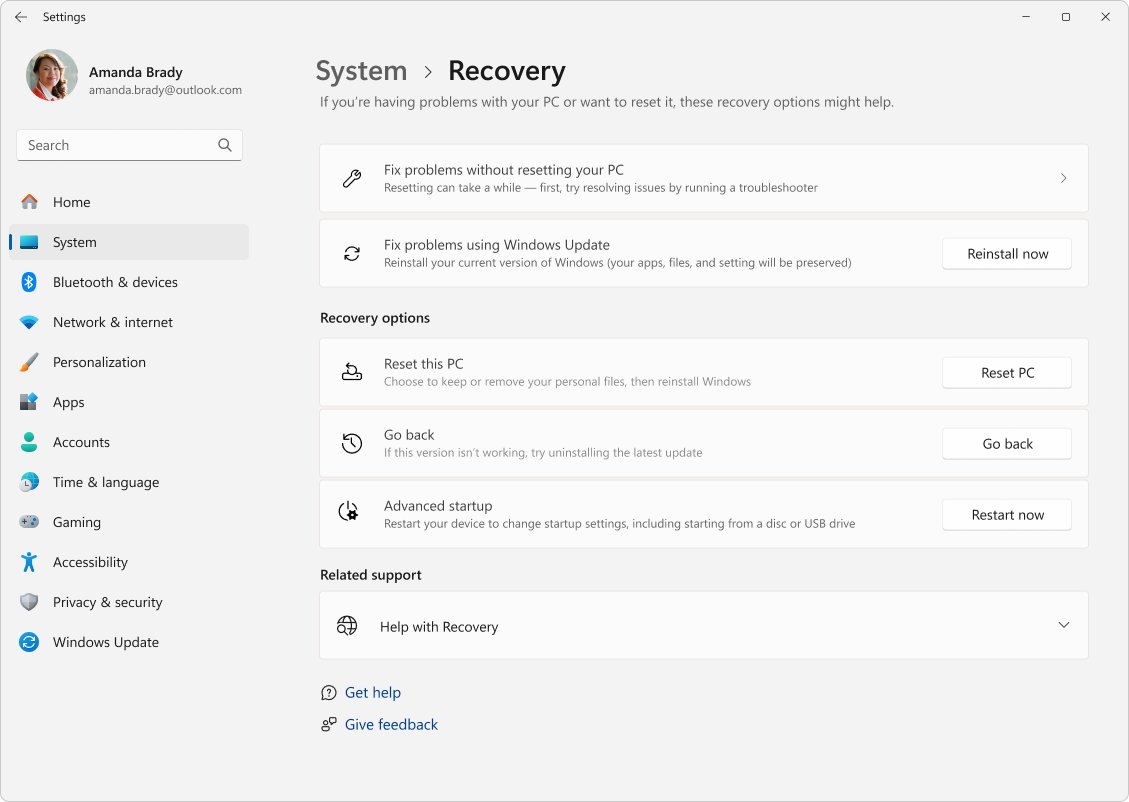
Reinstall now downloads a repair copy of the last Windows update that installed successfully and reinstalls it over the top. It repairs system files and components and keeps your apps, files and settings.
- Plug the PC into power and confirm it is online.
- Open Start > Settings > System > Recovery.
- Under Fix problems using Windows Update, select Reinstall now.
- Choose whether the PC should restart automatically 15 minutes after the install finishes, then select OK.
- Let Windows Update download and install the repair version; do not shut the PC down.
- Restart if you did not choose automatic restart, then open Settings > Windows Update and select Check for updates.
The option needs Windows 11 version 22H2 or later with the February 2024 optional update or newer, so every 24H2 and 25H2 PC qualifies. It is hidden on work or school devices managed by Autopatch or Windows Update policies; those use the enterprise route further down.
What error code 0x80073712 and 0x800f0993 mean in Windows Update
Both codes point to the servicing stack, the component that installs updates. It has lost its place: the store it reads to work out what is installed no longer matches what is on disk.
| Code | Name | What it means | First fix |
|---|---|---|---|
| 0x80073712 | ERROR_SXS_COMPONENT_STORE_CORRUPT | The component store is in an inconsistent state, so the update cannot stage its components | Reinstall now, or DISM /RestoreHealth then sfc /scannow |
| 0x800f0993 | No public name from Microsoft | Sits in the 0x800F09xx range Microsoft uses for cumulative update payload and delta errors, such as 0x800F0984 and 0x800F0991 | Same repairs; a manual Update Catalog install if Windows Update keeps failing |
| 0x800F0831 | CBS_E_STORE_CORRUPTION | A related code for a corrupted CBS store | DISM /RestoreHealth, then SFC |
| 0x800F081F | CBS_E_SOURCE_MISSING | DISM could not find the files it needs for the repair | Run DISM with an install.wim source |
Why a small update failure blocks every later Windows 11 update
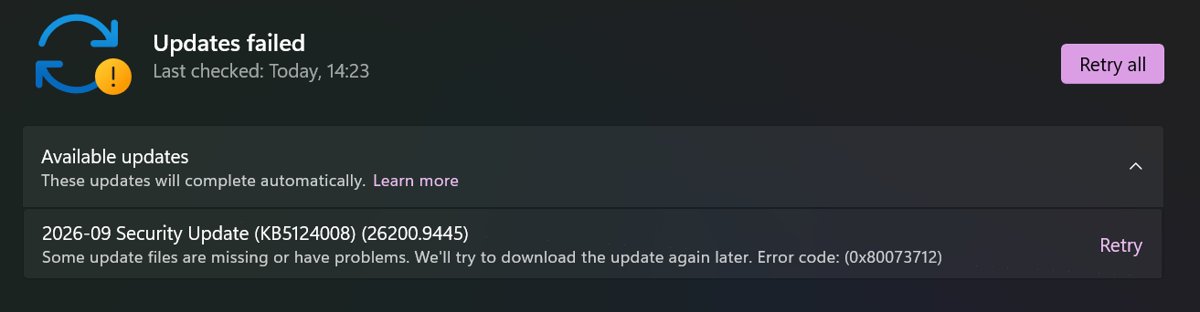
The update failure itself is small: one package refuses to stage. The blast radius is wider, because every monthly cumulative update after it uses the same damaged store and fails the same way.
| What you see | What is happening underneath |
|---|---|
| The same cumulative update downloads, installs to a point, then rolls back | The servicing stack cannot resolve the components it needs and abandons the transaction |
| Next month's update fails with the same code | The new package depends on the same damaged component records |
| Security fixes stop arriving | Each missed month leaves the PC further behind on protections |
sfc /scannow reports files it cannot repair |
SFC repairs from the component store, which is itself damaged |
That is why the error is strategic rather than cosmetic: until the store is repaired, the PC is frozen at its last good build.
Home users: check the Windows 11 version and update history before repairing
Check two facts before you start repairing. They decide which route is quickest.
- Open Settings > System > About and read Version under Windows specifications (24H2, 25H2 or 26H2) and the Edition.
- Open Settings > Windows Update > Update history and note which update failed and the error code next to it.
- If the PC runs Windows 11 Home or Pro version 24H2, plan to move to 25H2 or 26H2: those editions of 24H2 stopped receiving updates on October 13, 2026.
- Open Settings > System > Storage and confirm at least 20 GB is free on the Windows drive of a 64-bit PC.
- Back up personal files to OneDrive or an external drive before running any repair.
Which 0x80073712 fix to use on a home PC or a managed device
| Your situation | Use this | Why |
|---|---|---|
| Home or Pro PC, Settings opens normally | Reinstall now | Repairs the store and keeps apps and files in one pass |
| Reinstall now is missing or also fails | DISM /RestoreHealth and SFC |
Repairs the store directly from Windows Update |
| Download stalls or fails before install | Windows Update troubleshooter, then a Windows Update components reset | Clears a bad download cache, not the component store |
| One cumulative update keeps failing | Manual install from the Microsoft Update Catalog | Installs checkpoint updates in the right order |
| Work or school device | Ask IT; DISM with a matching install.wim source | Policies hide Reinstall now and may block Windows Update as a repair source |
| Windows 11 Home or Pro on 24H2 | Upgrade to 25H2 or 26H2 | 24H2 Home and Pro no longer receive monthly updates |
Run the Windows Update troubleshooter in Get Help
The Windows Update troubleshooter resets the components that need it. Run it first when the update fails during download.
- Open Start > Settings > System.
- Select Troubleshoot > Other troubleshooters.
- Next to Windows Update, select Run.
- Follow the prompts in Get Help and apply any fix it offers.
- Restart the PC, then select Check for updates in Settings > Windows Update.
Clear the easy Windows Update blockers before the command line
Several simple conditions stop an update before the component store is even involved. Rule them out in a few minutes before you run DISM.
- Plug the PC into power, then open Settings > Network & Internet and confirm it shows as connected.
- Sign in with an administrator account, since some updates need administrator access to install.
- Unplug external drives, docks and other hardware the PC does not need to run, then retry the update.
- Open Settings > Time & language > Date & time, turn on Set time automatically and Set time zone automatically, and select Sync now if it is shown.
- Open Settings > System > Storage and free space until the Windows drive has at least 20 GB available on a 64-bit PC.
- If you added hardware recently, install its latest driver from the manufacturer's website.
- Select Start > Power > Update and restart if an update is waiting, then select Check for updates again.
If the PC also reports disk errors, run chkdsk /f C: from an elevated Command Prompt and restart when asked; the repair runs before Windows starts.
Manual fix for 0x80073712: DISM RestoreHealth and SFC commands
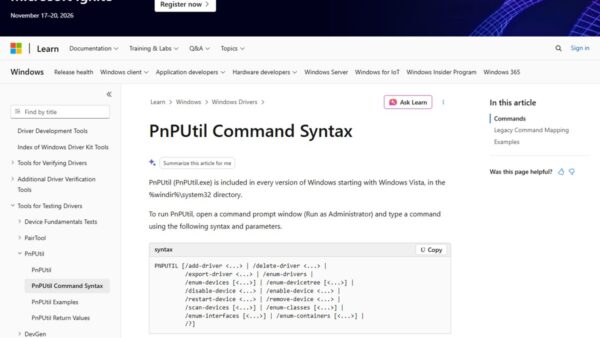
The manual fix is simple enough to type in two lines, but each one rewrites system files, so run them exactly as shown from an elevated window. Right-click Start, select Terminal (Admin), and approve the prompt.
DISM repairs the component store first, then SFC repairs system files from the now-healthy store. The order matters. The DISM RestoreHealth command needs an internet connection because it pulls replacement files from Windows Update.
DISM.exe /Online /Cleanup-Image /RestoreHealth
sfc /scannow
Run DISM.exe /Online /Cleanup-Image /ScanHealth first if you only want to see whether the store is damaged. If DISM cannot reach Windows Update, mount a Windows 11 ISO of the same version and run DISM.exe /Online /Cleanup-Image /RestoreHealth /Source:D:\sources\install.wim /LimitAccess, replacing D: with the mounted drive letter.
You should see: DISM finishes without an error and SFC either finds no integrity violations or repairs what it found. Restart, then retry Windows Update.
If SFC still reports files it cannot fix, run the System File Checker scan a second time after the restart. Repairs that depend on a pending reboot only finish on the next start.
Reset Windows Update components to clear 0x800f0993
A reset renames the update download cache and the catalog folder so Windows Update fetches fresh copies. Run each command in Terminal (Admin) and press Enter after each one.
- Type
net stop bitsand press Enter. - Type
net stop wuauservand press Enter. - Type
ren %systemroot%\softwaredistribution softwaredistribution.bakand press Enter. - Type
ren %systemroot%\system32\catroot2 catroot2.bakand press Enter. - Type
net start bits, thennet start wuauserv, pressing Enter after each. - Restart the PC and select Check for updates.
In PowerShell, %systemroot% does not expand. Use Command Prompt (Admin) for these lines, or replace it with $env:SystemRoot.
A faster way to clear only the SoftwareDistribution folder skips the command line: press Win + R, type services.msc, right-click Windows Update and select Stop. Delete everything inside C:\Windows\SoftwareDistribution, then right-click Windows Update again and select Start.
Install the cumulative update manually from the Microsoft Update Catalog
A manual install skips the Windows Update client entirely. Use it when one cumulative update keeps failing after the store is repaired.
- Note the KB number of the failed update from Settings > Windows Update > Update history.
- Open the Microsoft Update Catalog in your browser and search for that KB number.
- Pick the package that matches your version and architecture (x64 or Arm64) and save every .msu file it lists into one folder, for example
C:\packages. - Open Terminal (Admin) and run
DISM /Online /Add-Package /PackagePath:C:\packages\<file name>.msu, using the target update's file name. - Restart when DISM finishes.
The catalog may list one or more checkpoint cumulative updates alongside the target update. DISM scans the folder and installs any required checkpoints first; if one is already present, it says so and moves on.
Last-resort in-place repair upgrade for Windows 11
An in-place upgrade reinstalls Windows from installation media while you are signed in, and keeps your files, settings and apps. Use it when Reinstall now, DISM and a manual install have all failed.
Before you start, back up your files, confirm Windows is activated, and make sure the media matches your edition: a Home PC must be reinstalled with Home.
- Create Windows 11 installation media, or mount a Windows 11 ISO, of the same version or newer.
- Open File Explorer and select the drive that holds the installation media.
- Open
setup.exefrom the root of the drive and select Yes at the User Account Control prompt. - Select Change what to keep.
- Choose Keep personal files and apps, then select Next.
- Select Install and leave the PC on power; it restarts several times.
Keep personal files only removes your apps, and Keep nothing erases everything, so check the choice before you select Install.
June 2026 Patch Tuesday fix for DISM component store repair
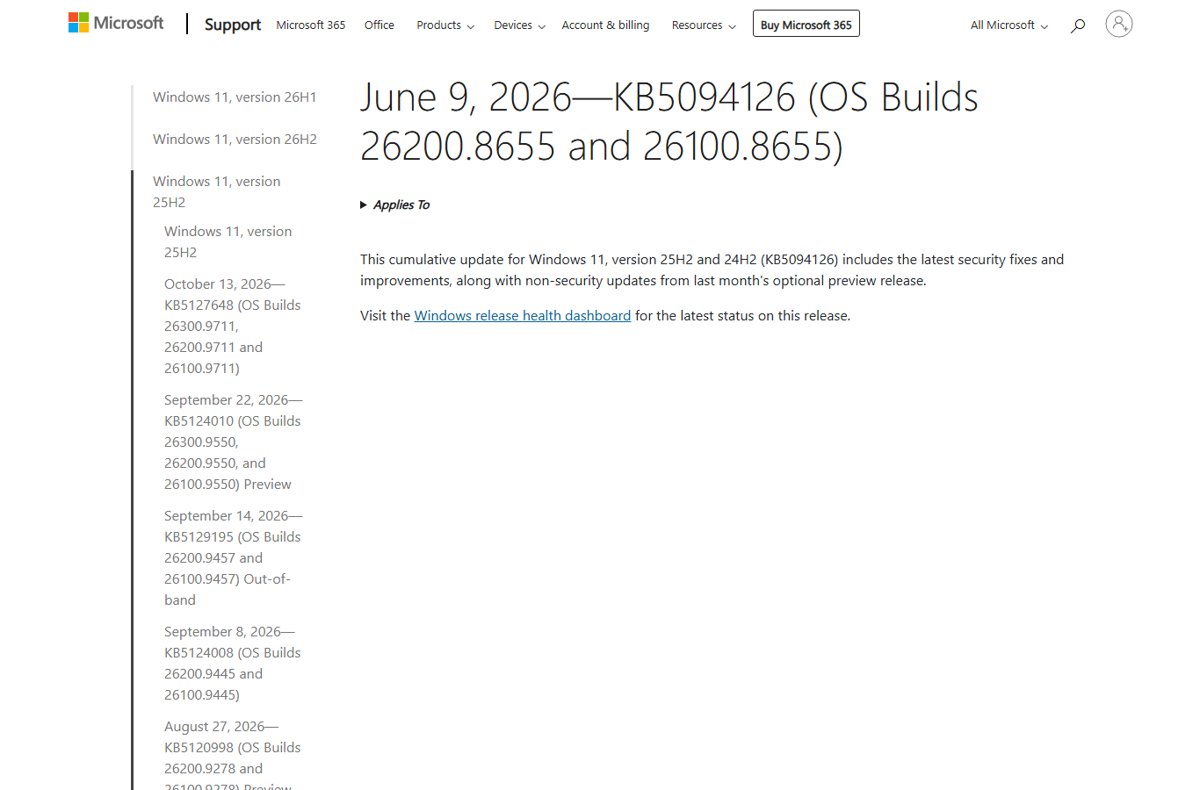
The June 9, 2026 Patch Tuesday update for 24H2 and 25H2, KB5094126 (OS Builds 26200.8655 and 26100.8655), included a fix that matters here. Microsoft listed an issue that could make DISM fail with error 0x800f0915, where component store repair operations could fail and prevent successful servicing recovery.
| If your PC is | What it means for the repair |
|---|---|
| On KB5094126 or any later update | DISM repair includes the June fix; run /RestoreHealth as normal |
| Stuck on a build before June 2026 | DISM may fail with 0x800f0915; use Reinstall now or a manual Update Catalog install to get current |
| Up to date but still failing | The store damage is real, not the June DISM bug; continue with the repairs above |
Patch Tuesday updates also carry the month's security protections, so a PC frozen by 0x80073712 misses those until it is repaired.
Does the upgrade path to 24H2 or 25H2 cause component store corruption?
How the PC reached 24H2 or 25H2 is a useful clue. Microsoft lists interrupted updates and failed rollbacks among the usual causes of store corruption, and a big version upgrade is the longest servicing job a PC runs.
Even when Microsoft has fixed a servicing bug in a newer update, that fix only protects new installs and new arrivals of the update. A PC whose store was already damaged has to be repaired before it can install the fix at all.
| Cause Microsoft documents | How it shows up after an upgrade | Repair |
|---|---|---|
| Interrupted update | Power loss or a forced restart during the version upgrade or a later cumulative update | Reinstall now |
| Low disk space | The servicing stack could not finish writing files | Free space, then DISM /RestoreHealth |
| Servicing debt | A PC left months without updates accumulates pending operations | Reinstall now, then install updates in order |
| Failed rollback | A previous failed update left partial state behind | DISM, then a manual Update Catalog install |
BitLocker recovery key prompts during Patch Tuesday week
A BitLocker recovery screen after an update makes patch week feel worse than it is. It is a separate prompt from 0x80073712, and entering the key gets you back into Windows with your data intact.
Find the key before you run Reinstall now or any repair that restarts the PC.
- On another device, open
aka.ms/myrecoverykeyand sign in with the Microsoft account used on the PC. - Match the Key ID shown on the recovery screen to the one listed for your device.
- For a work or school PC, sign in at
aka.ms/aadrecoverykeyor ask IT for the key. - Check any printout or USB flash drive you saved when BitLocker was turned on.
- Type the recovery key on the recovery screen and press Enter.
Enterprises: treat 0x80073712 as a servicing health incident
On managed fleets, one PC with 0x80073712 is a fix; twenty with it is a servicing health incident. Treat it as one, because those devices are out of compliance on security updates until they are repaired.
| Task | Where or how |
|---|---|
| Confirm the error in logs | Search C:\Windows\Logs\CBS\CBS.log for ERROR_SXS_COMPONENT_STORE_CORRUPT or HRESULT_FROM_WIN32(14098) |
| Read archived servicing logs | C:\Windows\Logs\CBS\CbsPersist_*.log and .cab files |
| Read DISM output | C:\Windows\Logs\DISM\dism.log |
| Repair without Windows Update access | DISM /RestoreHealth /Source:<path>\install.wim /LimitAccess with media of the same version and build |
| Check for a known issue first | Windows release health for 24H2 and 25H2 on Microsoft Learn |
| Last resort | In-place upgrade with media of the current version, keeping personal files and apps |
Check that the 0x80073712 repair worked
- In Terminal (Admin), run
DISM.exe /Online /Cleanup-Image /CheckHealthand confirm it reports no component store corruption. - Open Settings > Windows Update and select Check for updates; the failed update should install and ask for a restart.
- After the restart, open Update history and confirm the update shows Successfully installed.
- Open Settings > System > About and confirm the OS build number has moved forward.
0x80073712 and 0x800f0993 troubleshooting by Windows version
0x80073712 on a Windows 11 update
The component store is inconsistent, usually after an interrupted or rolled-back update.
- Run Reinstall now from Settings > System > Recovery.
- If it is missing, run
DISM.exe /Online /Cleanup-Image /RestoreHealthand thensfc /scannow. - Restart and select Check for updates.
0x800f0993 on a 24H2 or 25H2 cumulative update
The cumulative update could not apply its payload against the components on disk.
- Repair the store with DISM and SFC.
- Reset Windows Update components so the update downloads fresh.
- If it still fails, install the update and its checkpoint updates from the Microsoft Update Catalog.
0x80073712 when installing a specific KB such as KB5062553
That KB is the first package to touch the damaged components, not the cause of the damage.
- Do not keep retrying the same KB; repair the store first.
- Install the newest cumulative update instead, since it includes earlier fixes.
- Use the Update Catalog with checkpoint updates if Windows Update refuses.
0x80073712 on Windows 10
The same component store damage, on an older release.
- Run
sfc /scannowand the Windows Update troubleshooter, as Microsoft suggests for this code. - Run DISM
/RestoreHealthif SFC cannot fix everything. - Plan an upgrade to Windows 11 if the hardware allows it.
0x80073712 on Windows Server
Server shares the same servicing stack, and Reinstall now is not available there.
- Run DISM
/RestoreHealthwith a matching install.wim source and/LimitAccess. - Search CBS.log for the failing package name.
- Run an in-place upgrade from media of the same version if DISM cannot repair it.
The failed item is a Windows Recovery Environment (WinRE) update, such as one showing 0x80070643
WinRE updates need 250 MB of free space in the recovery partition; a partition that is too small makes them fail, which is not component store damage.
- In Command Prompt (Admin), run
reagentc /infoand confirm a Windows RE location is listed. - Look in the System event log for event ID 4502, "Windows Recovery Environment servicing failed", which points to a full recovery partition.
- Resize the recovery partition by 250 MB with Microsoft's KB5028997 instructions, then select Check for updates.
Windows 11 servicing model: combined SSU and checkpoint cumulative updates
The Windows 11 servicing model is more capable than it used to be, and also more opaque. Several pieces now arrive together, which saves steps but hides where a failure started.
| Piece | What changed | Why it matters for these errors |
|---|---|---|
| Servicing stack update (SSU) | Combined with the monthly cumulative update in one package | You cannot remove the SSU after it installs, so uninstalling an update will not roll the stack back |
| Checkpoint cumulative updates | Some updates require an earlier checkpoint update first | A manual install must include every checkpoint file, in order |
| Reinstall now | Repairs the current version through Windows Update | Gives home users a repair that keeps apps without installation media |
| Known Issue Rollback | Microsoft can switch off a faulty change without a new update | Some update regressions are reversed that way; component store damage is not |
How to prevent error 0x80073712 in the future
Store corruption usually starts with an update that could not finish. These habits remove the common causes.
| Habit | Cause it prevents |
|---|---|
| Keep the PC on power and never force a restart while an update installs | Interrupted updates that leave the store half written |
| Keep at least 20 GB free on the Windows drive of a 64-bit PC | Low disk space that stops the servicing stack mid-write |
| Install monthly updates instead of pausing them for months | Servicing debt that piles up pending operations |
| Restart when Windows asks, using Update and restart | Pending operations left waiting on a reboot |
Run DISM.exe /Online /Cleanup-Image /CheckHealth after a failed update |
Small damage going unnoticed until the next cumulative update fails |
0x80073712 and 0x800f0993 FAQ
What is error code 0x80073712?
Error 0x80073712 is ERROR_SXS_COMPONENT_STORE_CORRUPT. It means the Windows component store, which Windows Update uses to install updates, is in an inconsistent state, so the update rolls back instead of finishing.
What does Windows Update error code 0x80073712 mean?
It means the component store cannot account for the files an update needs. The update itself is usually fine; the store it installs into is damaged and needs repair before any cumulative update can install.
How do I fix error code 0x80073712 in Windows 11?
Open Settings > System > Recovery and select Reinstall now under Fix problems using Windows Update. If that option is missing, run DISM /Online /Cleanup-Image /RestoreHealth, then sfc /scannow, restart, and check for updates again.
How do I fix error code 0x80073712 in Windows 10?
Run sfc /scannow and the Windows Update troubleshooter first, as Microsoft advises for this code. If the update still fails, run DISM /Online /Cleanup-Image /RestoreHealth, restart, and retry Windows Update.
What is error 0x800f0993?
Microsoft has not published a public name for 0x800f0993. It appears when a cumulative update fails to apply on Windows 11 24H2 or 25H2, and it responds to the same repairs as 0x80073712: Reinstall now, DISM and SFC, or a manual install.
Does 0x80073712 appear on Windows Server?
Yes. Windows Server uses the same component store, so the code means the same thing. Reinstall now is not available on Server, so repair it with DISM /RestoreHealth using a matching install.wim source, or an in-place upgrade.
Why does 0x80073712 appear with KB5062553?
The KB that shows the error is usually just the first update to touch the damaged components. Repair the store first, then install the newest cumulative update, which includes the fixes from earlier ones.
Will Reinstall now delete my files or apps?
No. Reinstall now reinstalls the same Windows version and repairs system files and components while keeping your apps, files and settings. Keep the PC on power and online until it finishes.
Bottom line: the upgrade lesson inside two hex codes
Repair the component store before you retry the update, and start with Reinstall now. Both hex codes describe a store that no longer matches the disk, so retrying the same update cannot succeed. The lesson for the next upgrade is simple: keep 20 GB free, keep the PC on power, and never force a restart mid-install.