To update to Windows 10, run the Media Creation Tool from Microsoft's Windows 10 download page and select Upgrade this PC now, but Windows 10 has been out of support since October 14, 2025, so upgrade to Windows 11 instead if your PC can run it.
This guide covers the Windows 10 upgrade from Windows 7 and 8.1, updating an older Windows 10 build to 22H2, Home to Pro, the free move to Windows 11, and Extended Security Updates.
Upgrade this PC to Windows 10 with the Media Creation Tool
Microsoft still documents this route on its Windows 10 download page. You need an administrator account and a Windows 10 license before you start.
The tool installs Windows 10 over your current Windows. It does not give you a free license.
- Open the Windows 10 download page and select Download tool now.
- Run the downloaded tool as an administrator.
- On the License terms page, select Accept.
- On the What do you want to do? page, select Upgrade this PC now, then select Next.
- Wait while the tool downloads Windows 10 and walks you through setup.
- On the recap screen, select Change what to keep and pick Keep personal files and apps, Keep personal files only, or Nothing.
- Save and close open apps and files, then select Install.
- Leave the PC on while it restarts several times; Microsoft warns not to turn it off.
If you previously ran Windows 10 on this PC and are reinstalling it, you do not need a product key. Windows activates later with the digital license.
Decide whether moving to Windows 10 still makes sense
The main reason to upgrade to Windows 10 used to be security updates and newer app support. Since October 14, 2025, Windows 10 gets neither without a paid or enrolled extension.
| Fact from Microsoft | What it means for your upgrade |
|---|---|
| Windows 10 reached end of support on October 14, 2025 | No more feature updates, security fixes or technical support for standard Windows 10 PCs |
| Windows 10 PCs continue to function after end of support | Your PC keeps working, but it grows more exposed to viruses and malware over time |
| Windows 10, version 22H2 is the last supported version; the October 2025 security update was its final regular update | Any Windows 10 PC you keep should be on 22H2 |
| Consumer Extended Security Updates run through October 12, 2027 | Critical and important security fixes only, no features and no general support |
| Windows 7 support ended January 14, 2020; Windows 8.1 support ended January 10, 2023 | Moving from Windows 7 or 8.1 to Windows 10 buys you roughly two years of security fixes at most, and only with ESU |
| The free Windows 10 upgrade offer for Windows 7 SP1 and 8.1 ended on July 29, 2016 | Plan on needing a valid Windows 10 license |
| Windows 11 is a free upgrade for eligible Windows 10 PCs | If PC Health Check approves your hardware, Windows 11 is the better destination |
Microsoft recommends buying a Windows 11 PC when current hardware cannot run Windows 11.
Choose the right upgrade route for your PC
| Your situation | Use this | Why |
|---|---|---|
| Windows 10 PC that meets Windows 11 requirements | Windows Update or the Windows 11 Installation Assistant | Free, and returns the PC to full support |
| Windows 10 PC that cannot run Windows 11 | Update to 22H2, then enroll in Extended Security Updates | Keeps security fixes coming until October 12, 2027 |
| Windows 10 on an older build such as 1809, 2004 or 20H2 | Windows Update or the Update Assistant | Moves you to the latest version, 22H2 |
| Windows 7 or 8.1 PC with a Windows 10 license | Media Creation Tool, Upgrade this PC now | Keeps files and apps where you choose to |
| Windows 7 or 8.1 PC without a license | Buy a license or a new Windows 11 PC | The free upgrade offer ended in 2016 |
| Clean install, or a PC that will not start | Media Creation Tool, Create installation media for another PC | Builds a bootable USB drive or ISO file |
| Windows 10 Home, and you need Pro | Change product key or Go to the Store on the Activation page | Upgrades the edition in place without reinstalling |
Check the prerequisites before the Windows 10 upgrade
Work through these checks in order. Most failed upgrades trace back to one of them, so they double as tips for a smooth upgrade.
| Check | What you need | How to confirm it |
|---|---|---|
| Back up your data | A copy of your files on an external drive or cloud storage | Choosing Nothing during setup erases files, and a failed upgrade can too |
| System requirements | 1 GHz processor or SoC; 1 GB RAM for 32-bit or 2 GB for 64-bit; 32 GB drive; DirectX 9 graphics with WDDM 1.0; 800 x 600 display | Compare with System in Control Panel, or PC info in Settings |
| Current Windows is up to date | Windows 7 SP1 or Windows 8.1 Update, with recommended updates installed | Run Windows Update and restart until nothing is pending |
| Prepare your product key and licensing information | A Windows 10 license, unless this PC already had Windows 10 activated | Keep the 25-character key or the purchase record to hand |
| Edition, language and architecture | Windows 7 and Windows 8.x editions map to Windows 10 Home or Pro; match your current language and 64-bit or 32-bit | Check System in Control Panel and Region in Control Panel |
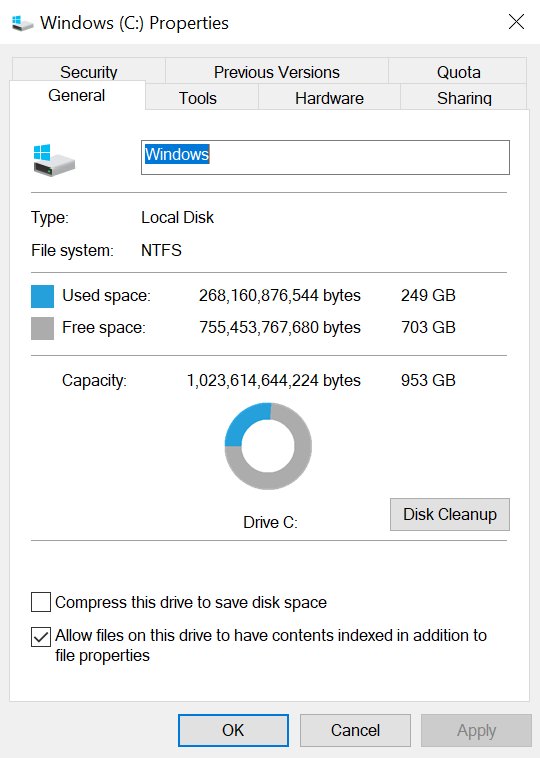
| Free disk space | At least 16 GB free for a 32-bit OS, or 20 GB for a 64-bit OS | Open File Explorer, select This PC or Computer, and read the space under the system drive; run Disk Cleanup if short |
| Internet connection | A stable connection for the download; ISP fees may apply | Use a wired connection if Wi-Fi drops |
| Drivers and firmware | Current drivers, and Windows 10 drivers from the PC maker | Check the manufacturer's support site for your exact model |
| Software and hardware | Nonessential apps removed; docks, printers, USB drives and extra monitors unplugged | Keep installation media and activation details for any app you remove |
| Installation media, if needed | A blank USB flash drive with at least 8 GB, or a blank DVD | Anything already on the drive is deleted |
If you just bought a device that includes Office, Microsoft recommends installing Office before you upgrade.
Update an older Windows 10 build to version 22H2
Builds such as 1809, 2004 and 20H2 no longer get fixes. Version 22H2 is the only Windows 10 release that ESU covers, and it is the build to be on before a Windows 11 upgrade.
- Select Start, then open Settings > Update & Security > Windows Update.
- Select Check for updates.
- If the 22H2 feature update is listed, select Download and install.
- Restart when Windows asks you to, and repeat the check until no updates remain.
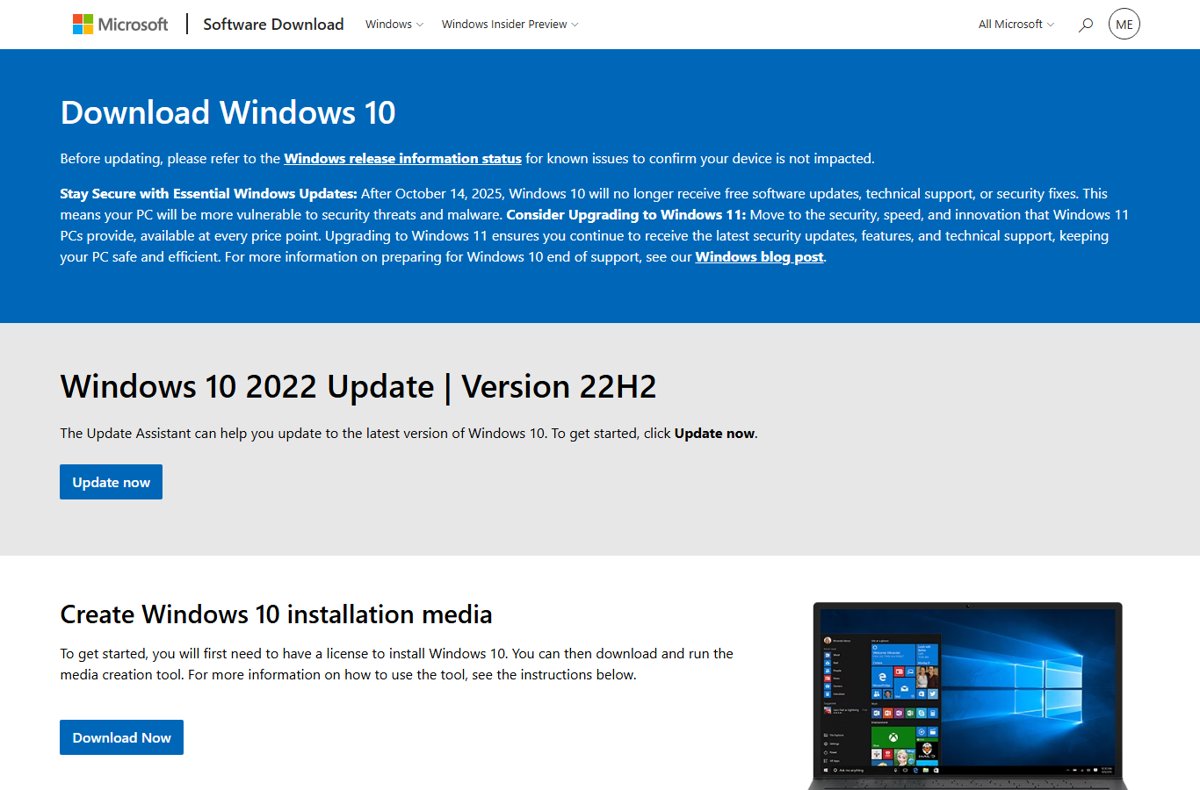
- If Windows Update does not offer 22H2, open the Windows 10 download page and select Update now under Update Assistant.
- Run the Update Assistant and follow its prompts to install the latest Windows 10 version.
Create Windows 10 installation media for a clean install
Use this for a clean install, a second PC, or a PC that will not boot. Windows 10 Enterprise is not available in the Media Creation Tool.
- On a working PC, open the Windows 10 download page and select Download tool now, then run it as an administrator.
- Select Accept on the license terms.
- On What do you want to do?, select Create installation media for another PC, then Next.
- Choose the language, edition and architecture (64-bit or 32-bit) that match the target PC.
- Select USB flash drive or ISO file and let the tool finish.
- Insert the USB drive into the target PC and restart it.
- If the PC does not start from the USB drive, open its boot menu, often with F2, F12, Delete or Esc, and select the drive.
- On the Install Windows page, choose your language, time and keyboard preferences, then select Next.
- Select Install Windows and follow the setup prompts.
- After setup, check that every device driver is installed.
Upgrade Windows 10 Home to Windows 10 Pro
An edition upgrade keeps your files and apps. The Go to the Store link does not appear when the PC already runs Pro or the device does not support edition upgrades.
- Select Start, then Settings > Update & Security > Activation.
- If you have a Pro key, select Change product key under Windows.
- Approve the User Account Control prompt with administrator credentials.
- Enter the 25-character Windows 10 Pro product key and select Next.
- If you have no key, select Go to the Store instead and complete the purchase while signed in.
- Install Windows 10 Pro when the purchase is confirmed, then restart the PC.
Move from Windows 10 to Windows 11 for free
Windows 11 needs a compatible 64-bit processor with 2 or more cores at 1 GHz, 4 GB RAM, 64 GB storage, UEFI with Secure Boot capability, and TPM 2.0. The PC must run Windows 10, version 2004 or later.
- Search the taskbar for PC Health Check and open it, or install it from Microsoft if it is missing.
- Select Check now and confirm the PC meets Windows 11 requirements.
- Back up your files.
- Open Settings > Update & Security > Windows Update and select Check for updates.
- When the Windows 11 upgrade appears, select Download and install.
- If it does not appear yet, use the Windows 11 Installation Assistant, which needs about 9 GB of free space.
- Follow the prompts and let the PC restart until Windows 11 reaches the desktop.
Microsoft recommends waiting for Windows Update to offer Windows 11 before trying the other install options.
Keep a Windows 10 PC protected with Extended Security Updates
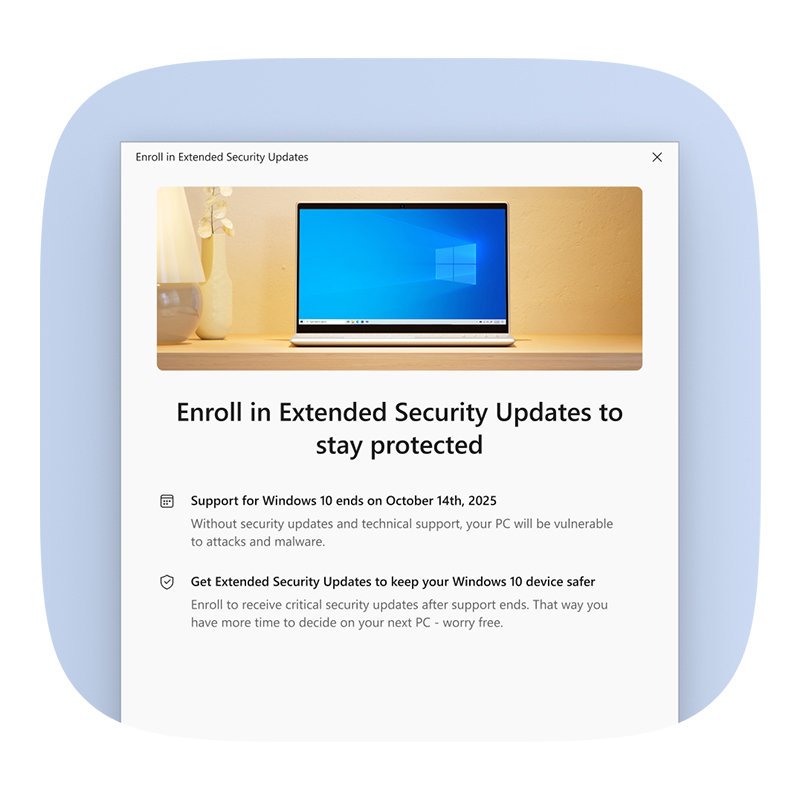
Consumer ESU requires Windows 10, version 22H2 Home, Pro, Pro Education or Pro for Workstations. You must sign in with a Microsoft account that is an administrator and not a child account.
Enrollment options and timing can differ in the European Economic Area.
- Update the PC to Windows 10, version 22H2.
- Sign in with an administrator Microsoft account.
- Open Settings > Update & Security > Windows Update.
- Select Enroll now.
- Pick an option: free when you sync PC settings with Windows Backup, 1,000 Microsoft Rewards points, or a one-time $30 USD purchase plus tax.
- Finish the prompts; one ESU license covers up to 10 devices.
Check the upgrade worked and finish post-upgrade setup
- Press Win + R, type
winver, and press Enter to confirm the Windows version, such as 22H2. - Open Settings > Update & Security > Activation and confirm it says Windows is activated or Windows is activated with a digital license.
- Link your Microsoft account to the license if the status does not mention it, so reactivation works after hardware changes.
- Open Windows Update, select Check for updates, and install everything offered, including driver updates.
- Open Device Manager and look under Display adapters and Network adapters for warning icons.
- Reinstall any apps you removed before the upgrade, then confirm your files are where you left them.
Fix common Windows 10 upgrade and update issues
Why won't my Windows 10 update?
Low disk space, a pending restart, connected hardware or a disabled Windows Update service are the usual blockers.
- Restart the PC so no pending update or app blocks the install.
- Confirm at least 16 GB free for 32-bit or 20 GB for 64-bit; error 0x800f0922 or 0x8007000E points to low space.
- Unplug external drives, docks and other hardware you do not need.
- Go to Start > Settings > Update & Security > Troubleshoot > Additional troubleshooters > Windows Update > Run the troubleshooter.
- If you see error 0x80070422, the Windows Update service is disabled; the troubleshooter checks for this.
- Open Device Manager and fix any device with a warning icon.
Why can't I update Windows 10 when the upgrade fails or rolls back?
Drive errors, damaged system files or old software and drivers stop Windows Setup.
- Select Start, type *command*, right-click Command Prompt and select Run as administrator.
- Type
chkdsk /F, press Enter, typeYto schedule the check, and restart. - Open an administrator Command Prompt again and run
sfc /scannow. - Run
DISM.exe /Online /Cleanup-image /Restorehealth. - Uninstall nonessential and outdated apps from Control Panel > Programs > Programs and Features.
- Install the latest drivers and firmware from your PC maker.
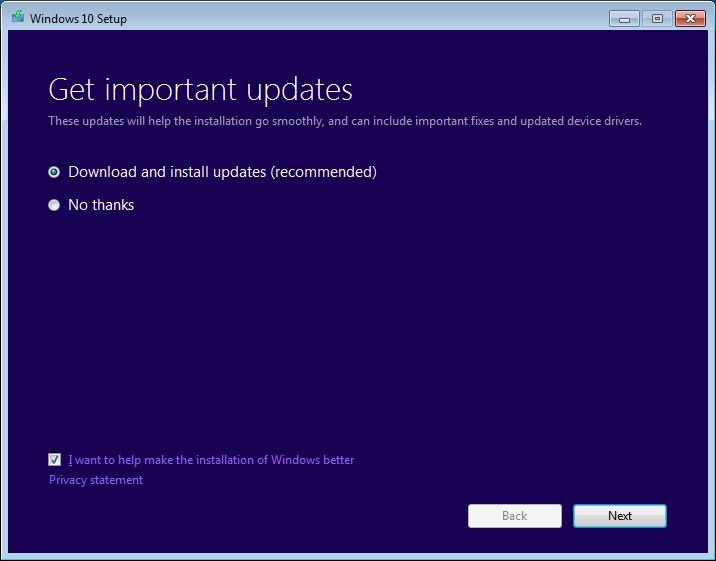
- Run the upgrade again and answer Yes when setup asks you to get important updates.
Why won't my Windows 10 update to 11?
The hardware misses a Windows 11 requirement, or Windows 10 is older than version 2004.
- Run PC Health Check and select Check now to see which requirement fails.
- Update Windows 10 to 22H2 if you are on an older build.
- Free at least 9 GB before using the Installation Assistant.
- If the hardware is not eligible, enroll in Extended Security Updates or plan for a Windows 11 PC.
Windows 10 shows activation problems after the upgrade
The PC has no Windows 10 license, or a hardware change separated the digital license from the device.
- Open Settings > Update & Security > Activation and read the status.
- Run the Activation troubleshooter, especially after replacing major hardware.
- Sign in with the Microsoft account linked to the license.
- If the status says Windows is not activated and you never had a license, buy one through Go to the Store.
Crashes, no sound or screen glitches after upgrading
A driver built for the previous Windows version is still in use.
- Open Windows Update, select Check for updates and install driver updates.
- Open Device Manager and check Display adapters, Network adapters and the audio device for warning icons.
- Download the Windows 10 driver for that device from the PC or device maker's support site.
- Restart and test the device again.
Frequently asked questions
How do I update to Windows 10 for free?
There is no free upgrade offer from Microsoft today. The free Windows 10 upgrade for Windows 7 SP1 and Windows 8.1 ended on July 29, 2016. If this PC already ran activated Windows 10, you can reinstall the same edition without a product key using its digital license.
How do I update from Windows 7 to Windows 10?
Get a Windows 10 license, back up your files, and run the Media Creation Tool from Microsoft's Windows 10 download page. Select Upgrade this PC now, choose what to keep, and select Install. Windows 7 support ended on January 14, 2020, and Windows 10 support ended on October 14, 2025.
How do I update Windows 10 to 22H2?
Open Settings, Update & Security, Windows Update, and select Check for updates. Install the 22H2 feature update when it appears and restart. If Windows Update does not offer it, use the Update Assistant on Microsoft's Windows 10 download page. Version 22H2 is the last supported Windows 10 release.
How do I update Windows 10 version 2004, 20H1 or 1809?
Update to 22H2 through Windows Update or the Update Assistant on Microsoft's Windows 10 download page. The Update Assistant installs the latest Windows 10 version. Older builds such as 2004 and 1809 no longer receive fixes, and only 22H2 qualifies for Extended Security Updates.
How do I update to Windows 10 Pro?
Open Settings, Update & Security, Activation. Select Change product key and enter a 25-character Windows 10 Pro key, or select Go to the Store to buy the upgrade. Your files and apps stay in place, and the PC restarts to finish the edition change.
Can I update Windows 10 to Windows 11 for free?
Yes, if your PC meets the Windows 11 minimum requirements and runs Windows 10, version 2004 or later. Check eligibility with PC Health Check, then install the upgrade from Settings, Update & Security, Windows Update, or with the Windows 11 Installation Assistant.
Why won't my Windows 10 update to 11?
The most common reason is hardware that misses a Windows 11 requirement, such as TPM 2.0, Secure Boot capability or a compatible 64-bit processor. Run PC Health Check and select Check now to see the exact failure. An older Windows 10 build or low disk space can also block it.
How do I get Windows 10 to update?
Restart the PC, free at least 20 GB on a 64-bit system, and unplug unneeded hardware. Then run the Windows Update troubleshooter from Settings, Update & Security, Troubleshoot, Additional troubleshooters. Standard Windows 10 PCs stopped receiving updates after October 14, 2025, unless enrolled in Extended Security Updates.
Is Windows 10 still getting security updates?
Only on PCs enrolled in consumer Extended Security Updates, which run through October 12, 2027 and cover critical and important security fixes. Other Windows 10 PCs keep working but received their last regular security update in October 2025. Windows 11 is the supported option.


![How to Enable & Use Thunderbolt on Windows 11 [Easy Guide]](https://techdows.com/wp-content/uploads/2026/10/How-to-Enable-Use-Thunderbolt-on-Windows-11-Easy-Guide-600x338.jpg)




How to Run Windows Update Troubleshooter on Windows 11 - Techdows
[…] If you are still moving an older PC to Windows 10, see How to Update to Windows 10: A Step-by-Step Upgrade Guide. […]
How to Upgrade Windows 11 Home to Pro: Step-by-Step Guide - Techdows
[…] or 0xC004C003. Each device needs its own license. If the PC itself still runs Windows 10, the Windows 10 upgrade guide covers that side […]
How to Update Zoom on a Windows or Mac Computer - Techdows
[…] 11, or Windows 10 Home, Pro or Enterprise. S Mode is not supported. Upgrading first is the fix for anything […]