Microsoft Power BI Desktop is a free Windows application for connecting to data, building data models, creating interactive reports, and saving projects as PBIX files. It works on Windows 11 and Windows 10, with the current release available as a 64-bit application.
You can install Power BI Desktop from the Microsoft Store or download Microsoft’s standalone EXE installer. The direct installer is useful when you do not want to use the Store, need to keep the setup file for another PC, or want to deploy Power BI Desktop using command-line options.
Power BI Desktop does not have a native macOS version. Microsoft now supports Windows on ARM under specific requirements, while the old 32-bit Power BI Desktop release is no longer supported. Below are the correct downloads and installation options for each platform.
Download Power BI Desktop for Windows 11/10 64-bit
The standard 64-bit Power BI Desktop installer is the correct download for almost every Intel or AMD PC running Windows 11 or Windows 10.
Official download: Download Power BI Desktop 64-bit from Microsoft
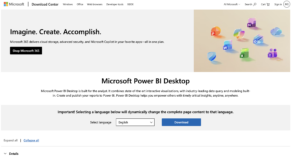
The current installer uses the filename PBIDesktopSetup_x64.exe. Microsoft updates Power BI Desktop approximately once a month, so downloading a fresh copy gives you the latest supported release rather than an old archived build.
| Download | Availability |
|---|---|
| Windows 11 64-bit | Supported |
| Windows 10 64-bit | Supported |
| Windows on ARM | Supported with Microsoft’s required Windows update |
| Windows 32-bit | No longer supported |
| macOS | No native Power BI Desktop app |
| Direct EXE installer | Available |
| Microsoft Store version | Available |
| Standalone MSI download | No longer provided as the normal installation method |
How to Install Power BI Desktop on Windows 11 or Windows 10
- Download PBIDesktopSetup_x64.exe from Microsoft.
- Open your Downloads folder.
- Double-click the downloaded EXE file.
- Select Yes if Windows asks for administrator permission.
- Accept the license agreement.
- Choose the installation options offered by the setup wizard.
- Click Install.
- Open Power BI Desktop from the Windows Start menu when installation finishes.
You can start creating local reports without immediately publishing them online. A Power BI or Microsoft Fabric account becomes relevant when you want to sign in, publish reports, access organizational content, or use cloud services.
Download Power BI Desktop Without Microsoft Store
You do not need the Microsoft Store to install Power BI Desktop. Microsoft provides a complete downloadable EXE through its Download Center.
Direct EXE download page: Microsoft Power BI Desktop Download Center
This option is particularly useful on business PCs where the Microsoft Store is disabled, when you need the installer for deployment, or when you want more control over installation parameters.
The direct installer requires administrator privileges. The Microsoft Store version normally does not require administrator rights for installation.
Download Power BI Desktop from Microsoft Store
The Microsoft Store version is usually the easiest choice for a personal Windows PC because Windows handles Power BI Desktop updates automatically.
- Open the Microsoft Store.
- Search for Power BI Desktop.
- Make sure the app is published by Microsoft Corporation.
- Click Install or Get.
- Wait for Windows to complete the download.
- Launch Power BI Desktop from the Start menu.
The Store and direct EXE versions provide the same core Power BI Desktop application. The main differences concern installation and updates.
| Feature | Microsoft Store | Direct EXE |
|---|---|---|
| Automatic updates | Yes | You install new versions manually |
| Administrator rights required | Normally no | Yes |
| Keep installer file | No | Yes |
| Silent installation | Not through the normal Store interface | Supported |
| Custom installation location | Managed by Windows | Can be configured during deployment |
Do not install the Store edition alongside an older MSI-based Power BI Desktop installation. Microsoft does not support that side-by-side configuration.
Power BI Desktop Offline Installer for Windows 11/10
Microsoft does not label a separate download as the “Power BI Desktop offline installer.” The large PBIDesktopSetup_x64.exe package from the Microsoft Download Center is the appropriate standalone installer when you need to install Power BI Desktop without downloading the application itself from the Microsoft Store.
Once you have downloaded the EXE, you can copy it to another compatible Windows computer and run the setup locally.
Keep in mind that Power BI Desktop also relies on Windows components such as .NET and Microsoft Edge WebView2. If those prerequisites are missing or outdated, the PC may need internet access or separate prerequisite installers before Power BI Desktop works correctly.
You will also need internet access for activities such as:
- Signing in to the Power BI service.
- Publishing reports online.
- Downloading future Power BI Desktop updates.
- Connecting to cloud-based data sources.
- Installing drivers or providers required by certain external databases.
Power BI Desktop ARM64 Download for Windows 11
Power BI Desktop now supports Windows on ARM, but Microsoft does not provide a separately named PBIDesktopSetup_ARM64.exe download on the standard Power BI Desktop page.
Microsoft requires the September 2025 Windows cumulative update KB5065789 or later for Power BI Desktop on Windows on ARM.
If you use a Snapdragon-powered Windows 11 PC:
- Open Settings > Windows Update.
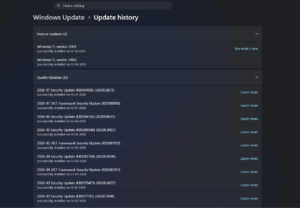
- Install all available Windows updates.
- Restart the PC.
- Download the current Power BI Desktop package from Microsoft.
- Run the installer normally.
Data connector compatibility can still vary. Power BI sometimes relies on database drivers, ODBC providers, Oracle clients, or other third-party components, and those components need their own Windows on ARM compatibility.
Download Power BI Desktop for Mac
There is no native Power BI Desktop download for macOS. Microsoft develops Power BI Desktop as a Windows application, so you will not find an official Power BI Desktop DMG or PKG installer for a MacBook, iMac, Mac mini, or Mac Studio.
Mac users have three practical options.
Use Power BI in a web browser
You can access the Power BI service through a supported browser on macOS. This works well for viewing reports, dashboards, shared content, and many browser-based Power BI tasks.
The browser service does not provide every data-modeling and report-authoring feature available in Power BI Desktop.
Run Windows on your Mac
A Mac can run Power BI Desktop inside a Windows virtual machine. On Apple Silicon Macs, this normally means running Windows 11 on ARM through virtualization software.
Because Microsoft now supports Power BI Desktop on Windows on ARM with the required Windows updates, this is more practical than it was in older versions. Compatibility with individual data connectors should still be checked separately.
Use a remote Windows PC
If your company already provides a Windows workstation, virtual desktop, or cloud PC, you can run Power BI Desktop there and connect from the Mac remotely. This avoids installing a full Windows environment locally.
Can You Download Power BI Desktop 32-bit?
The 32-bit edition of Power BI Desktop is no longer supported. Microsoft recommends moving to the current 64-bit version to continue receiving updates and technical support.
This can matter if you still use 32-bit database providers or an old 32-bit Microsoft Office installation. Power BI Desktop requires compatible 64-bit providers for data sources that depend on external drivers.
For example, importing older Access databases or Excel XLS files may require the 64-bit Microsoft Access Database Engine.
Power BI Desktop EXE vs MSI Installer
The current supported direct installation package is an EXE. Microsoft’s older MSI-based Power BI Desktop installation method is deprecated.
If your organization uses deployment software that specifically requires an MSI package, Microsoft documents a method for extracting the MSI from the current Power BI Desktop EXE using an appropriate packaging tool.
For normal users, there is no reason to extract the MSI. Install PBIDesktopSetup_x64.exe directly.
Power BI Desktop Silent Install
IT administrators can install Power BI Desktop without displaying the normal setup interface. The EXE supports Microsoft’s command-line installation switches.
A basic silent installation command is:
PBIDesktopSetup_x64.exe -quiet ACCEPT_EULA=1You can also prevent an automatic restart:
PBIDesktopSetup_x64.exe -quiet -norestart ACCEPT_EULA=1To install Power BI Desktop and create a desktop shortcut:
PBIDesktopSetup_x64.exe -quiet ACCEPT_EULA=1 INSTALLDESKTOPSHORTCUT=1Microsoft also supports options including:
-quietor-silentfor unattended installation.-passiveto show only an installation progress bar.-norestartto prevent an automatic restart.INSTALLLOCATIONto specify the installation directory.LANGUAGEto set the default Power BI Desktop language.DISABLE_UPDATE_NOTIFICATIONto disable update notifications.
Power BI Desktop System Requirements
| Requirement | Minimum |
|---|---|
| Operating system | Windows 10, Windows 11, or Windows Server 2016 and later |
| Architecture | 64-bit |
| Windows on ARM | Supported with KB5065789 or later |
| Processor | 1GHz 64-bit processor or faster recommended |
| Memory | 2GB available RAM minimum, 4GB or more recommended |
| .NET | .NET Framework 4.7.2 or later |
| Browser component | Microsoft Edge / WebView2 |
| Display | At least 1440 × 900 or 1600 × 900 recommended by Microsoft |
These are minimum requirements. Large PBIX files, complex Power Query transformations, large data models, and extensive DAX calculations benefit significantly from additional RAM and a faster processor.
For regular professional use, 16GB of RAM or more is considerably more comfortable than the minimum specification, especially when Power BI Desktop is running alongside Excel, browsers, SQL tools, or other business applications.
Download the Latest Version of Power BI Desktop
Microsoft releases Power BI Desktop updates every month and supports the latest release. The safest way to get the newest version is to download it again from Microsoft rather than searching for a particular build on third-party software archives.
If you installed the Microsoft Store edition, Windows normally updates Power BI Desktop automatically.
To check which version you currently have:
- Open Power BI Desktop.
- Select Help from the ribbon.
- Open About.
- Check the displayed version number.
Can You Download an Older Version of Power BI Desktop?
For normal Power BI cloud use, Microsoft recommends the latest monthly release and does not encourage remaining on an outdated Desktop version.
Organizations using Power BI Report Server are an exception. Microsoft publishes separate Power BI Desktop releases optimized for specific Power BI Report Server versions.
Do not install the Report Server edition just because you need an older Power BI Desktop build. It is intended specifically for environments using Power BI Report Server and follows a different release cycle.
Fix Power BI Desktop Not Installing
Make sure you downloaded the 64-bit version
The supported Power BI Desktop release is 64-bit. Remove an outdated 32-bit installation before installing the current version.
Run the EXE as administrator
If the installer cannot write files or stops with a permissions error:
- Right-click PBIDesktopSetup_x64.exe.
- Select Run as administrator.
- Approve the Windows security prompt.
- Run the installation again.
Update Windows
Open Settings > Windows Update and install pending updates. This is particularly important for Windows on ARM, where Power BI Desktop requires Microsoft’s specified cumulative update or later.
Check WebView2
Power BI Desktop uses Microsoft Edge WebView2 for parts of its interface and sign-in process. If Power BI opens with a blank window or fails during startup, repair or reinstall the Microsoft Edge WebView2 Runtime.
Do not mix incompatible installation types
If an older MSI installation is already present, uninstall it before installing the Microsoft Store version. Microsoft does not support running those installations side by side.
Try the Microsoft Store version
If the direct EXE repeatedly fails because of administrative restrictions, try installing Power BI Desktop from the Microsoft Store. Store installation normally does not require administrator privileges.
Frequently Asked Questions
Is Power BI Desktop free?
Yes. Microsoft provides Power BI Desktop as a free download. Power BI cloud sharing, organizational collaboration, capacity, and other service features can require paid Power BI or Microsoft Fabric licensing.
What is the official Power BI Desktop download?
The official standalone installer is available from the Microsoft Download Center as PBIDesktopSetup_x64.exe. Power BI Desktop is also available through the Microsoft Store.
Can I download Power BI Desktop for Windows 11?
Yes. Windows 11 is officially supported. Download the current 64-bit Power BI Desktop installer from Microsoft.
Can I download Power BI Desktop for Windows 10?
Yes. Power BI Desktop supports 64-bit Windows 10 as well as Windows 11.
Is Power BI Desktop available in 64-bit?
Yes. The current supported Power BI Desktop release is 64-bit and uses the filename PBIDesktopSetup_x64.exe.
Is there a Power BI Desktop 32-bit download?
An old 32-bit edition existed, but Microsoft no longer supports it. Use the current 64-bit version for updates and technical support.
Is there a Power BI Desktop ARM64 installer?
Microsoft supports Power BI Desktop on updated Windows on ARM systems, but the normal download page does not provide a separately named ARM64 setup file. Install Microsoft’s required Windows updates before attempting setup.
Can I download Power BI Desktop for Mac?
There is no native Power BI Desktop app for macOS. Mac users can use the Power BI web service, connect remotely to a Windows computer, or run Power BI Desktop inside a compatible Windows virtual machine.
Is there a Power BI Desktop offline installer?
Microsoft’s downloadable EXE is the appropriate standalone installation package. Once downloaded, it can be copied to another PC and run locally, although missing prerequisites, updates, cloud services, and online data sources still require internet access.
Can I download Power BI Desktop without Microsoft Store?
Yes. Download PBIDesktopSetup_x64.exe directly from the Microsoft Download Center.
Which is better, Power BI Desktop from Microsoft Store or EXE?
The Microsoft Store version is convenient because it updates automatically and normally does not require administrator rights. The direct EXE is better when you need a reusable installer, custom installation options, silent deployment, or cannot access the Store.
Does Power BI Desktop work without internet?
You can create and edit many local reports without remaining connected to the internet. Online publishing, cloud data sources, service sign-in, updates, and other connected features require internet access.
Do I need a Power BI account to install Power BI Desktop?
No. You can download and install Power BI Desktop without creating a Power BI account. An appropriate account is required when you want to sign in to online Power BI or Microsoft Fabric services.
How often is Power BI Desktop updated?
Microsoft normally releases a new Power BI Desktop version every month. Microsoft recommends using the latest release for current features and support.

Download VLC Media Player for PC, Windows 11/10 & Mac (Free) - Techdows
[…] page. This is the same check worth running on any installer you keep on a USB stick, including the Power BI Desktop offline installer and Microsoft Office offline […]