To use the calendar app on a Windows 11 PC, open the new Outlook for Windows, select Calendar in the navigation pane and click New Event to add your first appointment.
Support for the old Windows Mail and Calendar app ended on December 31, 2024, so this guide covers the Calendar inside new Outlook: events, recurring meetings, extra calendars, Gmail and iCloud calendars, settings and fixes.
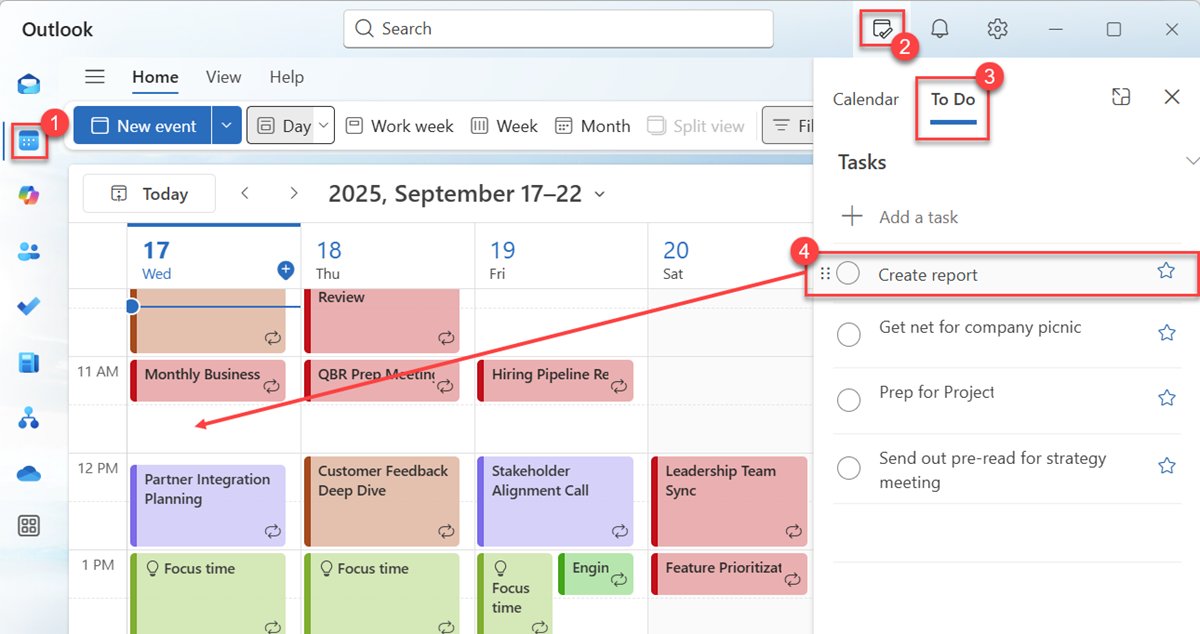
How to use Calendar app in Windows 11 PC
New Outlook is free on Windows 11 and needs no Microsoft 365 subscription. It works with Outlook.com, Hotmail, Gmail, Yahoo, iCloud and Microsoft 365 work or school accounts.
- Open Start, type Outlook and open the Outlook app.
- Sign in with your Outlook.com, Gmail, Yahoo, iCloud or work account if this is the first launch.
- Select the Calendar icon in the navigation pane on the left.
- Select New Event at the top of the calendar.
- Type a title, then set the date, start time and end time, or turn on All day.
- Add a location if you need one, then select Save for a personal appointment or Send if you invited people.
The event now sits on the calendar grid. Double-click it any time to change the details.
Does Windows 11 have a Calendar app?
Yes. The calendar app for Windows 11 is now the Calendar inside new Outlook. The older Mail and Calendar app can no longer send or receive email or calendar events.
| Calendar on Windows 11 | Status | What it is good for |
|---|---|---|
| Calendar in new Outlook for Windows | Current, free, from the Microsoft Store | Events, meetings, reminders, several accounts in one view |
| Windows Mail and Calendar app | Support ended December 31, 2024 | Exporting old local events only; it no longer syncs |
| Calendar on the taskbar | Built into Windows 11 | Glancing at dates from the right end of the taskbar |
| Outlook.com in a browser | Current | Using the same calendar on a PC where you cannot install apps |
| Classic Outlook (Microsoft 365) | Current, paid Office app | iCloud calendar sync through iCloud for Windows and COM add-ins |
Windows Enterprise LTSC editions ship without the inbox Calendar app, so install Outlook from the Microsoft Store or use Outlook.com there.
How to open the Calendar app on Windows 11 PC
Outlook may already be on your PC. If Start search finds nothing, install it from the Microsoft Store app first.
- Select Start and type Outlook.
- If Outlook appears, open it and skip to the last step.
- If it does not appear, open Microsoft Store, search for Outlook, and and install the Outlook entry.
- If the old Calendar app is still on the PC, open it and select Open Outlook in the dialog that appears.
- In classic Outlook, turn on the Try the new Outlook toggle in the top corner instead.
- Follow the on-screen setup, then select Calendar in the navigation pane.
To reach the calendar in one click next time, pin Outlook to the taskbar from its Start menu entry.
How to create an event in the Calendar app and add people
An event with attendees becomes a meeting invitation. Outlook reserves the time on your calendar and tracks who accepts.
- In Calendar, select New Event and add a title.
- Select Invite attendees and type the names or email addresses of the people to invite.
- With a work or school account, open the Scheduling Assistant tab and use Add required attendee or Add optional attendee to see everyone's free and busy time.
- Back on the Event tab, pick a suggested time slot or enter the date, start and end time, or select All day.
- Enter a meeting location, and slide the Teams meeting toggle on if people will join online.
- Add any notes or attachments in the event body.
- Select Send to deliver the invitation.
To add someone later, double-click the meeting, add the person as a required or optional attendee, then select Send Update and choose Only added/removed attendees or All attendees.
How to create, edit and delete recurring calendar appointment in Outlook
A recurring event repeats on a schedule you set, such as a weekly class or a monthly bill reminder. You can change one occurrence or the whole series afterwards.
- Create the event as usual with New Event, a title, a time and any attendees.
- Select Recurring, choose the interval in the Repeat window, and select Save.
- Select Save or Send to add the series to the calendar.
- To edit it, double-click any occurrence on the calendar grid.
- Choose Edit the one event in the series, Edit series, or Edit this and all following events, make the change, then select Save or Send.
- To remove it, right-click (or press and hold) the event and select Cancel from the context menu.
You can only change events you created. Meetings other people invited you to keep the organizer's details.
How to add calendars in new Outlook for Windows
A second calendar keeps personal appointments, a family schedule or a project apart from your main calendar while showing them on the same grid.
- In Calendar, select the Home tab.
- Below the calendar grid, select Add Calendar.
- Select Create blank calendar.
- Enter a name, then under Add to choose the group the calendar belongs to.
- Select Save.
- To open a colleague's or a shared mailbox calendar, go to Home > Add calendar > Add from directory instead.
- To delete a calendar, right-click its name in the navigation pane and select Remove.
Can I use Google Calendar on Windows 11?
Yes. New Outlook supports Gmail, Yahoo and iCloud accounts alongside Outlook.com and Microsoft 365, so their calendars show in the same Calendar view.
- Open Outlook and select the gear icon to open Settings.
- Select Accounts.
- Add your Gmail, Yahoo or iCloud account and sign in with that provider's own sign-in page.
- Allow access when the provider asks, then close Settings.
- Select Calendar; the new account's calendars are listed in the navigation pane.
If you mainly live in a browser, the Google Calendar planner setup works the same on any Windows PC.
How to use Apple Calendar on Windows
There is no Apple Calendar app for Windows. You get iCloud calendars on a PC by adding the iCloud account to new Outlook, or by syncing them to classic Outlook with Apple's iCloud for Windows.
- For new Outlook, add the iCloud account under Settings > Accounts, as in the Google Calendar steps above.
- For classic Outlook, install Apple's iCloud for Windows and sign in with your Apple Account.
- Open iCloud for Windows and select the arrow next to Calendars and Contacts.
- Turn on Automatically sync your iCloud calendars and contacts to Microsoft Outlook.
- Select Done, then follow the on-screen instructions to finish setting up Outlook.
Apple's iCloud for Windows guide names only the classic version of Outlook for this sync, and it needs an @icloud.com email address set up first.
How to adjust the calendar settings on your Windows 11 PC
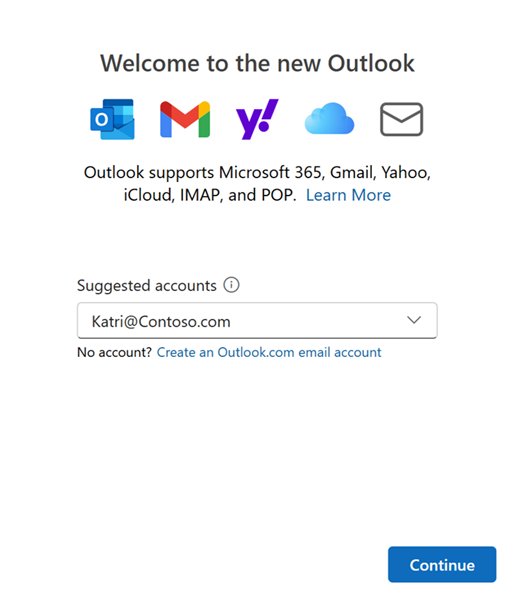
Open the gear icon in Outlook to reach Settings. Calendar options apply per account, so pick the right account first if you added more than one. The wider Windows 11 app settings page controls Outlook's background and notification permissions.
| What you want to change | Where it is | Notes |
|---|---|---|
| Work days, start and end times, remote or office location | Settings > Calendar > Work hours and location | Work or school accounts with a qualifying Microsoft 365 plan only |
| Today's work location or an out of office day | Work plan icon on the calendar | Changes one day without opening Settings |
| Who can see your calendar and how much detail | Settings > Calendar > Shared calendars | Default sharing settings for your calendars |
| Light, dark or system theme | Settings > General > Appearance | Applies to mail and calendar |
| Color categories for events and tasks | Settings > Accounts > Categories | The same categories appear on To Do tasks |
| Default reminder time and extra reminders | Calendar reminder settings and each event's reminder field | One event can carry more than one reminder |
Plan your day with the Calendar app on Windows 11 PC
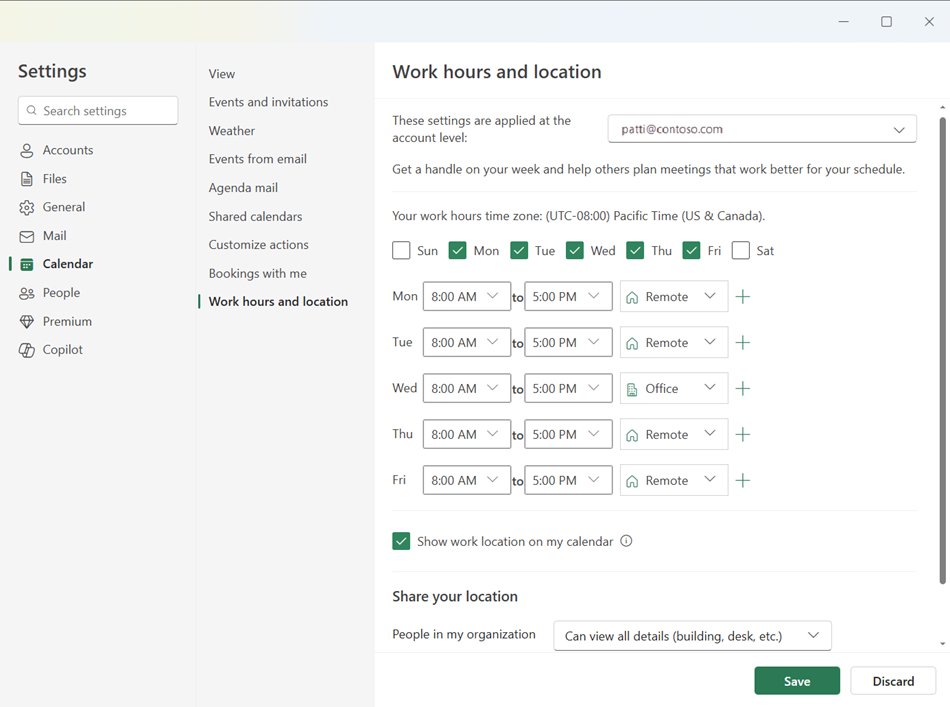
Outlook's My Day pane puts Microsoft To Do tasks next to the calendar, so you can block time for a task by dragging it onto the grid.
- Go to Calendar in new Outlook.
- Select the My Day icon on the Outlook toolbar to open the pane.
- Select the To Do tab.
- Choose a list and select + Add a task to add anything missing.
- Drag a task from the pane onto a free slot on the calendar to turn it into an event.
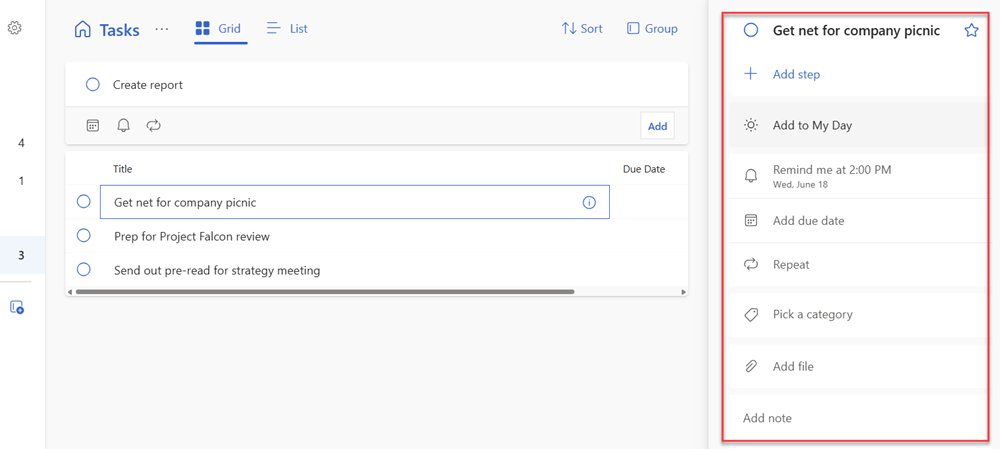
- Select a task and use Remind me or Add due date for items you do not want to block time for.
How to sync your Calendar app across devices
Outlook does not store your calendar on the PC alone. Each event is saved to the account that owns the calendar, so it appears on every device signed in to that account.
| Calendar belongs to | Where the same events appear | Notes |
|---|---|---|
| Outlook.com or Hotmail account | Outlook.com in a browser and Outlook on other PCs, Macs and phones | Sign in with the same Microsoft account |
| Microsoft 365 work or school account | Outlook on the web, Teams and Outlook mobile | Shared and delegated calendars follow your permissions |
| Gmail account | Google Calendar on the web and on phones | Add the Gmail account in Outlook, not a copy of the calendar |
| iCloud account | Calendar on iPhone, iPad and Mac | Needs the iCloud account added in Outlook or iCloud for Windows |
| Old Windows Calendar local events | Nowhere else | Export them, then import into new Outlook |
How to confirm a calendar event saved and synced
- Find the event on the calendar grid in Outlook and double-click it to confirm the title, time and location.
- Check that it sits under the right calendar name in the navigation pane, not a different account.
- For a meeting, open it and check the attendee list for accepted, tentative or declined responses.
- Open the same calendar on your phone or in a browser, signed in to the same account, and confirm the event is there.
Windows 11 Calendar app not working or not syncing
The old Calendar app shows no new events
Windows Mail, Calendar and People stopped sending and receiving on December 31, 2024.
- Open the old Calendar app and select Open Outlook when the dialog appears.
- Sign in to the same account in new Outlook; online events load from the account.
- Export any local-only events from the old app, then import them into new Outlook.
The steps do not match what you see in Outlook
You are in classic Outlook, which uses a ribbon with New Appointment and Recurrence instead.
- Look for the Try the new Outlook toggle in the top corner of the window.
- Turn it on to switch, or follow classic Outlook's Home ribbon labels instead.
"We couldn't reach the email server. Please try again." when adding an account
On-premises Exchange accounts are not supported in new Outlook.
- Ask your IT department whether the mailbox is on-premises Exchange.
- Use classic Outlook or Outlook on the web for that calendar.
"This account is not supported in Outlook for Windows due to the license provided by your work or school"
The work plan does not include a licence for Outlook client apps.
- Open the calendar in Outlook on the web at outlook.office.com instead.
- Ask your administrator whether a plan with desktop Outlook is available.
A shared mailbox calendar is missing
New permissions can take a few minutes to show up in Outlook.
- Wait a few minutes, then close and reopen new Outlook.
- In Mail, right-click your account name and select Add shared folder or mailbox.
- Type the mailbox address and confirm; its calendar then becomes available.
Windows 11 Calendar app FAQ
Does Windows have a calendar app?
Yes. Windows 11 uses the Calendar inside the free new Outlook for Windows app from the Microsoft Store. The older Mail and Calendar app lost support on December 31, 2024 and can no longer sync events, though you can still export its local data.
What is the Windows calendar app?
It is the Calendar module of new Outlook for Windows, reached from the Calendar icon in the app's navigation pane. It handles events, recurring meetings, reminders, shared calendars and several accounts, including Outlook.com, Gmail, Yahoo and iCloud, in one view.
How do I open the calendar in Windows 11?
Open Start, type Outlook and open the app, then select Calendar in the navigation pane. If Outlook is not installed, get it from the Microsoft Store. The date and time on the taskbar also shows a month calendar for quick reference.
How do I use the Windows calendar app?
Select New Event, add a title, set the date and time, and select Save. Use Invite attendees to turn it into a meeting, Recurring to repeat it, and Add Calendar on the Home tab to keep separate calendars for work, home or projects.
Does Microsoft have a calendar app?
Yes. Microsoft's calendar is part of Outlook: new Outlook on Windows, Outlook.com in a browser, and Outlook on phones. A Microsoft account or Microsoft 365 account keeps the same events on all of them.
How do I use Microsoft Calendar?
Sign in to Outlook with your Microsoft account, select Calendar, and create events with New Event. Events save to your account, so the same calendar appears in Outlook.com and Outlook mobile without any extra sync setup.
Can I use Google Calendar on Windows 11?
Yes. Add your Gmail account to new Outlook under Settings > Accounts, and its calendar appears next to your other calendars. You can also use Google Calendar in any browser on the PC.
Can I use Apple Calendar on Windows?
There is no Apple Calendar app for Windows, but you can see iCloud calendars on a PC. Add the iCloud account to new Outlook, or install iCloud for Windows and turn on calendar sync to classic Outlook.
Is the Windows 11 calendar app free?
Yes. New Outlook for Windows is free from the Microsoft Store and needs no Microsoft 365 subscription for personal accounts such as Outlook.com, Gmail, Yahoo and iCloud. Some extras, such as Copilot features, need a paid licence.