To stop Apple Music from playing another song when the current one ends, turn off AutoPlay at the top of the queue, then select Clear so nothing is left waiting to play.
This guide covers iPhone, Mac and the Apple Music app on Windows, plus repeat settings, a sleep timer that stops playback, and fixes when music still keeps going.
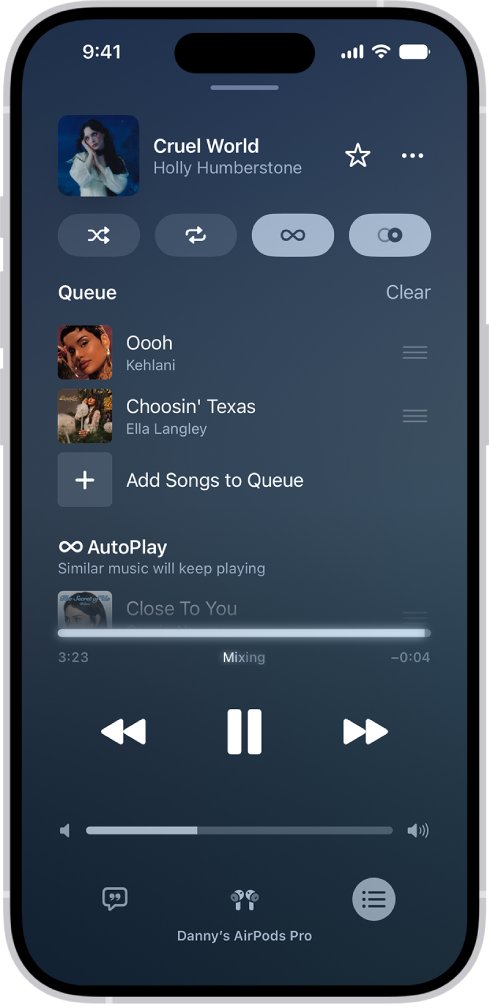
How to turn off Apple Music autoplay on iPhone
AutoPlay is the setting that adds similar songs to the end of your queue. Turning it off on iPhone also turns it off on every other device signed in with the same Apple Account.
- Open the Music app and start playing any song.
- Tap the MiniPlayer to open the Now Playing screen.
- Tap the queue button to show the songs playing next.
- Tap the AutoPlay button at the top of the queue so it is no longer highlighted in color.
- Tap Clear at the top of the queue to remove the songs already lined up.
- Tap the queue button again to hide the queue.
With AutoPlay off and the queue cleared, Apple Music finishes the current song and stops.
Stop Apple Music autoplay: AutoPlay, queue or repeat
Three different settings can keep music going after a song ends. Match what you hear to the row below.
| What happens after the song ends | Change this | Why |
|---|---|---|
| Songs you never picked start playing | Turn off AutoPlay | AutoPlay adds similar songs to the end of the queue |
| The rest of the album or playlist plays | Select Clear in the queue | Starting a song in an album or playlist queues the songs that follow it |
| The same song starts again | Turn off repeat | Repeat one replays the current song |
| The whole playlist starts over | Turn off repeat | Repeat all loops the album, playlist or queue |
| You want playback to stop after a set time | Set a Clock timer to Stop Playing | The timer stops audio whatever is queued |
Turn off AutoPlay in Apple Music on Mac
On a Mac, the AutoPlay icon shows in red at the top of the queue while it is on. A song must be playing before the queue opens.
- Open the Music app on your Mac.
- Play any song from your library or Apple Music.
- Click the Playing Next button to open the queue.
- Click the AutoPlay button at the top of the queue so it is no longer colored.
- Click the Clear link at the top of the queue to remove the remaining songs.
- Click the Playing Next button again to close the queue.
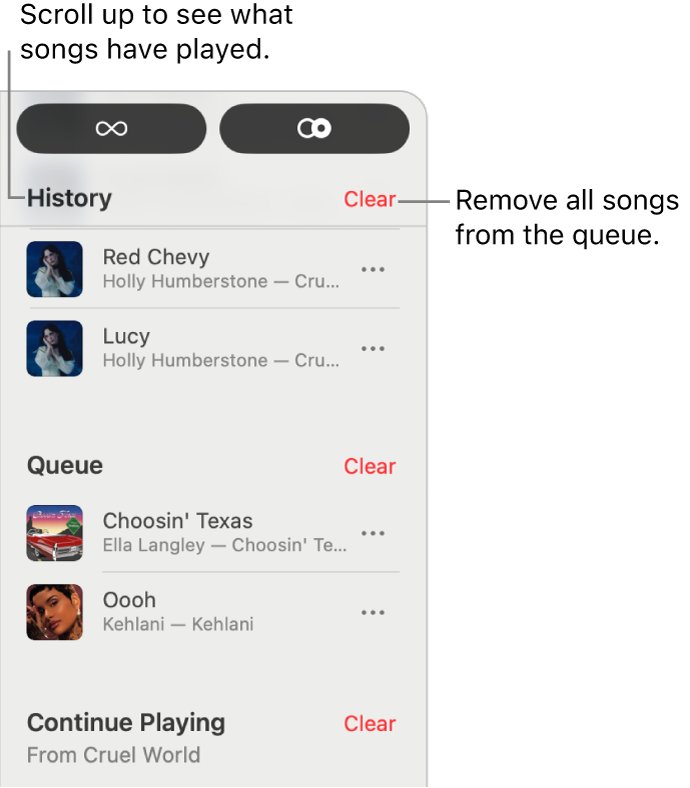
To clear only part of the queue, click Clear next to a single album or playlist.
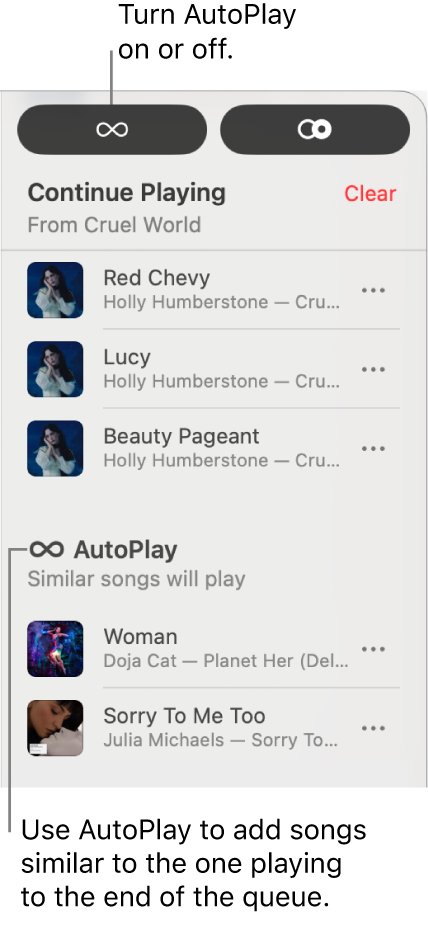
Turn off AutoPlay in the Apple Music app on Windows
The Apple Music app for Windows uses the same Playing Next queue. The change syncs to your other devices through your Apple Account.
- Open the Apple Music app on your Windows PC.
- Play any song from your library or Apple Music.
- Select the queue button, then select Playing Next.
- Select the AutoPlay button at the top of the queue so it is no longer colored.
- Select the Clear link at the top of the queue.
- Select the Playing Next button again to close the queue.
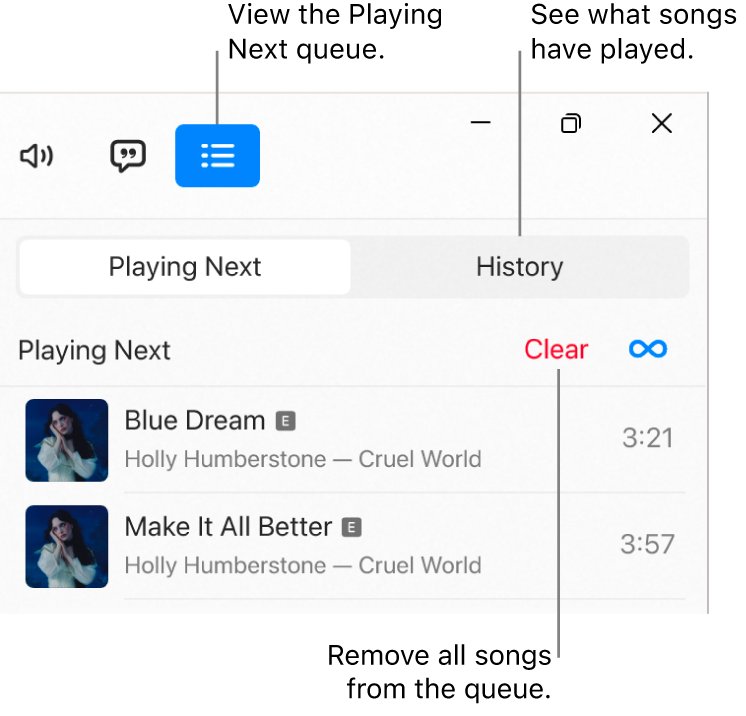
Stop Apple Music after the current song by clearing the queue
Apple Music has no single "stop after this song" switch. Turning off AutoPlay and emptying the queue gives the same result, because nothing is left to play next.
- Make sure AutoPlay is off, using the steps for your device above.
- Open the queue while the song you want to hear is playing.
- Select Clear at the top of the queue to remove every upcoming song.
- To keep a few songs, remove the others one at a time instead: swipe left on a song on iPhone, press Delete on Mac, or press Backspace on Windows.
- Close the queue and let the current song finish.
Clearing the queue does not delete songs from your library or playlists. It only removes them from the list of what plays next.
Turn off repeat in Apple Music so songs do not play again
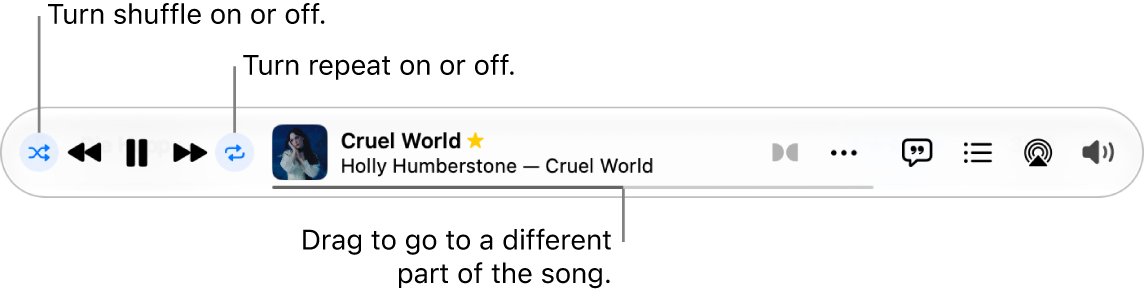
Repeat keeps playback going even with AutoPlay off. Repeat all loops the playlist or queue, and repeat one replays the current song.
| Device | Where the repeat button is | How to turn repeat off |
|---|---|---|
| iPhone | Now Playing screen, then the queue view | Tap the repeat button until it is no longer highlighted |
| Mac | Playback controls in the Music window | Click the repeat button until it is gray |
| Windows | Playback controls in the Apple Music app | Select the repeat button until it is gray |
A small number 1 on the repeat button means repeat one is on. Press the button again until the number disappears and the button turns gray.
Set a sleep timer to stop Apple Music on iPhone
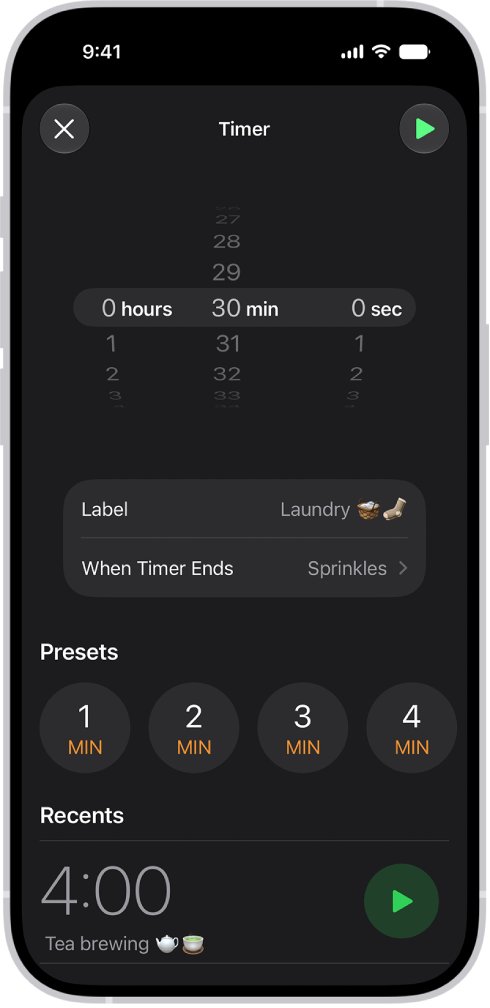
The Clock app can stop any audio after a set time. Use it when you fall asleep to music and want playback to end on its own.
- Open the Clock app on your iPhone.
- Tap Timers, then set the duration you want.
- Tap When Timer Ends.
- Scroll to the bottom of the sound list and tap Stop Playing.
- Tap Set, then tap Start.
The timer keeps counting if you switch apps or your iPhone goes to sleep.
Check that Apple Music AutoPlay is off
- Play a single song and open the queue.
- Look at the AutoPlay button at the top of the queue. It should be plain, not colored.
- Let the song finish. Playback should stop instead of moving to another song.
- Open the queue on a second device with the same Apple Account to confirm AutoPlay is off there too.
What Apple Music AutoPlay does
| Question | Answer |
|---|---|
| What it does | Adds songs similar to what you played to the end of the queue and plays them |
| Who gets it | Apple Music subscribers |
| Where the switch is | The AutoPlay button at the top of the queue on iPhone, Mac and Windows |
| How to tell it is on | The button is colored. On Mac the icon shows in red |
| Does turning it off sync? | Yes. It turns off on every device that uses the same Apple Account |
| Is the queue kept after you quit? | Yes on Mac and Windows. The queue is saved for the next time you open the app |
Apple Music still plays the next song after AutoPlay is off
The rest of the album or playlist keeps playing
Starting a song inside an album or playlist queues the songs that follow it, whatever the AutoPlay setting.
- Open the queue while the song is playing.
- Select Clear at the top of the queue, or Clear next to that album or playlist.
- Close the queue and let the song finish.
Apple Music keeps playing the same song
Repeat one is turned on.
- Open the playback controls.
- Press the repeat button until the number 1 disappears and the button turns gray.
There is no AutoPlay button at the top of the queue
AutoPlay is an Apple Music subscriber feature, and the queue only opens while a song is playing.
- Start playing a song first, then open the queue.
- Check that you are signed in with the Apple Account that has the Apple Music subscription.
- Clear the queue instead if you play only your own library without a subscription.
Old songs come back when you reopen the app on Mac or Windows
The app saves the queue when you quit and restores it next time.
- Open the queue after you reopen the app.
- Select Clear before you start playing.
Apple Music autoplay FAQ
How do I stop Apple Music autoplay?
Play a song, open the queue and tap or click the AutoPlay button at the top so it is no longer colored. Then select Clear to empty the queue so nothing plays after the current song.
How do I keep Apple Music from autoplaying on all my devices?
Turn off AutoPlay once on any device. Apple Music turns it off on every other device that uses the same Apple Account, including iPhone, Mac and the Windows app.
How do I turn off Apple Music autoplay on Mac?
Open the Music app and play a song. Click the Playing Next button, then click the AutoPlay button at the top of the queue so it is no longer red.
How do I disable Apple Music autoplay on Windows?
Open the Apple Music app and play a song. Select the queue button, select Playing Next, then select the AutoPlay button at the top of the queue so it is no longer colored.
How do I stop Apple Music from playing after a set time?
Use the Clock app on iPhone. Set a timer, tap When Timer Ends, choose Stop Playing, then tap Set and Start. Playback stops when the timer ends.
Why does Apple Music keep playing songs I did not pick?
AutoPlay is on. It adds songs similar to what you played to the end of the queue. Turn off the AutoPlay button at the top of the queue to stop it.
Does clearing the Apple Music queue delete my songs?
No. Clear only removes songs from the list of what plays next. Your library, playlists and downloads stay as they are.