Press Ctrl + F, type the word you want, and press Enter to jump to each match on the page, document or spreadsheet you have open.
This guide shows how Ctrl+F behaves in Chrome, Edge, Word, Excel, File Explorer and Command Prompt, the Mac equivalent, and what to do when Ctrl+F does not work.
How to use CTRL+F to find words on your computer?
Ctrl+F is the standard Windows shortcut for finding text. The same steps work in browsers, Word, Excel, PDF readers and most other apps.
- Click inside the page, document or window you want to search so it has focus.
- Hold Ctrl and press F once.
- Type the word or phrase in the search box that appears.
- Press Enter to jump to the first match, and press it again to move to the next one.
- Close the search box with its X button when you are done.
Most apps also show a match count, such as 2 of 9, next to the search box. That count tells you at a glance whether the word is on the page at all.
Ctrl+F in Chrome, Word, Excel, File Explorer and Terminal
Ctrl+F opens a different search tool in each app. Match your app to a row to see what you get and how to move between results.
| Where you are | What Ctrl+F opens | Next or previous match |
|---|---|---|
| Google Chrome | Find Bar for the current page (F3 also works) | Ctrl+G next, Ctrl+Shift+G previous |
| Microsoft Word | Navigation pane with a Search document box | Select a result in the pane |
| Microsoft Excel | Find and Replace dialog, Find tab | Find Next, or Find All for a list |
| File Explorer | Selects the search box for files and folders (F3 also works) | Results list in the window |
| Windows Terminal | Nothing by default; use Ctrl+Shift+F | Arrow buttons in the search dialog |
| Mac apps | Use Command+F instead | Command+G next, Shift+Command+G previous |
How to use CTRL+F to find words in Chrome and other browsers
Chrome calls its page search the Find Bar. It searches only the text of the page you are viewing, not the whole website.
- Open the web page in Chrome.
- Press Ctrl + F or F3 to open the Find Bar.
- Type the word. Chrome highlights every match and shows how many it found.
- Press Ctrl + G or Enter to jump to the next match.
- Press Ctrl + Shift + G to go back to the previous match.
- Select the X on the Find Bar to close it.
Microsoft Edge and Firefox follow the same Windows Ctrl+F convention. In Edge you can also turn off related matches in Find on page if you only want exact hits.
How do you find specific text in a document?
In Microsoft Word, Ctrl+F opens the Navigation pane, which finds characters, words and phrases in the document.
- Open the document in Word.
- Press Ctrl + F, or select Home > Find.
- Type the word or phrase in the Search document box.
- Select a result in the Navigation pane to jump to that spot in the document.
- In Word for the web, select the filter icon and choose Match case or Whole words only to narrow the results.
- Press Ctrl + H instead when you want to replace the word with something else.
How to use Ctrl F in Excel
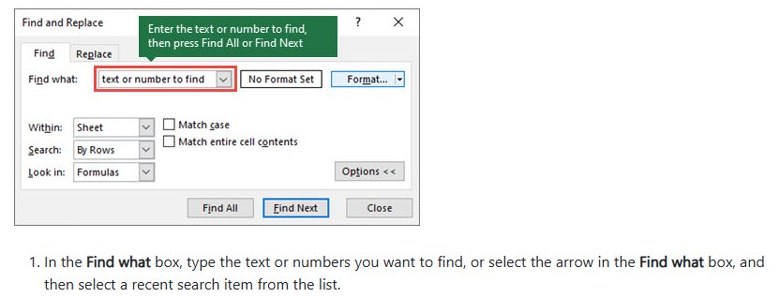
In Excel, Ctrl+F opens the Find and Replace dialog. It can search one sheet or the whole workbook, and it accepts wildcards.
- Press Ctrl + F, or go to Home > Editing > Find & Select > Find.
- Type the text or number in the Find what box.
- Select Options >> to show the search settings.
- Set Within to Sheet or Workbook, and Look in to Formulas, Values, Notes or Comments.
- Select Find Next to jump to one cell at a time, or Find All to list every match.
- Use ? for any single character and * for any run of characters, for example s*d finds sad and started.
How to Ctrl F on Windows File Explorer to search for files
In File Explorer, Ctrl+F does not search inside a file. It jumps to the search box so you can find files and folders by name.
- Open File Explorer with Windows + E.
- Go to the folder or drive you want to search.
- Press Ctrl + F, Ctrl + E or F3 to select the search box.
- Type part of the file or folder name and press Enter.
- Open the file from the results list, then press Ctrl + F inside its app to find words in it.
How to do Ctrl F in CMD and Windows Terminal
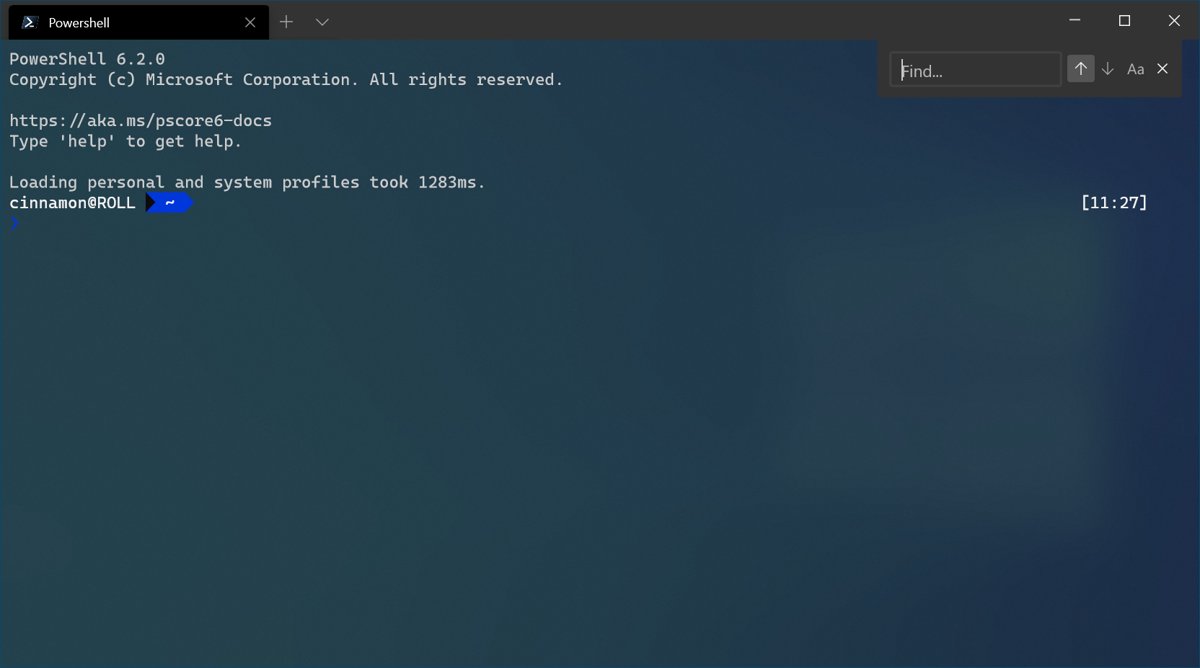
Windows Terminal opens its search dialog with Ctrl + Shift + F, not Ctrl+F. Type a word and press Enter to search the text in the window, and use the arrow buttons to change direction or the case button to match capitals.
To search for a word inside a text file, open Command Prompt and use the built-in find command.
find /i "invoice" C:\Users\Public\notes.txtfind prints every line of notes.txt that contains the word invoice. The /i switch makes the search ignore upper and lower case; /n adds line numbers and /c returns only a count of matching lines.
You should see: The output shows ten dashes, the file name, then each matching line. No lines under the file name means the word is not in the file.
In Windows Terminal you can change the search key binding to Ctrl+F by editing the find command in settings.json from "ctrl+shift+f" to "ctrl+f".
How to use Command+F to find words on a Mac
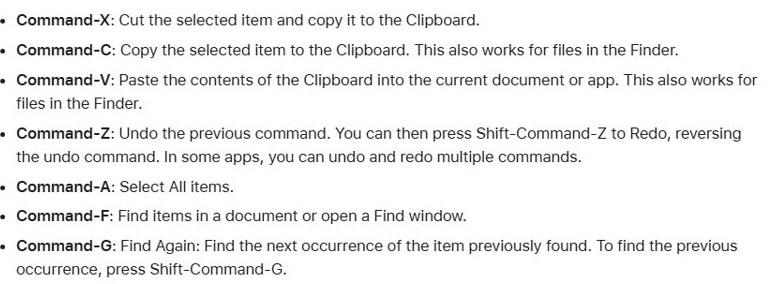
Macs use the Command key where Windows uses Ctrl, so the find shortcut is Command+F.
- Click inside the document, page or app window.
- Press Command + F to open the Find field.
- Type the word you want.
- Press Command + G to find the next match.
- Press Shift + Command + G to find the previous match.
- In a Finder window, Command+F starts a Spotlight search for files instead.
What does Ctrl + F do?
Ctrl+F stands for Find. It opens the search tool of whichever app has focus, and a few related shortcuts extend it.
| Shortcut | What it does on Windows |
|---|---|
| Ctrl + F | Find text in the active app or page |
| Ctrl + H | Find and replace text in editors such as Word and Excel |
| F3 | Open the Find Bar in Chrome, or search for a file or folder in File Explorer |
| Ctrl + G / Ctrl + Shift + G | Next and previous match in the Chrome Find Bar |
| Ctrl + Shift + F | Search dialog in Windows Terminal |
| Windows + Ctrl + F | Search for devices on a network |
How to remap Copilot key to any other in Windows 11
On some new Windows 11 laptops the Copilot key replaces the Right Ctrl key, which breaks right-hand Ctrl shortcuts such as Ctrl+F. Microsoft is adding a setting that remaps the Copilot key to Right Ctrl or the Context menu key.
- Open Start > Settings > Bluetooth & devices > Keyboard.
- Find the Copilot key option and set it to Right Ctrl or Context menu key.
- Test the change by pressing the remapped key with F in a browser.
- If your PC maker ships its own key utility, use either that tool or the Windows setting, not both.
- After remapping to Right Ctrl, use the left Ctrl key for RCtrl+Win and RCtrl+Shift combinations, because those do not work as normal.
The setting arrives through a Windows 11 update, so PCs that have not received it yet will not show it. Windows 11 26H2 also brings other Copilot key changes worth knowing before you remap.
Ctrl + F not working on Windows
Ctrl + F does nothing at all
The window you want to search does not have keyboard focus, or the app has no find feature.
- Click once inside the page or document body, not on the taskbar or desktop.
- Press Ctrl + F again.
- In Chrome or File Explorer, try F3, which opens the same search.
- Check the app's menu for a Find command, such as Home > Find in Word.
Ctrl + F does not work with the right Ctrl key on a new laptop
A Copilot key has replaced the Right Ctrl key.
- Use the left Ctrl key with F.
- Remap the Copilot key to Right Ctrl in Settings > Bluetooth & devices > Keyboard if the setting is available.
Ctrl + F does not work in Command Prompt or Windows Terminal
Windows Terminal binds search to Ctrl+Shift+F by default.
- Press Ctrl + Shift + F instead.
- To use Ctrl+F, change the find key binding in Terminal's settings.json to "ctrl+f".
Ctrl + F is not finding a value in Excel
The search options exclude where the value lives.
- Press Ctrl + F and select Options >>.
- Set Within to Workbook if the value may be on another sheet.
- Switch Look in between Formulas and Values, because a calculated result is a value, not formula text.
- Clear Match entire cell contents and Match case if they are checked.
- Select Find All to list every match.
Ctrl+F find words FAQ
What is Ctrl + F?
Ctrl + F is the Windows keyboard shortcut for Find. Pressing it opens a search box in the active app, where you type a word to locate it on the page, in the document or in the spreadsheet. On a Mac the same shortcut is Command + F.
What is the purpose of Ctrl+F?
The purpose of Ctrl+F is to locate a word or phrase without reading the whole page. It highlights every match, shows how many there are, and lets you jump from one to the next with Enter or a next-match shortcut.
Is Ctrl F a search?
Yes. Ctrl F searches the content that is already open, such as one web page or one document. It does not search the internet or other files. To search for files by name, use File Explorer's search box, which Ctrl F also selects there.
How do I do Ctrl F on Windows?
Click inside the window you want to search, hold the Ctrl key and press F. Type your word in the box that appears and press Enter to move through the matches. Close the box with its X button when you finish.
How do I use Ctrl F in Excel?
Press Ctrl F in Excel to open Find and Replace, type the text or number in Find what, then select Find Next or Find All. Select Options to search the whole workbook, look in values or formulas, or match case.
How do I do Ctrl F in CMD?
In Windows Terminal, press Ctrl Shift F to open its search dialog, because Ctrl F is not bound by default. To search inside a text file from Command Prompt, run find /i "word" followed by the file name.
How do I make Ctrl F work again?
Click inside the page so it has focus, then press Ctrl F again. Use the left Ctrl key if your laptop has a Copilot key in place of Right Ctrl. In Chrome and File Explorer, F3 opens the same search.
Does Ctrl-F work on all computers?
Ctrl F works on Windows and Linux computers in nearly every app that has a find feature. Mac computers use Command F instead. Some apps, such as Windows Terminal, assign search to a different shortcut, Ctrl Shift F.
How do I enable Ctrl F?
Ctrl F needs no enabling on Windows; it is built into apps that support find. If it seems disabled, the app may use another shortcut or the key may be remapped. Windows Terminal lets you set Ctrl F as its search key in settings.json.