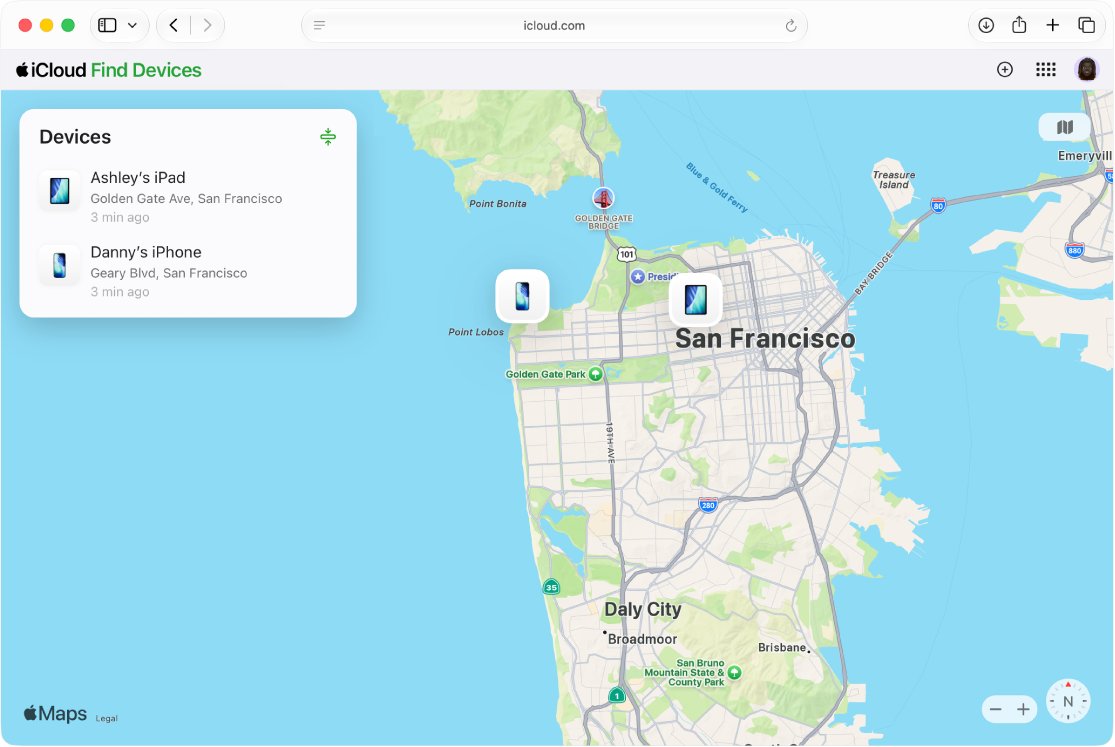
You don't see AirTags on your iCloud account because Find Devices on iCloud.com locates Apple devices only; AirTags appear under Items in the Find My app on an iPhone, iPad, Mac or Apple Watch.
This guide shows where to find your AirTags on each device, how to share one so another person sees it, and what to do when an AirTag is missing from the Items list.
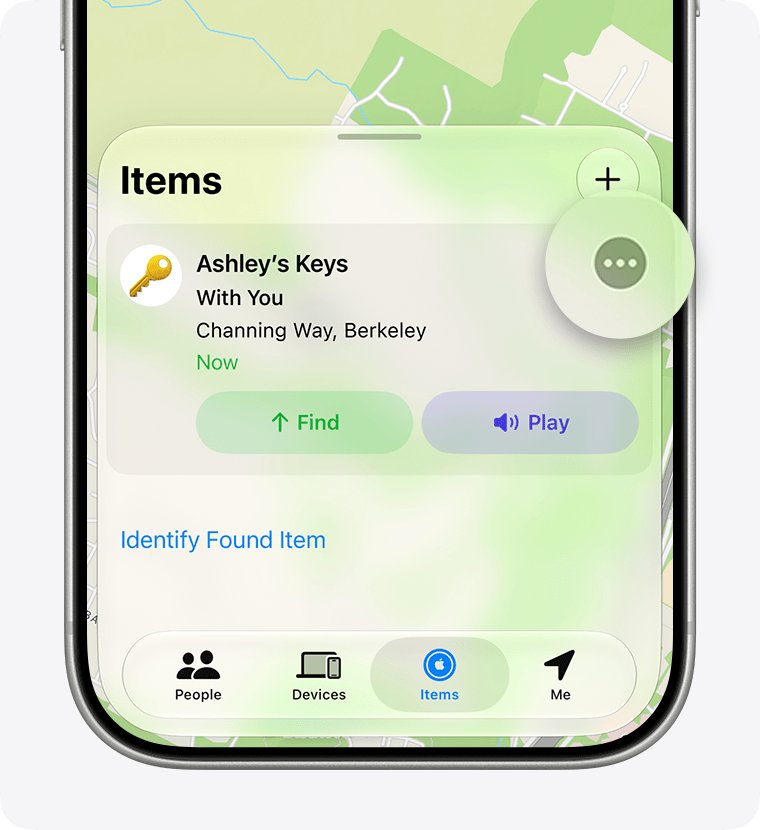
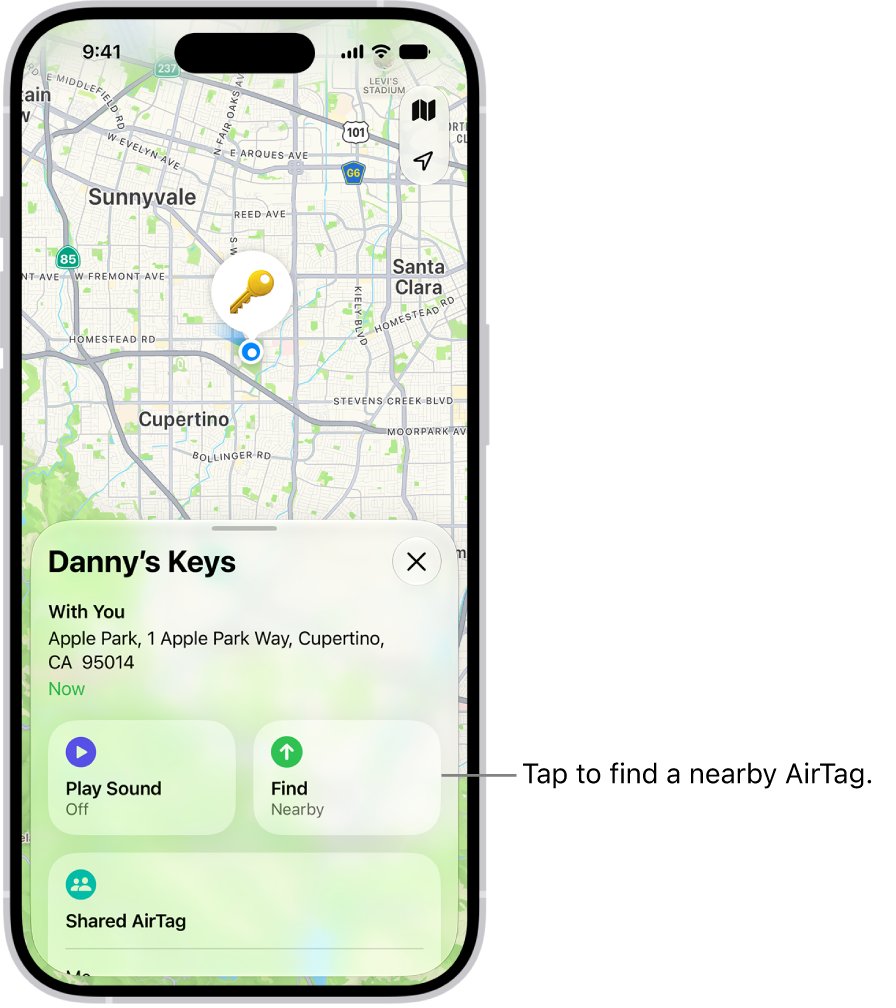
How to see your AirTags in Find My on iPhone
Use the Find My app on a device signed in to the same Apple Account that registered the AirTag. iCloud.com in a browser cannot show it.
- Open the Find My app on your iPhone.
- Tap Items at the bottom of the screen.
- Tap the AirTag you want to locate.
- Read the location and timestamp below its name, or tap Directions to open Maps.
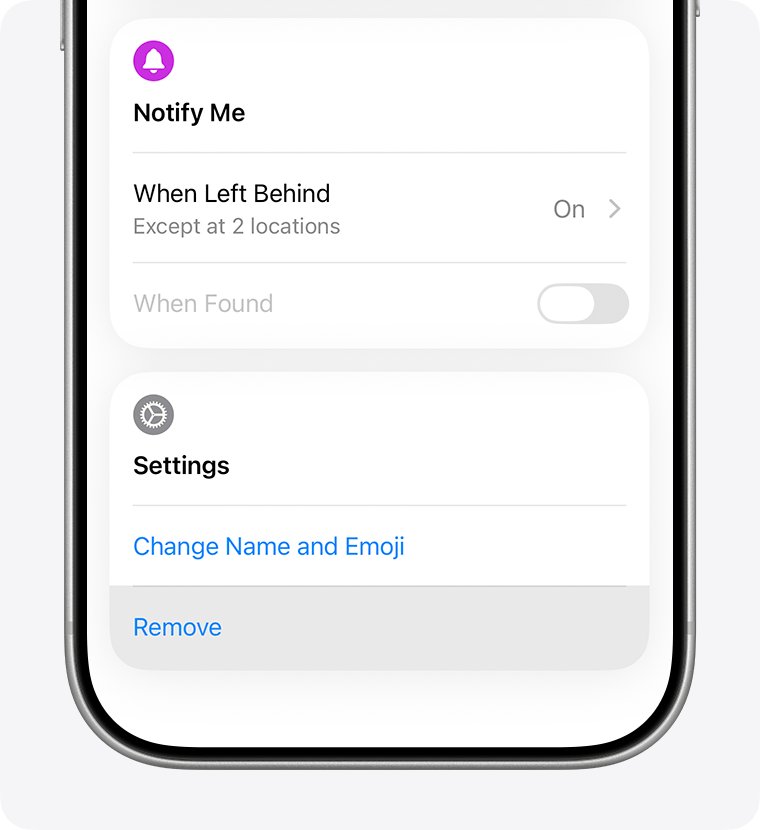
- If it can't be located, turn on Notify When Found under Notifications.
Where can I see my AirTags: iCloud.com vs Find My app
| Where you look | Shows AirTags? | How to open them |
|---|---|---|
| Find Devices on iCloud.com | No, Apple devices only | Use one of the apps below instead |
| Find My on iPhone | Yes | Tap Items, then the AirTag |
| Find My on iPad | Yes | Tap Items, then the AirTag |
| Find My on Mac | Yes | Click Items, then select the AirTag |
| Find My on Apple Watch (watchOS 8 or later) | Yes | Tap the button at the top left, then Items |
How to find AirTags on a Mac
A Mac is the nearest thing to a computer view of your AirTags, because the browser version of Find Devices lists devices only.
- Open the Find My app on your Mac.
- Click Items.
- Select the AirTag to see it on the map with its last updated time.
- Click Directions to open the route in Maps.
- If it shows No location found, click the info button and turn on When Found under Notify Me.
You can't remove an AirTag from your Apple Account on a Mac. Use an iPhone or iPad for that.
How to see AirTags on Apple Watch
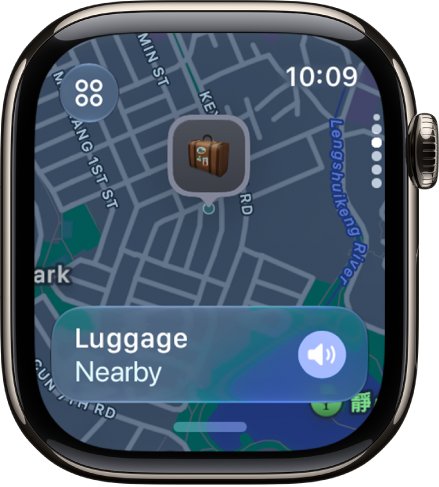
- Open the Find My app on your Apple Watch.
- Tap the button at the top left, then tap Items.
- Turn the Digital Crown to scroll through your items and their locations.
- Tap the AirTag's name, then tap Play Sound, Directions or Find.
Precision Finding on the watch needs AirTag (2nd generation) and Apple Watch Series 9, Apple Watch Ultra 2 or later, excluding Apple Watch SE 3.
How to share an AirTag so another Apple Account can see it
An AirTag is registered to one Apple Account at a time, so a partner or family member signed in to a different account won't see it until you share it. You can share with up to five people.
- Open Find My on your iPhone and tap Items.
- Tap the AirTag, then tap the info button.
- Tap Add Person below Share AirTag.
- Enter the person's Apple Account details and choose their account.
- Tap the done button to send the invitation.
- Ask the person to open Find My > Items and tap Add on the invitation.
Sharing needs two-factor authentication, iCloud Keychain on for everyone, and iOS 17, iPadOS 17, macOS 14 or later. You can't share with a child account.
Check your AirTag is registered to your Apple Account
- Open Find My and tap Items.
- Tap the AirTag, then tap the info button.
- Tap the address of the AirTag to see its model, serial number and firmware version.
- Compare the serial number with the one printed on the AirTag or its box.
- Check for a low battery message below the location.
AirTag not showing in Find My: fixes
AirTag missing from Items on my iPhone
The AirTag is registered to a different Apple Account, often a family member's.
- Check which Apple Account was used to set up the AirTag.
- Ask the owner to share it with you from Find My > Items > info button > Add Person.
- Or ask them to remove it from their account so you can add it to yours.
AirTag says it is paired to another Apple Account
Find My Lock still links the AirTag to the previous owner, and Apple can't remove it for you.
- Ask the previous owner to open Find My, tap Items, tap the AirTag, tap the info button, then tap Remove Item.
- If they removed it while out of Bluetooth range, reset the AirTag by removing and replacing the battery until you hear five sounds, the fifth one different.
- Hold the AirTag near your iPhone and tap Connect to register it.
AirTag shows No location found
The AirTag has not connected to the Find My network AirTags rely on since its last update, or its battery is low.
- Turn on Notify When Found for the AirTag.
- Check for a low battery indicator next to its name in Items.
- Replace the battery if the low battery message appears.
Find My isn't on iCloud.com at all
The Apple Account may have web-only access to iCloud.
- Sign in to iCloud on an iPhone, iPad or Mac with the same Apple Account.
- Turn on Find My on that device.
- Use the Find My app on that device to see your AirTags.
AirTags on iCloud account FAQ
Can you see AirTags on iCloud.com?
No. Find Devices on iCloud.com locates Apple devices such as iPhone, iPad, Mac and AirPods. AirTags and other items appear only in the Find My app on iPhone, iPad, Mac and Apple Watch.
Can I find my AirTag from a computer?
Yes, from a Mac. Open the Find My app, click Items and select the AirTag. On Windows, Apple's Find My on a PC, which runs as Find Devices on iCloud.com in a browser, does not list AirTags.
Why is my AirTag not showing in Find My?
It is usually registered to another Apple Account, such as a family member's. Ask the owner to share it with you in Find My, or to remove it from their account so you can register it to yours.
Can my family see my AirTags?
Only if you share them. Open Find My, tap Items, tap the AirTag, tap the info button and tap Add Person. Each AirTag can be shared with up to five people besides the owner.
Why can't I add my AirTag to my Apple Account?
It is still linked to the previous owner through Find My Lock. They must remove it in Find My first; if they did that out of Bluetooth range, reset the AirTag before you pair it.
Can I remove an AirTag from my account on a Mac?
No. Items such as AirTags can't be removed from an Apple Account on a Mac. Use Find My on an iPhone or iPad: tap Items, tap the AirTag, tap the info button and tap Remove Item.
Can I see an AirTag on my Apple Watch?
Yes, on watchOS 8 or later. Open Find My on the watch, tap the button at the top left, tap Items, then tap the AirTag to play a sound or get directions.