To connect AirPods to Find My, pair them with an iPhone or iPad signed in to your Apple Account, then turn on Find My network in the AirPods settings.
This guide covers pairing, the Find My settings to check, which AirPods models support offline tracking, how to confirm they appear, and fixes when they do not.
Add AirPods to Find My on iPhone
There is no separate Add button for AirPods in the Find My app. Pairing them with your iPhone adds them to Find My automatically, and the Find My network setting keeps them trackable when they are out of range.
- Update your iPhone to the latest version of iOS and go to the Home Screen.
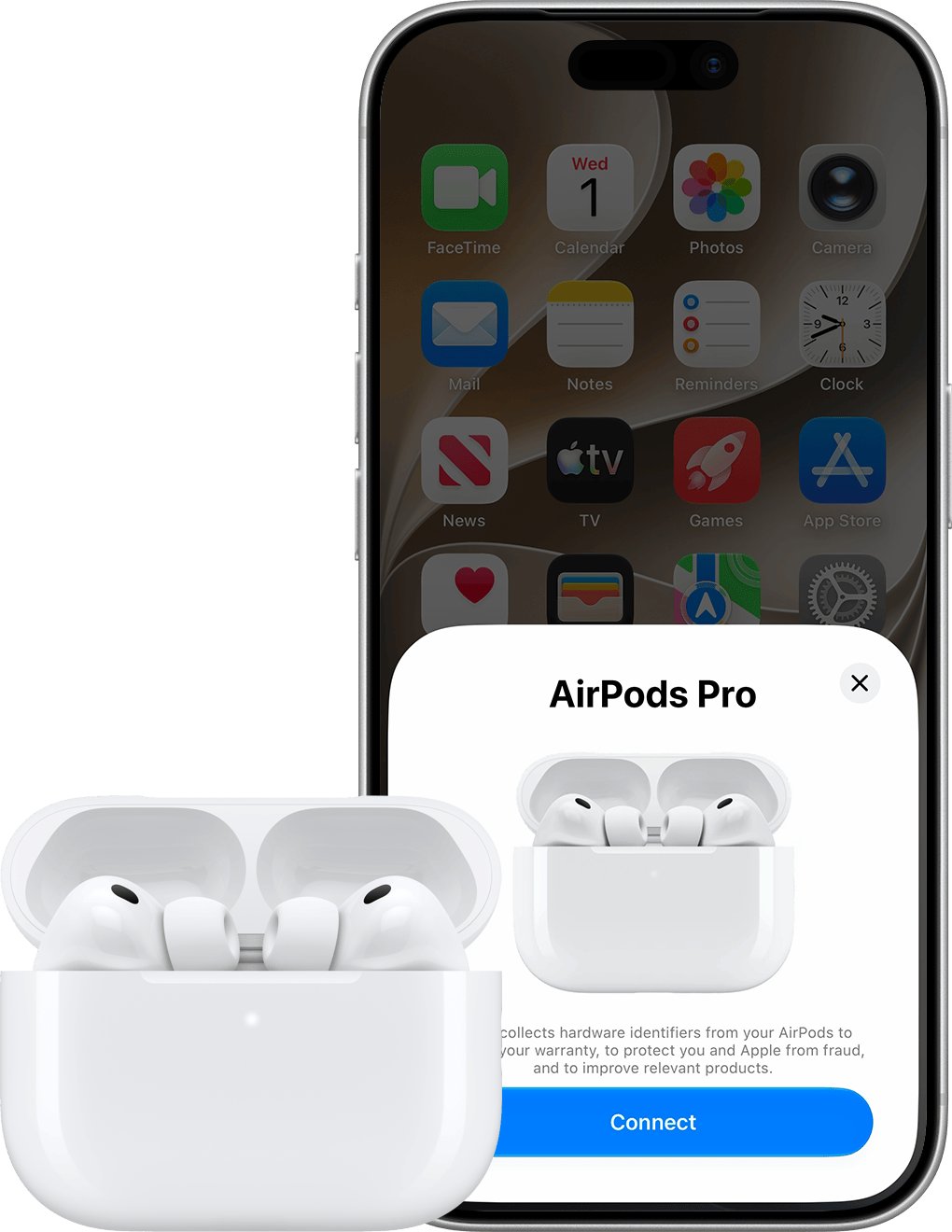
- With the AirPods in the charging case, open the lid and hold the case next to your iPhone.
- Tap Connect on the setup animation, follow the on-screen instructions, then tap Done.
- Wear the AirPods so they are connected, then open the Settings app.
- Tap the name of your AirPods near the top of the screen.
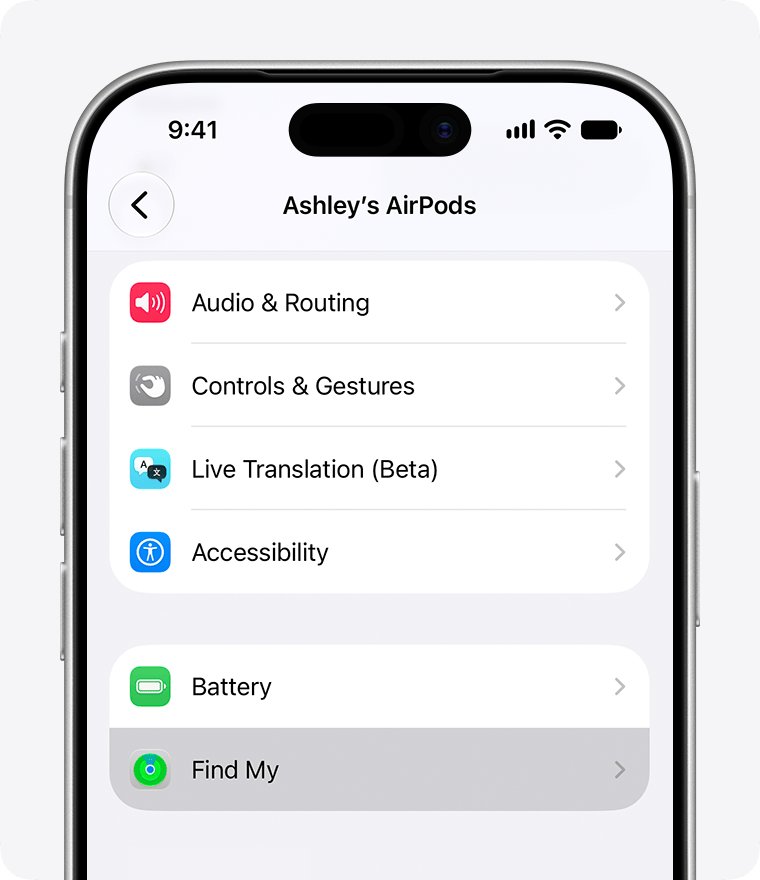
- Scroll down and turn on Find My Network. If you do not see it, tap Find My first.
If you are signed in to iCloud, the AirPods are also set up with your other supported devices that use the same Apple Account.
Find My AirPods requirements
| Requirement | Detail |
|---|---|
| Apple Account | The AirPods must be paired with an iPhone or iPad signed in to your Apple Account |
| Find My on the phone | Settings > your name > Find My > Find My iPhone, with Find My iPhone and Find My network both on |
| Passcode | The iPhone or iPad must be protected by a passcode |
| Security | Two-factor authentication on your Apple Account and iCloud Keychain turned on |
| Software | The latest iOS, iPadOS, macOS or watchOS on the paired device |
| Timing | Find My must be on before the AirPods are lost |
Connect AirPods manually when the setup animation does not appear
- With your AirPods in the charging case, open the lid.
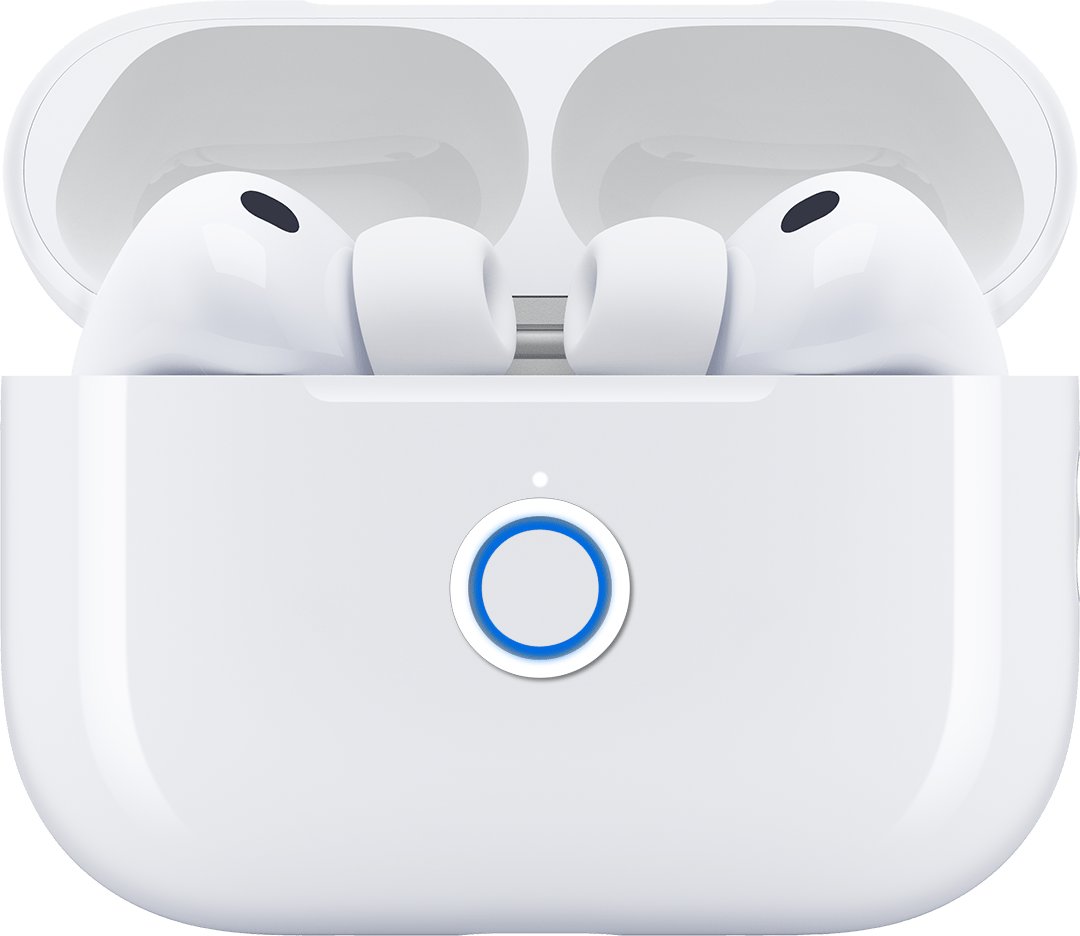
- On AirPods Pro 3, AirPods 4 and AirPods 5, double-tap the front of the case until the status light flashes white.
- On all other models, press and hold the setup button on the back of the case until the status light flashes white.
- Open Settings and tap Bluetooth.
- Select your AirPods when they appear in the list.
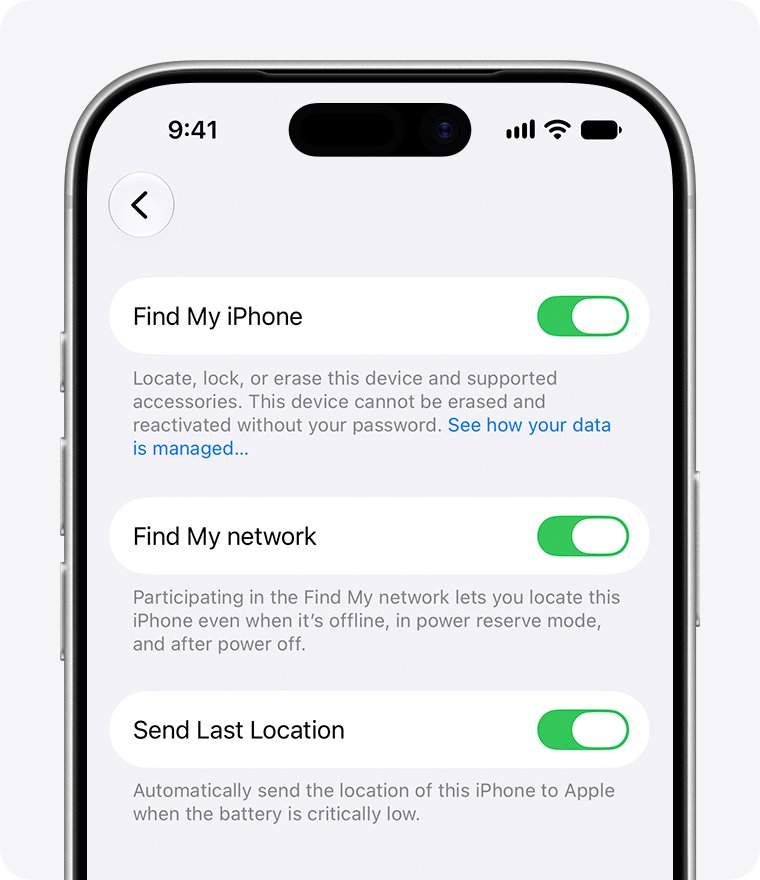
- Tap the More Info button next to the AirPods, tap Find My, and turn on Find My network.
Which AirPods work with the Find My network?
Every AirPods model shows up in Find My, but only some can be located through the Find My network when they are out of range. Older models show only the last time and place they were connected.
| AirPods model | Find My network | Extra features |
|---|---|---|
| AirPods 1, AirPods 2, AirPods 4 (without ANC) | No | Last known location, Play Sound |
| AirPods 3, AirPods Pro 1, AirPods Max | Yes | Find nearby, Lost Mode, Notify When Left Behind |
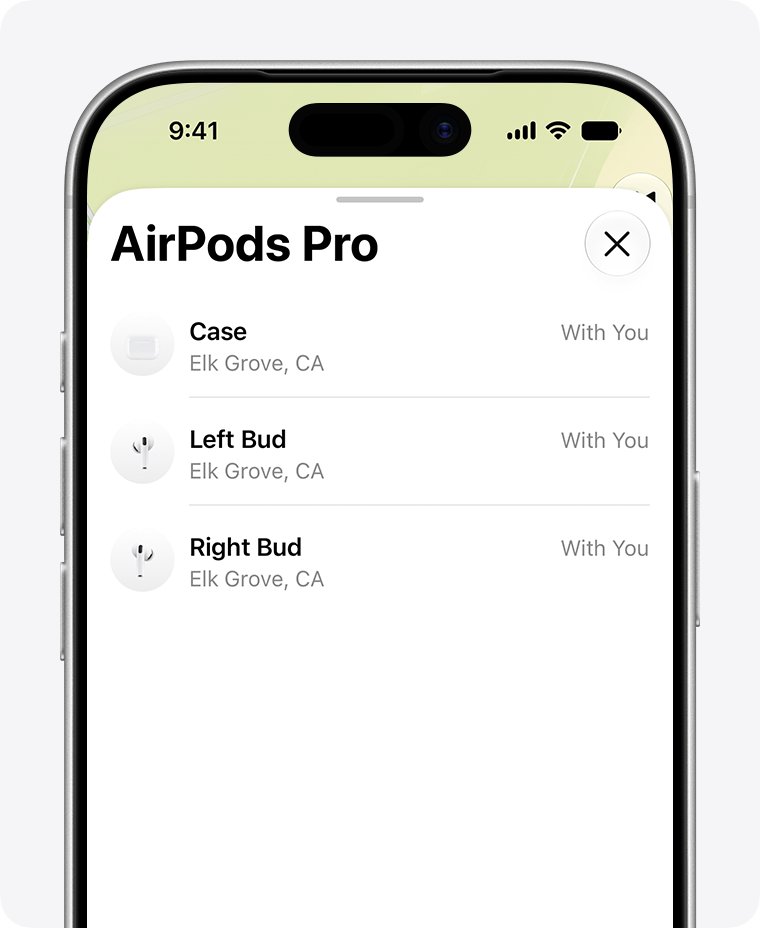
| AirPods 4 (ANC), AirPods 5 with Wireless Charging Case | Yes | Each earbud and the case shown separately, sound on the case |
| AirPods Pro 2, AirPods Pro 3 | Yes | Precise location of the case with a UWB-capable iPhone, sound on the case |
With the Find My network on, supported models stay visible in Find My for up to 24 hours after they last connected to your device.
Turn on left behind alerts for AirPods
Separation alerts need the Find My network turned on and notifications allowed for the Find My app.
- Open the Find My app on your iPhone or iPad.
- Tap Devices, then select your AirPods.
- Tap Notify When Left Behind and turn it on.
- Choose a suggested trusted location, or choose New Location and pick one on the map.
Check that your AirPods show up in Find My
- Open the Find My app and tap Devices.
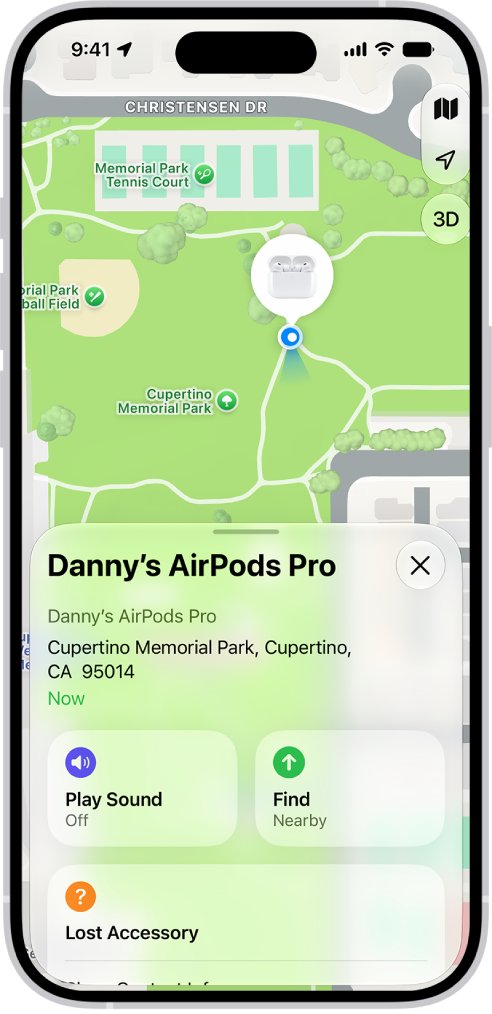
- Tap the name of your AirPods and confirm a location appears on the map.
- Take the AirPods out of the case and tap Play Sound to confirm Find My can reach them.
- Sign in at iCloud.com/find, select All Devices, and confirm the AirPods are listed there too.
AirPods not showing up in Find My
Find My says your AirPods setup is incomplete
The AirPods failed to pair, or only one earbud paired.
- Wait a few minutes, since pairing can take a while.
- Update iOS or iPadOS, confirm a passcode is set, and turn on two-factor authentication and iCloud Keychain.
- In Settings, follow any Update Apple Account Settings alert.
- Put the AirPods in the case, close the lid, wait a few moments, then open it again.
AirPods still will not pair with Find My
A stale pairing record is blocking setup.
- Close the case with the AirPods inside.
- In Find My, tap Devices, choose your AirPods, then tap Remove or Remove This Device.
- Go to the Home Screen, open the case lid, and follow the on-screen steps to reconnect.
AirPods will not connect to the iPhone at all
Bluetooth is off, the AirPods are not charged, or the pairing needs to be redone.
- Update the iPhone, then put both AirPods in the case and make sure they charge.
- Check that Bluetooth is on in Settings.
- Close the lid, wait 15 seconds, then open it.
- Put the case in pairing mode until the status light flashes white, hold it next to the iPhone, and follow the on-screen steps.
- If they still fail, reset your AirPods and pair them again.
AirPods show Offline or No location found
The AirPods are out of range, need charging, or the model does not support the Find My network.
- Charge the AirPods and keep them near the paired iPhone.
- Use Get Directions to reach their last known location.
- Wait for the notification that appears when they come back online.
Find My AirPods setup FAQ
How do I connect AirPods to my iPhone?
Go to the Home Screen, open the charging case with the AirPods inside, and hold it next to the iPhone. Tap Connect on the setup animation, follow the on-screen steps, and tap Done.
Why won't my AirPods connect to my phone?
Usually the iPhone needs an update, Bluetooth is off, or the AirPods are not charged. Charge both buds, close the lid for 15 seconds, then put the case in pairing mode until the light flashes white and pair again.
Why won't my AirPods connect to my laptop or PC?
A Windows laptop only sees AirPods while the case is in pairing mode, so press the setup button or double-tap the case until the light flashes white, then connect AirPods to a Windows PC from Bluetooth settings. Find My still needs an iPhone or iPad.
Can I add AirPods to Find My from a Mac?
Find My on a Mac shows AirPods already paired with an iPhone or iPad on your Apple Account. Pair them with that iPhone first, and they also appear on your Mac. You can also connect AirPods to a Mac for listening.
Can I use Find My with AirPods someone else used?
Only after the previous owner removes them from their Apple Account. AirPods are associated with one Apple Account for Find My, and only the person who turned on the Find My network can see them.
Why do my AirPods keep connecting to other devices?
AirPods set up while signed in to iCloud are paired with all your supported devices on the same Apple Account, so they can switch between them automatically.
Can I find AirPods that were never added to Find My?
No. Find My must be turned on for a paired device before the AirPods are lost, and Lost Mode also needs the Find My network on beforehand.
Can I find AirPods without an iPhone?
Yes. Sign in at iCloud.com/find, select All Devices, and select your AirPods. Some features, such as playing a sound on the charging case, are not available there.
Is pairing enough to add AirPods to Find My?
Pair the AirPods with your iPhone, then turn on Find My network in their settings straight away. Pairing lists them in Find My, but offline tracking, Lost Mode and left-behind alerts only work if Find My network is on before they go missing.