OneDrive backup files sit in the same Desktop, Documents and Pictures folders you already use, so open them in File Explorer, at onedrive.com, or in the OneDrive mobile app on any device.
This guide shows each route, how to see which folders are backed up, and how to fix OneDrive when it shows offline or throws error 0x8007016A.
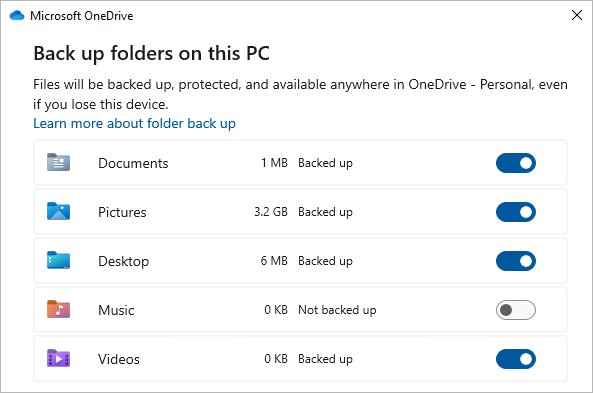
Access OneDrive backup files or folders
Once OneDrive folder backup has finished syncing, the backed-up folders keep their normal names inside your OneDrive.
- Open File Explorer on your PC.
- Select OneDrive in the left pane.
- Open Desktop, Documents or Pictures to see the backed-up files.
- On another device, sign in at onedrive.com with the same Microsoft account.
- Open the same folder name to view or download the files.
Desktop items also appear on other Windows PCs where you sign in to OneDrive with that account.
Where to open OneDrive backup files on each device
| Device | Where to look | Note |
|---|---|---|
| The PC that was backed up | File Explorer, OneDrive, Desktop or Documents | Files open from their usual folders |
| Another Windows PC | OneDrive folder in File Explorer after sign-in | Desktop items show on that PC too |
| Any browser | onedrive.com | No app needed, works on borrowed computers |
| iPhone or Android phone | OneDrive mobile app | Browse the same backed-up folders |
| Mac | Finder, OneDrive | Uses the standalone OneDrive sync app |
How do I see what is backed up on OneDrive?
- Select the OneDrive cloud icon in the taskbar notification area.
- Select the Help & Settings gear, then Settings.
- Open the Sync and backup tab.
- Select Manage backup.
- Check each folder: a toggle that is on means it is backed up, and Not backed up means it is not.
To add a folder, turn on its toggle and select Save changes. The same panel holds the other OneDrive settings for sync and account options.
What is the difference between OneDrive sync and OneDrive backup?
Backup is not a separate snapshot, so a file you delete on the PC is also deleted in OneDrive.
| Feature | OneDrive sync | OneDrive folder backup |
|---|---|---|
| What it covers | Files you place in the OneDrive folder | Desktop, Documents, Pictures, Screenshots and Camera Roll |
| Where files live on the PC | Inside the OneDrive folder | Moved into OneDrive, still shown as the familiar folders |
| Turn it on | Sign in to the OneDrive app | Settings, Sync and backup, Manage backup |
| Deleting a file | Removes it from every synced device | Same: backup is sync applied to these folders |
Stop OneDrive backup and keep your files
- Open OneDrive Settings and the Sync and backup tab.
- Select Manage backup.
- Turn off the toggle for the folder.
- Choose whether to keep the files only in OneDrive or only on your PC.
- If a message says some files could not be moved, set those cloud-only files to stay on the device and try again.
Unable to open OneDrive folder in backup
A backed-up folder will not back up or open
Path, size or name limits block the file.
- Keep the full path under 260 characters by shortening names.
- Remove files larger than 250 GB from the folder.
- Rename files that start with a space or contain characters such as
* ? < > :.
"Folder protection is unavailable"
The folder is connected to a work domain.
- Ask your IT administrator whether folder backup is allowed for that PC.
Error 0x80070005 when backing up
A group policy blocks moving profile folders.
- Move the contents back to the original folders.
- Ask your administrator about the policy.
Pictures folder will not back up
Screenshots and Camera Roll are not selected for sync.
- Open OneDrive Settings and select Choose Folders.
- Select Pictures plus Screenshots and Camera Roll, then save.
OneDrive is showing offline on Windows 11
OneDrive icon is missing or OneDrive says it is not running
The sync app is closed.
- Select Show hidden icons next to the notification area.
- If the cloud icon is absent, open Start, search for OneDrive and select OneDrive.
OneDrive cannot connect or times out
A network or service problem.
- Check your internet connection.
- Check whether Outlook.com or other Microsoft services load.
- Restart your computer.
- If it still will not connect, reset OneDrive with the commands in the next section.
OneDrive error 0x8007016A, the cloud file provider is not running
Install pending Windows updates first. Then open OneDrive Settings, turn off Save space and download files as you use them, and run the reset below.
%localappdata%\Microsoft\OneDrive\onedrive.exe /resetPress Windows + R, paste the line and select OK. It resets the OneDrive sync app without deleting your files. If Windows cannot find it, run C:\Program Files\Microsoft OneDrive\onedrive.exe /reset instead.
You should see: OneDrive restarts or can be opened from Start, then re-syncs. Turn Files On-Demand back on afterwards and reselect any folders you synced selectively.
OneDrive backup files FAQ
How do I access OneDrive backup files?
Open File Explorer and select OneDrive, then open Desktop, Documents or Pictures. On another device, sign in at onedrive.com or in the OneDrive mobile app with the same Microsoft account and open the same folders.
How do I access backup files on OneDrive from another computer?
Sign in to onedrive.com in any browser with the account that made the backup. The Desktop, Documents and Pictures folders hold the backed-up files, and you can download them from there.
Does OneDrive back up my files automatically?
Only after you turn on folder backup. Open OneDrive Settings, the Sync and backup tab, then Manage backup, and switch on each folder. Files outside those folders and the OneDrive folder are not backed up.
How do I back up files in OneDrive?
Select the OneDrive cloud icon, choose Help & Settings, then Settings. Open Sync and backup, select Manage backup, turn on the folders marked Not backed up and select Save changes.
How do I back up any folder with OneDrive?
Folder backup covers Desktop, Documents, Pictures, Screenshots and Camera Roll. For any other folder, move or save it inside your OneDrive folder in File Explorer so it syncs to the cloud.
How do I back up OneDrive files locally?
To back up OneDrive files locally, copy them from your OneDrive folder to a folder outside OneDrive or an external drive. Download cloud-only files first by right-clicking and choosing Always keep on this device, so the copy contains real files.
Does stopping OneDrive backup delete my files?
No, but you choose where they stay. When you turn off a folder in Manage backup, you keep the files either only in OneDrive or only on your PC.
Does resetting OneDrive delete backed-up files?
No, a reset does not delete files. It disconnects sync connections, so OneDrive re-syncs afterwards and you may need to choose selected folders again.