To set up a Windows print server, add the Print and Document Services role with the Print Server role service on Windows Server, add and share each printer, then push the connections to clients with Group Policy.
This guide covers the Server Manager and PowerShell routes, sharing and publishing printers in Active Directory, Group Policy deployment, the Active Directory Web Services error, and Known Issue Rollback.
Install Windows Print Server and deploy printers
The role ships with Windows Server, including the Server Core installation option. Sign in with an account in the local Administrators group.
- Open Server Manager and select Manage > Add Roles and Features.
- Choose Role-based or feature-based installation and select the target server.
- Tick Print and Document Services, accept the management tools it adds, and select Next.
- On Role Services, keep Print Server ticked and select Install.
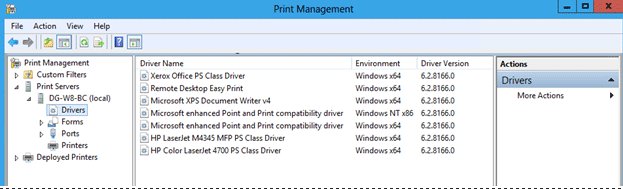
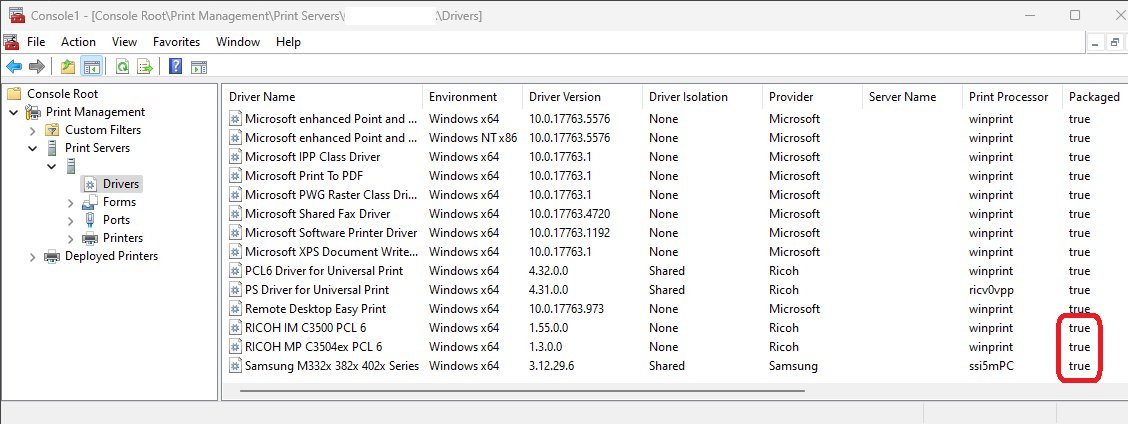
- Open Print Management from the Tools menu once setup finishes.
- Add each printer under Print Servers > your server > Printers, and tick the option to share it.
- Link a Group Policy Object to the OU that holds your users or computers, and deploy the shared printers through it.
How to install print server role with PowerShell
Microsoft lists the role as Print-Services and the role service as Print-Server. This route suits Server Core, which has no Server Manager desktop.
Install-WindowsFeature -Name Print-Server -IncludeManagementToolsInstalls the Print Server role service of Print and Document Services, plus Print Management where the edition has a desktop.
You should see: The output shows Success as True and Restart Needed as No.
How to add and share a printer on the print server with PowerShell
The PrintManagement module creates the port, the queue and the share in one pass. Install the vendor driver on the server first.
- Open Windows PowerShell as administrator on the print server.
- Create a TCP/IP port:
Add-PrinterPort -Name "IP_10.0.0.50" -PrinterHostAddress "10.0.0.50". - Add the queue and share it:
Add-Printer -Name "Floor2-Laser" -DriverName "<installed driver name>" -PortName "IP_10.0.0.50" -Shared -ShareName "Floor2-Laser" -Published. - Run
Get-Printer -Name "Floor2-Laser"to confirm the queue exists and is shared. - From a client, connect with
Add-Printer -ConnectionName \\printServer\Floor2-Laserto test the share.
The -Published switch lists the printer in the directory, so users can find it by searching Active Directory. If -ShareName is left out, the printer name becomes the share name.
How to deploy printers with Group Policy
- Open Group Policy Management with
gpmc.mscon a domain controller or a management PC. - Expand the forest and the domain, right-click the target OU, and select Create a GPO in this domain, and link it here.
- Name the GPO, for example Printers-Floor2, and select OK.
- Open Print Management on the print server, right-click the shared printer, and select Deploy with Group Policy.
- Browse to the GPO you created, choose whether it applies per user or per computer, then select Add and OK.
- Run
gpupdate /forceon a client and sign out and back in.
To let users install printers on their own, add a printer in Windows 11 by searching the directory for a published printer instead.
Group Policy printer settings for a print server
These settings sit under Computer Configuration > Policies > Administrative Templates > Printers in the Group Policy Management Editor, and under Control Panel > Printers for user settings.
| Setting | What it controls | When to change it |
|---|---|---|
| Allow Printers to be published | Whether printers can be published in the directory | Disable only if you do not use AD printer search |
| Automatically publish new printers in the Active Directory | Publishing of every new shared printer (on by default) | Turn off to publish only printers you pick |
| Allow Print Spooler to accept client connections | Whether the spooler accepts client connections | Enable on the print server if clients cannot connect |
| Always render print jobs on the server | Whether the client or the server renders jobs sent to a Windows print server | Enable when weak clients struggle with large jobs |
| Package Point and print – Approved servers | Restricts package point and print to approved servers | Enable and list your print server to block others |
| Disable the addition of printers (user) | Removes the Add Printer wizard | Enable when only deployed printers should be used |
How to check the print server works
- Open Print Management and confirm each queue shows Ready under Printers.
- On a client in the target OU, run
gpresult /rand check the printer GPO is listed as applied. - Open Settings > Bluetooth & devices > Printers & scanners on the client and confirm the deployed printer appears.
- Print a test page and watch the job pass through the queue in Print Management.
Windows is unable to find a default server with Active Directory Web Services running
Unable to find a default server with Active Directory Web Services running
The machine running the AD tools cannot reach Active Directory Web Services (ADWS) on a domain controller, which listens on TCP port 9389.
- On a domain controller, open services.msc and confirm Active Directory Web Services is Running; start it if not.
- Allow TCP port 9389 between the management machine and the domain controller in any firewall in the path.
- Check that the management machine uses the domain's DNS servers so it can locate a domain controller.
- Run the command or tool again, or point it at a named domain controller.
Printer only prints one page then stops on PC
Printer only prints one page then stops
A stuck job, a damaged spooler queue or a driver problem halts the rest of the document.
- Cancel the job in the queue and print the document again.
- Restart the Print Spooler service on the client and on the print server.
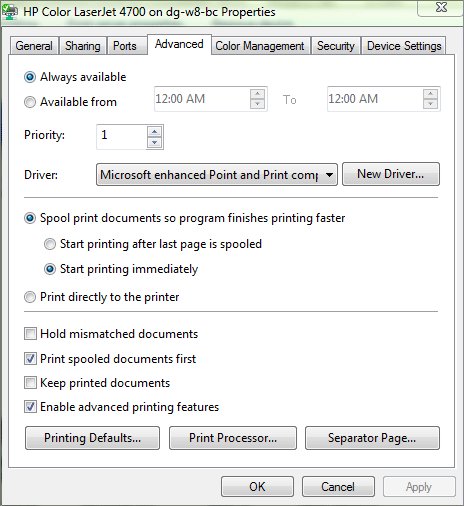
- Update or reinstall the printer driver on the print server so clients pull a clean copy.
- Try the Always render print jobs on the server policy if large jobs stall on the client.
Clients cannot connect to the shared printer
The spooler is not accepting client connections, or Point and Print restrictions block the driver.
- Enable Allow Print Spooler to accept client connections on the print server.
- Check that the File and Printer Sharing firewall rules allow SMB on TCP 445 to the server.
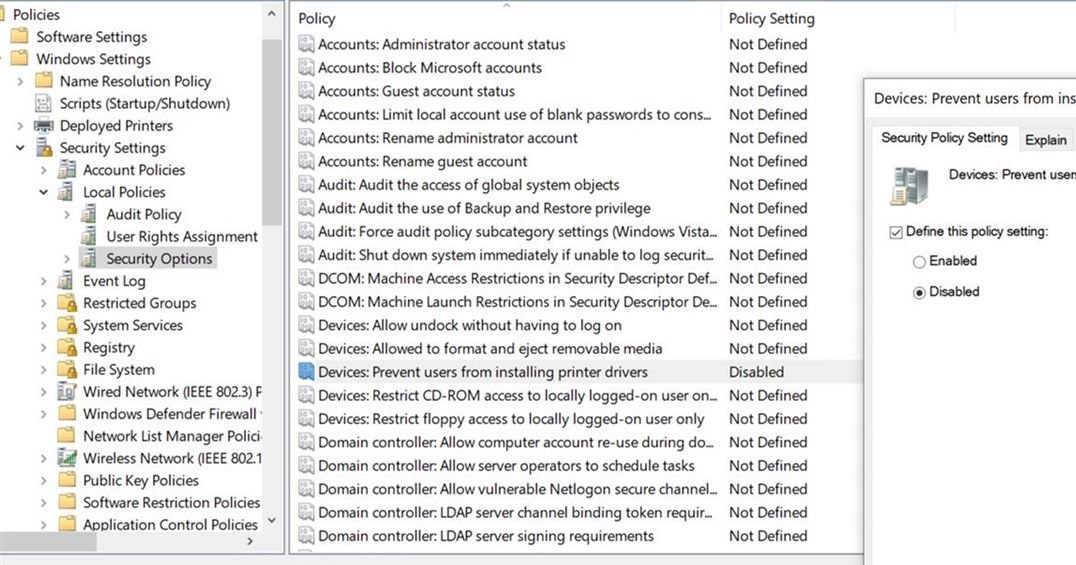
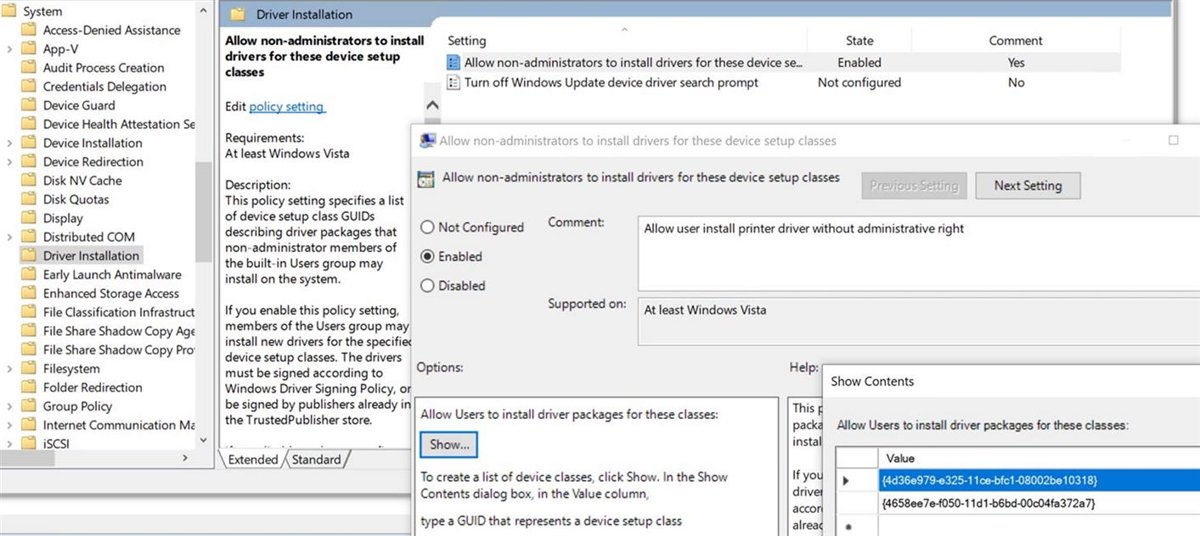
- Review Point and Print Restrictions and Package Point and print – Approved servers for the client OU.
Deploy Known Issue Rollback (KIR) using Group Policy in Windows Server
A Known Issue Rollback undoes one change from a non-security update, for example a printing regression, without removing the whole update. Microsoft publishes each KIR as a policy definition .msi file and lists it in the update's known issues.
- Install the KIR policy definition .msi on the machine you use to manage Group Policy; it places the files in C:\Windows\PolicyDefinitions.
- Copy the .admx and .adml files to the Group Policy Central Store if your domain uses one.
- In Group Policy Management, right-click the domain and select Create a GPO in this domain, and link it here, naming it after the issue.
- Right-click the GPO and select Edit.
- Go to Computer Configuration > Administrative Templates > KB ####### Issue XXX Rollback > your Windows version.
- Right-click the policy and select Edit > Disabled > OK.
- Run
gpupdateon affected devices or wait 90 to 120 minutes, then restart each one.
The rollback only takes effect after the restart. Remove the GPO once Microsoft ships the fixed update.
Windows print server FAQ
How does a Windows print server work?
The server holds the printer queues and drivers, and clients send jobs to the shared queue. The Print Spooler service manages the queues and talks to the printer over TCP/IP, USB or another port.
How do I set up a print server on Windows 10?
Windows 10 and 11 cannot add the Print Server role, but sharing a printer from the printer's properties lets other PCs connect to it. Group Policy deployment and Print Management server features need Windows Server.
How do I install the print server role?
In Server Manager, select Add Roles and Features and tick Print and Document Services with the Print Server role service. In PowerShell, run Install-WindowsFeature -Name Print-Server -IncludeManagementTools.
How do I access a print server?
Type \\servername in File Explorer's address bar to list its shared printers, then double-click one to connect. Administrators manage the server from Print Management.
How do I add a print server in Print Management?
Open Print Management, right-click Print Servers, select Add/Remove Servers, enter the server name and add it. Its printers, drivers and ports then appear in the console.
How do I configure a print server for Active Directory?
Share each printer and publish it, either with the List in the directory option or the -Published switch of Add-Printer. Users then find printers by searching Active Directory.
Can a print server run on Server Core?
Yes. Microsoft lists Print and Document Services and the Print Server role service in the Server Core installation option. Install it with PowerShell and manage it remotely with Print Management.