To disable Widgets on the Windows 11 taskbar for every user, set the Allow widgets Group Policy to Disabled, or set the AllowNewsAndInterests registry value to 0; set it to Not Configured or delete the value to enable them again.
This guide covers the Settings toggle, both policy routes, how to confirm the change, and fixes for a missing weather widget and high CPU or memory use.
How to remove widgets from taskbar in Windows 11
For your own account only, the Settings toggle is the quickest route and needs no admin rights.
- Right-click an empty area of the taskbar and select Taskbar settings.
- Under Taskbar items, turn the Widgets switch Off.
- Turn the same switch On to put widgets back on the taskbar.
The toggle only hides the button. Win + W can still open the board unless a policy blocks it, as shown below.
Group Policy vs Registry Editor vs Settings for Windows 11 widgets
| Your situation | Use this | Why |
|---|---|---|
| Hide the button for yourself | Taskbar settings toggle | Per user, reversible in one click |
| Windows 11 Pro, Enterprise or Education | Group Policy: Allow widgets | Blocks the whole widgets experience for all users and greys out the toggle |
| Windows 11 Home, or scripting | Registry Editor: AllowNewsAndInterests |
Writes the same policy value without gpedit.msc |
| Keep the feature but remove the board entry point | Disable Widgets Board policy | Removes the taskbar entry point and stops the board opening |
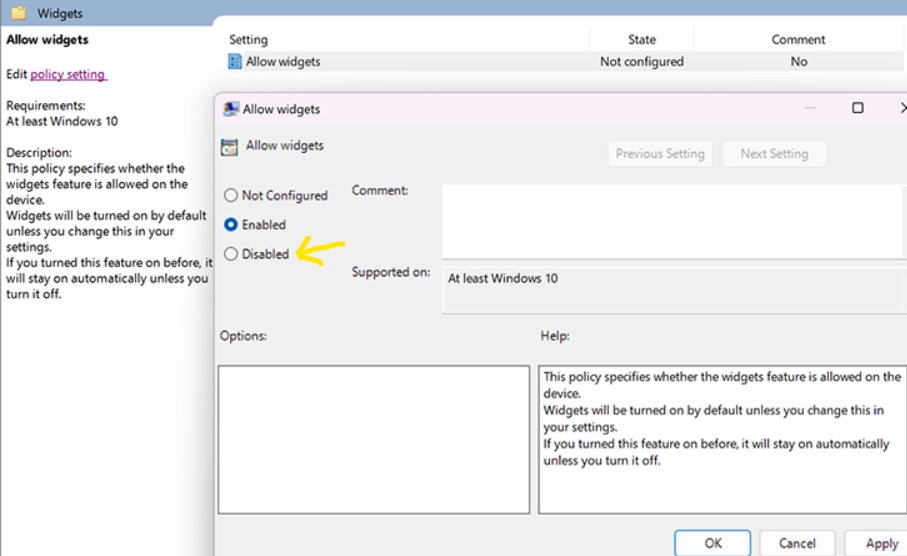
Disable widgets in Windows 11 using Group Policy
You need an administrator account. If gpedit.msc will not open, first open the Group Policy Editor another way.
- Press Win + R, type
gpedit.mscand press Enter. - Go to Computer Configuration > Administrative Templates > Windows Components > Widgets.
- Double-click Allow widgets.
- Select Disabled to turn widgets off, or Not Configured to turn them back on.
- Select Apply, then OK.
- Sign out and back in, restart, or force a Group Policy update so the taskbar picks up the change.
The same folder holds Disable Widgets Board and Disable Widgets On Lock Screen for finer control. On Home edition, Group Policy Editor is not included; use the registry method or enable gpedit.msc on Windows 11 Home.
Disable widgets in Windows 11 using Registry Editor
This writes the value the Allow widgets policy uses. Back up the key first with File > Export.
- Press Win + R, type
regeditand press Enter, then select Yes. - Go to
HKEY_LOCAL_MACHINE\SOFTWARE\Policies\Microsoft. - If there is no Dsh key, right-click Microsoft, select New > Key and name it
Dsh. - Right-click Dsh, select New > DWORD (32-bit) Value and name it
AllowNewsAndInterests. - Double-click it and set Value data to
0to disable widgets, or1to allow them. - Select OK and restart the PC.
Disable Windows 11 widgets with a reg add command
Open Terminal (Admin) or an elevated Command Prompt and run the command.
reg add "HKLM\SOFTWARE\Policies\Microsoft\Dsh" /v AllowNewsAndInterests /t REG_DWORD /d 0 /fCreates the Dsh policy key if needed and sets AllowNewsAndInterests to 0, which blocks widgets for every user; /f overwrites without asking.
You should see: The command prints "The operation completed successfully." After a restart the Widgets button is gone.
Windows 11 widgets policy and registry values
| Policy (Windows Components > Widgets) | Registry value under HKLM\SOFTWARE\Policies\Microsoft\Dsh | Effect |
|---|---|---|
| Allow widgets | AllowNewsAndInterests = 0 |
Widgets turned off for the whole device, including the taskbar |
| Allow widgets | AllowNewsAndInterests = 1, or value absent |
Widgets allowed (default) |
| Disable Widgets Board | DisableWidgetsBoard = 1 |
Board cannot be opened; entry point removed from the taskbar |
These are device-wide settings for Windows 11 Pro, Enterprise and Education, version 21H2 and later.
Check that widgets are disabled on the taskbar
- Look at the left end of the taskbar; the weather and widgets button should be gone.
- Press Win + W; the widgets board should not open.
- Open Taskbar settings; the Widgets switch is off and cannot be changed while the policy applies.
How to put widgets on taskbar again
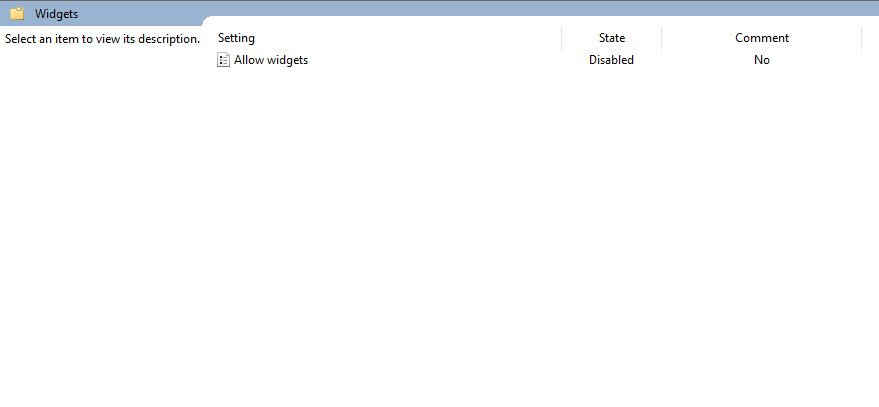
- In Group Policy, set Allow widgets to Not Configured and select OK.
- Or in Registry Editor, delete
AllowNewsAndInterestsunder the Dsh key, or set it to1. - Restart the PC.
- Right-click the taskbar, select Taskbar settings and turn Widgets On.
Windows 11 widgets problems and fixes
Weather widget not showing on taskbar in Windows 11
The Widgets toggle is off, a policy blocks widgets, or the Windows Web Experience Pack is out of date.
- Turn Widgets on under Taskbar settings > Taskbar items.
- Set Allow widgets to Not Configured, or remove
AllowNewsAndInterests. - Open Microsoft Store > Library, find Windows Web Experience Pack and select Update if offered.
Windows Widgets high CPU usage
The widgets board and its feeds keep running in the background.
- Update Windows Web Experience Pack from Microsoft Store > Library.
- Open the widgets board, select the settings button and turn the Discover dashboard off.
- If usage stays high, disable widgets with the Allow widgets policy or the registry value above.
Feeds showing high memory usage in Windows 11
The Discover feed loads news content that holds memory.
- In widgets settings, turn the Discover dashboard off under Dashboards.
- Turn off Open Widgets board on hover so the board does not load by accident.
- Disable widgets entirely with Group Policy or Registry Editor or uninstall Widgets completely if you do not use them.
If only the weather readout bothers you, turn the weather widget off instead of blocking every widget.
Windows 11 taskbar widgets FAQ
How do I remove widgets from the taskbar?
Right-click the taskbar, select Taskbar settings, and turn Widgets off under Taskbar items. To block them for every user, set the Allow widgets policy to Disabled or AllowNewsAndInterests to 0.
How do I put widgets on the taskbar?
Open Taskbar settings and turn the Widgets switch on. If the switch is greyed out, set Allow widgets to Not Configured or delete the AllowNewsAndInterests registry value, then restart.
What is the keyboard shortcut for widgets in Windows 11?
Press Win + W to open the widgets board. You can also select the widgets area on the taskbar or swipe in from the left edge on a touchscreen.
Does Windows 11 Home have the Allow widgets policy?
Home does not include Group Policy Editor. Create AllowNewsAndInterests as a DWORD set to 0 under HKEY_LOCAL_MACHINE\SOFTWARE\Policies\Microsoft\Dsh instead; Microsoft documents the policy for Pro, Enterprise and Education.
Why is the Widgets toggle greyed out in Taskbar settings?
A policy controls widgets on the device. The Allow widgets policy or the AllowNewsAndInterests registry value is set, so the per-user switch is locked until the policy is removed.
Does disabling widgets remove the weather from the taskbar?
Yes. Weather on the Windows 11 taskbar is part of the widgets entry point, so turning widgets off removes the weather readout as well.
Can I uninstall widgets in Windows 11?
Widgets are delivered by the Windows Web Experience Pack app. Blocking them with the Allow widgets policy is the supported way to stop them; the policy covers the whole widgets experience.