To remove an email account from classic Outlook for Windows, select File > Account Settings > Account Settings, pick the account, select Remove and confirm with Yes.
This guide covers new Outlook for Windows, Outlook for Mac, Outlook on the web, iPhone and Android, how to stop an account syncing without removing it, and how to close an Outlook.com account permanently.
Remove email account in Outlook for Windows
Removing an account only deletes the offline copy stored on your PC. The mailbox itself stays on the provider's server, and you can add the email account again later.
- Open classic Outlook and select the File tab.
- Select Account Settings, then Account Settings again.
- Select the email account you want to remove.
- Select Remove.
- Read the warning that offline cached content for the account will be deleted, then select Yes.
Once the account is gone, you can no longer send or receive its mail in Outlook. To close the mailbox itself, close it with the provider.
Remove, disable or close an Outlook email account
| What you want | Do this | What happens to your mail |
|---|---|---|
| Stop seeing an account in Outlook on one device | Remove the account in that Outlook app | Mail stays on the provider's server |
| Keep the account but stop automatic syncing | Exclude it from the send/receive group in classic Outlook | Nothing is deleted; you sync it by hand |
| Remove every account in a classic Outlook setup at once | Delete the Outlook profile | Offline data is removed; .pst files stay on your PC |
| Delete an Outlook.com or Hotmail address for good | Close your Microsoft account | Email and contacts are deleted from Microsoft's servers after the reopen window |
Remove an email account in new Outlook for Windows
- Open new Outlook and select View settings, or go to File > Account info > Accounts > Your accounts.
- In the Email accounts section, find the account and select Manage next to its name.
- Under Account details, select Remove.
- For a Gmail, Yahoo, iCloud or other non-Microsoft IMAP or POP account, choose whether to remove it from this device only or from all devices.
- Select Return to accounts page, or close the Settings window.
Choose all devices with care. It also removes the Microsoft Cloud data Outlook kept for that account, and calendars or items that exist only there can be lost for good.
Remove email account in Outlook for macOS
These steps apply to Outlook for Microsoft 365 for Mac, Outlook 2024 for Mac and Outlook 2021 for Mac.
- Open Outlook on your Mac.
- Select the Tools menu, then Accounts.
- Select the account you want to remove.
- Select Manage, then Remove Account.
- Select Continue to confirm.
In legacy Outlook for Mac, open Tools > Accounts, select the account in the left pane, select the minus (–) button at the bottom and then Sign Out.
Remove email account in Outlook Web
Outlook on the web is tied to the Microsoft account you sign in with, so the way to take that account off a browser is to sign out of it.
- Go to Outlook.com in your browser.
- Select your account initials or picture in the top corner of the inbox.
- Select Sign out.
- Close every browser window so the session ends.
If your picture does not show, an ad blocker may be hiding it. You can also manage the account from account.microsoft.com.
Remove email account in Outlook for iOS
- Open the Outlook app on your iPhone or iPad.
- Open Settings, then Accounts.
- Tap the email account you want to remove.
- Tap Remove Account and confirm.
The Outlook mobile apps have no separate sign-out option, so removing the account is how you take it off the phone.
Remove email account in Outlook for Android
- Open the Outlook app on your Android phone or tablet.
- Open Settings, then Accounts.
- Tap the email account you want to remove.
- Tap Remove Account and confirm.
How to disable email accounts in Outlook (Windows)
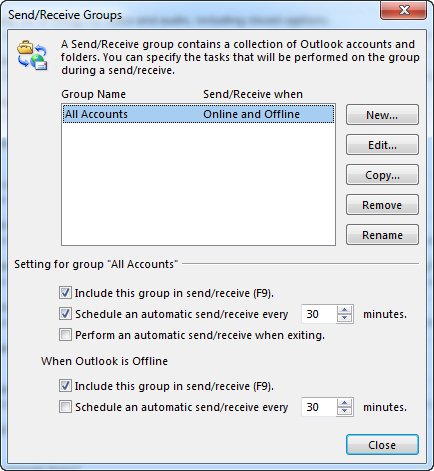
Classic Outlook has no on/off switch for an account. Taking it out of the automatic send/receive cycle keeps it in Outlook without syncing it.
- In classic Outlook, open the Send/Receive tab.
- Select Send/Receive Groups, then Define Send/Receive Groups.
- Select All Accounts, then Edit.
- Select the account you want to pause.
- Clear Include the selected account in this group, then select OK.
You can still sync that account by hand from Send/Receive > Send/Receive Groups whenever you want its mail.
Remove an Outlook profile with all its email accounts
A profile holds every account set up in classic Outlook. Deleting it removes them all in one go, which helps when the setup is broken.
- In classic Outlook, select File > Account Settings > Manage Profiles.
- Select Show Profiles.
- Select the profile you want to delete, then select Remove.
- Confirm the warning about offline data.
If classic Outlook will not start, type outlook.exe /manageprofiles in the Windows search box and press Enter to open the Show Profiles window. Your .pst files stay on the PC and online mailboxes such as Outlook.com, Exchange and Microsoft 365 are not touched.
Manage emails in Outlook
Removing an account changes what Outlook shows, not what the provider stores. This table shows where each kind of data ends up.
| Data | After removing the account from Outlook | After closing the Microsoft account |
|---|---|---|
| Mail on the server | Kept by the provider | Deleted and cannot be recovered once the reopen window passes |
| Offline cached copy on the PC | Deleted | Deleted |
| .pst data files | Stay on the PC | Stay on the PC |
| Contacts | Kept by the provider | Deleted from Microsoft's servers |
| Xbox, Skype, OneDrive and other Microsoft services | Not affected | Access is lost |
| BitLocker recovery keys saved to the account | Not affected | Access is lost |
How to delete or close Outlook email account
To delete an Outlook.com or Hotmail address permanently, you close the Microsoft account behind it. Move anything you need out of OneDrive, Xbox and other services first.
- Go to the Microsoft Close account page and sign in with the account you want to close.
- Complete any verification prompts.
- Check that the right account is shown, then select Next.
- Read each item in the list and tick the box beside it.
- Choose a reopen window of 30 or 60 days.
- Pick a reason from the drop-down list.
- Select Mark account for closure.
You can sign back in to reopen the account until the window ends. After that, Microsoft deletes the data and content. If you recently reset all your sign-in verification details, you must wait 60 days before you can close the account. If you only want a fresh address, you can create a new Outlook email account before closing the old one.
Fix Outlook when an email account will not remove
Classic Outlook warns that you need a new location for your data
The account is the only one in the profile, so its data file is the default delivery location.
- Create a new Outlook data file or add another account first.
- Set the new account or data file as the default.
- Go back to File > Account Settings > Account Settings and remove the old account.
Classic Outlook will not open, so you cannot reach Account Settings
A damaged profile can stop Outlook from starting.
- Type
outlook.exe /manageprofilesin the Windows search box and press Enter. - Select the broken profile and select Remove.
- Start Outlook and add the accounts you still need.
The account comes back on another device
Removing an account only affects the device you did it on.
- Remove the account in Outlook on each device.
- In new Outlook, choose the all devices option for a non-Microsoft account if you want it gone everywhere.
Remove email account from Outlook FAQ
Does removing an email account from Outlook delete my emails?
No. Removing an account from Outlook only deletes the offline copy on that device. The mail stays on the provider's server, so it reappears if you add the account back or open webmail.
How do I delete an Outlook email account permanently?
Close the Microsoft account behind the Outlook.com address. Pick a 30 or 60 day reopen window and select Mark account for closure. Once that window passes, your email and contacts are deleted and cannot be recovered.
How do I remove an account from Outlook on my iPhone?
Open the Outlook app, go to Settings, then Accounts, tap the account and tap Remove Account. The app has no separate sign-out option, so removing the account is the way to take it off the phone.
How do I remove an email account from Outlook on a Mac?
Open Outlook, choose Tools, then Accounts, select the account, then select Manage and Remove Account and confirm with Continue. In legacy Outlook for Mac, select the account and use the minus button and Sign Out.
Can I remove an account from Outlook without deleting it?
Yes. Removing an account from any Outlook app never deletes the account itself. It only stops that app from showing and syncing the mailbox, and you can add the same address again at any time.
How do I stop an account syncing in classic Outlook without removing it?
Open Send/Receive, then Send/Receive Groups and Define Send/Receive Groups. Edit All Accounts, select the account and clear Include the selected account in this group. You can still sync it by hand.
What does remove from all devices do in new Outlook?
It removes a non-Microsoft account such as Gmail or Yahoo from every device where you added it to Outlook. It also deletes Outlook's Microsoft Cloud copy, so calendars or items that only existed there can be lost.
Can I reopen a closed Outlook.com account?
Yes, during the 30 or 60 day reopen window you picked when closing it. Sign in with the account to reopen it. After the window passes, Microsoft deletes the data and the account cannot be recovered.