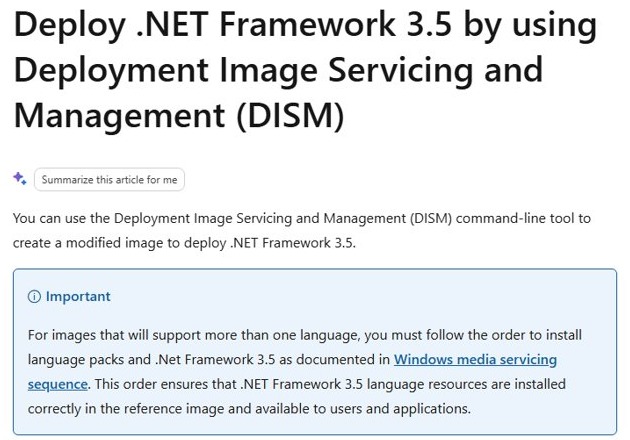
Open Turn Windows features on or off, tick .NET Framework 3.5 (includes .NET 2.0 and 3.0) and select OK to install .NET Framework 3.5 on Windows 11 version 25H2 or earlier and on Windows 10.
This guide also covers the offline DISM install, Windows Server, the Group Policy repair source, the standalone installer that Windows 11 26H1 and later require, and fixes for 0x800F0906, 0x800F081F and 0x800F0907.
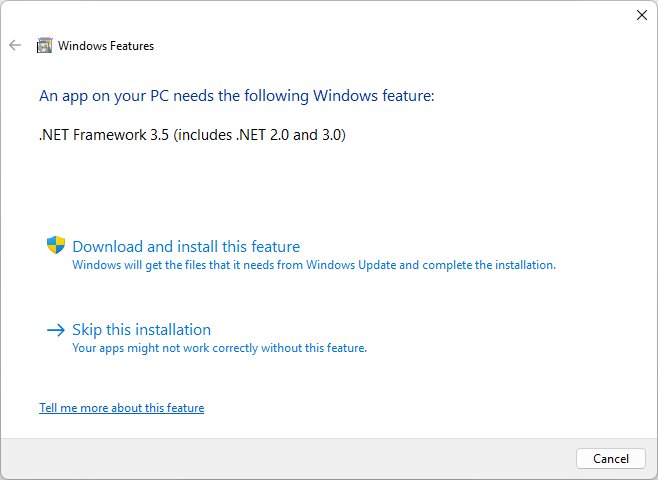
Installing .NET Framework 3.5 on Windows 11 and 10
This route downloads the files from Windows Update, so the PC needs an internet connection. It applies to Windows 10 and Windows 11 up to version 25H2.
- Select Start, type
Windows Featuresand open Turn Windows features on or off. - Tick .NET Framework 3.5 (includes .NET 2.0 and 3.0).
- Leave the Windows Communication Foundation (WCF) HTTP Activation and Non-HTTP Activation child items clear unless you run a server app that needs them.
- Select OK and wait while Windows downloads and installs the files.
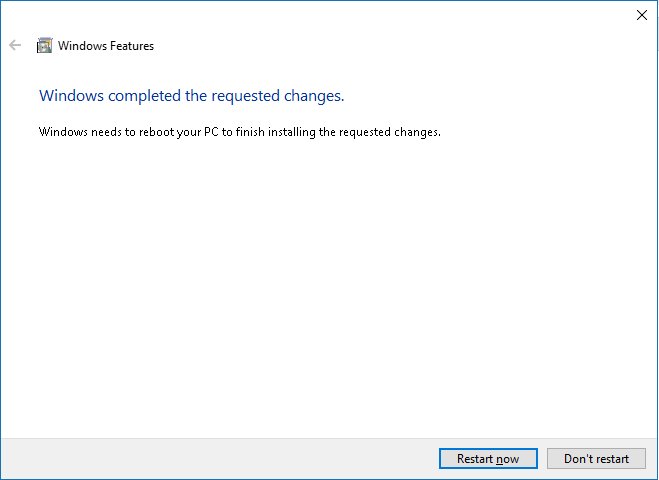
- Restart the PC if prompted.
An app that needs the older runtime can also trigger a prompt by itself. Select Download and install this feature in that dialog to get the same result. The 3.5 package also covers apps that ask you to install .NET Framework 2.0.
.NET Framework 3.5 install method by Windows version
| Your Windows | Install method | Why |
|---|---|---|
| Windows 11 26H1 (build 28000) or later | Standalone installer from Microsoft | 3.5 is no longer a Windows component on these builds |
| Windows 11 25H2 or earlier, Windows 10, online | Turn Windows features on or off | Windows Update supplies the files |
| Windows 11 25H2 or earlier, Windows 10, no internet | DISM with \sources\sxs from install media | The only supported offline route on Windows 10 and later |
| Windows Server 2016 or later | Add Roles and Features Wizard or PowerShell | Server installs it as the .NET Framework 3.5 Features role feature |
| Domain PCs that use WSUS | Group Policy repair source | WSUS does not serve the feature files by default |
| Windows 8 and older | .NET Framework 3.5 SP1 offline installer | Microsoft still offers it, alongside other .NET offline installers, for Windows versions before Windows 10 |
Find your version in Settings > System > About under Windows specifications, or run winver.exe from the Run dialog.
Install .NET Framework 3.5 on Windows 11 26H1 and later
Starting with Windows 11 26H1 (build 28000), Microsoft ships .NET Framework 3.5 only as a standalone installer. The Windows Features checkbox and DISM route no longer exist on these builds.
- Confirm the build: press Win + R, type
winver.exeand press Enter. - Open Microsoft's Install .NET Framework 3.5 on Windows 11 page on learn.microsoft.com.
- Download .NET Framework 3.5 for Windows 11 26H1 and, if you need localized messages, the matching language pack.
- Run the installer and restart when it finishes.
These installers only work on the Windows version they name. ASP.NET 3.5, .NET Extensibility 3.5 and both WCF activation components were removed in 26H1. Microsoft provides an Enable-ASPNet35.ps1 script that restores ASP.NET 3.5 in IIS.
Offline install of .NET Framework 3.5 on Windows via CMD
Mount or insert Windows installation media for the same Windows version and note its drive letter. The example uses D:.
DISM /Online /Enable-Feature /FeatureName:NetFx3 /All /LimitAccess /Source:D:\sources\sxsRun it from Command Prompt opened with Run as administrator. /All enables parent features, /LimitAccess stops DISM from contacting Windows Update or WSUS, and /Source points at the sxs folder on the media.
You should see: DISM ends with "The operation completed successfully." and .NET Framework 3.5 shows as ticked in Turn Windows features on or off.
Drop /LimitAccess /Source:... to install from Windows Update instead. Never use media from a different Windows version, because a mismatched source leaves the system unsupported and unserviceable.
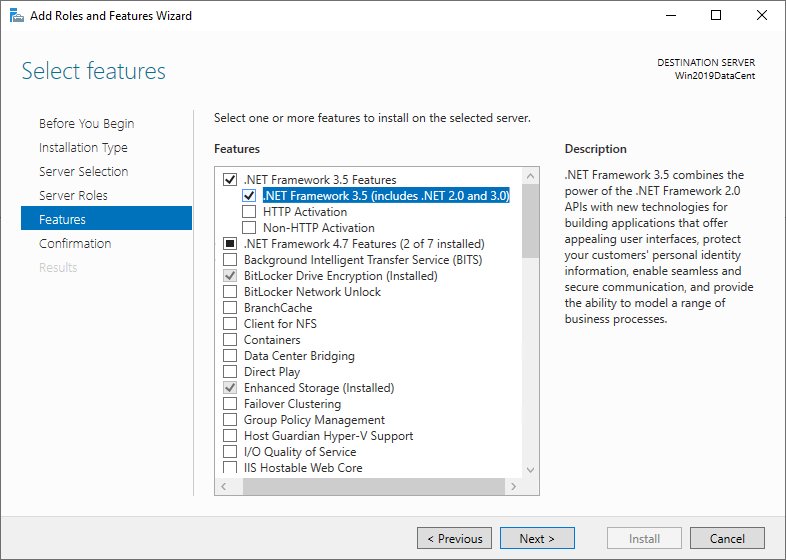
How to install .NET Framework 3.5 on Windows Server
- Open Server Manager and start the Add Roles and Features Wizard.
- Move through the wizard to the Features page.
- Tick .NET Framework 3.5 Features and select Next.
- On Confirm installation selections, select Specify an alternate source path if the server cannot reach Windows Update, and enter the path of the sxs folder, for example
D:\sources\sxs. - Select OK, then Install.
From an elevated PowerShell window, Install-WindowsFeature -Name NET-Framework-Core -Source D:\sources\sxs does the same job.
Configure .NET Framework 3.5 offline installation options via GPO
Use this policy when PCs get updates from WSUS or have no internet access. It sets where Windows looks for feature files.
- Open the Local Group Policy Editor (
gpedit.msc) or the Group Policy Management Console. - Go to Computer Configuration > Administrative Templates > System.
- Open Specify settings for optional component installation and component repair and select Enabled.
- In Alternate source file path, enter a share holding the \sources\sxs contents, such as
\\server_name\share\Win8sxs, or a WIM path such asWIM:\\server_name\share\install.wim:3. - Tick Contact Windows Update directly to download repair content instead of Windows Server Update Services (WSUS) if direct downloads are allowed.
- Select OK, then run
gpupdate /forcefrom an elevated Command Prompt.
The number after the WIM path is the image index that holds the feature files. Keep the source on the same cumulative update level as the target PCs.
Check .NET Framework 3.5 is installed
- Open Turn Windows features on or off and confirm .NET Framework 3.5 (includes .NET 2.0 and 3.0) is ticked.
- On a server, confirm .NET Framework 3.5 Features shows as installed in Server Manager.
- Start the app that asked for .NET Framework 3.5 and confirm the prompt no longer appears.
To list every installed runtime, check your .NET Framework version from the registry.
Fix .NET Framework 3.5 installation errors
Error 0x800F0906
Windows cannot download the files from Windows Update, because of the network, a proxy, a firewall or a WSUS setup.
- Check that the PC can reach Microsoft Update.
- On a WSUS-managed PC, enable the Group Policy repair source above with the Windows Update option ticked.
- Or install offline with the DISM command and your installation media.
Error 0x800F081F
The source path is wrong, unreadable, or holds files for a different Windows version.
- Confirm the path ends in
\sources\sxsand opens from the affected PC. - Confirm your account has at least Read access to the location.
- Use media that matches the installed Windows version, or try another source.
Error 0x800F0907
No valid source is set and Group Policy is set to Never attempt to download payload from Windows Update.
- Open Specify settings for optional component installation and component repair in Group Policy.
- Clear the Never attempt to download payload from Windows Update option, or set an Alternate source file path.
- Run
gpupdate /forceand install again.
.NET Framework 3.5 is missing from Windows Features
Windows 11 26H1 (build 28000) and later removed it as a Windows component.
- Check your build with
winver.exe. - Use the standalone installer for your Windows version.
.NET Framework 3.5 install FAQ
Does .NET Framework 3.5 include 2.0 and 3.0?
Yes. The Windows feature is labelled .NET Framework 3.5 (includes .NET 2.0 and 3.0), so one install covers apps built for .NET Framework 2.0, 3.0 and 3.5.
Why does Windows need .NET Framework 3.5 when 4.x is installed?
.NET Framework 4 does not run apps built for versions 1.1 through 3.5. Those older apps need .NET Framework 3.5 installed alongside the newer .NET Framework 4.8 runtime.
Is there an offline installer for .NET Framework 3.5 on Windows 10?
No. On Windows 10, Windows Server 2016 and later, the supported offline method is DISM with the sxs files from matching installation media. The 3.5 SP1 offline installer is for Windows 8 and earlier.
Can I install .NET Framework 3.5 on Windows 11?
Yes. On Windows 11 25H2 and earlier, enable it in Turn Windows features on or off. On Windows 11 26H1 (build 28000) and later, use Microsoft's standalone installer for that version.
What does the DISM /LimitAccess switch do?
/LimitAccess stops DISM from contacting Windows Update or WSUS. DISM then uses only the folder given in /Source, which suits PCs without internet access.
Do I need administrator rights to install .NET Framework 3.5?
Yes. The account must be in the local Administrators group to add Windows features, run DISM or change the Group Policy repair source.
What causes error 0x800F0922 with .NET Framework 3.5?
Microsoft lists 0x800F0922 with the other 3.5 install errors. Try the offline DISM install from matching installation media, which avoids Windows Update entirely.

![Blue Screen of Death Causes and Solutions [Guide]](https://techdows.com/wp-content/uploads/2026/10/Blue-Screen-of-Death-Causes-and-Solutions-Guide-600x338.jpg)