To launch an app, script or backup at logon, create a task in Task Scheduler with an At log on trigger and a Start a program action.
This guide walks through each tab of the Create Task dialog on Windows 11 and Windows 10, a one-line schtasks alternative, three example tasks and fixes for tasks that fail.
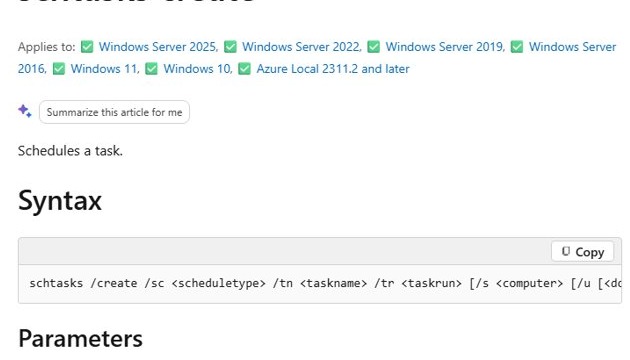
Create a logon task with schtasks in one command
The quickest route is a single schtasks command in Command Prompt. The ONLOGON schedule type runs the task whenever a user signs in, and /delay waits before it starts.
schtasks /create /sc onlogon /tn "Open Notes at logon" /tr "C:\Tools\notes.exe" /delay 0001:00/sc onlogon sets the logon schedule, /tn names the task, /tr gives the fully qualified path of the program, script or batch file (262 characters at most), and /delay 0001:00 waits one minute in mmmm:ss format. Add /rl highest to run with the highest privileges instead of the default LIMITED level.
You should see: Command Prompt prints a SUCCESS line, and the task appears in Task Scheduler Library under the name you gave it.
Run Command Prompt as administrator when the task should start for every user or with /rl highest. Replace the example path with your own program.
Prerequisites
| Requirement | Why it matters |
|---|---|
| Windows 10 or Windows 11 | Task Scheduler and schtasks ship with both |
| The full path to the app, script or backup tool | Task Scheduler runs the file by path, not by a Start menu name |
| A script that already works when you run it by hand | Microsoft's troubleshooting advice is to test a script in PowerShell or Command Prompt before putting it in a task |
| An administrator account | Needed for tasks that run with highest privileges or for any user |
| The Task Scheduler service running | Tasks only start while the service runs; Microsoft recommends the Automatic startup type |
Why use Task Scheduler instead of the Startup folder?
| What you need | Task Scheduler | Startup folder |
|---|---|---|
| Run with administrator rights | Yes, with Run with highest privileges | No, items start with standard rights |
| Wait a set time after sign-in | Yes, with a trigger delay | No |
| Pass arguments or a working folder | Yes, in the action fields | Only through a shortcut's properties |
| Skip the run on battery power | Yes, in the Conditions tab | No |
| See whether it ran and its exit code | Yes, in the History tab and Last Run Result column | No |
| Quick setup with no options | More steps | Drop a shortcut in the folder |
Step-by-step: create a task that runs at logon
The next sections follow the Create Task dialog tab by tab. Create Task shows every option at once, while Create Basic Task is a shorter wizard with fewer settings.
- Open Task Scheduler.
- Choose Create Task.
- Name and describe the task on the General tab.
- Create the logon trigger on the Triggers tab.
- Add the action on the Actions tab.
- Review the Conditions and Settings tabs.
- Save the task, then test it.
1. Open Task Scheduler
- Select Start and type Task Scheduler.
- Under Best match, select Task Scheduler.
- Select Task Scheduler Library in the left pane to see existing tasks.
2. Choose “Create Task”
- Right-click Task Scheduler (Local) or Task Scheduler Library.
- Select Create Task for the full dialog.
- Use Create Basic Task instead only if you want a short wizard and no advanced options.
3. Name and describe the task
- On the General tab, type a clear Name, such as Backup at sign-in.
- Add a Description that says what the task starts and why.
- Under Security options, keep Run only when user is logged on for apps that open a window.
- Select Run with highest privileges only if the program needs administrator rights.
- Select Change User or Group if the task should run under another account.
By default, a task runs with low privileges when User Account Control is on. Programs that need elevation must use the highest run level.
4. Create the logon trigger
- Open the Triggers tab and select New.
- Set Begin the task to At log on.
- Choose Any user or Specific user, then pick the account.
- Make sure Enabled is selected.
- Select OK.
Optional: add a delay
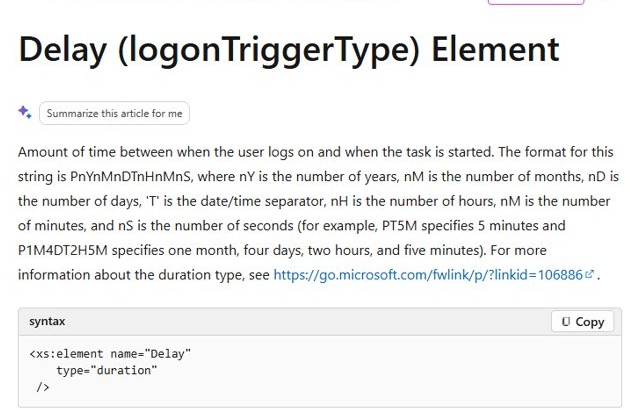
A delay stops the task from competing with everything else that starts at sign-in. Logon triggers support a delay setting, and schtasks accepts the same thing with /delay.
- Open the logon trigger on the Triggers tab and select Edit.
- Under Advanced settings, select Delay task for.
- Choose a delay such as 30 seconds or 1 minute.
- Select OK.
5. Add the action
Open the Actions tab, select New, keep Action set to Start a program, and fill in the fields for your file type. Start in sets the working folder that the program or its files live in.
| Task | Program/script | Add arguments | Start in |
|---|---|---|---|
| To launch an app | Full path to the app's .exe file | Any switches the app supports | The app's install folder |
| To run a batch file | Full path to the .bat or .cmd file | Leave empty unless the batch file reads arguments | The batch file's folder |
| To run a PowerShell script | powershell.exe | -NoProfile -File "C:\Scripts\setup.ps1" | The script's folder |
| To launch a backup tool | Full path to the backup program or its command-line tool | The job or profile name the tool expects | The tool's folder |
Quote any path that contains spaces. Use Browse to pick the file and avoid typing errors.
6. Review conditions and settings
Two tabs decide whether a logon task starts at all. Their defaults catch out laptop users most often.
| Tab | Option | What to set |
|---|---|---|
| Conditions tab | Start the task only if the computer is on AC power | Clear it on a laptop; the default stops the task from starting on battery |
| Conditions tab | Network option | Require a network connection only for backups that copy to a network share |
| Settings tab | Allow task to be run on demand | Keep it on so you can test with Run |
| Settings tab | Stop the task if it runs longer than | Clear it for apps that stay open all day, or the task is ended when the limit passes |
| Settings tab | Restart on failure | Turn it on for backup jobs that sometimes fail on a busy sign-in |
7. Save the task
- Select OK at the bottom of the Create Task dialog.
- Enter your account password if Windows asks for it.
- Select Task Scheduler Library and confirm the new task is listed with the status Ready.
8. Test the task
- Right-click the task in Task Scheduler Library and select Run.
- Confirm the app opens, the script finishes or the backup starts.
- Check the Last Run Result column; 0x0 means the program exited without an error code.
- Open the History tab to see whether the task was triggered and completed.
- Sign out and sign back in to prove the logon trigger fires on its own.
A task reported as successful is not proof a backup worked. Check that new backup files exist in the destination folder.
Example scenarios
| Scenario | Trigger | Action | Key settings |
|---|---|---|---|
| Automatically open an app | At log on, specific user, 30-second delay | Start a program: the app's .exe | Run only when user is logged on; clear the time limit |
| Run a cleanup or setup script | At log on, specific user | powershell.exe with -NoProfile -File and the script path | Start in set to the script folder; highest privileges only if the script edits system areas |
| Start a backup at sign-in | At log on, 2-minute delay | The backup tool or a batch file that calls it | Clear the AC power condition if you want laptop backups; turn on restart on failure |
Create a logon task with PowerShell
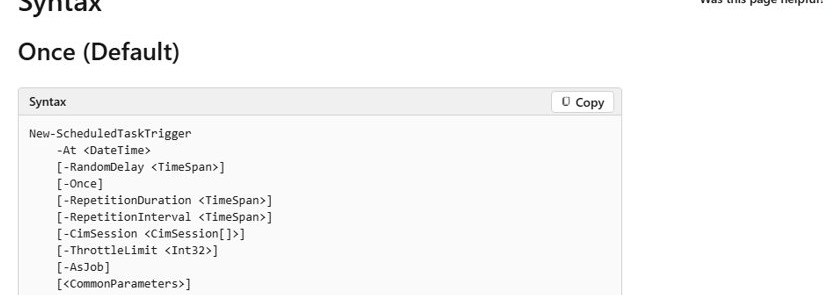
PowerShell's ScheduledTasks module builds the same task. New-ScheduledTaskTrigger -AtLogOn creates the logon trigger, and Register-ScheduledTask saves it.
Register-ScheduledTask -TaskName "Open Notes at logon" -Action (New-ScheduledTaskAction -Execute "C:\Tools\notes.exe") -Trigger (New-ScheduledTaskTrigger -AtLogOn)New-ScheduledTaskAction -Execute names the program, New-ScheduledTaskTrigger -AtLogOn starts it when a user logs on, and Register-ScheduledTask registers the task under the name you choose.
You should see: PowerShell lists the new task with its state shown as Ready.
Tips and troubleshooting
The task does not run
The trigger is disabled, the AC power condition blocked it, or the Task Scheduler service was not running.
- Open the task's History tab and check whether it was triggered.
- Right-click the task and select Run to trigger it by hand.
- Clear Start the task only if the computer is on AC power on a laptop.
- Export the task to an .xml file with a right-click and check the trigger and action entries.
The app opens manually, but not from Task Scheduler
The app needs a desktop session or a working folder, and the task runs without one.
- Set Run only when user is logged on on the General tab.
- Fill Start in with the app's folder.
- Check that Program/script holds the full .exe path, quoted if it has spaces.
The script works in Command Prompt but fails in Task Scheduler
The task runs under a different account, privilege level or working folder than your prompt.
- Run the script from a prompt started with the same account that owns the task.
- Set Start in to the script folder and use full paths inside the script.
- Add transcripts or extra output lines to the script to log where it stops.
- Read the Last Run Result exit code and the Operational log at Event Viewer > Applications and Services Logs > Microsoft > Windows > TaskScheduler > Operational.
The task runs too early after logon
The task starts before the network, a drive or the app it depends on is ready.
- Edit the logon trigger and select Delay task for.
- Raise the delay to 1 or 2 minutes.
- For schtasks, recreate the task with a larger /delay value in mmmm:ss format.
The task runs for the wrong user
The trigger is set to Any user, or the task is registered to a different account.
- Edit the logon trigger and choose Specific user.
- On the General tab, check the account under When running the task, use the following user account.
- Select Change User or Group and pick the right account.
When to use Startup folder instead
Use the Startup folder for an ordinary app that only needs to open after sign-in, with no delay, elevation or conditions. A shortcut in the Startup folder takes seconds to add and remove, while Task Scheduler earns its extra steps only when you need administrator rights, a delay, a specific user, run history or power conditions.
Task Scheduler logon task FAQ
How do I make Task Scheduler run a program at logon?
Create a task with a trigger set to At log on and a Start a program action that points to the program's full path. From Command Prompt, schtasks /create /sc onlogon /tn name /tr path does the same in one line.
Can Task Scheduler run a task at logon for any user?
Yes. In the logon trigger choose Any user, or use schtasks with /sc onlogon, which runs whenever any user logs on. Creating a task for all users needs an administrator account.
How do I delay a Task Scheduler logon task?
Edit the logon trigger and select Delay task for, then pick a time. With schtasks, add /delay followed by a value in mmmm:ss format, such as /delay 0001:00 for one minute. The delay works for logon, startup and event schedules.
How do I run a PowerShell script at logon with Task Scheduler?
Set Program/script to powershell.exe and put -NoProfile -File followed by the quoted script path in Add arguments. Set Start in to the script's folder, then test the task with Run before signing out.
Why does my scheduled task show 0x1 in Last Run Result?
The Last Run Result column shows the exit code your program or batch file returned. A value of 0x1 means the command reported a failure, so run it by hand with the same account to see the error.
Where is the Task Scheduler log in Windows?
Open Event Viewer and go to Applications and Services Logs, Microsoft, Windows, TaskScheduler, Operational. Each task's History tab in Task Scheduler shows the same events filtered to that task.
Task Scheduler vs Startup folder for logon apps
Use Task Scheduler with an At log on trigger and a short delay for scripts, backups and anything needing admin rights; keep the Startup folder for simple apps. Task Scheduler adds elevation, delays, per-user triggers, power conditions and a run history that shows whether the job worked, which a Startup shortcut cannot provide.