To double space a whole document in Microsoft Word, go to Design > Paragraph Spacing and choose Double, or select the text and press Ctrl + 2.
This guide covers the whole document, selected paragraphs, the keyboard shortcut, Word for Mac, making double spacing the default, and fixes when the spacing will not change.
Double-space the entire document
The Design tab applies the spacing to the whole document in one move, including text you type later.
- Open the document in Word for Windows or Word for Mac.
- Select the Design tab on the ribbon.
- Select Paragraph Spacing near the right end of the tab.
- Choose Double from the list.
- Scroll through the document to confirm every paragraph now has a blank line's height between lines.
If you cannot see the tabs at all, display the Word ribbon first.
Double space part of a document
Use the Home tab when only some paragraphs need double spacing, such as the body of an essay but not a block quote.
- Select the paragraphs you want to change. Press Ctrl + A to select everything instead.
- Go to the Home tab.
- Select the Line and Paragraph Spacing button in the Paragraph group.
- Choose 2.0 from the list.
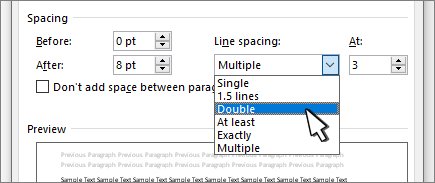
- For finer control, select Line Spacing Options, choose Double in the Line spacing box, and select OK.
Double space all or part of a document with a keyboard shortcut
Word for Windows has a built-in shortcut for each common line spacing value. It applies to the selected paragraphs, or to the paragraph holding the cursor when nothing is selected.
| Press | Result | Applies to |
|---|---|---|
| Ctrl + 2 | Double spacing | Selected paragraphs, or the current paragraph |
| Ctrl + 5 | 1.5-line spacing | Selected paragraphs, or the current paragraph |
| Ctrl + 1 | Single spacing | Selected paragraphs, or the current paragraph |
| Ctrl + A, then Ctrl + 2 | Double spacing | The entire document body |
| Ctrl + Q | Removes paragraph formatting | Selected paragraphs |
Step by step tutorial on how to double space in Word for Mac
Word for Mac uses the same tab names as Windows, so the routes match.
- For the whole document, go to Design > Paragraph Spacing and choose Double.
- For part of the document, select the paragraphs you want to change.
- Go to Home > Line and Paragraph Spacing.
- Choose 2.0, or select Line Spacing Options and pick Double under Spacing.
- Select OK if you opened the options dialog.
Set double space as the default line spacing
Word's default for new documents is 1.15 line spacing with 10 points after each paragraph. Changing the Normal template makes every new blank document start double-spaced.
- Go to Home > Line and Paragraph Spacing and choose Line Spacing Options.
- Under Spacing, choose Double in the Line spacing box.
- Set Before and After to 0 pt if you want no extra gap between paragraphs.
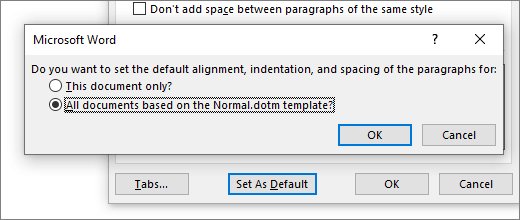
- Select Set as Default.
- Choose All documents based on the Normal template.
- Select OK.
Word for the web has no Set as Default option, and new web documents return to 1.15 line spacing.
Which writing styles require double-spaced text?
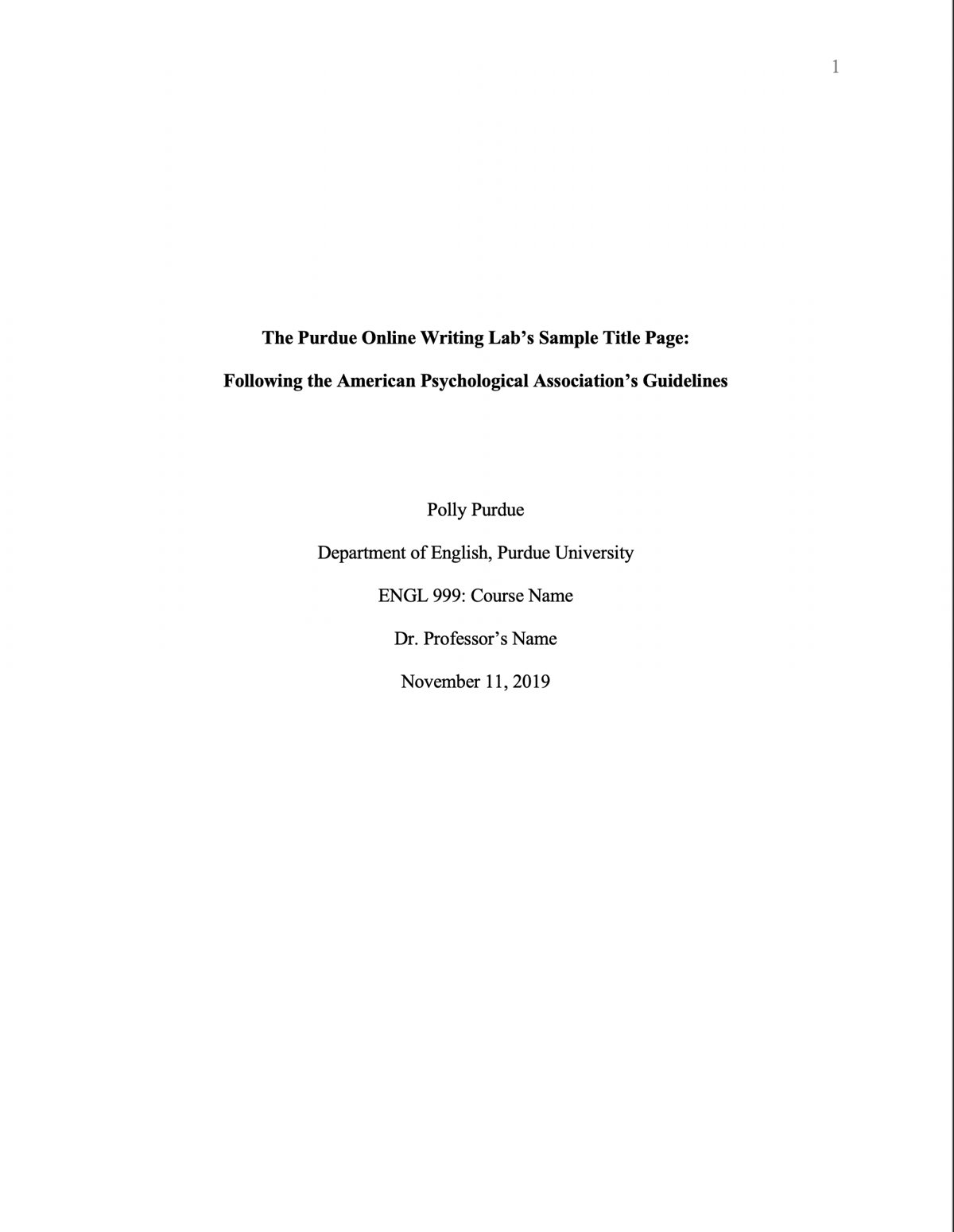
Most academic style guides ask for double spacing throughout. Your instructor or publisher always has the final word.
| Style | Double spacing rule | Common exceptions |
|---|---|---|
| APA (7th edition) | All text, including the title page and abstract, is double-spaced | Follow your instructor's guidance for tables and figures |
| MLA | The whole paper is double-spaced, including the heading block and between the title and first line | None in the main text |
| Chicago | Main text is consistently double-spaced | Block quotations, notes, bibliography entries, table titles and figure captions |
| Business letters and reports | Usually single-spaced | Drafts sent for editing are often double-spaced for comments |
How to see the current line spacing in Word
- Click inside a paragraph you changed.
- Go to Home > Line and Paragraph Spacing.
- Check that 2.0 has a tick beside it.
- Open Line Spacing Options and confirm the Line spacing box reads Double.
- Repeat in a heading, a list and a table cell, because each can carry its own spacing.
Remove double line spacing in Word
- Select the paragraph to change, or press Ctrl + A to select all text.
- Go to Home > Line and Paragraph Spacing.
- Choose 1.0 for single spacing or 1.15 for Word's default.
- To reset the whole document, go to Design > Paragraph Spacing and choose the option under Style Set, such as Default.
- Press Ctrl + 1 as a quick alternative on selected paragraphs.
Fix double spacing in Word when it does not work
Gaps between paragraphs are bigger than between lines
The paragraphs still have spacing Before or After, which is separate from line spacing.
- Select the text.
- Open Home > Line and Paragraph Spacing > Line Spacing Options.
- Set Before and After to 0 pt.
- Select OK.
Some paragraphs stay single-spaced after using the Design tab
Those paragraphs carry direct line spacing formatting that overrides the style set.
- Press Ctrl + A to select everything.
- Press Ctrl + 2.
- Check headings, tables and footnotes separately.
New documents keep opening at 1.15 spacing
The change was saved to this document only, not to the Normal template.
- Open Line Spacing Options.
- Choose Double in Line spacing.
- Select Set as Default and choose All documents based on the Normal template.
Ctrl + 2 does nothing
The shortcut belongs to Word for Windows; Word for the web and Word for Mac use the ribbon.
- Use Home > Line and Paragraph Spacing > 2.0 instead.
- In Word for Windows, make sure the cursor is in the document, not in a dialog or the ribbon.
Pros and cons of double spacing in Word
| Point | |
|---|---|
| Pros | Meets APA, MLA and Chicago requirements for essays and manuscripts |
| Pros | Leaves room for handwritten edits and comments on printed drafts |
| Pros | Makes long text easier to scan on screen |
| Cons | Roughly doubles the page count, which matters for page limits and printing |
| Cons | Looks out of place in business letters, CVs and newsletters |
| Cons | Paragraph spacing settings can stack on top and create uneven gaps |
Tips for double spacing in Word
| Tip | Why it helps |
|---|---|
| Set Before and After to 0 pt for academic papers | Style guides want even spacing, not extra paragraph gaps |
| Apply spacing before inserting a reference list | The list inherits the same spacing as the body |
| Use the Normal template default for recurring coursework | Every new paper starts with the right spacing |
| Leave block quotes and footnotes single-spaced only when your style asks | Chicago allows it; MLA and APA usually do not |
| Check the page count after switching | Double spacing can push you past a page limit, so check the word count instead when the limit is in words |
Frequently asked questions
What is the shortcut to double space in Word?
Press Ctrl + 2 in Word for Windows to double space the selected paragraphs. Press Ctrl + A first to select the whole document, then Ctrl + 2. Ctrl + 1 returns to single spacing and Ctrl + 5 gives 1.5-line spacing.
Is 2.0 line spacing the same as double spacing?
Yes. Choosing 2.0 from the Line and Paragraph Spacing button sets the same value as Double in the Line Spacing Options dialog. Both give a gap of one full line between each line of text.
How do I double space in Word on a Mac?
Go to Design > Paragraph Spacing and choose Double for the whole document. For selected text, go to Home > Line and Paragraph Spacing and choose 2.0, or use Line Spacing Options and pick Double.
Why is there still extra space between paragraphs?
Paragraph spacing before and after is separate from line spacing. Open Line Spacing Options, set Before and After to 0 pt, and select OK so paragraphs sit evenly double-spaced.
How do I make double spacing the default in Word?
Open Home > Line and Paragraph Spacing > Line Spacing Options, choose Double, select Set as Default, then choose All documents based on the Normal template and select OK.
What is the default line spacing in Word?
Word uses 1.15 line spacing with 10 points of space after each paragraph for new blank documents. Word for the web also reverts new documents to 1.15 spacing.
Does APA format require double spacing?
Yes. APA asks for double spacing throughout the paper, including the title page and abstract. Check with your instructor for any exceptions on tables or figures.