Open Settings and more (the three dots) and select History to view your browsing history in Microsoft Edge, then delete entries there or clear everything from Settings > Privacy, search, and services.
This guide covers single-page deletion, clearing all browsing data, synced devices, data stored on Microsoft servers, automatic clearing on close and InPrivate browsing.
The fastest way to clear browsing history in Microsoft Edge
These steps clear history for the current Edge profile on this device, and on other devices when history sync is on.
- Select Settings and more (the three dots at the top right) > Settings.
- Select Privacy, search, and services.
- Under Clear browsing data, select Choose what to clear.
- Pick a period in the Time range dropdown, such as All time.
- Tick Browsing history and any other data types you want removed.
- Select Clear now.
Delete one page, clear everything or clear on exit in Edge
| Your situation | Use this | Why |
|---|---|---|
| One or two pages you want gone | Delete the entry in the History list | Leaves the rest of your history intact |
| Remove a whole period of browsing | Clear browsing data with a time range | One action for hours, days or all time |
| Never keep history between sessions | Choose what to clear every time you close the browser | Runs automatically each time Edge closes |
| History saved with your Microsoft account | Microsoft privacy dashboard or Reset sync | Local clearing does not touch personalization data on servers |
| A one-off private session | InPrivate window | Nothing from the session is kept after the window closes |
Viewing your browsing history
Edge keeps history per profile, so a work profile and a personal profile each show their own list.
- Open Microsoft Edge in the profile whose history you want to see.
- Select Settings and more (the three dots) at the top right.
- Select History to open the history list.
- Scroll the list, which is grouped by date with the most recent visits first.
- Type a site name or page title into the search box at the top of the list to filter it.
- Select any entry to reopen that page.
History images that Edge shows for visited pages are kept for as long as the history entry exists, which Microsoft states is 90 days.
Deleting specific pages from your browsing history
- Open Settings and more > History.
- Search for the site or page you want to remove.
- Hover over the entry and select the Delete (X) button next to it.
- Repeat for each entry, or open the full history page to select several entries and delete them together.
- To remove an address bar suggestion, start typing in the address bar and select X next to the Recent searches item.
Removing a recent search from the address bar list deletes it from Edge and from Microsoft's server, according to the Edge privacy documentation. If you want Bing search history gone as well, delete Bing search history from your Microsoft account too.
Clearing all browsing data
The Delete browsing data dialog lists every data type Edge can remove. Untick anything you want to keep, such as passwords.
- Select Settings and more > Settings > Privacy, search, and services.
- Select Choose what to clear under Clear browsing data.
- Set Time range to All time.
- Tick Browsing history, Download history, Cookies and other site data and Cached images and files as needed.
- Select Clear now and wait for the dialog to close.
Deleting download history does not delete the downloaded files from your device. Copilot chats are stored separately, so delete Copilot prompt history from your account if you want those gone too.

Clearing browsing data across synced devices
When you sign in to Edge with a Microsoft account, history can sync to every signed-in copy of Edge. Microsoft states that deleted or modified data on one signed-in device syncs to the others where sync is on.
- Select Settings and more > Settings > Profiles > Sync.
- Confirm the History toggle is on if you want a deletion on this device to reach your other devices.
- Clear history on this device with Choose what to clear.
- Open Edge on another signed-in device and check that the entries are gone.
- To stop history syncing from now on, turn the History toggle off.
Managing browsing data stored in the cloud
Two separate stores exist online: synced Edge data, and browsing activity saved for personalization, which Microsoft keeps for up to 180 days. If you need it, you can still delete Edge sync data from the cloud.
- Go to the Microsoft privacy dashboard at account.microsoft.com/privacy and sign in.
- Open the browsing history section and select the option to clear the activity shown.
- In Edge, go to Settings > Privacy, search, and services and turn off Allow Microsoft to save your browsing activity including history, usage, favorites, web content, and other browsing data to personalize Microsoft Edge and Microsoft services like ads, search, shopping and news.
- To remove synced data from Microsoft's cloud, turn off sync on every other device first.
- On the remaining device, go to Settings > Profiles > Sync, turn off the data types to remove, select Still having sync problems? Try another option and then Reset sync.
- Keep Edge open until the reset finishes.
After a reset, you must sign back in on other devices if you want them to sync again. You can also stop Edge sending browsing history to Microsoft with the personalization toggle above.
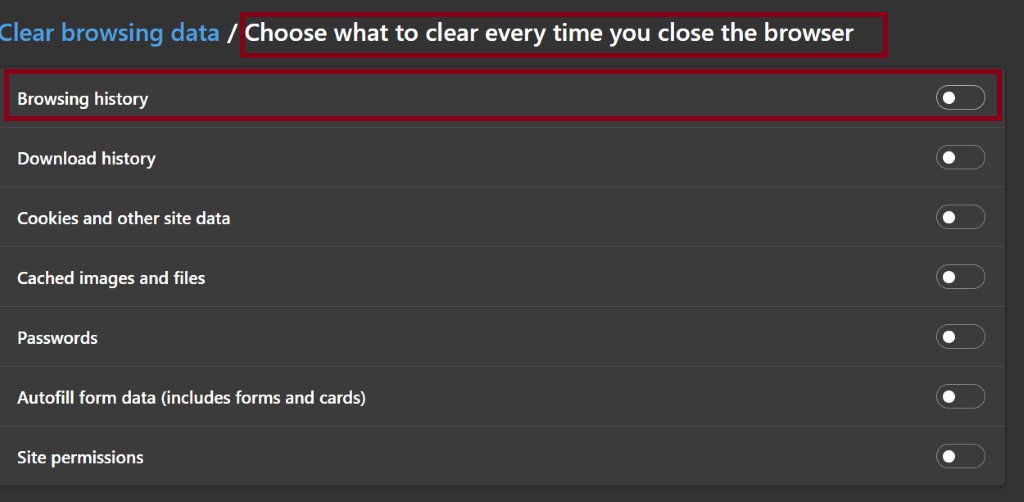
Automatically clearing browsing data upon closing the browser
Edge does not clear browsing data on close by default. The setting is per profile.
- Select Settings and more > Settings > Privacy, search, and services.
- Under Clear browsing data, select Choose what to clear every time you close the browser.
- Turn on the Browsing history toggle.
- Turn on any other types you want cleared, such as Cookies and other site data.
- Close every Edge window, then reopen Edge to confirm the history list is empty.
The Browsing history toggle here also clears the jump list of recently closed tabs, which holds the last three closed tabs per profile.
Using InPrivate browsing mode
Open an InPrivate window from Settings and more > New InPrivate window. The table shows what Edge keeps.
| Data | Kept after InPrivate windows close? |
|---|---|
| Browsing history | No |
| Download history | No (the files stay on your device) |
| Cookies and site data | No |
| Form fill data | No |
| New favorites | Yes, and they sync to signed-in devices |
| Visibility to your school, workplace or ISP | Still possible |
InPrivate data never syncs to your Microsoft account, and you cannot sign in to Edge inside an InPrivate window.
Check Microsoft Edge history was deleted
- Open Settings and more > History and confirm the list is empty for the range you cleared.
- Start typing a site you visited in the address bar and confirm it no longer appears as a suggestion.
- On a second signed-in device, open History and confirm the same entries are gone.
- Check the Microsoft privacy dashboard if you also cleared cloud activity.
Microsoft Edge history not deleting
Clear browsing data is greyed out or blocked
Your organization set the AllowDeletingBrowserHistory policy to disabled, which also turns off history sync.
- Confirm the device is managed by a work or school organization.
- Ask your IT administrator to change it; a managed device cannot override it.
History comes back after clearing
Another signed-in device with history sync keeps sending entries, or cloud data was never reset.
- Clear history on each device, or turn off the History sync toggle.
- Use Reset sync under Settings > Profiles > Sync to remove synced data from Microsoft's cloud.
History clears every time Edge closes and you do not want that
A clear-on-close toggle or the ClearBrowsingDataOnExit policy is on.
- Open Choose what to clear every time you close the browser and turn off Browsing history.
- If the toggle is locked, ask your administrator about the ClearBrowsingDataOnExit policy.
Microsoft Edge browsing history FAQ
Where is browsing history stored in Microsoft Edge?
Edge stores history locally on your device, separately for each profile. If you sign in and turn on history sync, a copy also syncs through your Microsoft account to other signed-in devices.
Does clearing history in Edge clear it on my other devices?
Yes, when history sync is on. Microsoft states that deleted data on one signed-in copy of Edge syncs to all other signed-in copies where sync is turned on.
Can I delete only one site from Edge history?
Yes. Open History, search for the site, and select the delete button next to each entry. The rest of your history stays in place.
Does deleting download history delete the files?
No. Deleting download history in Microsoft Edge removes only the list of downloads. The downloaded files stay where they were saved on your device.
Does InPrivate hide browsing from my employer or ISP?
No. InPrivate stops Edge from keeping history, cookies and form data on your device, but your school, workplace or internet service provider can still see your browsing activity.
How long does Microsoft keep Edge browsing activity online?
Browsing activity saved for personalization is kept on Microsoft servers for up to 180 days. Synced data is kept until you delete it, the account is deleted, or the account becomes inactive.
Why can't I clear browsing history in Edge?
On a work or school device, the AllowDeletingBrowserHistory policy can block deletion. Ask your administrator, because users cannot change a mandatory policy.