To access your WiFi router settings, type the router's default gateway IP address into a web browser on a connected device, then sign in with the admin user name and password printed on the router label or set during setup.
This guide covers finding that address, browser versus app access, changing the admin password, Wi-Fi name and password, channel and band, and fixing login problems.
Accessing your router settings (web browser vs. app)
Connect to the router by Wi-Fi or an Ethernet cable first. The settings page only loads from inside your own network.
- Find the router's address: it is the Default Gateway shown by
ipconfig, or the address on the router label. - Open any web browser and type that address, for example
http://followed by the gateway IP, into the address bar. - Press Enter to load the router login page.
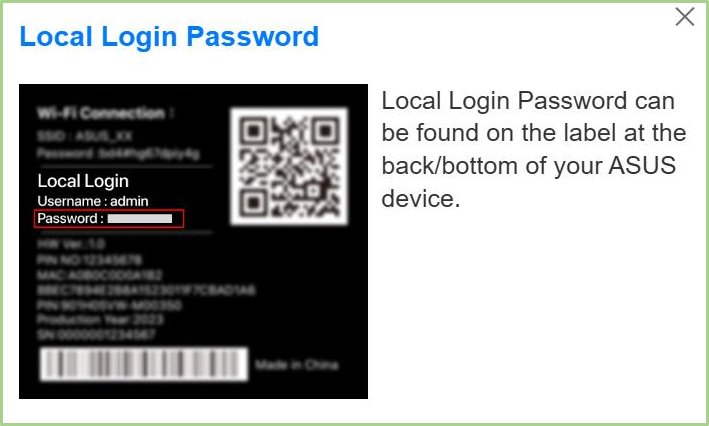
- Enter the admin user name and password from the router label, or the ones you set during setup.
- Select Log in to open the router dashboard.
Many current routers and mesh systems also ship a phone app from the manufacturer. NETGEAR notes that newer products make you change the admin password during first setup, so the label password may no longer work.
Router web interface vs router app: which to use
| Your situation | Use | Why |
|---|---|---|
| Traditional router with a login page | Web browser | Every setting, including advanced ones, is there |
| Mesh system set up with a phone app | Manufacturer's app | Some mesh systems expose settings only in the app |
| Router supplied by your internet provider | Provider's app or web page | Some ISP gateways are managed through the provider account |
| You are away from home | Manufacturer's app with remote access | The web login only works inside your network |
Find your router IP address with ipconfig on Windows
ipconfigRun in Command Prompt or Windows Terminal. With no parameters, ipconfig lists the IPv4 and IPv6 addresses, subnet mask and default gateway for every network adapter.
You should see: Under your Wi-Fi or Ethernet adapter, the Default Gateway line shows an IPv4 address. That is the address to type into the browser.
You can also see the gateway in your network adapter settings on Windows 11.
Navigating the interface
Menu names differ between brands, but most router dashboards group settings in a similar way.
| Section (typical names) | What you change there |
|---|---|
| Wireless, Wi-Fi or WLAN | Network name (SSID), Wi-Fi password, security mode, channel, band |
| Administration, System or Management | Admin password, firmware update, reboot, backup and restore |
| Internet or WAN | Connection type from your provider, DNS servers |
| LAN or DHCP | Router IP address, address range handed to devices |
| Attached devices or Clients | List of connected devices |
| Advanced or Security | Port forwarding, firewall, parental controls, guest network |
Most dashboards need you to select Apply or Save before a change takes effect.
Changing the router's admin password (web login password)
The admin password protects the settings page. It is different from the Wi-Fi password your devices use to connect.
- Sign in to the router dashboard.
- Open the Administration, System or Management section.
- Find the admin or router password setting.
- Enter the current password, then the new one twice.
- Select Apply or Save.
- Sign in again with the new password to confirm it works.
NETGEAR lists admin with password as the default sign-in for most of its current products, which is why leaving it unchanged is a risk.
Changing your Wi-Fi network name (SSID) and password
- Sign in to the router dashboard.
- Open the Wireless or Wi-Fi section.
- Type a new name in the Network Name (SSID) field.
- Choose WPA3 or WPA2 security if the list offers it.
- Type a new Wi-Fi password, also called the passphrase or network key.
- Select Apply or Save. The Wi-Fi restarts and every device disconnects.
- Reconnect each device to the new network name with the new password.
Dual-band routers can show separate name and password fields for 2.4 GHz and 5 GHz; change both, or use one shared name if the router offers it.
Adjusting your Wi-Fi channel and frequency band
| Problem | Change | Why |
|---|---|---|
| Slow Wi-Fi in a crowded apartment block | Switch the 2.4 GHz channel to 1, 6 or 11 | These channels do not overlap with each other |
| Need the fastest speed near the router | Connect to the 5 GHz band | More bandwidth, less congestion, shorter range |
| Weak signal far from the router | Use the 2.4 GHz band | Longer range and better through walls |
| Router and devices support Wi-Fi 6E or Wi-Fi 7 | Try the 6 GHz band | Cleanest spectrum, shortest range |
| Unsure which channel is best | Leave channel on Auto | The router picks a less busy channel itself |
The channel and band options sit in the same Wireless section as the network name. Select Apply after each change.
Did my router settings change save?
- Sign out of the dashboard and sign in again; the new admin password should be required.
- Open the Wi-Fi list on your phone or PC and look for the new network name.
- Connect with the new Wi-Fi password and load a website.
- Reopen the Wireless page and confirm the channel and band show your new values.
Troubleshooting login issues
The router login page does not load
The address is wrong, or the device is not on the router's network.
- Connect to the router's Wi-Fi or plug in an Ethernet cable.
- Run
ipconfigand use the Default Gateway address exactly. - Type
http://before the address and try another browser. - Turn off any VPN while you sign in.
The default admin password is rejected
The password was changed during setup or by your provider.
- Try the password you set during the router's first setup.
- Check the router label and the manufacturer's support page for your model.
- Use the manufacturer's password recovery feature if it has one.
Forgot the router admin password
No recovery option was set up.
- Press and hold the router's Reset button until the lights change, as your model's manual describes.
- Sign in with the default credentials from the label.
- Set up the Wi-Fi name, password and admin password again.
Locked out after changing the Wi-Fi password
Devices still use the old password.
- Connect a PC with an Ethernet cable.
- Sign in to the dashboard and read the Wi-Fi password back from the Wireless page.
Additional tips and best practices
| Tip | Why it matters |
|---|---|
| Install router firmware updates | Updates fix security holes and bugs |
| Use WPA3 or WPA2 with a long passphrase | Older WEP and WPA modes are easy to break |
| Turn off remote management unless you need it | Keeps the login page off the internet |
| Set up a guest network for visitors | Keeps visitors off your main devices |
| Back up the router configuration | Restores your settings quickly after a reset |
| Change DNS on the router if you want it for every device | One change covers the whole network |
To use a different resolver on one PC only, change DNS settings on Windows instead.
WiFi router settings FAQ
How do I find my router's IP address?
Run ipconfig in Command Prompt on Windows and read the Default Gateway line under your Wi-Fi or Ethernet adapter. The router label usually prints the address as well.
Can I access router settings from my phone?
Yes. Connect the phone to the router's Wi-Fi and type the gateway address into the phone's browser, or use the manufacturer's app if your router supports one.
What is the default router login?
It depends on the brand and is printed on the router label. NETGEAR lists the user name admin and the password password for most current products, and older models used 1234.
Is the router admin password the same as the Wi-Fi password?
No. The admin password opens the settings page, while the Wi-Fi password lets devices join the network. Change both, and keep them different.
Will changing my Wi-Fi password disconnect devices?
Yes. Every device drops off when you apply the change and must reconnect with the new password. Smart home devices may need their own setup app to reconnect.
Should I use 2.4 GHz or 5 GHz?
Use 5 GHz for speed near the router and 2.4 GHz for range through walls. Most routers broadcast both, and devices pick one when they connect.
What happens if I reset my router?
A factory reset erases every setting, including the Wi-Fi name, passwords and port rules. The router returns to the default login printed on its label.
Should you change your router's default settings?
Change the admin password and Wi-Fi password the first time you sign in, set WPA3 or WPA2 security, and leave the channel on Auto unless you have a congestion problem. Default credentials are published by manufacturers, so an unchanged router is the easiest device on the network to take over.