To share a Wi-Fi network connection in Windows 11, open Settings > Network & internet > Mobile hotspot, pick the connection to share, and turn on the Mobile hotspot toggle.
This guide covers Mobile Hotspot, Internet Connection Sharing, Bluetooth tethering and network bridges, plus how to view and share the saved Wi-Fi password.
Method 1: Share internet using Mobile Hotspot (best for most users)
Mobile Hotspot turns your Windows 11 PC into a small Wi-Fi access point. It can share a Wi-Fi, Ethernet or cellular connection with phones, tablets and other laptops.
- Open Settings and select Network & internet > Mobile hotspot.
- Under Share my internet connection from, choose the connection you want to share, such as Wi-Fi.
- Under Share over, choose Wi-Fi or Bluetooth. Wi-Fi is usually faster and is the default.
- Expand Properties to see the network name and password the other devices need.
- Turn on the Mobile hotspot toggle at the top of the page.
- On the other device, open its Wi-Fi settings, select your hotspot's network name, and enter the password or scan the QR code.
When you share a cellular connection, connected devices use data from your mobile data plan.
Understanding network sharing in Windows 11
Windows 11 has several built-in ways to share one internet connection with other devices. They differ in what they need and what they suit.
| Method | Shares from | Other devices connect over | Best for |
|---|---|---|---|
| Mobile Hotspot | Wi-Fi, Ethernet or cellular | Wi-Fi or Bluetooth | Phones, tablets and laptops nearby |
| Internet Connection Sharing (ICS) | Any adapter in Network Connections | Another adapter, often Ethernet | A console or desktop with no Wi-Fi |
| Bluetooth tethering (PAN) | A phone or PC hotspot | Bluetooth | Light browsing when Wi-Fi is unavailable |
| Network bridge | Two adapters joined together | The bridged adapter | Joining two local network segments |
| Sharing the Wi-Fi password | Your router | The router's own Wi-Fi | Guests who can reach the router directly |
Benefits of Mobile Hotspot
Mobile Hotspot is the simplest route, but it has limitations worth knowing before you depend on it.
| Benefits | Limitations |
|---|---|
| Built into Settings and Quick Settings, nothing to install | Your Wi-Fi adapter and driver must support hosting a hotspot |
| Shares Wi-Fi, Ethernet or cellular connections | Every connected device shares the PC's single connection speed |
| Shows a QR code and the count of connected devices | The PC has to stay on and awake for devices to stay online |
| Lets you change the name, password and band | A cellular source uses your data plan |
Share Wi-Fi connection via hotspot
Quick Settings turns the hotspot on and off in one click once you have set it up in Settings.
- Select the network, volume and battery icons on the taskbar to open Quick Settings.
- Find the Mobile hotspot quick action. Select the Next page arrow if it is not on the first page.
- Select Mobile hotspot to turn it on. It uses the last settings saved in Settings.
- Read the number of connected devices shown on the quick action.
- Right-click Mobile hotspot and select Go to Settings to change the password or sharing source.
Change the Mobile Hotspot name, password and band in Windows 11
- Open Settings > Network & internet > Mobile hotspot.
- Expand Properties and select Edit.
- Enter a new network name and a new password.
- Choose the network band you want devices to use.
- Select Save, then reconnect each device with the new password.
A long, unique hotspot password keeps strangers from joining when the hotspot is on in a public place.
Method 2: Share internet using Control Panel Internet Connection Sharing (ICS)
Internet Connection Sharing (ICS) lets one adapter share its internet access with a second adapter. You set it up in the classic Network Connections window, which you can open with the ncpa.cpl command.
- Press Win + R, type
ncpa.cpl, and press Enter to open Network Connections. - Right-click the adapter that has internet access, such as Wi-Fi, and select Properties.
- Open the Sharing tab.
- Tick the option that allows other network users to connect through this computer's internet connection.
- Choose the adapter that should receive the shared connection, such as Ethernet, from the home networking list.
- Select OK and connect the other device to that adapter.
Advantages of ICS
| Advantages | Drawbacks |
|---|---|
| Works with wired devices that have no Wi-Fi | Setup lives in the older Control Panel window |
| Shares any adapter, including VPN or cellular adapters | Only one adapter can receive the shared connection |
| No extra hardware for a single wired device | Windows hands the receiving adapter its own address range, which can clash with fixed IP settings |
| Stays configured until you clear the option | Sharing stops whenever the PC sleeps or shuts down |
Method 3: Share Wi-Fi through Ethernet
Use this when a desktop, smart TV or game console has an Ethernet port but no working Wi-Fi. The Windows 11 PC stays on Wi-Fi and passes the connection out through its Ethernet port.
- Connect the PC's Ethernet port to the other device with an Ethernet cable.
- Open Network Connections with
ncpa.cpl. - Right-click Wi-Fi and select Properties.
- On the Sharing tab, turn on sharing and pick Ethernet as the receiving adapter.
- Select OK, then set the other device to get its IP address automatically.
Sharing Ethernet to Wi-Fi in Windows 11
The reverse case is easier. A PC on a wired connection can broadcast that connection as Wi-Fi through Mobile Hotspot.
- Plug the PC into the router or wall port with an Ethernet cable.
- Open Settings > Network & internet > Mobile hotspot.
- Under Share my internet connection from, select Ethernet.
- Under Share over, select Wi-Fi.
- Turn on Mobile hotspot and connect your phone or laptop to the network name shown under Properties.
Method 4: Use Bluetooth tethering
A Bluetooth Personal Area Network (PAN) connects a Windows 11 PC to a phone or another computer that shares its hotspot over Bluetooth. Both devices need Bluetooth, and the other device must support hotspot sharing.
- Turn on Bluetooth on both devices and pair them.
- On the phone or other PC, turn on the hotspot and set it to share over Bluetooth.
- On the Windows 11 PC, select Start > Settings > Bluetooth & devices > Devices.
- Under Other devices, select the hotspot device to expand it.
- Next to Personal Area Network (PAN), select Join.
- Make sure Access Point is selected, then select Connect.
- Select OK when Connection successful appears.
To share from the Windows PC instead, choose Bluetooth under Share over in Mobile Hotspot settings. To disconnect, repeat the steps and select Disconnect PAN.
Bluetooth tethering benefits and limitations
| Benefits | Limitations |
|---|---|
| Works when the Wi-Fi adapter is busy or unavailable | Much slower than a Wi-Fi hotspot |
| Uses less power than broadcasting Wi-Fi | Short range, so devices must stay close |
| Pairing limits access to devices you approve | Both devices must be paired first |
Method 5: Network bridge connection
A network bridge joins two adapters so devices on both sides sit on the same local network. It suits lab and home setups more than everyday sharing, and it replaces ICS on those adapters.
- Open Network Connections with
ncpa.cpl. - Hold Ctrl and select both adapters you want to join, such as Wi-Fi and Ethernet.
- Right-click one of them and select Bridge Connections.
- Wait for the new Network Bridge adapter to appear.
- To undo it, right-click Network Bridge and delete it.
How to share Wi-Fi password easily in Windows 11
If the guest device can reach your router, giving it the password is simpler than running a hotspot. Windows 11 shows the password of the network you are on.
- Open Settings and select Network & internet.
- Select Properties for your Wi-Fi connection.
- Next to Wi-Fi network password, select Show.
- For a network you are not connected to, open Network & internet > Wi-Fi > Manage known networks and select it.
Phones can also join Wi-Fi with a QR code, which avoids typing a long password.
View Wi-Fi password via Control Panel
- Press Win + R, type
ncpa.cpl, and press Enter. - Right-click Wi-Fi and select Status.
- Select Wireless Properties.
- Open the Security tab.
- Tick Show characters to reveal the network security key.
View Wi-Fi password in Command Prompt
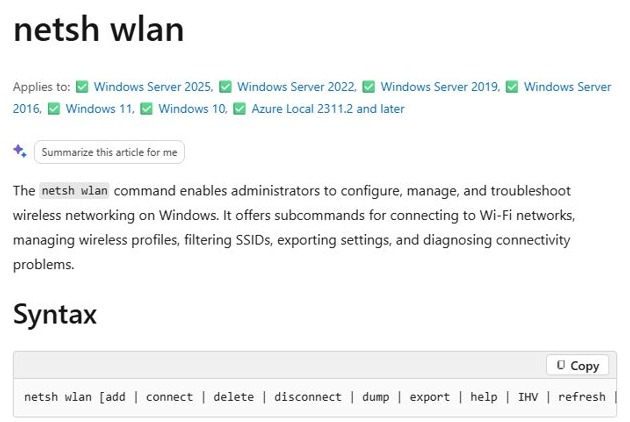
Open Command Prompt as administrator. First list saved networks with netsh wlan show profiles, then export the one you need with its key in plain text.
netsh wlan export profile name="HomeWiFi" folder=. key=clearExports the saved Wi-Fi profile named HomeWiFi to an XML file in the current folder, with the security key in plain text when run as administrator.
You should see: An XML file named after the interface and profile appears in the folder; the password sits between the keyMaterial tags.
See Wi-Fi password in Windows PowerShell
The same netsh commands run in PowerShell. Open Terminal (Admin) from the Start button's right-click menu and list profiles first.
netsh wlan show profilesLists every Wi-Fi profile saved on the PC, so you can copy the exact profile name for the export command.
You should see: A list of user profiles appears; run the export command with key=clear on the name you want.
How to check if your adapter supports Mobile Hotspot
If the Mobile hotspot toggle is greyed out, ask netsh what the Wi-Fi adapter can do.
netsh wlan show wirelesscapabilitiesLists the wireless features and capabilities the system's Wi-Fi hardware supports.
You should see: The output lists the adapter's features; run netsh wlan show drivers for the installed driver details as well.
You can also review the adapter and its driver in Wi-Fi adapter settings.
Securing shared connections
Anyone who joins your hotspot shares your connection and your local network.
Set a long, unique hotspot password, turn the hotspot off when nobody needs it, and keep the PC's network profile set to Public on untrusted networks. A short or default password lets nearby strangers use your data and reach shared folders on the PC.
If you shared the router password with many guests, change your Wi-Fi password afterwards.
Privacy considerations
| Concern | What to do |
|---|---|
| Guests see your device on the local network | Share only through the hotspot, and turn off file and printer sharing you do not need |
| Exported Wi-Fi profiles hold the password in plain text | Delete the XML file after reading the key |
| The hotspot name can identify you | Use a neutral network name without your name or address |
| Cellular sharing adds to your bill | Watch data use in Settings and set a data limit |
Performance tips for better shared connections
| Tip | Why it helps |
|---|---|
| Share over Wi-Fi, not Bluetooth | Wi-Fi is much faster |
| Change the hotspot band in Properties | A less crowded band can give steadier speed |
| Keep the PC plugged in | The hotspot stays up when the PC does not sleep |
| Use Ethernet as the source when possible | A wired source frees the Wi-Fi radio to serve devices |
| Limit the number of connected devices | Every device shares one connection |
Third-party software alternatives
Windows 11 already includes hotspot, ICS and Bluetooth sharing, so extra software is rarely needed.
| Alternative | When it makes sense |
|---|---|
| Your router's guest network | Regular visitors who should not reach your main network |
| A phone's own hotspot | The PC has no internet source of its own |
| A travel router | Several devices need sharing every day away from home |
| Vendor tools from your adapter maker | Only from the hardware maker's own site, never from a download portal |
Mobile hotspot connected devices in Windows 11
- Open Quick Settings and look at the Mobile hotspot quick action. It shows how many devices are connected.
- Open Settings > Network & internet > Mobile hotspot to see the connected devices listed.
- On the connected phone or laptop, open a website to confirm it has internet access.
Troubleshooting common problems
Mobile hotspot toggle is greyed out
No internet source is selected, or the Wi-Fi adapter does not support hosting.
- Confirm the PC itself is online.
- Pick a source under Share my internet connection from.
- Run
netsh wlan show wirelesscapabilitiesto review the adapter's features.
Devices connect but have no internet
The wrong source connection is shared, or the source itself is down.
- Turn Mobile hotspot off.
- Choose the connection that actually has internet under Share my internet connection from.
- Turn Mobile hotspot back on and reconnect the device.
Wrong password when joining the hotspot
The password was changed or typed incorrectly.
- Expand Properties in Mobile hotspot settings and read the current password.
- Forget the network on the other device and join again.
Bluetooth PAN will not connect
The devices are not paired, or the hotspot is not set to share over Bluetooth.
- Pair the devices again in Bluetooth & devices.
- Set the hotspot on the other device to share over Bluetooth.
- Select Join next to Personal Area Network (PAN) and select Connect.
If the PC cannot see any Wi-Fi at all, try to reset your network settings first.
Frequently asked questions
Can Windows 11 share a Wi-Fi connection over Wi-Fi?
Yes. In Mobile hotspot settings, choose Wi-Fi as the source and Wi-Fi under Share over, if the adapter supports it. Other devices then join the PC's hotspot name with its password.
Can I share an Ethernet connection as Wi-Fi in Windows 11?
Yes. Select Ethernet under Share my internet connection from, choose Wi-Fi under Share over, and turn on Mobile hotspot. Phones and laptops then connect to the hotspot name shown under Properties.
Where do I find the Mobile hotspot password?
Open Settings > Network & internet > Mobile hotspot and expand Properties. The network name and password are listed there, and Edit lets you change both.
How do I see the password of the Wi-Fi I am connected to?
Open Settings > Network & internet > Properties and select Show next to Wi-Fi network password. Saved networks are under Manage known networks.
Does Mobile Hotspot use mobile data?
Only when you share a cellular connection. Then every connected device uses data from your mobile plan. Sharing a Wi-Fi or Ethernet source does not touch cellular data.
Can I share internet over Bluetooth instead of Wi-Fi?
Yes. Choose Bluetooth under Share over in Mobile hotspot settings. The other device must be paired, and the connection is slower than Wi-Fi.
Why is Mobile hotspot greyed out in Windows 11?
Usually the PC has no active internet source, or its Wi-Fi adapter cannot host a hotspot. Connect to the internet first, pick a source, and check the adapter with netsh wlan show wirelesscapabilities.
Retrieve Wi-Fi passwords and share your internet
Use Mobile Hotspot for phones and laptops, ICS for a wired device with no Wi-Fi, and simply share the router password when guests are within its range. Mobile Hotspot needs only one toggle, while ICS and bridges suit special wired setups and Bluetooth is a slow fallback.